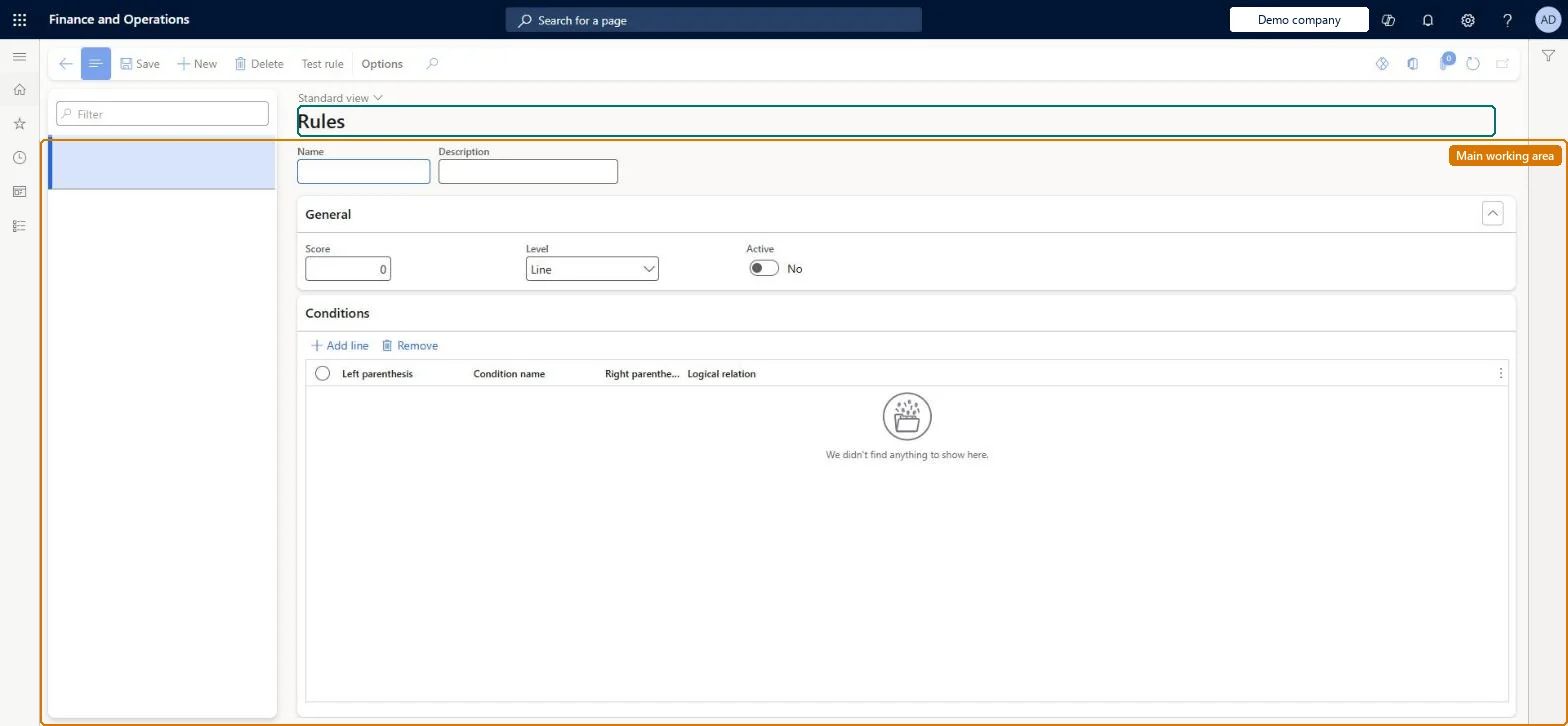
A setup page where you build fraud rules from variables and conditions, each rule carrying a score and using AND or OR logic, so that matching call center orders are put on hold for fraud review.
Retail and CommerceChannel setupCall center setupFraud
MCRFraudRules
Used by
Sales manager
Business process
Manage sales channels
Menu item
MCRFraudRules
Main table
MCRFraudRule
Setup steps
1 on this page
Show what matters for
PAGE GUIDEWhat the page does and how to use it8 sections. Choose a role to highlight what matters to you.
Everyone
1What it is and why
What it is
A setup page where you build fraud rules from variables and conditions, each rule carrying a score and using AND or OR logic, so that matching call center orders are put on hold for fraud review.
What you do here
Use this page to create and activate rule sets that evaluate several conditions on the order header and lines when an order is submitted; the rule's score contributes to the order's total fraud score, which is compared with the Minimum score in Call center parameters.
Example
For example, a rule can put on hold all orders from customers in a specific customer group who also ordered a specific product, using an AND condition.
The page in Dynamics 365. page title tab to open what to set or check
About the examples: Examples and screenshots in this guide use BEAT, a demo company in a Dynamics 365 test environment. Use your own company's codes and values instead of copying them.
Setup steps on this page
Set up Rules
Use this page to create and activate rule sets that evaluate several conditions on the order header and lines when an order is submitted; the rule's score contributes to the order's total fraud score, which is compared with the Minimum score in Call center parameters.
Steps from Microsoft
Go to Retail and Commerce > Channel setup > Call center setup > Fraud > Rules.
Select New and enter a name and description.
On the General FastTab, enter the fraud score and choose whether the rule applies to the whole order or to order lines.
Select Active.
On the Conditions FastTab, select New and pick a condition; repeat as needed.
A small number of simple active rules, tested for order submission time in a sandbox before going to productionEvery active rule is evaluated against the header and all lines when the user selects Submit. Microsoft says organizations should always confirm that processing time is acceptable before changing rules in production.
Reversible: Rules can be deactivated or edited. Only orders submitted afterwards are affected; held orders stay held until released on Order holds. Microsoft Learn
If you change it later
Adding many rules or complex rule statements slows order submission because every active rule is evaluated against the header and all lines; test before changing rules in production. Microsoft Learn
Technical architect
6Technical
Menu item
MCRFraudRulesChecked in Dynamics 365
Form
MCRFraudVarRuleChecked in Dynamics 365
Table
MCRFraudRuleShown as “FRAUD RULE SETUP” in Record infoKey field: RuleIdChecked in Dynamics 365
Who can open it
PrivilegesMaintain static fraud data MCRFraudRulesMaintainDutiesMaintain fraud setup MCRFraudMaintain1 security roleSales manager TradeSalesManagerChecked in Dynamics 365
Roles to set it up and use it
To set it up or change itSales manager TradeSalesManagerGive people one of these roles. On this system, 1 role can open this page.Checked in Dynamics 365
Actions on the page
(Action Pane without tabs): Test ruleChecked in Dynamics 365