Setup step on the Images page · Retail and Commerce
Set up Images
Use this page to upload and remove the images that button grids, Welcome screens, Transaction-screen tabs or logos, and visual profile sign-in and background settings refer to by image ID.
Retail operations manager, Retail service, Information technology manager
Business process
Manage sales channels
Menu item
RetailImages
Main table
RetailImages
Data entity
RetailImagesEntity
Setup steps
1 on this page
Show what matters for
SETUP GUIDEHow to set it up8 sections. Choose a role to highlight what matters to you.
Everyone
1What it is and why
What it is
A setup page holding the images, each with an image ID, that POS button grids, screen layouts and visual profiles reference.
What you do here
Use this page to upload and remove the images that button grids, Welcome screens, Transaction-screen tabs or logos, and visual profile sign-in and background settings refer to by image ID.
Example
For example, a store logo stored here is selected as the single Welcome-screen image of a Full layout and appears as the first element on the left.
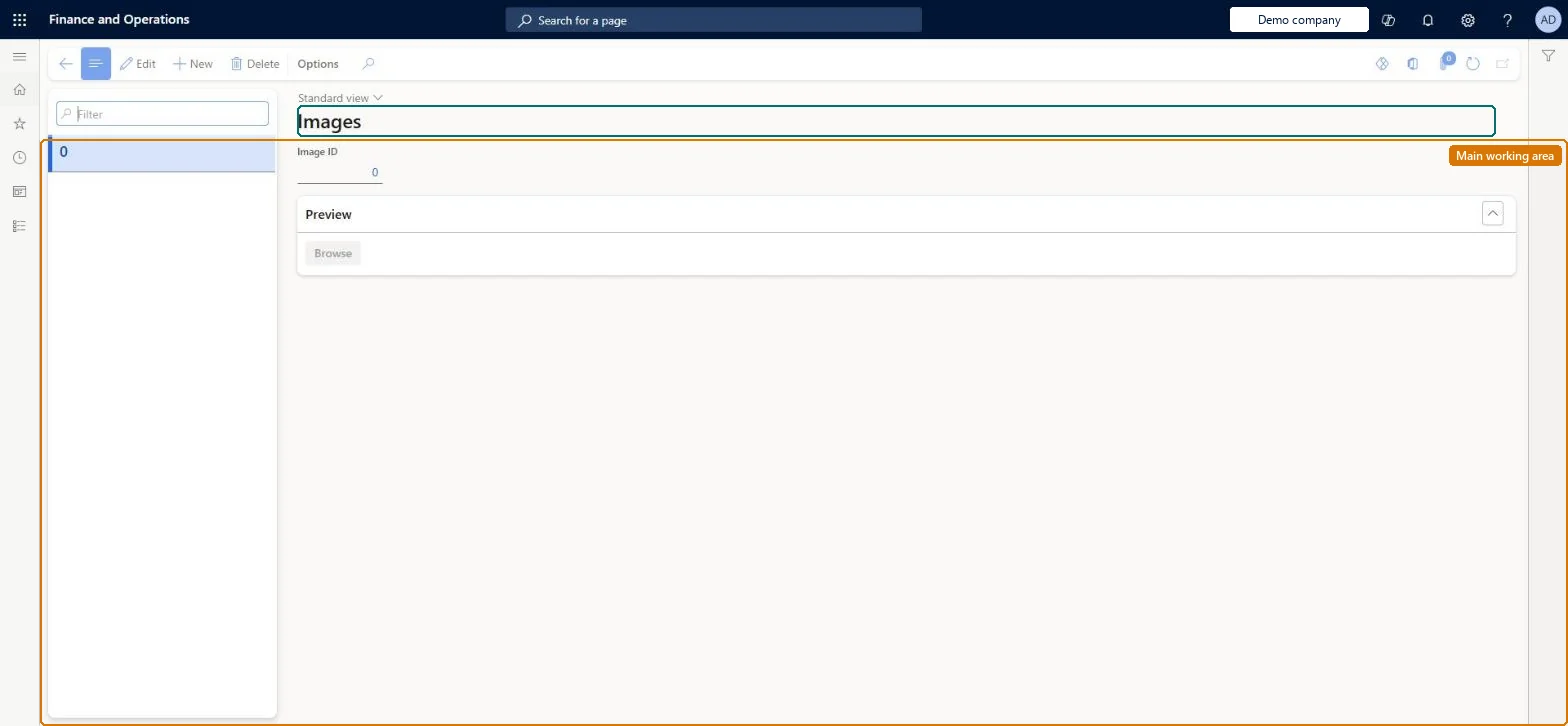
The page in Dynamics 365. page title tab to open what to set or check
About the examples: Examples and screenshots in this guide use BEAT, a demo company in a Dynamics 365 test environment. Use your own company's codes and values instead of copying them.
Setup steps on this page
Set up Images
Use this page to upload and remove the images that button grids, Welcome screens, Transaction-screen tabs or logos, and visual profile sign-in and background settings refer to by image ID.
Steps from Microsoft
Go to Retail and Commerce > Channel setup > POS setup > POS > Images.
Select the option to pick an image and choose a file; the image receives a unique ID and a preview is shown.
To delete an image, select its image ID and remove it.
Reference the image ID from a button grid, screen layout or visual profile.
Small image files, with transparent backgrounds for logosLearn advises keeping image files as small as possible because large files affect POS behaviour and performance, and a transparent background for logo images.
Uploading full-resolution photos as backgrounds or button images, which slows the POS.
Solution architect
5Design impact
Can it be undone
Reversible: Images can be replaced; the buttons and profiles that reference the image ID show the new image after distribution.
If you change it later
Large image files slow the POS, so keep file sizes small. Microsoft Learn
Technical architect
6Technical
Menu item
RetailImagesChecked in Dynamics 365
Form
RetailImagesChecked in Dynamics 365
Table
RetailImagesShown as “IMAGES” in Record infoChecked in Dynamics 365
PrivilegesMaintain retail POS images RetailPOSImagesMaintainMaintain retail POS till layout RetailPOSTillLayoutMaintianDutiesMaintain retail register reference data RetailTerminalReferenceDataMaintain3 security rolesRetail operations manager RetailOperationsManagerRetail service RetailServiceInformation technology manager SysServerITManagerChecked in Dynamics 365
Roles to set it up and use it
To set it up or change itRetail service RetailServiceRetail operations manager RetailOperationsManagerInformation technology manager SysServerITManagerGive people one of these roles. On this system, 3 roles can open this page.Checked in Dynamics 365