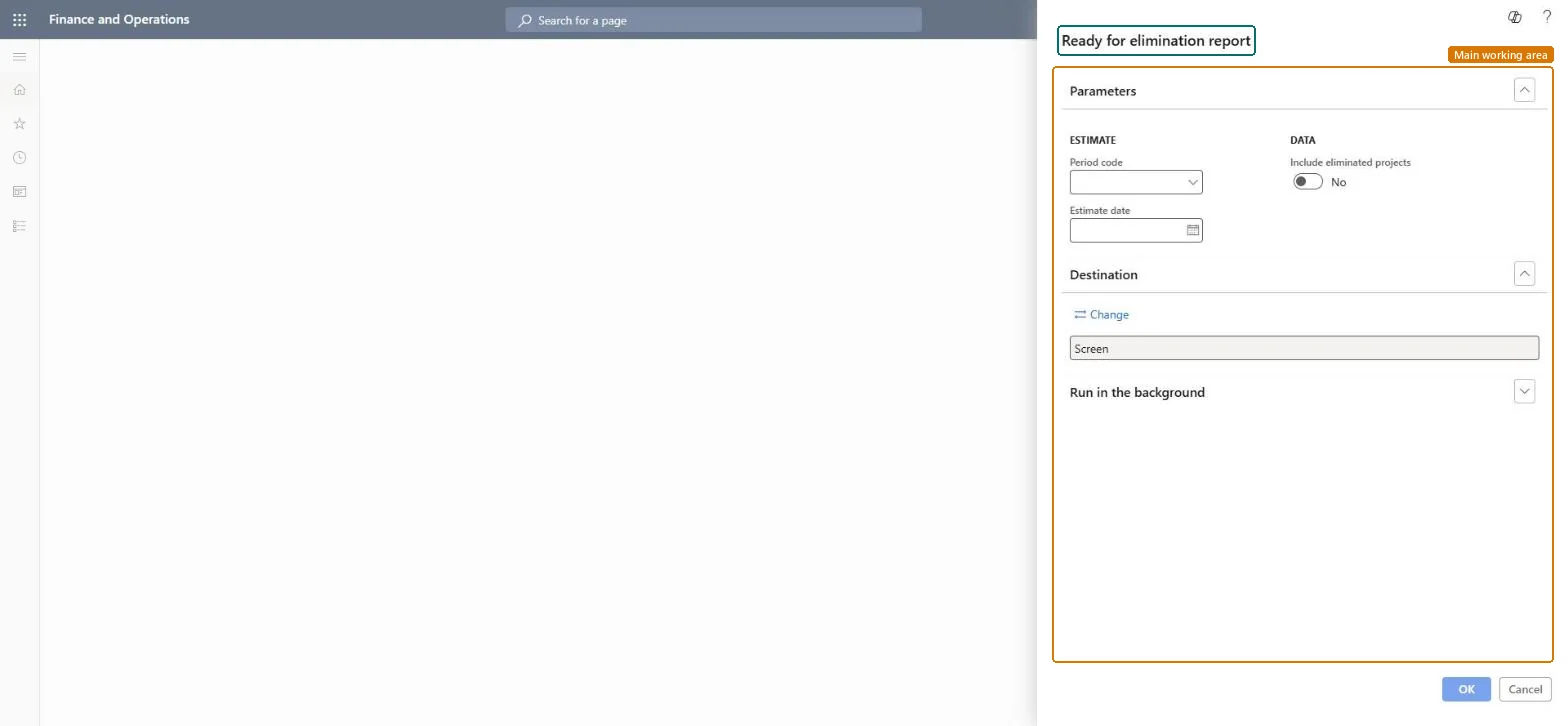
Set period code and estimate date for Ready for elimination report
Project management and accountingInquiries and reportsRevenue recognition inquiries and reports
output:ProjListEstimateReadyForElimination
Business process
Manage project financials
Menu item
output:ProjListEstimateReadyForElimination
Setup steps
1 on this page
Show what matters for
SETUP GUIDEHow to set it up8 sections. Choose a role to highlight what matters to you.
Everyone
1What it is and why
What it is
A report that lists the revenue recognition (estimate) projects of a period code that are candidates for elimination, with their transactions, for one estimate date.
What you do here
Use it before running Eliminate revenue recognition to see which completed fixed-price projects can be closed out.
Example
At the end of November 2026 BEAT's project accountant runs the report for period code MONTH and estimate date 2026-11-30: PRJ-0057 is at 100.00% complete with 85,000.00 in WIP, so it is eliminated; PRJ-0061 at 74.00% is left open.
The page in Dynamics 365. page title tab to open what to set or check
About the examples: Examples and screenshots in this guide use BEAT, a demo company in a Dynamics 365 test environment. Use your own company's codes and values instead of copying them.
When to run it
When to run it
At period end, before you run Eliminate on revenue recognition (estimate) projects, to see which completed projects are ready.
How often
On demand, at each period end when projects are closed out.
What the output shows
Transactions of revenue recognition projects that you might eliminate, for the period code and estimate date. A project that is missing usually isn't complete yet or has an estimate date in another period.
Set period code and estimate date for Ready for elimination report
Report on the right revenue recognition period.
Steps from Microsoft
Go to Project management and accounting > Inquiries and reports > Revenue recognition inquiries and reports > Ready for elimination report.
Choose the Period code of the revenue recognition projects to include.
Enter an Estimate date that belongs to that period code; a date outside the period code gives an empty report.
Turn on Include eliminated projects if you also want projects that are already eliminated, then run the report and pick the completed projects to eliminate.
The estimate date must belong to the chosen period code, and the project must be complete; check its percentage of completion and the last posted period. Microsoft Learn
Choose the period code of the projects and the estimate date of the last posted period, and leave Include eliminated projects off.Only a complete revenue project can be eliminated, and elimination works on the posted period at that estimate date.
Update labels for revenue recognition and related forms and processes in Project Operations (mandatory since version 10.0.36; it renamed Estimates to Revenue recognition in these menus)
Licence or add-in
On the live system, Project manager, Project supervisor and Accounting manager can run this page.
Per legal entity: the report reads only the project data of the company you are signed in to, so run it in each company you close. Checked in Dynamics 365
Can it be undone
Reversible: Running or rerunning the report changes no data.
If you change it later
The report lists candidates only. Elimination clears WIP to profit and loss for completed contract projects and removes accruals for completed percentage projects; a wrong elimination is undone with Reverse revenue recognition eliminations, after which the project is listed again. Microsoft Learn
Technical architect
6Technical
Menu item
output:ProjListEstimateReadyForEliminationChecked in Dynamics 365
Form
SysOperationTemplateFormChecked in Dynamics 365
Roles to set it up and use it
To use itProject manager ProjProjectManagerProject supervisor ProjProjectSupervisorAccounting manager LedgerAccountingManagerGive people one of these roles. On this system, 3 roles can run this page.Checked in Dynamics 365
Load order: Ready for elimination report has no data entity in Data management: the menu item ProjListEstimateReadyForElimination opens a report that only reads posted project data. There is nothing to migrate for the report itself; load the project data it reads, for example opening balances through Journals > Beginning balance, then run the report in the new system and compare its totals with the old one.Checked in Dynamics 365
Checked in a working Dynamics 365 system, version 10.0.49: the menu item, form, table and security, the page.
To cite this step: PM-RC-210, Set period code and estimate date for Ready for elimination report. Beyond ERP Atlas Hub, 2026-11-11. https://www.beyonderp.cloud/atlas/step/PM-RC-210