Filter the Revenue recognition inquiry on one period
Project management and accountingInquiries and reportsRevenue recognition inquiries and reports
ProjControlPeriodV2
Used by
Accounting manager, Project manager
Business process
Manage project financials
Menu item
ProjControlPeriodV2
Main table
ProjControlPeriodTable
Setup steps
1 on this page
Show what matters for
SETUP GUIDEHow to set it up8 sections. Choose a role to highlight what matters to you.
Everyone
1What it is and why
What it is
An inquiry page that lists the revenue recognition (estimate) records of fixed-price projects per period code and estimate date, and from which you calculate, post, reverse or eliminate them by hand.
What you do here
Use it to check one fixed-price project's revenue recognition and to act on a single project instead of running the periodic jobs for all.
Example
At the October 2026 close BEAT's project accountant filters period code MONTH and estimate date 2026-10-31: revenue project PRJ-0057 is Calculated at 62.50% complete, so she posts it, and its accrued revenue of 53,125.00 goes to the ledger.
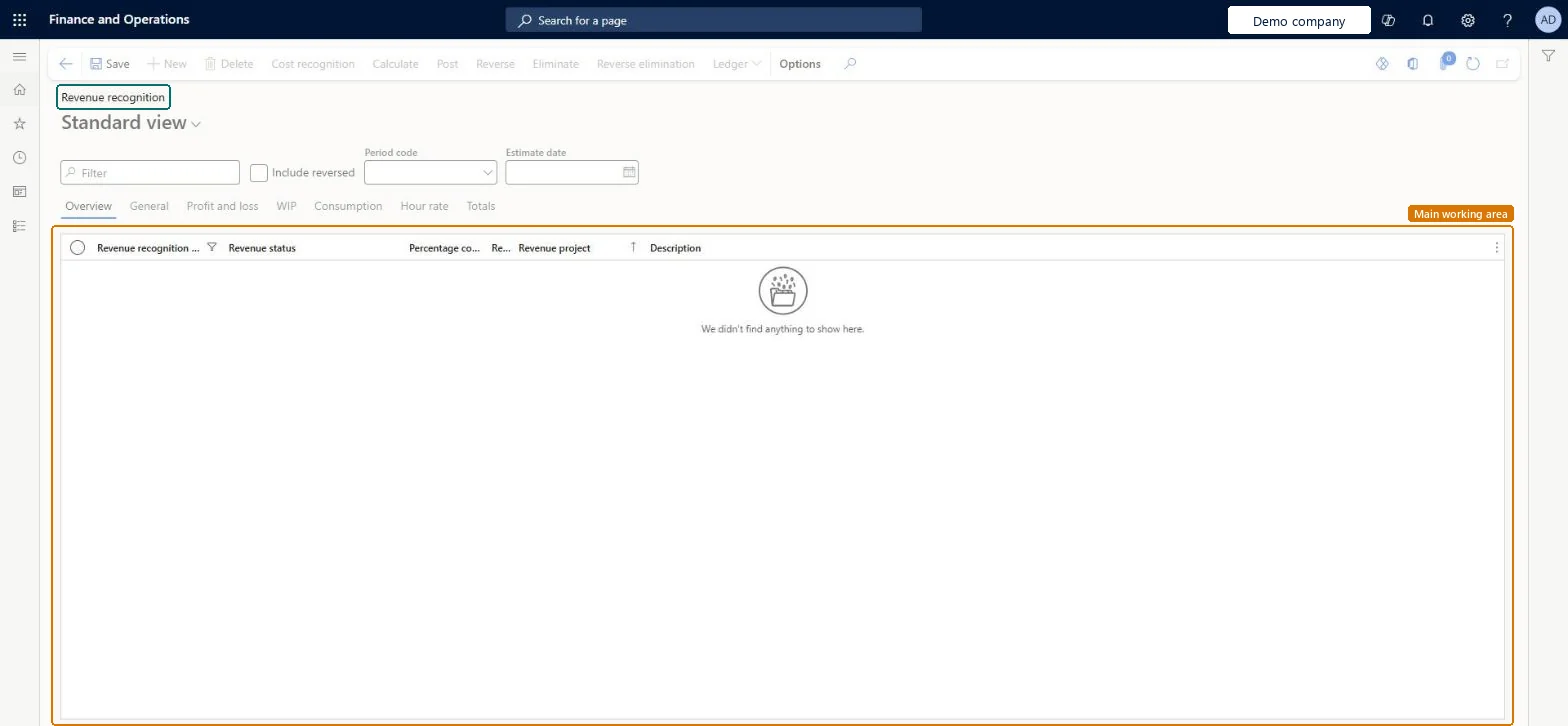
The page in Dynamics 365. page title tab to open what to set or check
About the examples: Examples and screenshots in this guide use BEAT, a demo company in a Dynamics 365 test environment. Use your own company's codes and values instead of copying them.
Setup steps on this page
Filter the Revenue recognition inquiry on one period
Work on the revenue recognition records of one period only.
Steps from Microsoft
Go to Project management and accounting > Inquiries and reports > Revenue recognition inquiries and reports > Revenue recognition inquiry.
Use the Filter box, the Include reversed check box, the Period code and the Estimate date to find the revenue recognition records you want.
Select a tab such as Overview, General, Profit and loss, WIP, Consumption, Hour rate or Totals to see that set of columns.
Select a record in the list.
On the Action Pane, choose the button you need: Cost recognition, Calculate, Post, Reverse, Eliminate or Reverse elimination.
Also show revenue recognition records that were reversed.Checked in Dynamics 365
No
Period code
Show the records of one period code, the period type the revenue recognition runs on.Checked in Dynamics 365
MONTH
Estimate date
Show the records with this estimate date, the end of the period being recognized.Checked in Dynamics 365
2026-10-31
Revenue status
Where the record is in the cycle: created, calculated, posted or eliminated.Microsoft Learn
Posted
Revenue project
The revenue recognition (estimate) project the record belongs to.Checked in Dynamics 365
PRJ-0057
Common errors and fixes
Message
What to do
Reverse is refused or later periods look wrong after a reversal in the middle.
Each period builds on the one before: reverse the later periods first, then the one you need, and post them again in order without skipping any. Microsoft Learn
Test checklist
Filter period code MONTH and estimate date 2026-10-31.
Select a fixed-price revenue project with status Calculated and select Post.
Refresh the list.
Check that the project now shows status Posted and that one record is listed for 2026-10-31.
Filter on the Period code and the Estimate date of the period you close, and leave Include reversed off.A fixed-price revenue project has one record per period; without the filter, records of older or reversed periods mix with the one you post.
Update labels for revenue recognition and related forms and processes in Project Operations (mandatory since version 10.0.36; it renamed Estimates to Revenue recognition in these menus)
Licence or add-in
On the live system, Accounting manager can run this page; Project manager can also maintain it.
Per legal entity: each company has its own revenue recognition records. Checked in Dynamics 365
Can it be undone
Reversible: Running or rerunning the report changes no data.
If you change it later
Posting moves WIP or accruals to the ledger and sets the status from Created to Posted. Each period builds on the one before, so to reverse a period in the middle you reverse the later periods too and post them again, without skipping any. Microsoft Learn
Technical architect
6Technical
Menu item
ProjControlPeriodV2Checked in Dynamics 365
Form
ProjControlPeriodTableChecked in Dynamics 365
Table
ProjControlPeriodTableShown as “Control periods” in Record infoKey field: PeriodId, PeriodTo, Version, PeriodStatus, ModelId, RecalculatedChecked in Dynamics 365
To set it up or change itProject manager ProjProjectManagerTo use itAccounting manager LedgerAccountingManagerGive people one of these roles. On this system, 2 roles can open this page.Checked in Dynamics 365
Actions on the page
Options: Personalize, Page options, Edit, ShareChecked in Dynamics 365
Load order: Revenue recognition inquiry has no data entity in Data management: no entity is built on table ProjControlPeriodTable, and the revenue recognition business process lists no Data management entity for these steps. Create the records in the new system instead: run Create revenue recognition, Calculate revenue recognition and Post revenue recognition for the open fixed-price projects.Load first: Project cost and revenue profiles, Period types, Cost templatesMicrosoft Learn
Checked in a working Dynamics 365 system, version 10.0.49: the menu item, form, table and security, the page.
To cite this step: PM-RC-200, Filter the Revenue recognition inquiry on one period. Beyond ERP Atlas Hub, 2026-11-11. https://www.beyonderp.cloud/atlas/step/PM-RC-200