BeyondERP.Newsletter
Menu

Job page · Project management and accounting

Reverse revenue recognition eliminations

A periodic job, titled Reverse elimination, that reverses all eliminations with a given date and the status Eliminated.

Business process
Manage project financials
Menu item
action:ProjControlPeriodPeriodicEliminateRevV2
Setup steps
1 on this page
Show what matters for
PAGE GUIDEWhat the page does and how to use it8 sections. Choose a role to highlight what matters to you.
Everyone

1What it is and why

What it isA periodic job, titled Reverse elimination, that reverses all eliminations with a given date and the status Eliminated.
What you do hereUse it to undo an elimination that was run by mistake or too early. Finished projects go back to In process and the period status returns to Posted.
ExampleBEAT eliminated PRJ-0031 on 09/30/2026, but a 3,200.00 subcontractor invoice arrives on 10/12/2026. The project accountant reverses the eliminations dated 09/30/2026, posts the invoice, and eliminates again.
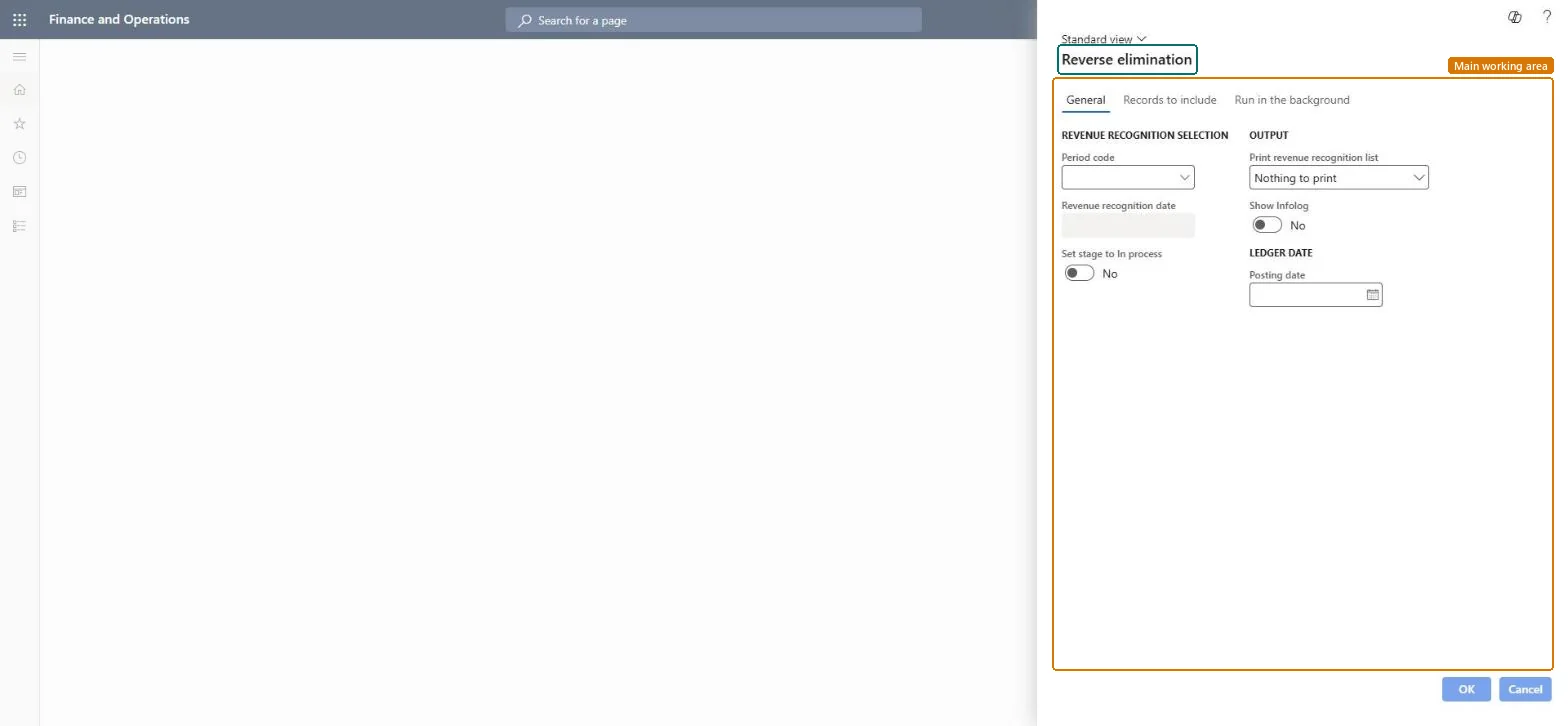
Reverse revenue recognition eliminations page in Dynamics 365
The page in Dynamics 365. page title tab to open what to set or check
Functional consultant · Solution architect

2Where it fits

Business processManage project financials
Menu pathProject management and accounting › Periodic › Revenue recognition › Reverse revenue recognition eliminations
Set up firstEliminate revenue recognition Microsoft Learn
Used next byEliminate revenue recognition (again, when complete) Microsoft Learn
Related pagesRevenue recognition inquiry Microsoft Learn
End user · Functional consultant

3How to do it

About the examples: Examples and screenshots in this guide use BEAT, a demo company in a Dynamics 365 test environment. Use your own company's codes and values instead of copying them.

When to run it

When to run itWhen an elimination was run by mistake or before the last costs were posted.
How oftenOn demand.
Batch settingsRun interactively for the affected date.
What the output showsReversed elimination postings, period status back to Posted and finished projects back to In process.

Source: Microsoft Learn

Setup steps on this page

Undo a premature elimination

Reopen a project eliminated too early.

Steps from Microsoft

  1. Go to Project management and accounting > Periodic > Revenue recognition > Reverse revenue recognition eliminations.
  2. Choose the Period code and the date of the elimination to undo; every elimination with that date is reversed, so filter on the project if only one is wrong.
  3. Turn on Set stage to In process so finished projects can take transactions again.
  4. Enter the Posting date and run the job.
  5. Check that the period status is Posted again and the project stage is In process.

Source: Microsoft Learn

Fields on the page

FieldWhat it meansExample
Period codeThe period code of the eliminations to reverse.Checked in Dynamics 365
Revenue recognition dateThe elimination date; all eliminations with this date are reversed.Checked in Dynamics 36509/30/2026
Set stage to In processWhen on, projects set to Finished become active again.Checked in Dynamics 365Yes
Posting dateThe ledger date of the reversal.Checked in Dynamics 36510/12/2026

Common errors and fixes

MessageWhat to do
Other projects were also un-eliminated.All eliminations with the date are reversed; filter on the project in Records to include before running. Microsoft Learn

Test checklist

  1. Reverse eliminations dated 09/30/2026 for PRJ-0031.
  2. Period status is Posted.
  3. Project stage is In process.
  4. Post the 3,200.00 invoice on PRJ-0031 successfully.

Source: Microsoft Learn

Functional consultant

4Setup decisions

Setup stepRecommended value and whyDecision, common mistake and test
Undo a premature eliminationFilter on the affected project and reverse with Set stage to In process on.Every elimination with the date is reversed unless filtered.Reopen the project or post the late cost elsewhere?Reversing all eliminations of the date for one late invoice.Test: Reverse one elimination

Feature management and licence

Licence or add-inOn the live system, Project manager uses this page.

Checked in Dynamics 365

Solution architect

5Design impact

Shared or per companyPer company: it reverses eliminations of the legal entity you run it in. Microsoft data model
Can it be undoneYes, by eliminating again: Run Eliminate revenue recognition again when the project is really complete. Microsoft Learn
If you change it laterThe project status returns to In process if its stage was Finished, and the period status returns to Posted. Microsoft Learn
Technical architect

6Technical

Menu itemaction:ProjControlPeriodPeriodicEliminateRevV2 Checked in Dynamics 365
FormProjControlPeriod_EliminateRev Checked in Dynamics 365
Roles to set it up and use itTo use itProject manager ProjProjectManagerGive people one of these roles. On this system, 1 role can run this page.Checked in Dynamics 365
Developer

7Developer

Open it by URLhttps://<your-environment>/?mi=action:ProjControlPeriodPeriodicEliminateRevV2
Data migrationLoad order: Reverse revenue recognition eliminations has no data entity in Data management, and the revenue recognition period table (ProjControlPeriodTable) has none either. Migrate WIP and accrual balances, then create revenue recognition in the target system from the first open period.Microsoft data model
Everyone

8Sources