BeyondERP.Newsletter
Menu

Setup step on the My grants page · Project management and accounting

Follow your grants by status and amount

See awarded money and spending.

Used by
Accountant, Project manager, Project supervisor
Business process
Manage project contracts
Menu item
ProjGrantListPage_MyGrant
Main table
ProjGrant
Data entity
ProjGrantEntity
Setup steps
1 on this page
Show what matters for
SETUP GUIDEHow to set it up8 sections. Choose a role to highlight what matters to you.
Everyone

1What it is and why

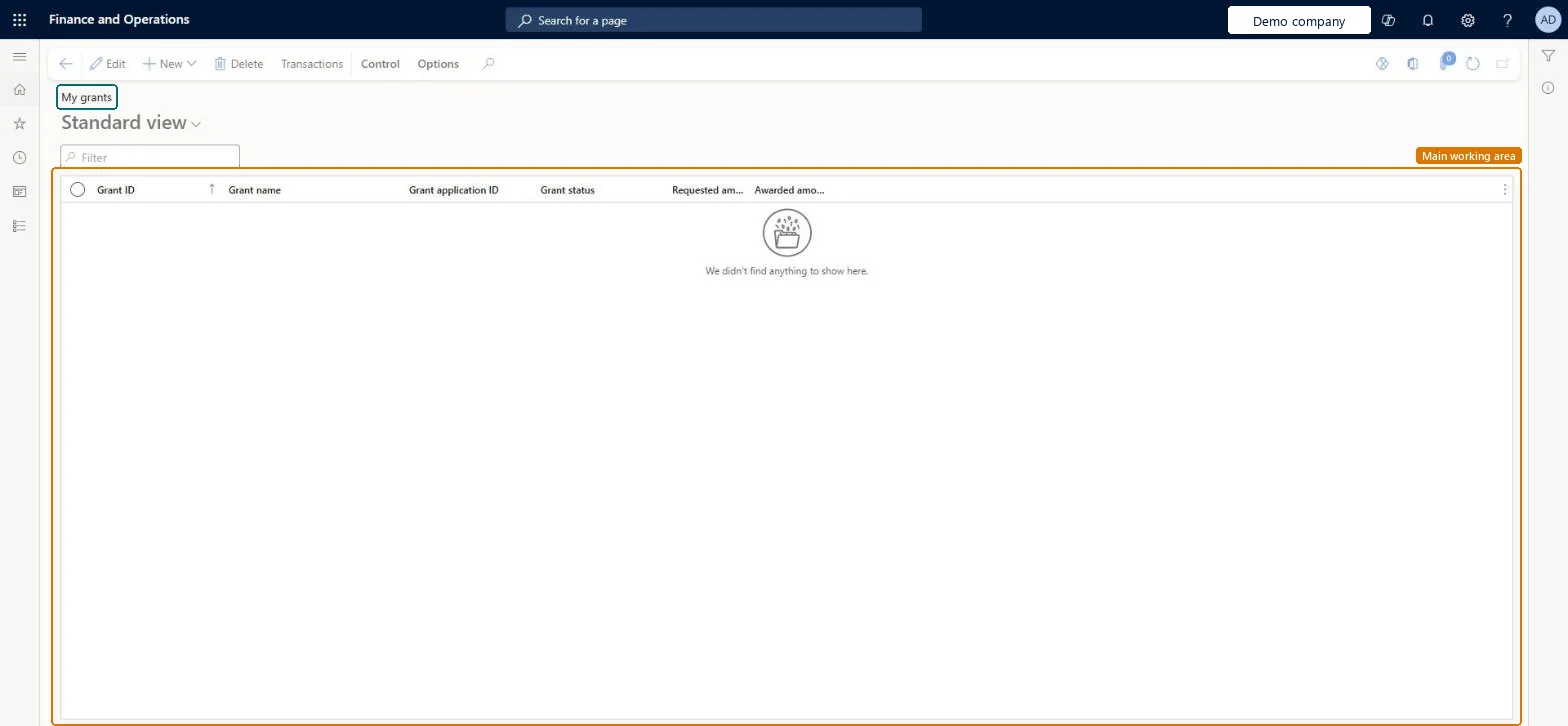
What it isYour own grants: the grant list opened through its own menu item for the grant manager, with each grant's application ID, status, requested amount and awarded amount.
What you do hereUse it to follow the grants you manage, compare requested with awarded amounts and open each grant's transactions.
ExampleFor example, BEAT's grant manager sees that GR-2026-03 was awarded 230,000.00 against 250,000.00 requested, and opens its transactions to check spending of 41,300.00 so far.
My grants page in Dynamics 365
The page in Dynamics 365. page title tab to open what to set or check
Functional consultant · Solution architect

2Where it fits

Business processManage project contracts
Menu pathProject management and accounting › Grants › My grants
Set up firstGrants Microsoft Learn
Used next byGrant transactions Microsoft Learn
Related pagesProject contracts Microsoft Learn
In this process Track grants through status before linking projects · Report grant spending with the right filters
End user · Functional consultant

3How to do it

About the examples: Examples and screenshots in this guide use BEAT, a demo company in a Dynamics 365 test environment. Use your own company's codes and values instead of copying them.

Setup steps on this page

Follow your grants by status and amount

See awarded money and spending.

Steps from Microsoft

  1. Go to Project management and accounting > Grants > My grants.
  2. Filter Grant status on Awarded to see the grants that fund work.
  3. Compare the Requested amount and Awarded amount columns.
  4. Select Edit to update a grant's dates and deadlines after the funder's decision.
  5. Select Transactions to open the grant's transactions and check the spending.

Source: Microsoft Learn

Fields on the page

FieldWhat it meansExample
Grant application IDThe funder's reference for the application.Checked in Dynamics 365APP-55120
Requested amountThe amount you applied for.Microsoft Learn 250,000.00
Awarded amountThe amount the funder awarded.Microsoft Learn 230,000.00
Grant statusThe stage of the grant; links to projects need Active or Awarded.Microsoft Learn Awarded

Common errors and fixes

MessageWhat to do
A grant you manage isn't listed.Check the status filter; the full list of grants is on Grants > Grants. Microsoft Learn

Test checklist

  1. Create a grant by using New > Copy from grant and give it a new ID and name.
  2. Check the copied details and update the requested amount.
  3. Set the status to Active and link a project.

Source: Microsoft Learn

Functional consultant

4Setup decisions

Setup stepRecommended value and whyDecision, common mistake and test
Follow your grants by status and amountFilter on Grant status Awarded and compare awarded with requested amounts.Requested amounts of grants not yet awarded aren't money you can spend.Which amount drives project budgets?Adding requested amounts into the funding total: only awarded grants fund projects.Test: Awarded grants only

Feature management and licence

Licence or add-inOn the live system, Project manager, Project supervisor and Accountant use this page.

Checked in Dynamics 365

Solution architect

5Design impact

Shared or per companyPer company: each legal entity has its own records. Microsoft data model
Can it be undoneReversible: Reversible: reading changes no data.
If you change it laterThese are the same grant records as on Grants; a status change here controls whether projects and contracts can be linked. Microsoft Learn
Technical architect

6Technical

Menu itemProjGrantListPage_MyGrant Checked in Dynamics 365
FormProjGrant Checked in Dynamics 365
TableProjGrantShown as “Grant” in Record infoChecked in Dynamics 365
Data entitiesProjGrantEntityProject grants Microsoft data model ProjGrantV2EntityProject grants V2 Microsoft data model
Who can open itPrivilegesMaintain grants ProjGrantMaintainView grants ProjGrantViewDutiesInquire into grant master ProjGrantMasterInquireInquireMaintain grant master ProjGrantMasterMaintain
3 security rolesAccountant LedgerAccountantProject manager ProjProjectManagerProject supervisor ProjProjectSupervisor
Checked in Dynamics 365
Roles to set it up and use itTo set it up or change itProject manager ProjProjectManagerTo use itProject supervisor ProjProjectSupervisorAccountant LedgerAccountantGive people one of these roles. On this system, 3 roles can open this page.Checked in Dynamics 365
Actions on the pageControl: Statements, Control, UtilizationOptions: Personalize, Page options, ShareChecked in Dynamics 365
Developer

7Developer

Open it by URLhttps://<your-environment>/?mi=ProjGrantListPage_MyGrant
Integrate withProjGrantEntity data entity Microsoft data model
Data migrationProjGrantV2Entity (Project grants V2): loaded for each company.Load order: Same records as Grants: load grant types and matching types first, then grants.Load first: Grant types, Matching typesMicrosoft Learn
Table definitionProjGrant columns and relations Microsoft data model
Everyone

8Sources

To cite this step: PM-OPS-350, Follow your grants by status and amount. Beyond ERP Atlas Hub, 2026-11-11. https://www.beyonderp.cloud/atlas/step/PM-OPS-350