Track grants through status before linking projects
Project management and accountingGrants
ProjGrantListPage
Used by
Accountant, Project manager, Project supervisor
Business process
Manage project contracts
Menu item
ProjGrantListPage
Main table
ProjGrant
Data entity
ProjGrantEntity
Setup steps
1 on this page
Show what matters for
SETUP GUIDEHow to set it up8 sections. Choose a role to highlight what matters to you.
Everyone
1What it is and why
What it is
The list of grants: gifts of money for a specific purpose that you track through their status and link to projects, project contracts and funding sources.
What you do here
Use it to record a grant, follow it from application to award, and track its requested and awarded amounts and the projects it funds.
Example
For example, BEAT applies for grant GR-2026-03 of 250,000.00 for a training programme, requiring a 20.00 percent match from its own funds; once the status is Awarded it adds the funding source and links project PRJ-0070.
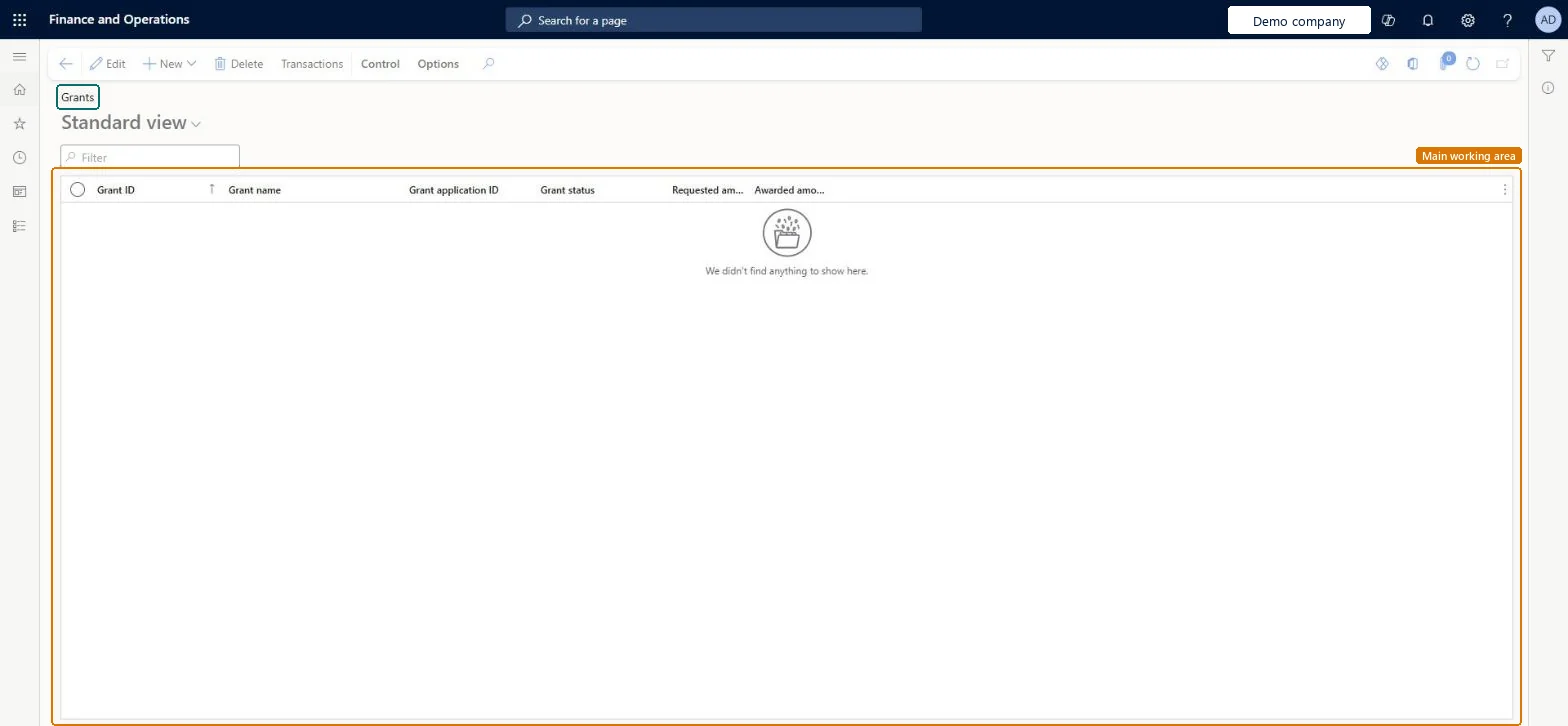
The page in Dynamics 365. page title tab to open what to set or check
About the examples: Examples and screenshots in this guide use BEAT, a demo company in a Dynamics 365 test environment. Use your own company's codes and values instead of copying them.
Setup steps on this page
Track grants through status before linking projects
Link only awarded money to projects.
Steps from Microsoft
Go to Project management and accounting > Grants > Grants.
Select New > Grant, or New > Copy from grant to start from an existing grant.
On the General FastTab, enter the grant ID, grant name, description and amount.
Fill in Contact information, Dates and deadlines, Setup for matching funds and Drawdown details as needed.
When the grant status is Active or Awarded, on Associated projects and project contracts select Add funding source, Add project contract and Add project.
Record the grant at application and move its status to Active or Awarded only when the funder confirms; then link the funding source, contract and project.Projects and contracts can be linked only while the grant is Active or Awarded, so the status controls when the money can fund work.
PrivilegesMaintain grants ProjGrantMaintainView grants ProjGrantViewDutiesInquire into grant master ProjGrantMasterInquireInquireMaintain grant master ProjGrantMasterMaintain3 security rolesAccountant LedgerAccountantProject manager ProjProjectManagerProject supervisor ProjProjectSupervisorChecked in Dynamics 365
Roles to set it up and use it
To set it up or change itProject manager ProjProjectManagerTo use itProject supervisor ProjProjectSupervisorAccountant LedgerAccountantGive people one of these roles. On this system, 3 roles can open this page.Checked in Dynamics 365
ProjGrantV2Entity (Project grants V2): loaded for each company.Load order: Load grant types, grantor types and matching types first, then grants, then link projects and contracts once the grants are Active or Awarded.Load first: Grant types (ProjGrantTypeV2Entity), Grant customer types (ProjProjectGrantCustomerTypeEntity), Matching types (ProjGrantMatchingEntity)Microsoft Learn
Checked in a working Dynamics 365 system, version 10.0.49: the menu item, form, table and security, the page.
To cite this step: PM-OPS-340, Track grants through status before linking projects. Beyond ERP Atlas Hub, 2026-11-11. https://www.beyonderp.cloud/atlas/step/PM-OPS-340