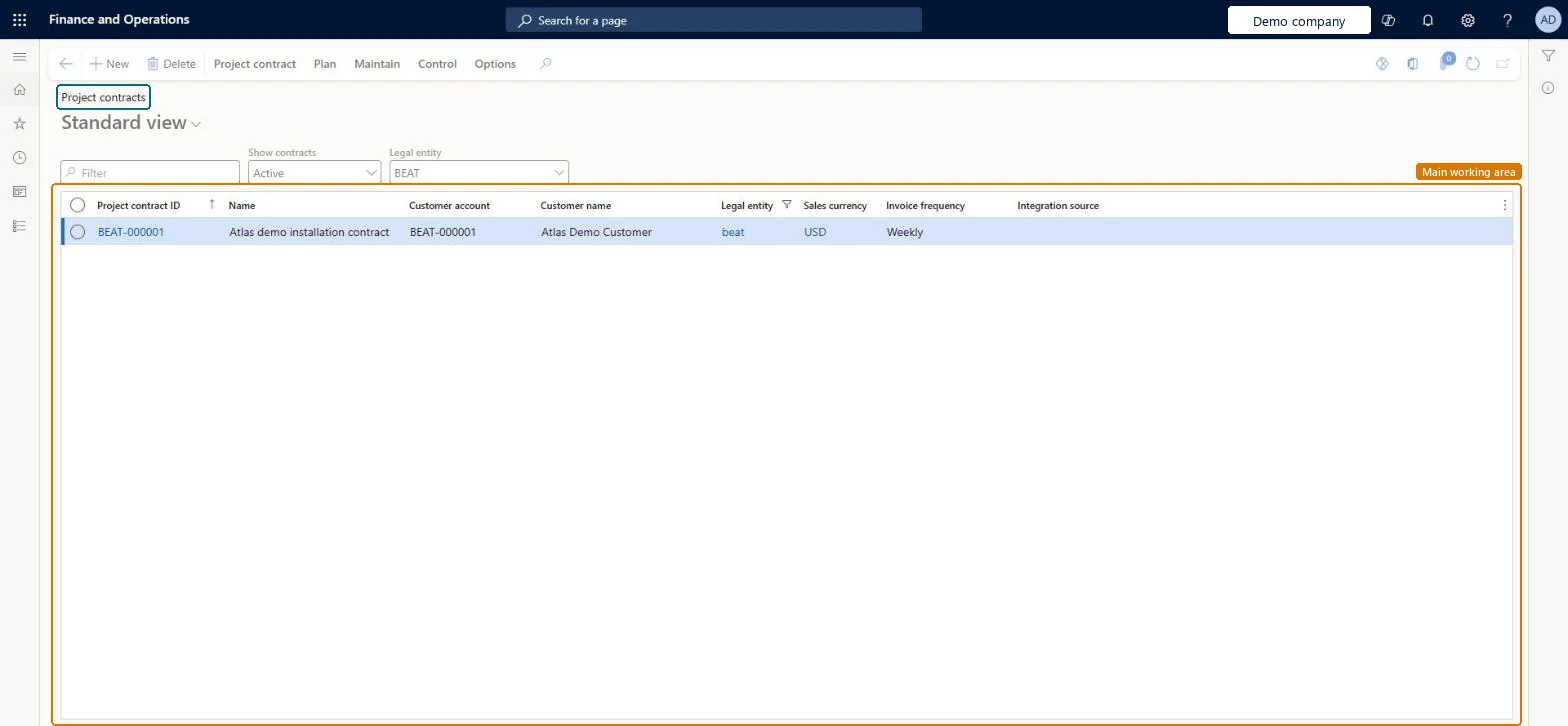
The list of project contracts: the agreement with the customer or other funder that holds the funding sources, funding rules, limits and billing rules for the projects attached to it.
PAGE GUIDEWhat the page does and how to use it8 sections. Choose a role to highlight what matters to you.
Everyone
1What it is and why
What it is
The list of project contracts: the agreement with the customer or other funder that holds the funding sources, funding rules, limits and billing rules for the projects attached to it.
What you do here
Use it to set up who pays for a project and how much, before the project is created and invoiced.
Example
For example, BEAT's contract PC-0017 for a bridge project has two funding sources, a government grant and a private company, with a funding rule that splits all transactions 60.00 and 40.00 percent and a limit of 250,000.00 on the grant.
The page in Dynamics 365. page title tab to open what to set or check
About the examples: Examples and screenshots in this guide use BEAT, a demo company in a Dynamics 365 test environment. Use your own company's codes and values instead of copying them.
Setup steps on this page
Set up the contract's funding before the project
Decide the funding sources, rules and limits on the contract first.
Steps from Microsoft
Go to Project management and accounting > Projects > Project contracts.
Select New and enter the contract name and the funding source that pays.
On the contract, add any further funding sources, such as a grant or a second customer.
Set the funding rules that split the charges and any funding limits per funding source.
Add billing rules if the contract is invoiced on milestones or progress.
Create the project on All projects and select this contract in the Project contract field.
The customers, organizations or grants that pay for the project; each can be linked to funding rules.Microsoft Learn
Customer C-1001 and grant GR-2026-03
Funding rules
Set how charges are split between the funding sources.Microsoft Learn
All transactions 60.00 / 40.00
Funding limits
Cap how much a funding source can be invoiced for the project.Microsoft Learn
250,000.00
Billing rules
Set how and when the customer is invoiced, based on the contract terms.Microsoft Learn
Progress at 25.00 percent
Retention percentage
The share held back from customer invoices until the project reaches an agreed stage.Microsoft Learn
5.00
Common errors and fixes
Message
What to do
Filter criteria are required for updating amounts. Provide a value or range and try again.
When you run Recalculate spending limits with Update spent amounts set to Yes, filter on one contract, a list of contracts or a range first. Microsoft Learn
Test checklist
Create a contract with two funding sources and a funding rule that splits All transactions 50/50.
Add a funding limit for one funding source.
Post an hour transaction to a linked project and check the transaction is split between the two funding sources.
Post enough to pass the limit and check the remainder goes to the next rule.
On the Funding limits tab check the Committed amount and Spent amount fields update.
Create the contract with every funding source and a funding rule before you attach projects, and add funding limits where a funder caps its share.Contract settings apply to every project and subproject linked to the contract, and the rules decide who is invoiced for each transaction.
Hard to reverse: Contract settings apply to every project and subproject linked to the contract, so a change reaches all of them. Funding limit spent amounts that drift can be checked and corrected with Recalculate spending limits once Enable recalculation of funding limits is turned on in the parameters. Microsoft Learn
If you change it later
Contract settings apply to every project and subproject linked to the contract. Microsoft Learn
Technical architect
6Technical
Menu item
ProjProjectContractsListPageChecked in Dynamics 365
Form
ProjProjectContractsListPageChecked in Dynamics 365
Table
ProjInvoiceTableShown as “Project contracts” in Record infoKey field: ProjInvoiceProjId, DescriptionChecked in Dynamics 365
To set it up or change itProject manager ProjProjectManagerTo use itProject supervisor ProjProjectSupervisorProject accountant ProjProjectAccountantGive people one of these roles. On this system, 3 roles can open this page.Checked in Dynamics 365
Actions on the page
Project contract: Maintain, Set up, Cost prices, Sales prices, Related informationPlan: Forecast, Maintain forecastMaintain: New, Process, Bill, Related informationControl: Statements, Control, Utilization, RetentionOptions: Personalize, Page options, ShareChecked in Dynamics 365
ProjContractEntity (Project contract): loaded for each company, in Microsoft's default template 650 - Project accounting.ProjProjectContractHeaderEntity (Project contract headers): loaded for each company.Load order: Microsoft's default template 650 - Project accounting loads Project contract at execution unit 1, level 650, sequence 10. Lower levels load first, and entities at the same level load in sequence order.Load first: the default templates at lower levels (System setup to Expense management)Microsoft Learn