SETUP GUIDEHow to set it up8 sections. Choose a role to highlight what matters to you.
Everyone
1What it is and why
What it is
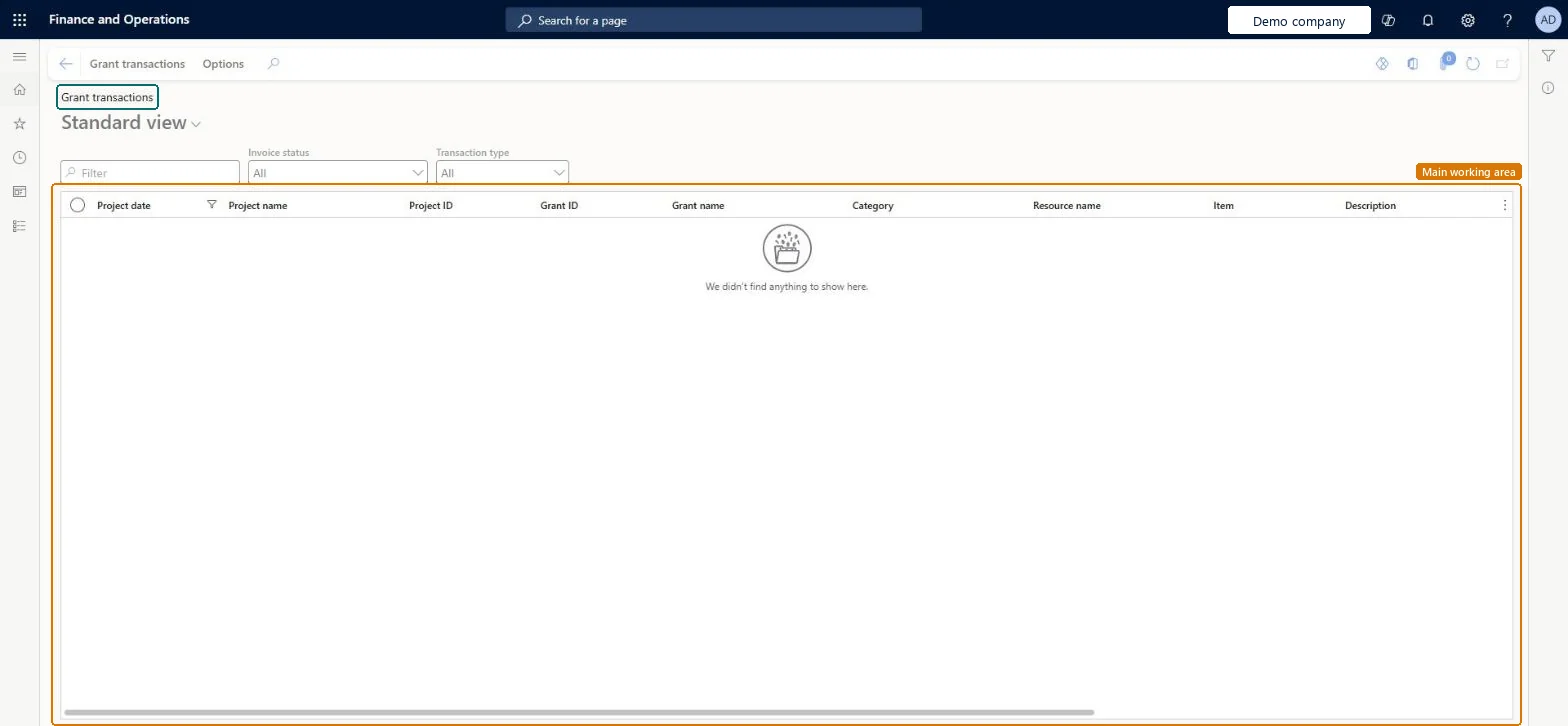
The list of posted project transactions charged to grants, with project date, project, grant, category, resource and item, filtered by invoice status and transaction type.
What you do here
Use it to see what has been spent against each grant and what has been billed to the funder, for grant reporting and drawdowns.
Example
For example, for the quarterly report on GR-2026-03 BEAT's grant manager sets Transaction type to Hour and Invoice status to Invoiced and finds 342.00 hours billed, then checks the expense transactions of 6,800.00 still to bill.
The page in Dynamics 365. page title tab to open what to set or check
About the examples: Examples and screenshots in this guide use BEAT, a demo company in a Dynamics 365 test environment. Use your own company's codes and values instead of copying them.
Setup steps on this page
Report grant spending with the right filters
Give funders correct figures.
Steps from Microsoft
Go to Project management and accounting > Grants > Grant transactions.
In the Invoice status field, choose which transactions to show.
In the Transaction type field, choose which transactions to show.
Filter on the grant and the reporting period.
Use the totals for the grant report, then bill the uninvoiced amounts through a project invoice proposal.
The project category of the transaction.Checked in Dynamics 365
HOURS
Common errors and fixes
Message
What to do
Hours posted to a grant-funded project don't appear for the grant.
Check the project is linked to the grant, which needs the grant status Active or Awarded, and that the Invoice status filter includes the transaction. Microsoft Learn
Test checklist
Post 8.00 hours on a project linked to an awarded grant.
Open Grant transactions, set Transaction type to Hour.
Set Transaction type and Invoice status before reading totals, and filter on one grant and period.The filters decide whether you see spending, billed amounts or both.
PrivilegesMaintain grants ProjGrantMaintainView grants ProjGrantViewDutiesInquire into grant master ProjGrantMasterInquireInquireMaintain grant master ProjGrantMasterMaintain3 security rolesAccountant LedgerAccountantProject manager ProjProjectManagerProject supervisor ProjProjectSupervisorChecked in Dynamics 365
Roles to set it up and use it
To set it up or change itProject manager ProjProjectManagerTo use itProject supervisor ProjProjectSupervisorAccountant LedgerAccountantGive people one of these roles. On this system, 3 roles can open this page.Checked in Dynamics 365
Actions on the page
Grant transactions: Process, Maintain, Related informationOptions: Personalize, Page options, ShareChecked in Dynamics 365
ProjPostTransViewEntity (Project posted transactions): per company, transaction category.Load order: Posted transactions aren't loaded through this view; grant-funded opening balances go through the Beginning balance journal.Load first: Grants, ProjectsMicrosoft Learn
Checked in a working Dynamics 365 system, version 10.0.49: the menu item, form, table and security, the page.
To cite this step: PM-OPS-360, Report grant spending with the right filters. Beyond ERP Atlas Hub, 2026-11-11. https://www.beyonderp.cloud/atlas/step/PM-OPS-360