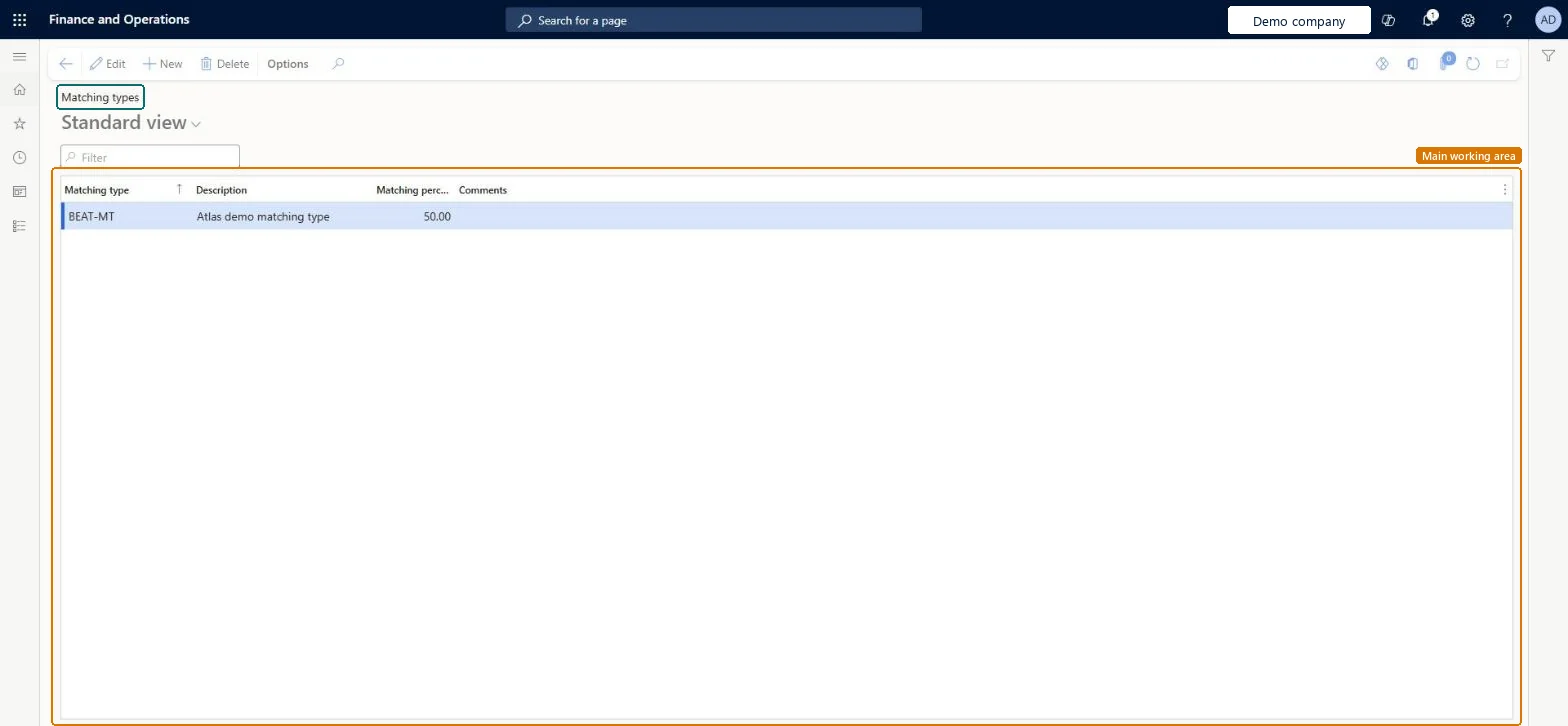
A setup page where you create matching types: the share of a grant that your organization must fund itself (cost share), with a matching percentage and comments.
PAGE GUIDEWhat the page does and how to use it8 sections. Choose a role to highlight what matters to you.
Everyone
1What it is and why
What it is
A setup page where you create matching types: the share of a grant that your organization must fund itself (cost share), with a matching percentage and comments.
What you do here
Use this page to record the matching requirements that grants can carry, so that the matching share is visible on each grant.
Example
For example, BEAT creates the matching type COSTSHARE-25 with a 25.00 percent matching percentage for grant GR-0007, so on 450,000.00 of grant funding BEAT plans 112,500.00 of its own funds.
The page in Dynamics 365. page title tab to open what to set or check
About the examples: Examples and screenshots in this guide use BEAT, a demo company in a Dynamics 365 test environment. Use your own company's codes and values instead of copying them.
Step by step, with screenshots
Set up Matching types1 screen
Screen 1
Create a grant matching type
Go to Project management and accounting > Setup > Grants > Matching types
Select New
Enter the matching type and description
Enter the matching percentage
Select Save
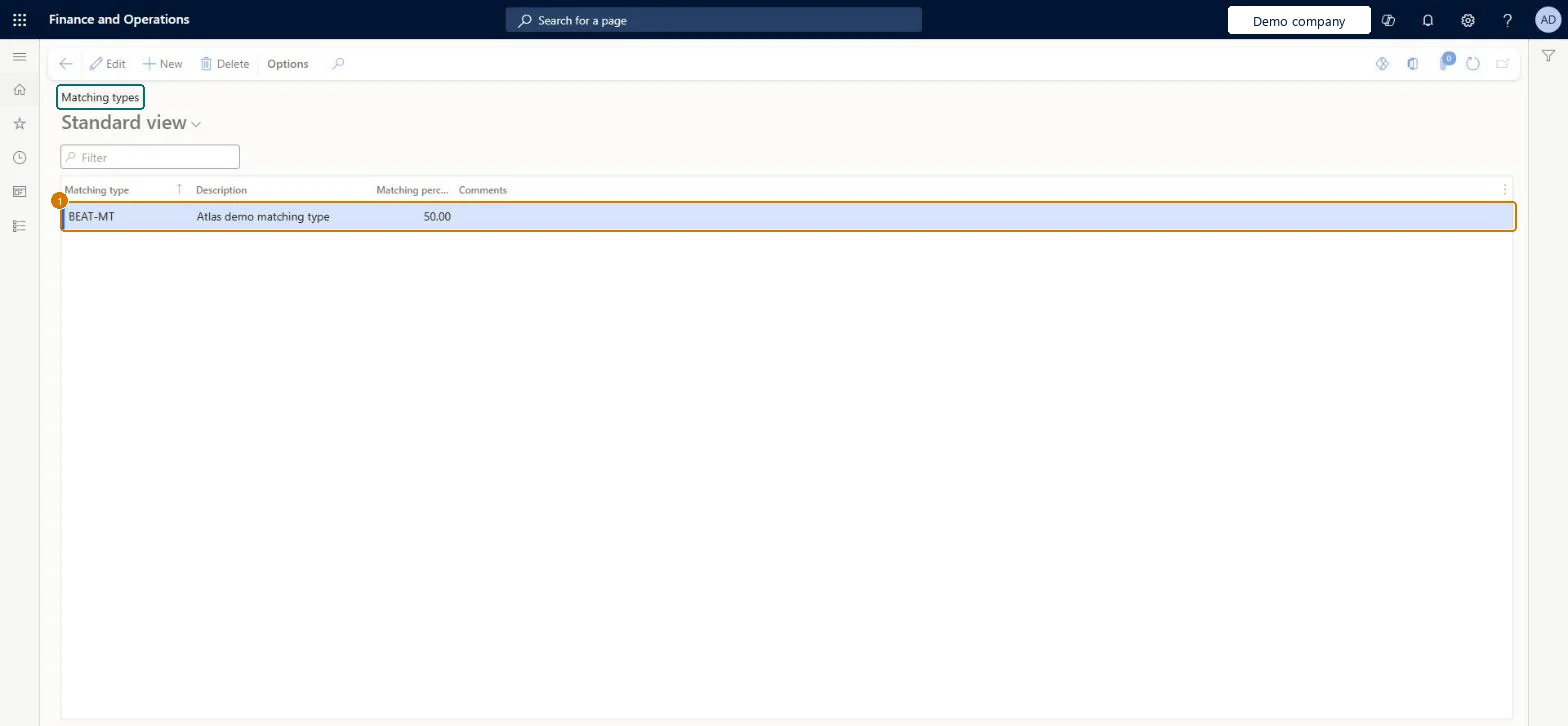
1Matching type
BEAT-MT
Description
Matching type
Matching percentage
50.00
Show the full screen page title tab to open what to set or check
Steps from Microsoft
Go to Project management and accounting > Setup > Grants > Matching types.
Select New and enter the Matching type and a Description.
Enter the Matching percentage and any Comments on the terms.
Select the matching type on the grant that carries the requirement.
One matching type per cost-share percentage your grants use, with the grantor's terms in CommentsThe matching percentage shows on each grant how much of the cost the organization must fund, which grant managers report to the grantor.
Reversible: Matching types can be changed at any time; no transactions depend on them. Microsoft data model
If you change it later
The matching type records the share the organization must fund on grants that use it; changing the percentage changes what later grants show, not posted transactions. Microsoft data model
Technical architect
6Technical
Menu item
ProjGrantMatchingChecked in Dynamics 365
Form
ProjGrantMatchingChecked in Dynamics 365
Table
ProjGrantMatchingShown as “Project grant matching” in Record infoChecked in Dynamics 365
To set it up or change itProject supervisor ProjProjectSupervisorGive people one of these roles. On this system, 1 role can open this page.Checked in Dynamics 365
Actions on the page
Options: Personalize, Page options, ShareChecked in Dynamics 365
ProjGrantMatchingEntity (Project grant matching): loaded for each company, in Microsoft's default template 650 - Project accounting.Load order: Microsoft's default template 650 - Project accounting loads Project grant matching at execution unit 1, level 30, sequence 10. Lower levels load first, and entities at the same level load in sequence order.Load first: the default templates at lower levels (System setup to General ledger)Microsoft Learn
Checked in a working Dynamics 365 system, version 10.0.49: the menu item, form, table and security, the page, the demo records and the values in the screenshots.