BeyondERP.Newsletter
Menu

Setup step on the My project quotations page · Project management and accounting

Work your quotation list by status

Keep your own quotations moving.

Used by
Project manager, Sales clerk, Sales representative
Business process
Manage project contracts
Menu item
SalesQuotationsListPage_MyProj
Main table
SalesQuotationTable
Data entity
ProjQuotationHeaderEntity
Setup steps
1 on this page
Show what matters for
SETUP GUIDEHow to set it up8 sections. Choose a role to highlight what matters to you.
Everyone

1What it is and why

What it isYour own project quotations: the project quotation list opened through its own menu item for the sales responsible, showing each quotation's prospect, customer, status and expiration date.
What you do hereUse it to keep your quotations moving: update the ones still Created, send them and follow up the ones the customer has received.
ExampleFor example, a BEAT account manager opens My project quotations on Tuesday, updates the hour rate on Created quotation Q-000233 from 105.00 to 110.00 at the customer's request, and sends it.
My project quotations page in Dynamics 365
The page in Dynamics 365. page title tab to open what to set or check
Functional consultant · Solution architect

2Where it fits

Business processManage project contracts
Menu pathProject management and accounting › Quotations › My project quotations
Set up firstProject quotations Microsoft Learn
Used next byMy expiring project quotations Microsoft Learn
Related pagesLose quotation Microsoft Learn
In this process Send quotations only when final · Close expiring quotations with a decision
End user · Functional consultant

3How to do it

About the examples: Examples and screenshots in this guide use BEAT, a demo company in a Dynamics 365 test environment. Use your own company's codes and values instead of copying them.

Setup steps on this page

Work your quotation list by status

Keep your own quotations moving.

Steps from Microsoft

  1. Go to Project management and accounting > Quotations > My project quotations.
  2. Filter Quotation status on Created to see the quotations you can still change.
  3. Select the quotation, select Edit, update the fields and select Save.
  4. On the Quote tab, select Send quotation when the offer is final.
  5. For sent quotations, on the Follow up tab select Confirm when the customer accepts.

Source: Microsoft Learn

Fields on the page

FieldWhat it meansExample
Quotation statusShows whether you can still change the quotation; only Created quotations can be edited.Microsoft Learn Created
ProspectThe prospect the quotation is for when the customer doesn't exist yet.Checked in Dynamics 365Northwind Works
Expiration dateThe date the offer stops being valid.Checked in Dynamics 36531/01/2027
Customer accountThe customer the quotation is for.Checked in Dynamics 365C-1001

Common errors and fixes

MessageWhat to do
Edit doesn't let you change a quotation you sent yesterday.After Send quotation a quotation can't be modified; if the customer wants changes, create a new quotation. Microsoft Learn

Test checklist

  1. Create a quotation as yourself.
  2. Open My project quotations and check it is listed with status Created.
  3. Edit a price and send it.
  4. Check its status is Sent and Edit no longer changes the lines.

Source: Microsoft Learn

Functional consultant

4Setup decisions

Setup stepRecommended value and whyDecision, common mistake and test
Work your quotation list by statusFilter on Quotation status: Created to finish and send, Sent to follow up and confirm.Each status allows different actions; Created is the only one you can still edit.Who sends project quotations?Expecting to change a sent quotation after customer feedback: it is locked, so a new one is needed.Test: See your Created quotations

Feature management and licence

Licence or add-inOn the live system, Project manager, Sales clerk and Sales representative use this page.

Checked in Dynamics 365

Solution architect

5Design impact

Shared or per companyPer company: each legal entity has its own project quotations. Microsoft Learn
Can it be undoneOne-way: Sending locks the quotation.
If you change it laterSending locks the quotation; confirming lets you transfer it to a project. Microsoft Learn
Technical architect

6Technical

Menu itemSalesQuotationsListPage_MyProj Checked in Dynamics 365
FormSalesQuotationProjTable Checked in Dynamics 365
TableSalesQuotationTableShown as “Sales quotation” in Record infoChecked in Dynamics 365
Data entitiesProjQuotationHeaderEntityProject quotation headers Microsoft data model SalesQuotationHeaderV2EntitySales quotation headers V2 Microsoft data model
Who can open itPrivilegesMaintain project quotation details ProjQuotationMaintainView project quotation details ProjQuotationViewDutiesMaintain project quotation ProjProjectQuotationMaintain
4 security roles MCRTestUserRoleProject manager ProjProjectManagerSales clerk TradeSalesClerkSales representative TradeSalesRepresentative
Checked in Dynamics 365
Roles to set it up and use itTo set it up or change itProject manager ProjProjectManagerSales clerk TradeSalesClerkSales representative TradeSalesRepresentativeGive people one of these roles. On this system, 3 roles can open this page.Checked in Dynamics 365
Actions on the pageProject quotation: Maintain, Copy, ViewQuote: Tax, Process, Accounts, Sales prices, Journals, Bank documentFollow up: Generate, ModifyGeneral: Set up, Customer, Activities, Manage, Related informationOptions: Personalize, Page options, ShareChecked in Dynamics 365
Developer

7Developer

Open it by URLhttps://<your-environment>/?mi=SalesQuotationsListPage_MyProj
Integrate withProjQuotationHeaderEntity data entity Microsoft data model
Data migrationProjQuotationHeaderEntity (Project quotation headers): loaded for each company.Load order: Load customers or prospects, quotation types and project categories first, then the open project quotation headers and their lines.Load first: Customers, Quotation template groups, Project categoriesMicrosoft Learn
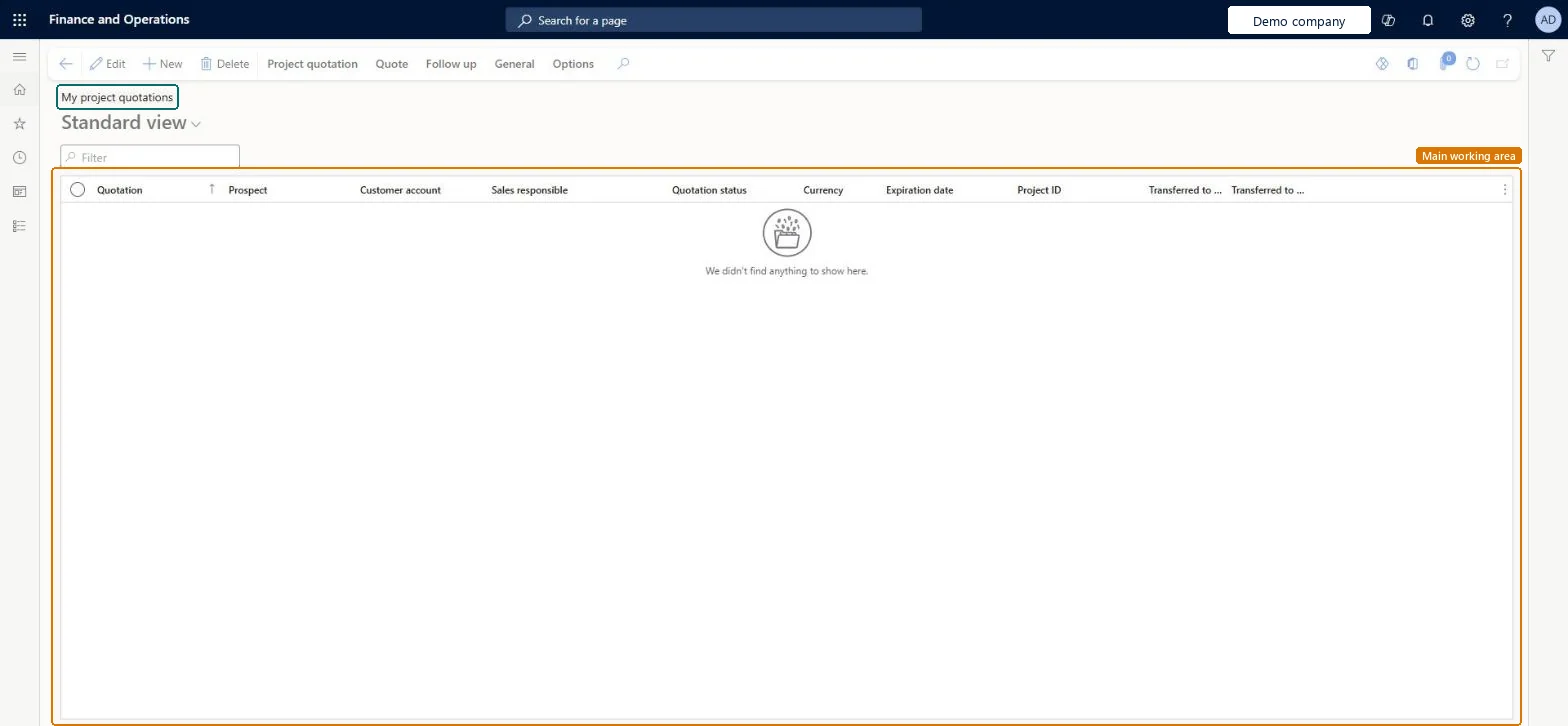
Table definitionSalesQuotationTable columns and relations Microsoft data model
Everyone

8Sources

To cite this step: PM-OPS-310, Work your quotation list by status. Beyond ERP Atlas Hub, 2026-11-11. https://www.beyonderp.cloud/atlas/step/PM-OPS-310