SETUP GUIDEHow to set it up8 sections. Choose a role to highlight what matters to you.
Everyone
1What it is and why
What it is
A legacy periodic job that posts every unposted integration journal in one run. It belongs to the Dynamics 365 Project Service Automation integration; Project Service Automation is a legacy application, and the current process posts the Project Operations integration journal.
What you do here
Use it only where project actuals still arrive through the integration journal: it posts all unposted journals, so the project subledger and the general ledger are updated without opening each journal.
Example
At BEAT, the import creates 12 integration journals for October 2026 with 1,846 lines of time and expense actuals. A nightly run of this job posts all 12, and the project accountant only opens the 1 journal that stays unposted because of a closed ledger period.
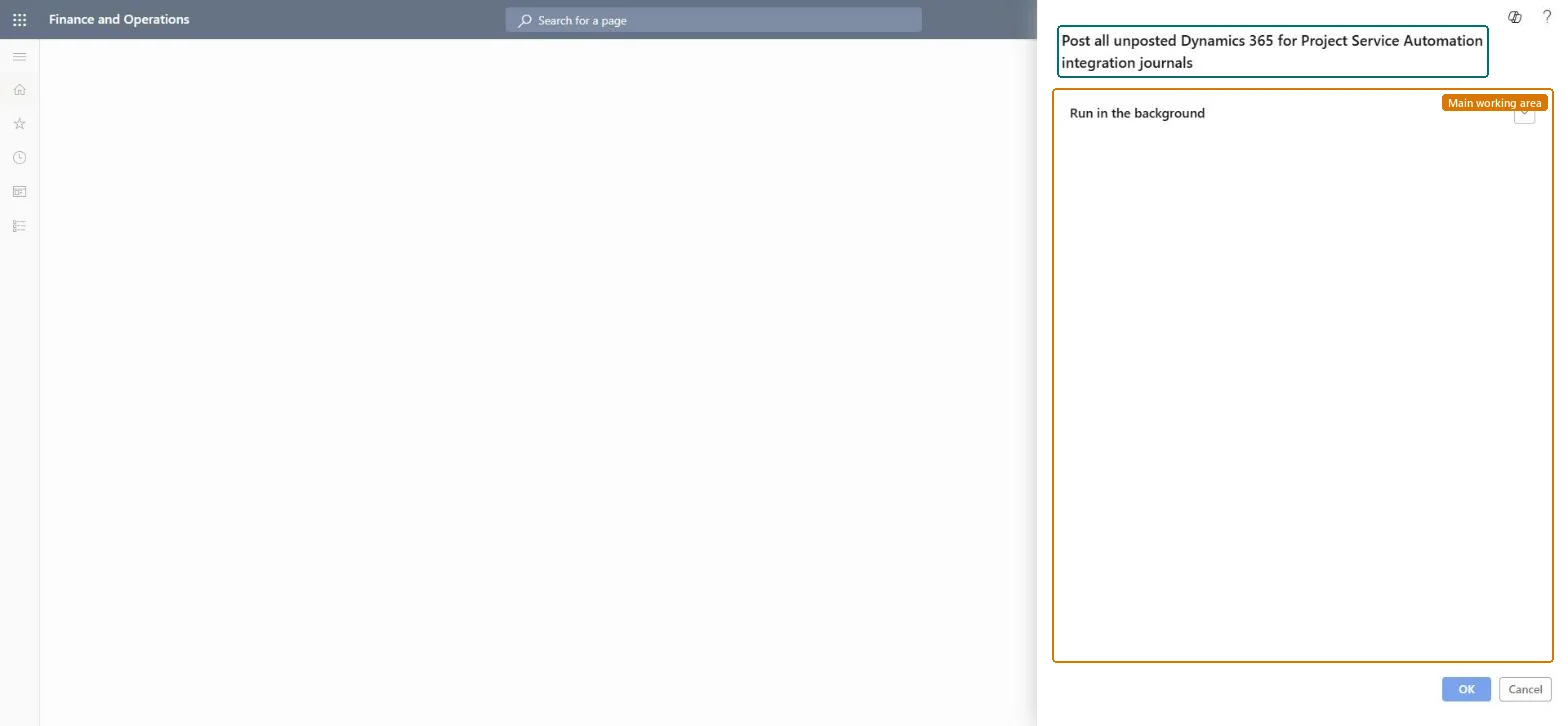
The page in Dynamics 365. page title tab to open what to set or check
About the examples: Examples and screenshots in this guide use BEAT, a demo company in a Dynamics 365 test environment. Use your own company's codes and values instead of copying them.
When to run it
When to run it
After each import of actuals into the integration journals.
How often
Daily, as a recurring batch job that follows the import.
Batch settings
Learn notes that journals with more than 100 lines are always posted in batch.
What the output shows
Posted integration journals, with project transactions in the subledger and vouchers in the general ledger. Journals with errors stay unposted.
Post imported actuals without opening each journal.
Steps from Microsoft
Go to Project management and accounting > Periodic > Journals > Post all unposted Dynamics 365 for Project Service Automation integration journals.
Make sure Import from staging table has run first, so the latest actuals are in integration journals.
Set the job up as a recurring batch job after the import, because it posts every unposted journal and has no selection fields.
After each run, open Journals > Dynamics 365 for Project Service Automation integration journal and filter on unposted journals to find any that failed.
Fix the cause in the failed journal, for example a closed period, and let the next run post it.
The only tab on the dialog: the job has no selection fields and posts every unposted integration journal; set it up here as a recurring batch job.Checked in Dynamics 365
Recurring every night at 02:00
Common errors and fixes
Message
What to do
A journal stays unposted after every run.
A line fails validation, for example the accounting date is in a closed period or a financial dimension isn't valid. Correct the line or the setup; the next run posts it. Microsoft Learn
Test checklist
Count the unposted integration journals before the run (for example 12).
Run the job.
Filter the integration journal list on unposted: only journals with errors remain (for example 1).
Open Posted project transactions and find the lines of a posted journal.
Run it as a recurring batch job right after Import from staging table, and review unposted journals each morning.The job has no filters and posts everything that is valid, so timing it after the import keeps the ledger current.
On the live system, Project manager, Project accountant, Project assistant, Field Service Integration User and Shop supervisor use this page.
Checked in Dynamics 365
Solution architect
5Design impact
Shared or per company
Per company: the job posts the integration journals of the legal entity you run it in. Microsoft Learn
Can it be undone
Irreversible: Posted journals can only be corrected with adjustments.
If you change it later
Posting creates project subledger transactions and general ledger vouchers, which feed invoicing, revenue recognition and financial reports. Project Service Automation is legacy (no longer supported since March 31, 2025); new setups use the Project Operations integration journal. Microsoft Learn
Technical architect
6Technical
Menu item
action:ProjAdvancedJournalAutoPostBatchChecked in Dynamics 365
Form
DialogChecked in Dynamics 365
Roles to set it up and use it
To use itProject manager ProjProjectManagerProject accountant ProjProjectAccountantProject assistant ProjProjectClerkField Service Integration User FieldServiceIntegrationUserShop supervisor JmgShopSupervisorGive people one of these roles. On this system, 6 roles can run this page.Checked in Dynamics 365
Load order: Post all unposted integration journals has no data entity in Data management: it is a periodic job and keeps no records of its own. Don't migrate unposted integration journals; post them in the old system or import the actuals again in the new one.Microsoft Learn