SETUP GUIDEHow to set it up8 sections. Choose a role to highlight what matters to you.
Everyone
1What it is and why
What it is
A periodic job that permanently deletes posted project journals (hour, fee and beginning balance journals) that are no longer needed.
What you do here
Use it during data cleanup to remove old posted journal headers and lines, so the journal lists stay short and system resources are freed. Delete only journals you will never need to reverse.
Example
BEAT closed fiscal year 2024 in March 2026. The project accountant selects the 214 posted hour journals and 38 posted fee journals dated 2024, such as journal PJ-024417 with 46.50 hours on PRJ-0042, and deletes them after the audit sign-off.
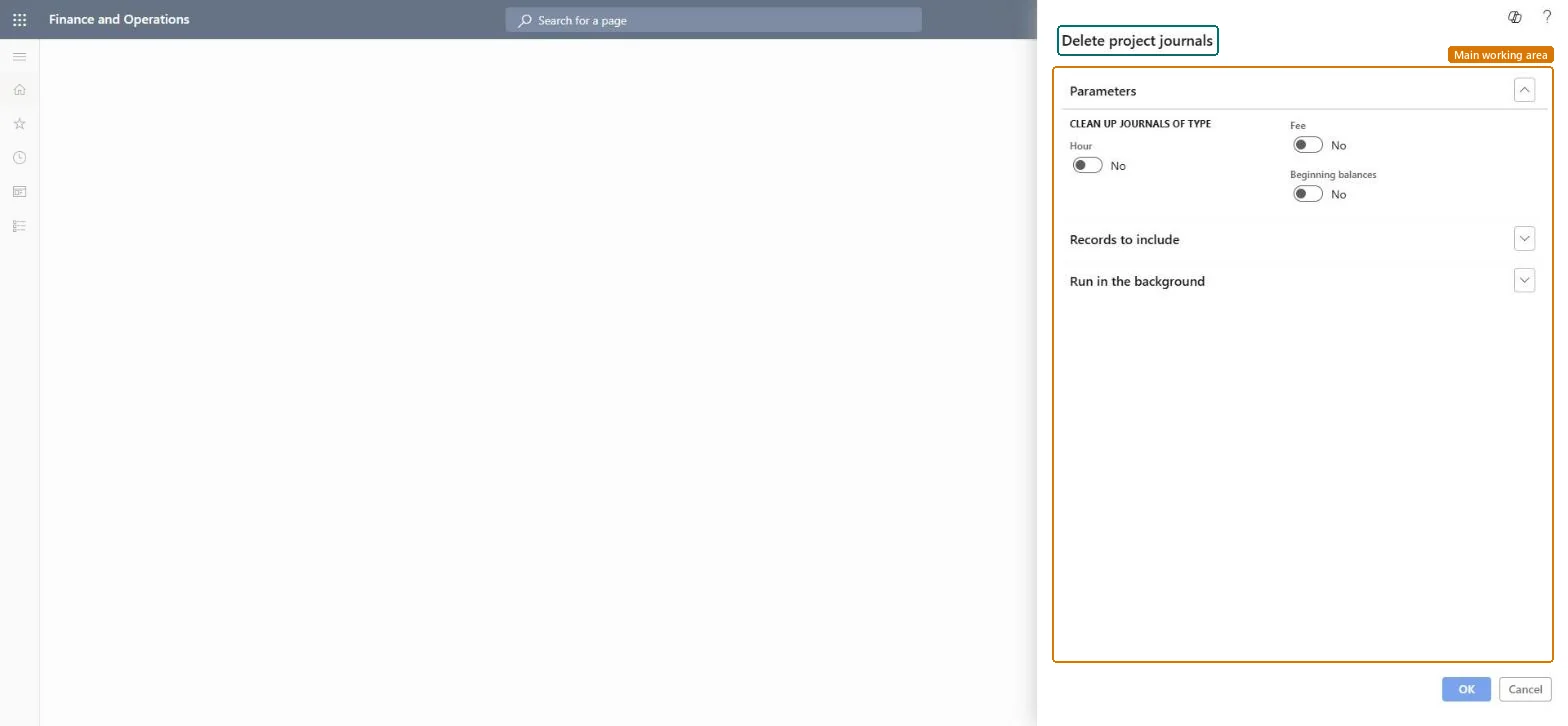
The page in Dynamics 365. page title tab to open what to set or check
About the examples: Examples and screenshots in this guide use BEAT, a demo company in a Dynamics 365 test environment. Use your own company's codes and values instead of copying them.
When to run it
When to run it
After a fiscal year is closed and audited, when its posted project journals are no longer needed.
How often
Once a year, as part of data cleanup.
Batch settings
Run it as a batch job outside office hours when many journals are deleted.
What the output shows
The selected posted journals are deleted. The infolog shows how many journals were removed.
Remove posted project journals of a closed, audited year.
Steps from Microsoft
Go to Project management and accounting > Periodic > Journals > Delete project journals.
Select Select and, in the Criteria field, choose the posted journals to delete, for example a range of journal numbers from a closed fiscal year; select Add to put more journals in the criteria.
Leave Hour and Fee off unless you really want every posted hour or fee journal deleted, whatever the criteria say.
Check with the auditors that the journals are no longer needed, because the journal information can't be restored.
Run the job, then open Journals > Hour and filter on Posted to check that the chosen journals are gone and later journals are still listed.
When turned on, deletes all posted hour journals, not only the journals chosen in the criteria.Microsoft Learn
Off, so only the journals chosen in the criteria are deleted.
Fee
When turned on, deletes all posted fee journals, not only the journals chosen in the criteria.Microsoft Learn
Off for a targeted cleanup of 2024 journals.
Criteria (Select)
The query that lists the posted journals to delete, for example by journal number or posting date.Checked in Dynamics 365
Journal number PJ-024001..PJ-024417
Common errors and fixes
Message
What to do
Journals outside the intended range are gone after the run.
Hour or Fee was turned on, which deletes all posted journals of that type. Leave both off and limit the criteria. Deleted journals can't be restored. Microsoft Learn
Test checklist
Count the posted hour journals in the criteria range before the run (for example 214).
Run the job with the same criteria.
Filter Journals > Hour on Posted: the count for the range is 0.
Filter Journals > Hour on Posted for a later range: those journals are still listed.
Delete by criteria (journal number or date range of a closed fiscal year), with Hour and Fee turned off.The criteria limit the delete to journals you checked; Hour and Fee delete every posted journal of that type.
On the live system, Project accountant and Project assistant use this page.
Checked in Dynamics 365
Solution architect
5Design impact
Shared or per company
Per company: the job deletes posted journals of the legal entity you run it in. Microsoft data model
Can it be undone
Irreversible: Deleted journals can't be restored.
If you change it later
Deletes posted project hour, fee and beginning balance journals. All information related to the original journal transactions is removed, so delete only journals you are sure you won't have to reverse. Microsoft Learn
Technical architect
6Technical
Menu item
action:ProjJournalCleanUpChecked in Dynamics 365
Form
DialogChecked in Dynamics 365
Roles to set it up and use it
To use itProject accountant ProjProjectAccountantProject assistant ProjProjectClerkGive people one of these roles. On this system, 2 roles can run this page.Checked in Dynamics 365
Load order: Delete project journals has no data entity in Data management: it is a periodic job and keeps no records of its own. Migrate open project journals with ProjJournalTableEntity if you need them, and run this cleanup in the target system only after its own fiscal year close.Load first: ProjJournalTableEntityMicrosoft data model