Dynamics 365 for Project Service Automation integration parameters
A setup page for the legacy integration between Dynamics 365 Project Service Automation and Finance: it sets the default project type, categories, project groups and line properties that synchronized projects, estimates and actuals receive, and which Finance functions are locked for them.
Dynamics 365 for Project Service Automation integration parameters
Project management and accountingSetup
ProjCDSParameters
Business process
Develop project strategy
Menu item
ProjCDSParameters
Main table
ProjCDSParameters
Setup steps
1 on this page
Show what matters for
PAGE GUIDEWhat the page does and how to use it8 sections. Choose a role to highlight what matters to you.
Everyone
1What it is and why
What it is
A setup page for the legacy integration between Dynamics 365 Project Service Automation and Finance: it sets the default project type, categories, project groups and line properties that synchronized projects, estimates and actuals receive, and which Finance functions are locked for them.
What you do here
Use this page only in a legal entity that still synchronizes projects from Project Service Automation. Project Service Automation is no longer supported since March 31, 2025; new integrations use Project Operations, whose defaults are on the Project Operations tab of Project management and accounting parameters.
Example
For example, until BEAT finishes its move to Project Operations, synchronized projects that arrive with no project group get the group TM-STD for Time and material, and synchronized hour actuals get the category HOURS.
The page in Dynamics 365. page title tab to open what to set or check
About the examples: Examples and screenshots in this guide use BEAT, a demo company in a Dynamics 365 test environment. Use your own company's codes and values instead of copying them.
Step by step, with screenshots
Set up Dynamics 365 for Project Service Automation integration parameters1 screen
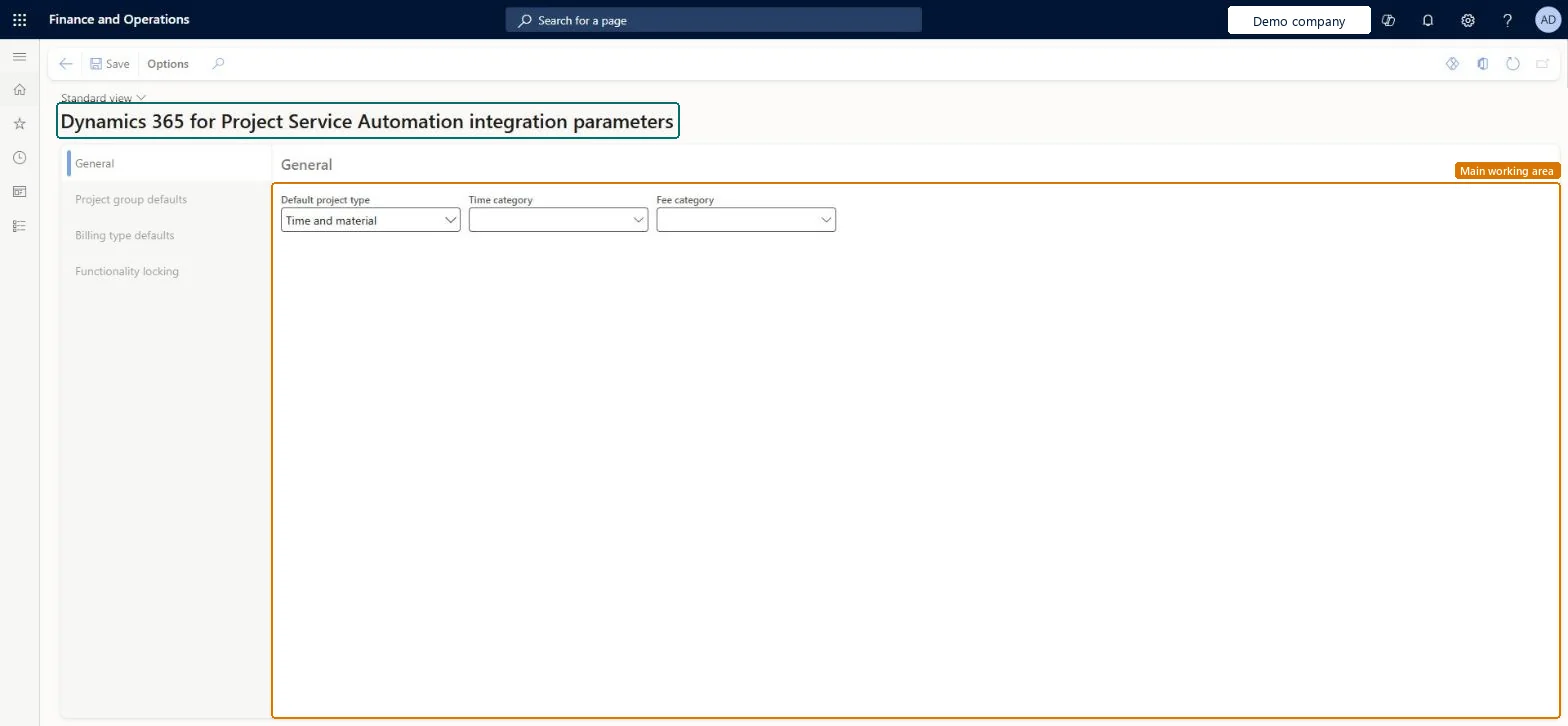
Use this page to set up the defaults needed to synchronize projects from Project Service Automation to Finance.
Screen 1
Review the Project Service Automation integration parameters
Go to Project management and accounting > Setup > Dynamics 365 for Project Service Automation integration parameters
Open the page and review the General tab
Select Project group defaults and Billing type defaults to see which project group each type of project uses
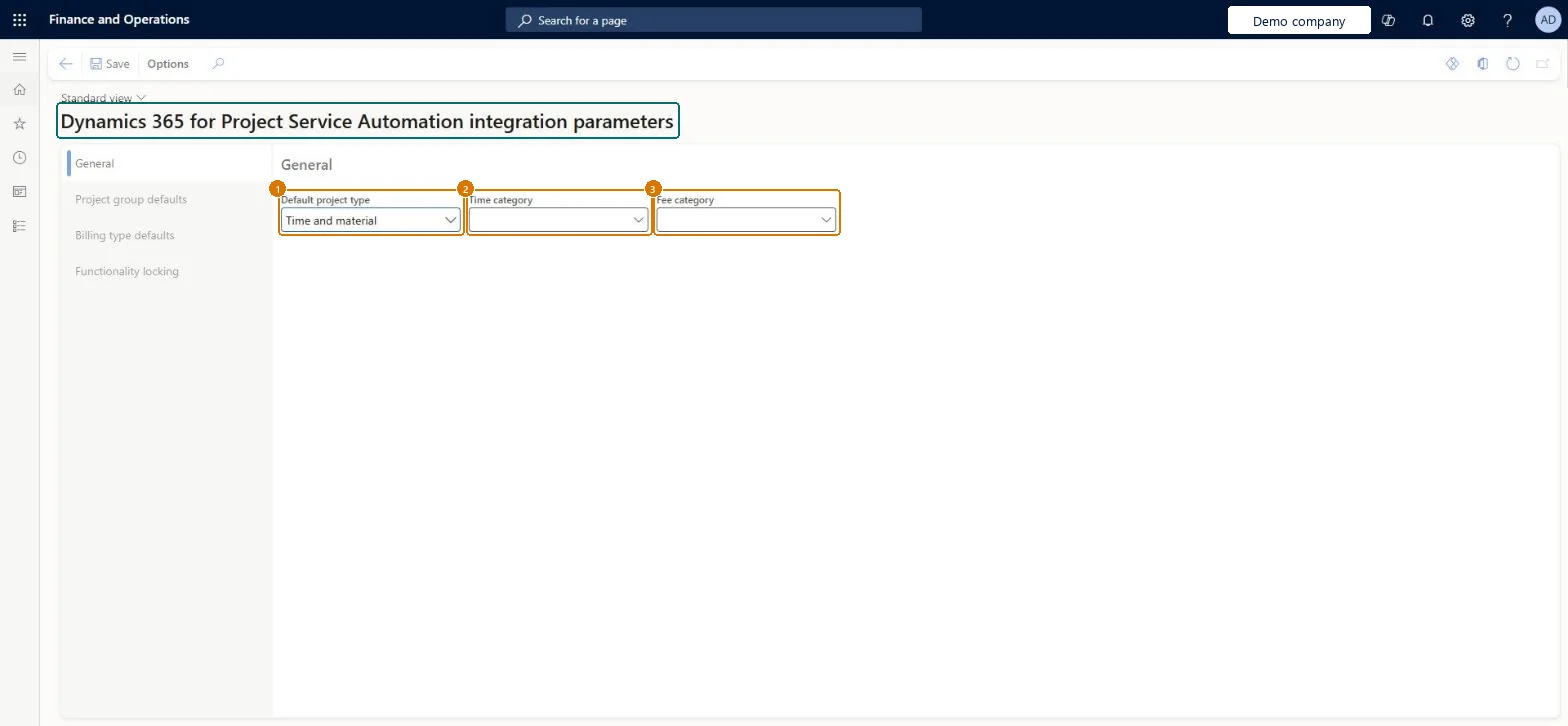
Set the default project type, time category and fee category when you synchronize projects from Project Service Automation, then select Save
1Default project type
Time and material
2Time category
(blank)
3Fee category
(blank)
Show the full screen page title tab to open what to set or check
Steps from Microsoft
Go to Project management and accounting > Setup > Dynamics 365 for Project Service Automation integration parameters.
On the General tab, select the Default project type, the Time category and the Fee category that synchronized records get.
On Project group defaults, add one row per project type with its default project group.
On Billing type defaults, add one row per billing type with its default line property.
On Functionality locking, turn off the Finance functions that must not change synchronized projects, then run Import from staging table.
Functions to turn off in Finance for projects and contracts that came from Project Service Automation.Microsoft Learn
Timesheet entry turned off
Common errors and fixes
Message
What to do
A synchronized project has no project group in Finance.
Add a Project group default for the project's type on this page, or give a project group in the integration template, then synchronize again. Microsoft Learn
Test checklist
Synchronize a new project from Project Service Automation with no project group in the integration template.
Check the project in Finance has the project type and the default project group set for that type.
Synchronize hour estimates and check the forecast lines use the default Time category and the line property mapped to the billing type.
Check that locked functions (for example timesheet entry) are unavailable for the synchronized project.
Fill Default project type, Time category and Fee category, then add one Project group default per project type and one Line property per billing typeThese values are used when projects, hour estimates and actuals synchronize from Project Service Automation and the integration template doesn't supply a value. Each project type and each billing type can be set only once.
The live security read lists no role for this page. Project Service Automation is a legacy application, out of support since March 31, 2025; no feature in Feature management turns this page on.
Reversible: Defaults can be changed at any time and only apply to projects, estimates and actuals synchronized after the change. By default all functionality is enabled, and locking can be changed later. Microsoft Learn
If you change it later
Defaults apply to projects, estimates and actuals synchronized after the change. Accounting fields stay editable even when functionality locking turns other functions off. Project Service Automation reached end of support on March 31, 2025, so plan the move to Project Operations rather than extending this setup. Microsoft Learn
Technical architect
6Technical
Menu item
ProjCDSParametersChecked in Dynamics 365
Form
ProjCDSParametersChecked in Dynamics 365
Table
ProjCDSParametersShown as “Dynamics 365 for Project Service Automation integration parameters” in Record infoChecked in Dynamics 365
Actions on the page
Options: Personalize, Page options, Edit, ShareChecked in Dynamics 365
Developer
7Developer
Open it by URL
https://<your-environment>/?mi=ProjCDSParameters
Data migration
Load order: Dynamics 365 for Project Service Automation integration parameters has no data entity in Data management. Enter the few defaults by hand in each legal entity that still synchronizes with Project Service Automation.Checked in Dynamics 365
Checked in a working Dynamics 365 system, version 10.0.49: the menu item, form, table and security, the page, the demo records and the values in the screenshots.