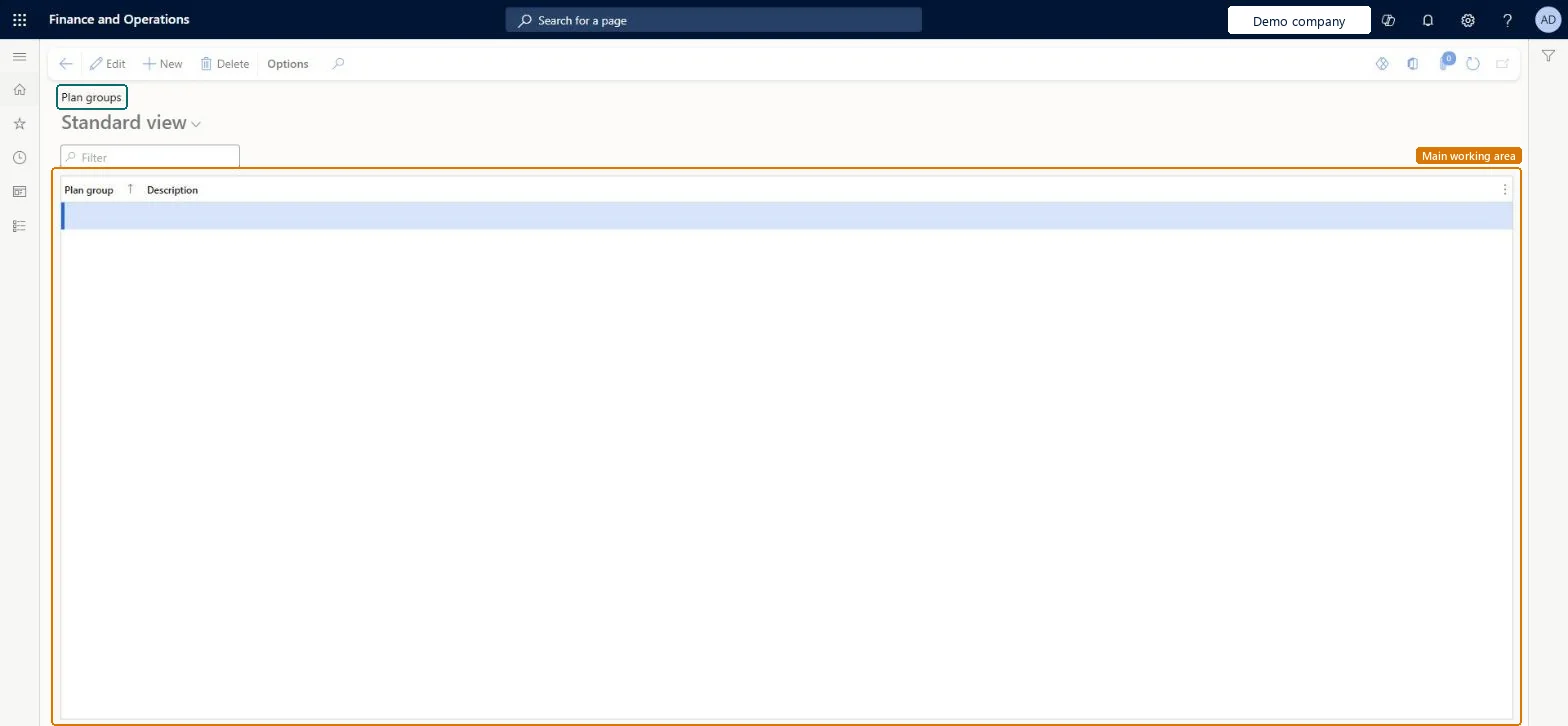
Setup step on the Plan groups page · Product information management
Set up Plan groups
Use this page to create the plan groups that you then assign, with priorities, to formula or BOM lines so that master planning can use a substitute material when the preferred material is not available.
Product information managementSetupBills of materials and formulas
PmfPlanGroup
Used by
Product designer, Product design manager, Production manager and 4 more roles
Business process
Develop product strategy
Menu item
PmfPlanGroup
Main table
PmfPlanGroup
Data entity
PmfFormulaSubstitutionGroupEntity
Setup steps
1 on this page
Show what matters for
SETUP GUIDEHow to set it up8 sections. Choose a role to highlight what matters to you.
Everyone
1What it is and why
What it is
A setup page where you define plan groups, which are groups of items that can be substituted for a particular material in a formula or bill of materials.
What you do here
Use this page to create the plan groups that you then assign, with priorities, to formula or BOM lines so that master planning can use a substitute material when the preferred material is not available.
Example
For example, a food manufacturer can let master planning use one of two more expensive ingredients only when the preferred ingredient is out of stock.
The page in Dynamics 365. page title tab to open what to set or check
About the examples: Examples and screenshots in this guide use BEAT, a demo company in a Dynamics 365 test environment. Use your own company's codes and values instead of copying them.
Setup steps on this page
Set up Plan groups
Use this page to create the plan groups that you then assign, with priorities, to formula or BOM lines so that master planning can use a substitute material when the preferred material is not available.
Steps from Microsoft
Go to Product information management > Setup > Bills of materials and formulas > Plan groups.
Use the buttons on the Action Pane to add, remove or edit plan groups.
In the Plan group field, specify a unique name for the plan group.
In the Description field, enter a short description of the plan group.
One plan group per set of interchangeable materials, reused across formulas and BOMs; the preferred material gets the lowest priority number and the full quantity, substitutes get quantity 0Learn says plan groups can be reused across formulas and BOMs, the lowest number is the highest priority, and the preferred line's quantity applies to whichever material is used.
Giving two materials in a group the same priority or entering a quantity on substitute lines. Each material needs a unique priority, and substitute quantities aren't used.Test: Master planning uses the substitute material
Feature management and licence
Feature to turn on
Item substitution (Plan group) support for Planning Optimization (Must be on)Item substitution for bill of materials in Planning optimization (Must be on)
PrivilegesMaintain plan group settings PmfPlanGroupMaintainView plan group settings PmfPlanGroupViewDutiesInquire into BOM master BOMBillsOfMaterialsMasterInquireMaintain BOM master BOMBillsOfMaterialsMasterMaintain7 security rolesProduct designer BOMProductDesignerProduct design manager BOMProductDesignManagerProduction manager ProdProductionManagerProduction supervisor ProdProductionSupervisorProduction planner ReqProductionPlannerProcess engineer RouteProcessEngineerProcess engineering manager RouteProcessEngineeringManagerChecked in Dynamics 365
Roles to set it up and use it
To set it up or change itProduct designer BOMProductDesignerProcess engineer RouteProcessEngineerTo use itProduct design manager BOMProductDesignManagerProcess engineering manager RouteProcessEngineeringManagerProduction supervisor ProdProductionSupervisorProduction manager ProdProductionManagerProduction planner ReqProductionPlannerGive people one of these roles. On this system, 7 roles can open this page.Checked in Dynamics 365
PmfFormulaSubstitutionGroupEntity (Formula substitution groups): loaded for each company, in Microsoft's default template 412 - Process manufacturing.Load order: Microsoft's default template 412 - Process manufacturing loads Formula substitution groups at execution unit 1, level 30, sequence 10. Lower levels load first, and entities at the same level load in sequence order.Load first: the default templates at lower levels (System setup to General ledger)Microsoft Learn