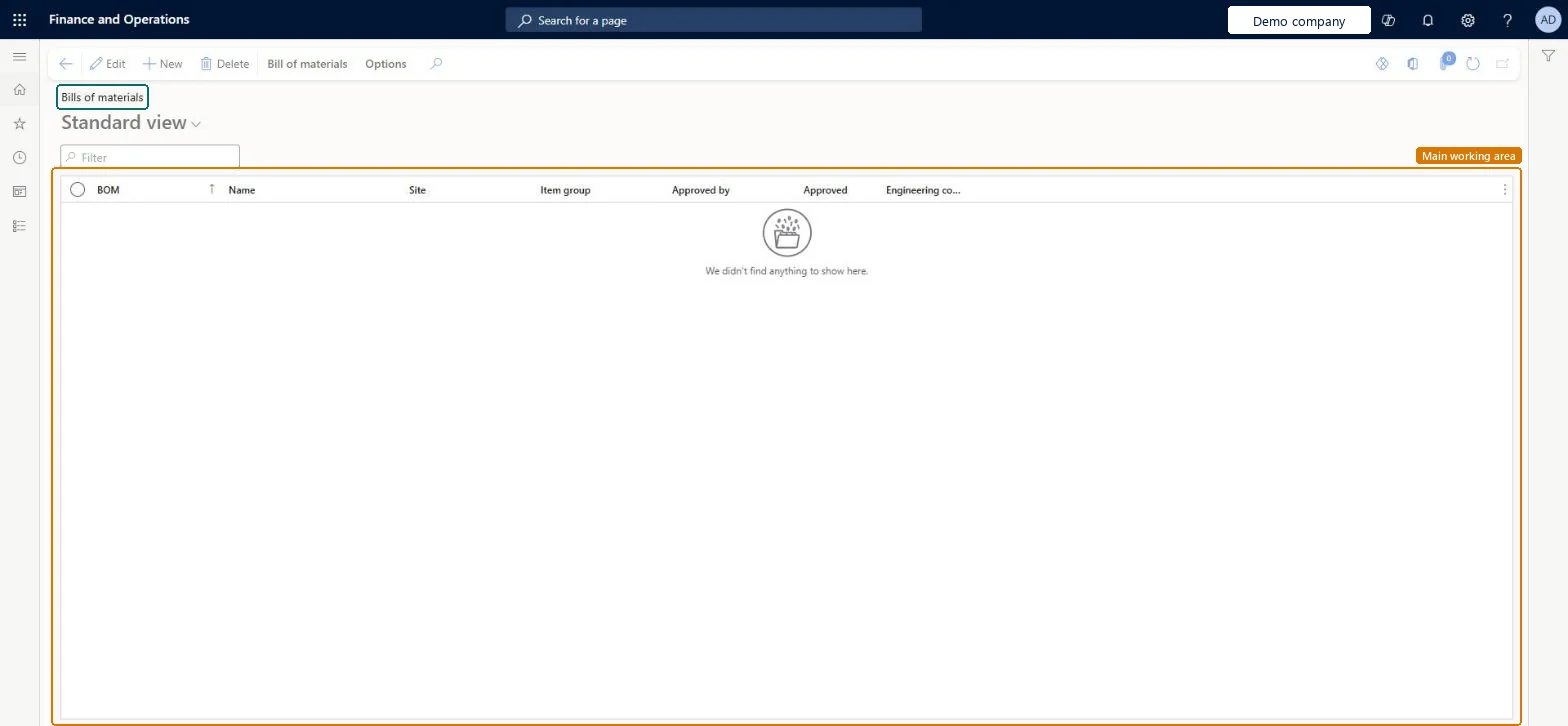
A list page that shows the bills of materials, each of which defines the components that are required to produce a product, with the BOM, Name, Site, Item group, Approved by and Approved columns.
Product information managementBills of materials and formulas
BOMTable
Used by
Product designer, Product design manager, Inventory accountant and 7 more roles
Business process
Design bills of materials
Menu item
BOMTable
Main table
BOMTable
Data entity
PmfFormulaHeaderEntity
Show what matters for
PAGE GUIDEWhat the page does and how to use it7 sections. Choose a role to highlight what matters to you.
Everyone
1What it is and why
What it is
A list page that shows the bills of materials, each of which defines the components that are required to produce a product, with the BOM, Name, Site, Item group, Approved by and Approved columns.
What you do here
Use this page to create and maintain bills of materials and their lines. Combined with a route or production flow, a bill of materials forms the foundation for calculating the estimated cost of a product.
The page in Dynamics 365. page title tab to open what to set or check
About the examples: Examples and screenshots in this guide use BEAT, a demo company in a Dynamics 365 test environment. Use your own company's codes and values instead of copying them.
How to use it
Go to Product information management > Bills of materials and formulas > Bills of materials.
Use the Filter box to find a bill of materials by its BOM number or name.
To create a bill of materials, select New.
To change a bill of materials, select it and then select Edit.
Use the Bill of materials tab on the Action Pane for further actions on the selected bill of materials.
Source: Checked in Dynamics 365
Fields on the page
Field
What it means
Table column
Approved
Shows whether the bill of materials is approved. Each bill of materials and formula can be approved or unapproved separately.Microsoft Learn
Approved
Test checklist
Create a BOM with Item and Phantom lines and approve it.
Create a BOM version for the finished product, approve it and activate it.
Try to activate a second version with the same period and site: an error is shown.
Create and estimate a production order and check the phantom lines are exploded into their components.
Hard to reverse: Approval can be removed, but if you unapprove a BOM, all its BOM versions are also unapproved, and a BOM version can only be approved when its BOM is approved. Activating a version that conflicts with an active version (same period, site or quantity) gives an error until you deactivate one or change its constraints. Microsoft Learn
If you change it later
If you remove the approval of a bill of materials, all its related BOM versions are also unapproved. Microsoft Learn
Technical architect
5Technical
Menu item
BOMTableChecked in Dynamics 365
Form
BOMTableChecked in Dynamics 365
Table
BOMTableShown as “BILLS OF MATERIALS” in Record infoKey field: BOMIdChecked in Dynamics 365
To set it up or change itProduct designer BOMProductDesignerProcess engineer RouteProcessEngineerTo use itProduct design manager BOMProductDesignManagerProcess engineering manager RouteProcessEngineeringManagerProduction supervisor ProdProductionSupervisorProduction manager ProdProductionManagerAccounting manager LedgerAccountingManagerGive people one of these roles. On this system, 10 roles can open this page.Checked in Dynamics 365
Actions on the page
Bill of materials: Maintain, Configuration, Product changeChecked in Dynamics 365
PmfFormulaHeaderEntity (Formula headers): loaded for each company.PmfItemSpecificFormulaHeaderV2Entity (Formula headers and versions V2): loaded for each company.Microsoft Learn