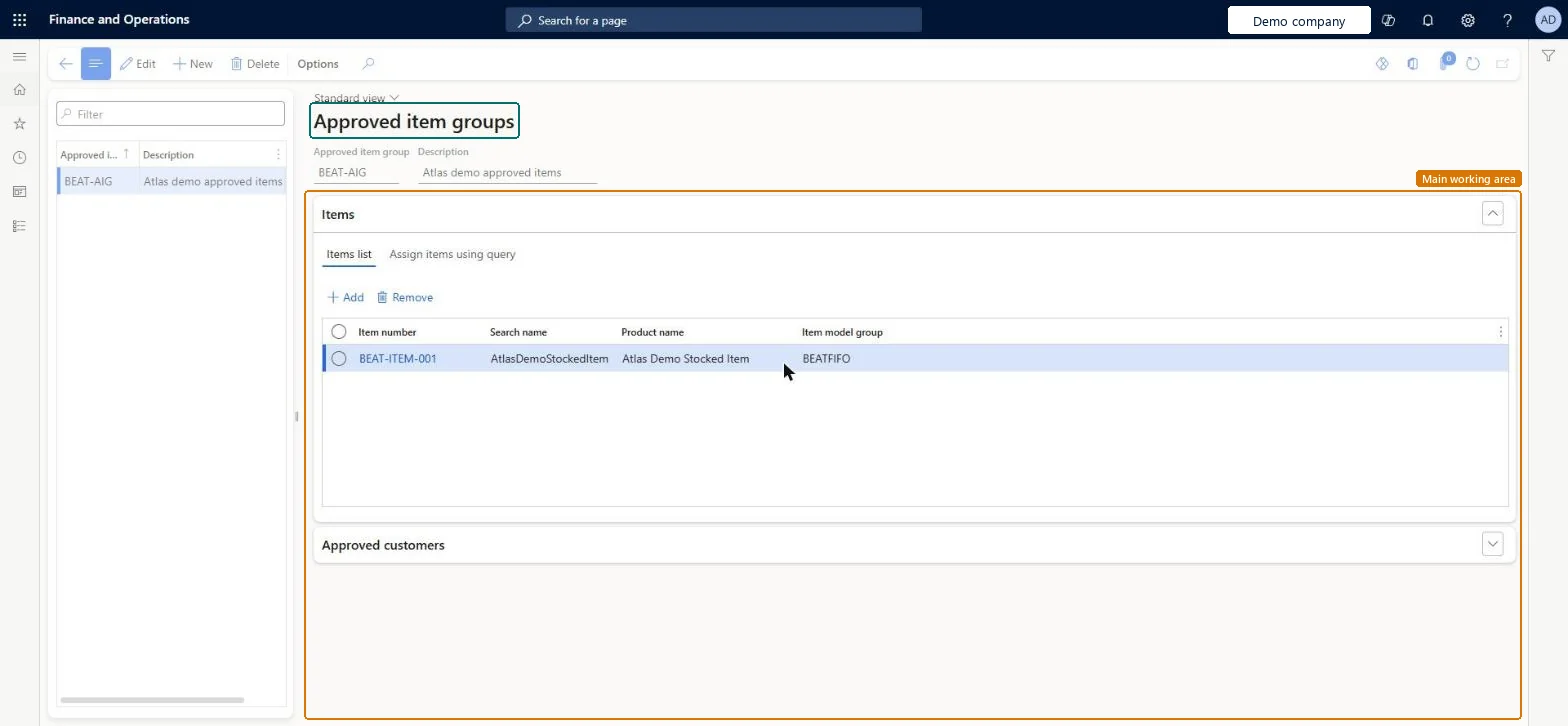
Setup step on the Approved item groups page · Product information management
Set up Approved item groups
Use this page to group items so that, when the item group is associated with an approved customer group, every customer in that group is authorised to buy every item in the item group.
Product information managementSetupApproved customer list
QMSApprovedItemGroup
Used by
Accounts receivable manager, Customer service manager, Customer service representative and 3 more roles
Business process
Develop product strategy
Menu item
QMSApprovedItemGroup
Main table
QMSItemListTmp
Data entity
QMSApprovedItemGroupEntity
Setup steps
1 on this page
Show what matters for
SETUP GUIDEHow to set it up8 sections. Choose a role to highlight what matters to you.
Everyone
1What it is and why
What it is
A setup page where you create approved item groups, which are groups of items that can be approved together for a specific customer, a group of customers or all customers.
What you do here
Use this page to group items so that, when the item group is associated with an approved customer group, every customer in that group is authorised to buy every item in the item group.
The page in Dynamics 365. page title tab to open what to set or check
About the examples: Examples and screenshots in this guide use BEAT, a demo company in a Dynamics 365 test environment. Use your own company's codes and values instead of copying them.
Setup steps on this page
Set up Approved item groups
Use this page to group items so that, when the item group is associated with an approved customer group, every customer in that group is authorised to buy every item in the item group.
How to use it
Go to Product information management > Setup > Approved customer list > Approved item groups.
On the Action Pane, select New, and enter the Approved item group and Description.
On the Items FastTab, on the Items list tab, select Add to add items to the group, or use the Assign items using query tab.
Expand the Approved customers FastTab to see the customers linked to the group.
Source: Checked in Dynamics 365
Test checklist
Create an approved item group with two items and an approved customer group with two customers.
On Approved customer list setup, add a line with Item code Group and Customer code Group.
Open Approved items from one of the customers and check both items are listed.
Enter a sales order line for one of the items for that customer: it's accepted.
Group items that are always approved together and link the item group to an approved customer group (group-to-group)Learn says groups speed up approval when the same items are approved for a customer, a group or all customers, and a group-to-group line authorises every customer in the group for every item in it.
Setting effective and expiration dates while the check method is No check. Dates are only validated with Warning only or Not allowed.
Solution architect
5Design impact
Can it be undone
Reversible: Groups and their members can be changed at any time; checks on sales orders run when lines are added.
Technical architect
6Technical
Menu item
QMSApprovedItemGroupChecked in Dynamics 365
Form
QMSApprovedItemGroupChecked in Dynamics 365
Table
QMSItemListTmpShown as “ITEM LIST” in Record infoChecked in Dynamics 365
Data entities
QMSApprovedItemGroupEntityApproved item groups Checked in Dynamics 365
Who can open it
PrivilegesMaintain approved customer list QMSApprovedCustomerListMaintainView approved customer list QMSApprovedCustomerListViewDutiesInquire into approved customer list QMSApprovedCustomerListInquireMaintain approved customer list QMSApprovedCustomerListMaintain7 security rolesAccounts receivable manager CustInvoiceAccountsReceivableManagerMCRTestUserRoleCustomer service manager TradeCustomerServiceManagerCustomer service representative TradeCustomerServiceRepresentativeSales clerk TradeSalesClerkSales manager TradeSalesManagerSales representative TradeSalesRepresentativeChecked in Dynamics 365
Roles to set it up and use it
To set it up or change itSales manager TradeSalesManagerCustomer service manager TradeCustomerServiceManagerTo use itAccounts receivable manager CustInvoiceAccountsReceivableManagerCustomer service representative TradeCustomerServiceRepresentativeSales representative TradeSalesRepresentativeSales clerk TradeSalesClerkGive people one of these roles. On this system, 6 roles can open this page.Checked in Dynamics 365