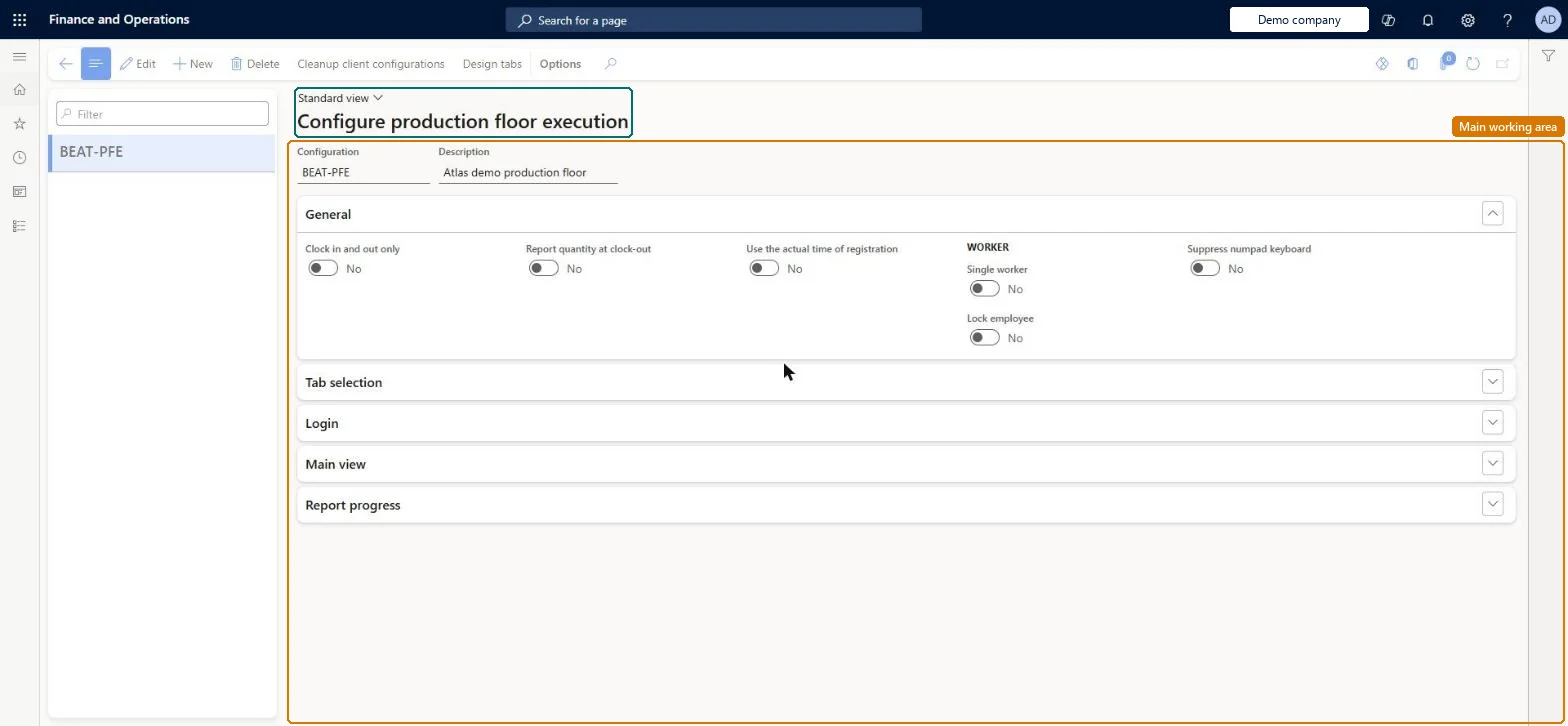
Setup step on the Configure production floor execution page · Production control
Configure production floor execution
Use this page to add a configuration and set its General, Tab selection, Login, Main view and Report progress options (such as clock-in only, lock employee, single worker, search, license plate generation and label printing), and later choose that configuration on each shop floor device.
Payroll administrator, Manufacturing execution workload shop supervisor, Shop supervisor and 2 more roles
Business process
Consume resources
Menu item
JmgProductionFloorExecutionConfigurationV2
Main table
JmgProductionFloorExecutionConfiguration
Setup steps
1 on this page
Show what matters for
SETUP GUIDEHow to set it up8 sections. Choose a role to highlight what matters to you.
Everyone
1What it is and why
What it is
A setup page where you create the named configurations that control how the production floor execution interface behaves on a device, from sign-in and tab selection to the options shown when workers report progress.
What you do here
Use this page to add a configuration and set its General, Tab selection, Login, Main view and Report progress options (such as clock-in only, lock employee, single worker, search, license plate generation and label printing), and later choose that configuration on each shop floor device.
Example
For example, a device in the company hall gets a clock-in and clock-out only configuration, while a device on the shop floor lets machine operators start and complete jobs and register breaks.
The page in Dynamics 365. page title tab to open what to set or check
About the examples: Examples and screenshots in this guide use BEAT, a demo company in a Dynamics 365 test environment. Use your own company's codes and values instead of copying them.
Setup steps on this page
Configure production floor execution
Use this page to add a configuration and set its General, Tab selection, Login, Main view and Report progress options (such as clock-in only, lock employee, single worker, search, license plate generation and label printing), and later choose that configuration on each shop floor device.
Steps from Microsoft
Go to Production control > Setup > Manufacturing execution > Configure production floor execution.
On the Action Pane, select New.
In the Configuration field, enter a unique name (it cannot be changed later) and optionally a Description.
On the General FastTab, set options such as Clock in and out only, Report quantity at clock-out, Lock employee, Use the actual time of registration and Single worker.
On the Tab selection FastTab, add and arrange the tabs the interface should show.
Set the Login, Main view and Report progress FastTab options, including Generate license plate and Print label.
Use the actual time of registration = Yes on any configuration where Lock employee or Single worker is YesLearn says you will usually want Use the actual time of registration set to Yes when Lock employee and/or Single worker is Yes, because workers stay signed in for long periods and the sign-in time would otherwise be used.
Typing a provisional configuration name. The name must be unique and can't be edited later, so a wrong name means creating a new configuration and reselecting it on each device.
Feature management and licence
Feature to turn on
Register material consumption as complete and edit dimensions on the production floor execution interface (Optional)Material list on the production floor execution interface (Optional)Tracked components (Optional)
Reversible: All options can be changed later; only the Configuration name is fixed once created.
If you change it later
A configuration name cannot be changed after it is created, and device references to configurations are cleaned up automatically after 60 days of inactivity or manually with Clean up client configurations. Microsoft Learn
Technical architect
6Technical
Menu item
JmgProductionFloorExecutionConfigurationV2Checked in Dynamics 365
Form
JmgProductionFloorExecutionConfigurationV2Checked in Dynamics 365
Table
JmgProductionFloorExecutionConfigurationShown as “PRODUCTION FLOOR EXECUTION CONFIGURATION” in Record infoChecked in Dynamics 365
Who can open it
PrivilegesMaintain the supervisor-only Production floor execution pages JmgProductionFloorExecutionConfigurationMaintainDutiesEnable manufacturing execution process JmgManufacturingExecutionProcessEnableEnable time and attendance process JmgTimeAttendanceProcessEnableMaintain time supervision JmgTimeSupervisionMaintain5 security rolesPayroll administrator HcmPayrollAdministratorManufacturing execution workload shop supervisor JmgManufacturingExecutionWorkloadSupervisorShop supervisor JmgShopSupervisorProduction manager ProdProductionManagerProduction supervisor ProdProductionSupervisorChecked in Dynamics 365
Roles to set it up and use it
To set it up or change itProduction supervisor ProdProductionSupervisorShop supervisor JmgShopSupervisorProduction manager ProdProductionManagerManufacturing execution workload shop supervisor JmgManufacturingExecutionWorkloadSupervisorPayroll administrator HcmPayrollAdministratorGive people one of these roles. On this system, 5 roles can open this page.Checked in Dynamics 365
Actions on the page
(Action Pane without tabs): Cleanup client configurations, Design tabsChecked in Dynamics 365
Checked in a working Dynamics 365 system, version 10.0.49: the menu item, form, table and security, the page.
To cite this step: PC-MES-060, Configure production floor execution. Beyond ERP Atlas Hub, 2026-11-11. https://www.beyonderp.cloud/atlas/step/PC-MES-060