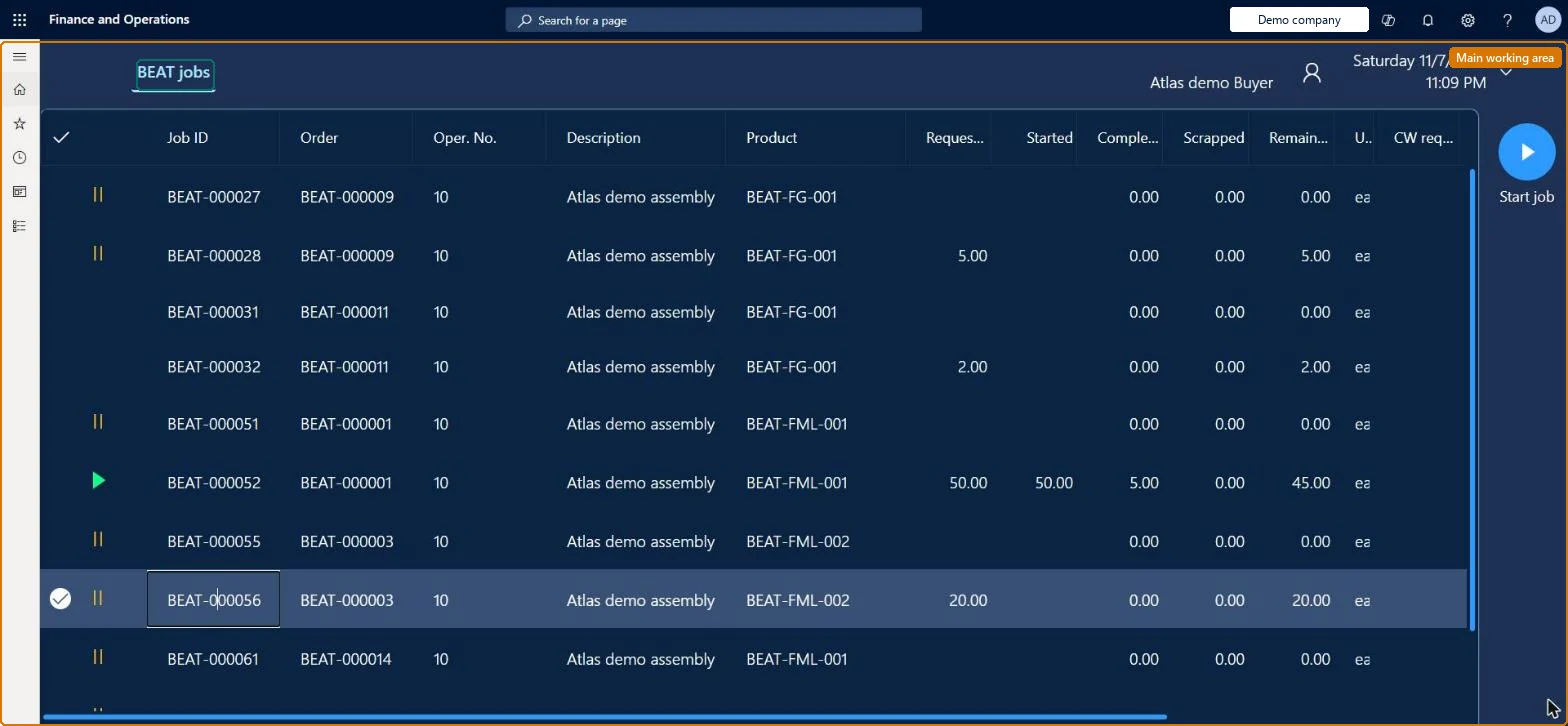
A touch-optimised shop-floor page where production workers sign in, see their job list and register the start, progress, scrap and completion of production jobs, as well as breaks and other activities.
Consume resources using the manufacturing execution device in Dynamics 365 Supply Chain Management
Menu item
JmgProductionFloorExecution
Show what matters for
PAGE GUIDEWhat the page does and how to use it7 sections. Choose a role to highlight what matters to you.
Everyone
1What it is and why
What it is
A touch-optimised shop-floor page where production workers sign in, see their job list and register the start, progress, scrap and completion of production jobs, as well as breaks and other activities.
What you do here
Use this page to let shop-floor workers register their daily work, such as starting jobs, reporting feedback on jobs, registering indirect activities and reporting absence. These registrations drive production progress, cost and the workers' pay.
Example
For example, a machine operator selects a job on the All jobs tab, selects Start job, confirms the quantity and later reports the good quantity and sets the job to Completed.
The page in Dynamics 365. page title tab to open what to set or check
About the examples: Examples and screenshots in this guide use BEAT, a demo company in a Dynamics 365 test environment. Use your own company's codes and values instead of copying them.
Steps from Microsoft
Go to Production control > Manufacturing execution > Production floor execution.
On the sign-in page or the welcome page, select Configure (requires the Maintain time supervision duty).
Select a configuration in the list, then select Next.
Select one or more job filters (Production unit, Resource group, Resource), then select Next.
Select the display colour theme for the device and select OK.
Workers then sign in with their badge ID, personnel number and/or password.
A job filter changed on a device applies to every worker who signs in to that device afterwards, so filter changes affect the whole work cell, not one worker. Microsoft Learn
Technical architect
5Technical
Menu item
JmgProductionFloorExecutionChecked in Dynamics 365
Form
JmgProductionFloorExecutionChecked in Dynamics 365
Roles to set it up and use it
To set it up or change itProduction supervisor ProdProductionSupervisorShop supervisor JmgShopSupervisorMachine operator JmgMachineOperatorManufacturing execution workload shop supervisor JmgManufacturingExecutionWorkloadSupervisorWaterspider LeanWaterspiderGive people one of these roles. On this system, 6 roles can open this page.Checked in Dynamics 365