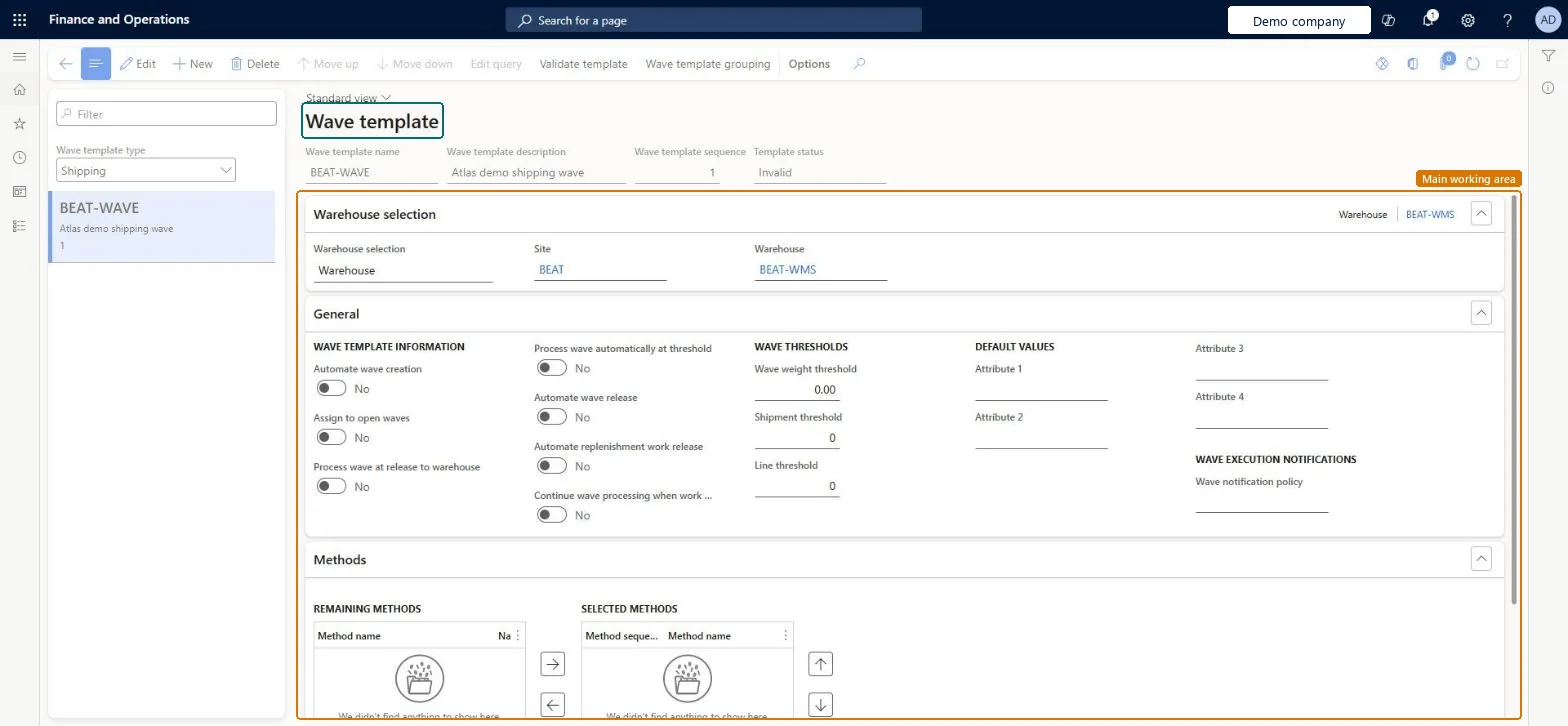
A setup page where you define the wave templates that decide whether waves are processed manually or automatically and what work is created when a wave is processed.
PAGE GUIDEWhat the page does and how to use it8 sections. Choose a role to highlight what matters to you.
Everyone
1What it is and why
What it is
A setup page where you define the wave templates that decide whether waves are processed manually or automatically and what work is created when a wave is processed.
What you do here
Use this page to set the criteria, automation options and methods that match released order lines to a wave.
Example
For example, if you promise customers that an order placed by 12:00 PM ships within 24 hours, a wave template can assign order lines to an open wave until 12:00 PM.
The page in Dynamics 365. page title tab to open what to set or check
About the examples: Examples and screenshots in this guide use BEAT, a demo company in a Dynamics 365 test environment. Use your own company's codes and values instead of copying them.
Setup steps on this page
Set up Wave templates
Use this page to set the criteria, automation options and methods that match released order lines to a wave.
Steps from Microsoft
Go to Warehouse management > Setup > Waves > Wave templates.
Select New to create a wave template.
In the Wave template type field, select Shipping, Production orders or Kanban.
Enter a Wave template name and a Wave template description.
On the Warehouse selection FastTab, set the Warehouse selection, and the Site and Warehouse that the template applies to.
On the General FastTab, set the automation options and the Wave thresholds that you need.
On the Methods FastTab, move the methods you need to the Selected methods pane.
Select Edit query to set the query that matches released lines to the wave, and then select Validate template.
Put the most specific templates at the top of the sequence. Where picking work is needed as soon as a load is released, set Automate wave creation, Process wave at release to warehouse and Automate wave release to YesThe system applies the first template whose criteria a released line meets, so broad templates must come last; Learn names those three settings for generating picking work at load release.
Setting Continue wave processing when work creation fails to Yes without realising the system then uses a blank location when it can't reserve at the proposed location; with No, the wave fails instead.
To set it up or change itWarehouse manager WMSWarehouseManagerWarehouse planner WHSWarehousePlannerGive people one of these roles. On this system, 2 roles can open this page.Checked in Dynamics 365
Actions on the page
(Action Pane without tabs): Move up, Move down, Edit query, Validate template, Wave template groupingChecked in Dynamics 365