About the examples: Examples and screenshots in this guide use BEAT, a demo company in a Dynamics 365 test environment. Use your own company's codes and values instead of copying them.
Setup steps on this page
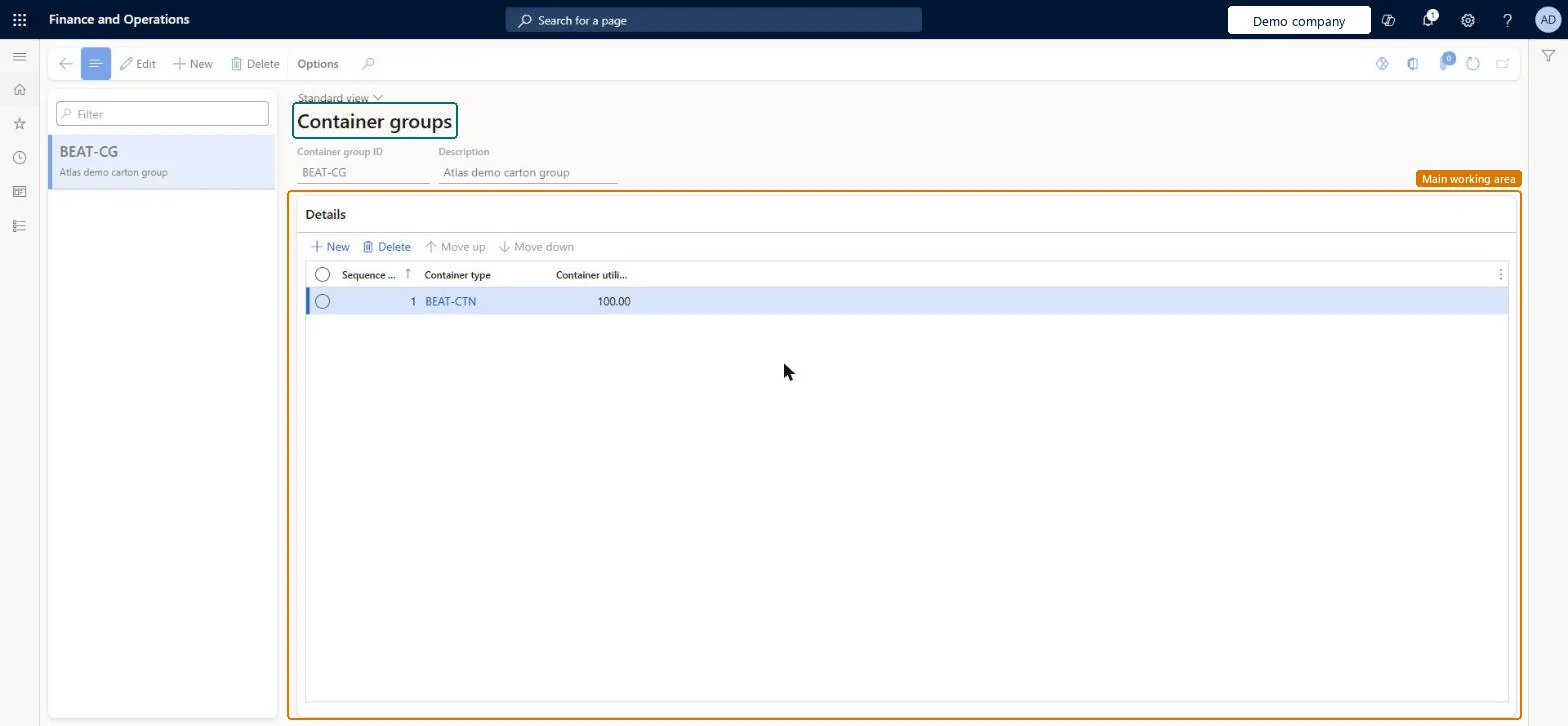
Set up Container groups
Use this page to group container types and set the packing sequence and fill percentage for each type.
Steps from Microsoft
Go to Warehouse management > Setup > Containers > Container groups.
On the Action Pane, select New.
Enter a unique Container group ID and a Description.
On the Details FastTab, select New to add a container type to the group.
In the Container type field, select a container type.
In the Container utilization percentage field, enter the percentage of the container the system may use.
Select Move up or Move down to set the sequence in which the types are packed.
Sequence container types from largest (sequence 1) to smallest; keep Container utilization percentage at 100 unless you need to reserve spaceFor the Pack into all open containers and Pack into current container only strategies, Learn says to arrange the sequence by size with the largest container first. The utilization percentage defaults to 100 and must be greater than 0 and no more than 100.
Leaving a container type out of the group. A container build template can create containers only from the container types in the group it points to.
Reversible: Lines, sequence and utilization can be changed at any time with Move up or Move down; the change applies to containerization runs afterwards.
Technical architect
6Technical
Menu item
WHSContainerGroupChecked in Dynamics 365
Form
WHSContainerGroupChecked in Dynamics 365
Table
WHSContainerGroupShown as “CONTAINER GROUPS” in Record infoKey field: ContainerGroupIdChecked in Dynamics 365
PrivilegesMaintain container groups WHSContainerGroupMaintainView customer groups WHSContainerGroupViewDutiesInquire into warehouse operation master WMSWarehouseOperationMasterInquireMaintain warehouse operation master WMSWarehouseOperationMasterMaintain6 security rolesField Service Integration User FieldServiceIntegrationUserProduction supervisor ProdProductionSupervisorProcess engineer RouteProcessEngineerProcess engineering manager RouteProcessEngineeringManagerWarehouse planner WHSWarehousePlannerWarehouse manager WMSWarehouseManagerChecked in Dynamics 365
Roles to set it up and use it
To set it up or change itWarehouse manager WMSWarehouseManagerProcess engineer RouteProcessEngineerTo use itWarehouse planner WHSWarehousePlannerProduction supervisor ProdProductionSupervisorProcess engineering manager RouteProcessEngineeringManagerField Service Integration User FieldServiceIntegrationUserGive people one of these roles. On this system, 6 roles can open this page.Checked in Dynamics 365
WHSContainerGroupEntity (Container groups): loaded for each company, in Microsoft's default template 400 - Warehouse management.Load order: Microsoft's default template 400 - Warehouse management loads Container groups at execution unit 1, level 30, sequence 10. Lower levels load first, and entities at the same level load in sequence order.Load first: the default templates at lower levels (System setup to General ledger)Microsoft Learn