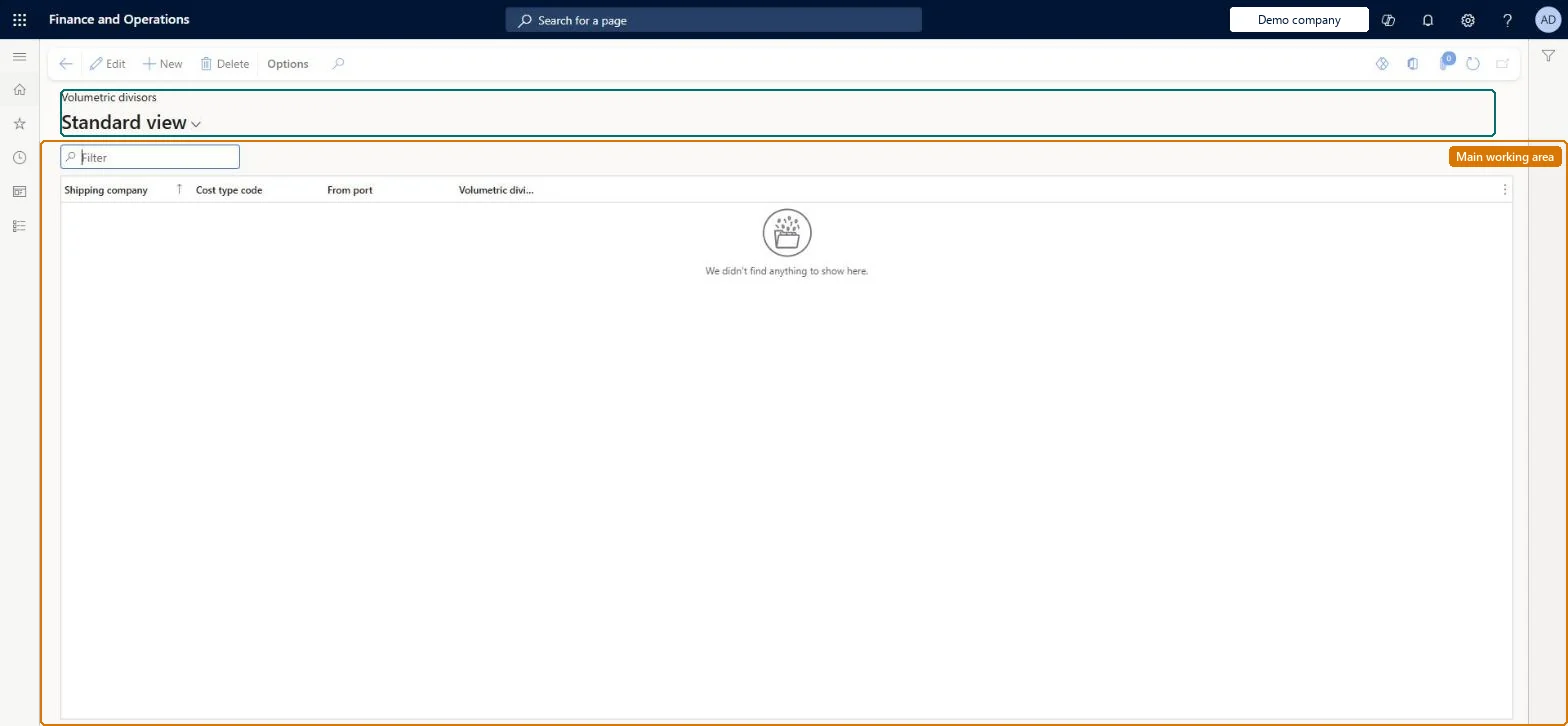
Setup step on the Volumetric divisors page · Landed cost
Set up Volumetric divisors
Use this page to add, edit and remove volumetric divisor rows. The system divides each package's volume by the divisor to get its volumetric weight and then charges on the greater of actual weight and volumetric weight.
SETUP GUIDEHow to set it up8 sections. Choose a role to highlight what matters to you.
Everyone
1What it is and why
What it is
A setup page where you record, per shipping company, cost type and from-port, the divisor used to convert a package's volume into a volumetric weight.
What you do here
Use this page to add, edit and remove volumetric divisor rows. The system divides each package's volume by the divisor to get its volumetric weight and then charges on the greater of actual weight and volumetric weight.
Example
For example, an air freight package of 3 cubic metres with a divisor of 6 gets a volumetric weight of 0.5, and the carrier is charged on whichever of actual or volumetric weight is higher.
The page in Dynamics 365. page title tab to open what to set or check
About the examples: Examples and screenshots in this guide use BEAT, a demo company in a Dynamics 365 test environment. Use your own company's codes and values instead of copying them.
Setup steps on this page
Set up Volumetric divisors
Use this page to add, edit and remove volumetric divisor rows. The system divides each package's volume by the divisor to get its volumetric weight and then charges on the greater of actual weight and volumetric weight.
Steps from Microsoft
Go to Landed cost > Costing setup > Volumetric divisors.
One row per shipping company, cost type and from-port, using that carrier's divisor for the mode of deliveryEach shipping or freight company sets its own volumetric divisors, and they usually vary by mode of delivery and sometimes by origin.
Using one divisor for air and sea. Air and sea divisors are often very different, and the system always charges on the larger of actual and volumetric weight.
Solution architect
5Design impact
Can it be undone
Reversible: Divisors can be changed at any time; they change the volumetric weight calculated from then on.
If you change it later
Changing a divisor changes the volumetric weight the system calculates, and therefore the chargeable weight, because the system always takes the larger of actual and volumetric weight. Microsoft Learn
Technical architect
6Technical
Menu item
ITMVolumetricDivisorTableChecked in Dynamics 365
Form
ITMVolumetricDivisorTableChecked in Dynamics 365
Table
ITMVolumetricDivisorTableShown as “VOLUMETRIC DIVISORS” in Record infoKey field: AccountRelation, ShipCostTypeId, FromPortChecked in Dynamics 365
Data entities
ITMShippingVolumetricDivisorEntityVolumetric divisors Checked in Dynamics 365
Who can open it
PrivilegesMaintain voyage auto costs ITMCostAutoSetupMaintainDutiesMaintain voyage costs setup ITMCostSetupMaintain1 security roleLanded cost manager ITMManagerChecked in Dynamics 365
Roles to set it up and use it
To set it up or change itLanded cost manager ITMManagerGive people one of these roles. On this system, 1 role can open this page.Checked in Dynamics 365