Setup step on the Rate master page · Transportation management
Set up Rate master
Use this page to set up carrier rates based on the contracts signed with carriers, including the rate bases that price each breakpoint and the rate base assignments that decide which rate base applies.
SETUP GUIDEHow to set it up8 sections. Choose a role to highlight what matters to you.
Everyone
1What it is and why
What it is
A setup page where you define rate masters, which represent carrier rates and hold the rate bases and rate base assignments for one rating metadata ID.
What you do here
Use this page to set up carrier rates based on the contracts signed with carriers, including the rate bases that price each breakpoint and the rate base assignments that decide which rate base applies.
Example
For example, rate base assignments let you create different price points for a carrier depending on destinations, services or rate bases.
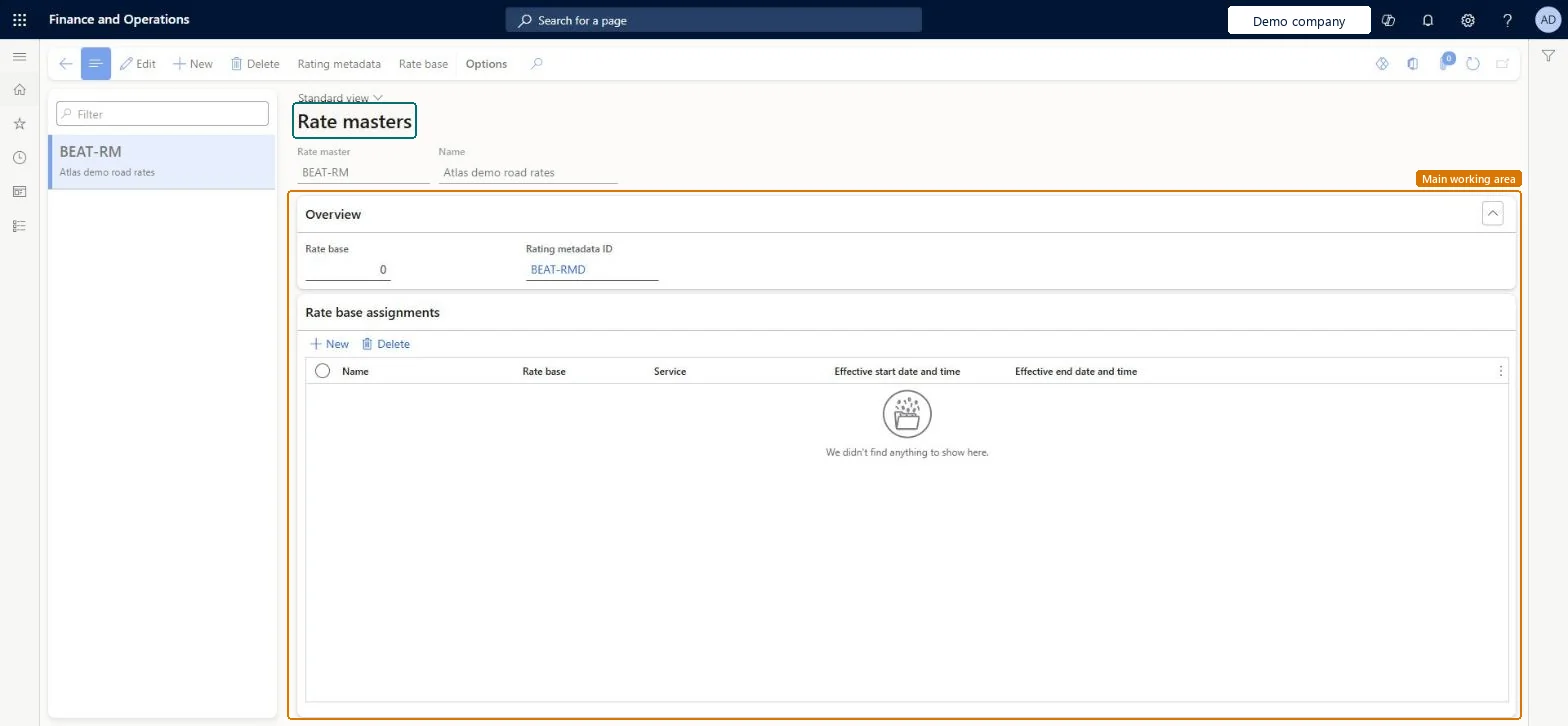
The page in Dynamics 365. page title tab to open what to set or check
About the examples: Examples and screenshots in this guide use BEAT, a demo company in a Dynamics 365 test environment. Use your own company's codes and values instead of copying them.
Setup steps on this page
Set up Rate master
Use this page to set up carrier rates based on the contracts signed with carriers, including the rate bases that price each breakpoint and the rate base assignments that decide which rate base applies.
Steps from Microsoft
Go to Transportation management > Setup > Rating > Rate master.
On the Action Pane, select New.
In the header, enter a unique Rate master identifier and a descriptive Name.
On the Overview FastTab, set Rating metadata ID to the rating metadata that applies for this rate master.
On the Action Pane, select Rate base to set up one or more rate bases for the rate master.
On the Rate base assignments FastTab toolbar, select New and enter the Name, Rate base, Service and effective start and end date and time.
One rate master per carrier contract on one rating metadata ID, with effective-dated rate bases and rate base assignments that never overlap for the same detail linesRating is configured bottom up (metadata, break master, rate master) and each rate master has only one rating metadata ID; Learn says to avoid overlapping effective dates.
Hard to reverse: The rating metadata ID can't differ per rate base, so a wrong metadata choice means a new rate master. Rates already on confirmed loads stay in the freight bill.
Technical architect
6Technical
Menu item
TMSRateMasterChecked in Dynamics 365
Form
TMSRateMasterChecked in Dynamics 365
Table
TMSRateMasterShown as “RATE MASTER” in Record infoKey field: RateMasterCodeChecked in Dynamics 365
PrivilegesMaintain rate master data TMSRateMasterMaintainView rate master details TMSRateMasterViewDutiesInquire into carrier master and network planning information TMSCarrierMasterInquireMaintain carrier and network planning master TMSCarrierMasterMaintain2 security rolesLogistics manager TMSLogisticsManagerTransportation coordinator TMSTransportationCoordinatorChecked in Dynamics 365
Roles to set it up and use it
To set it up or change itLogistics manager TMSLogisticsManagerTo use itTransportation coordinator TMSTransportationCoordinatorGive people one of these roles. On this system, 2 roles can open this page.Checked in Dynamics 365
Actions on the page
(Action Pane without tabs): Rating metadata, Rate baseChecked in Dynamics 365
TMSTransportationRateMasterEntity (Transportation rate masters): loaded for each company, in Microsoft's default template 405 - Transportation management.Load order: Microsoft's default template 405 - Transportation management loads Transportation rate masters at execution unit 1, level 40, sequence 10. Lower levels load first, and entities at the same level load in sequence order.Load first: the default templates at lower levels (System setup to dependency bands 30 to 90)Microsoft Learn