About the examples: Examples and screenshots in this guide use BEAT, a demo company in a Dynamics 365 test environment. Use your own company's codes and values instead of copying them.
Step by step, with screenshots
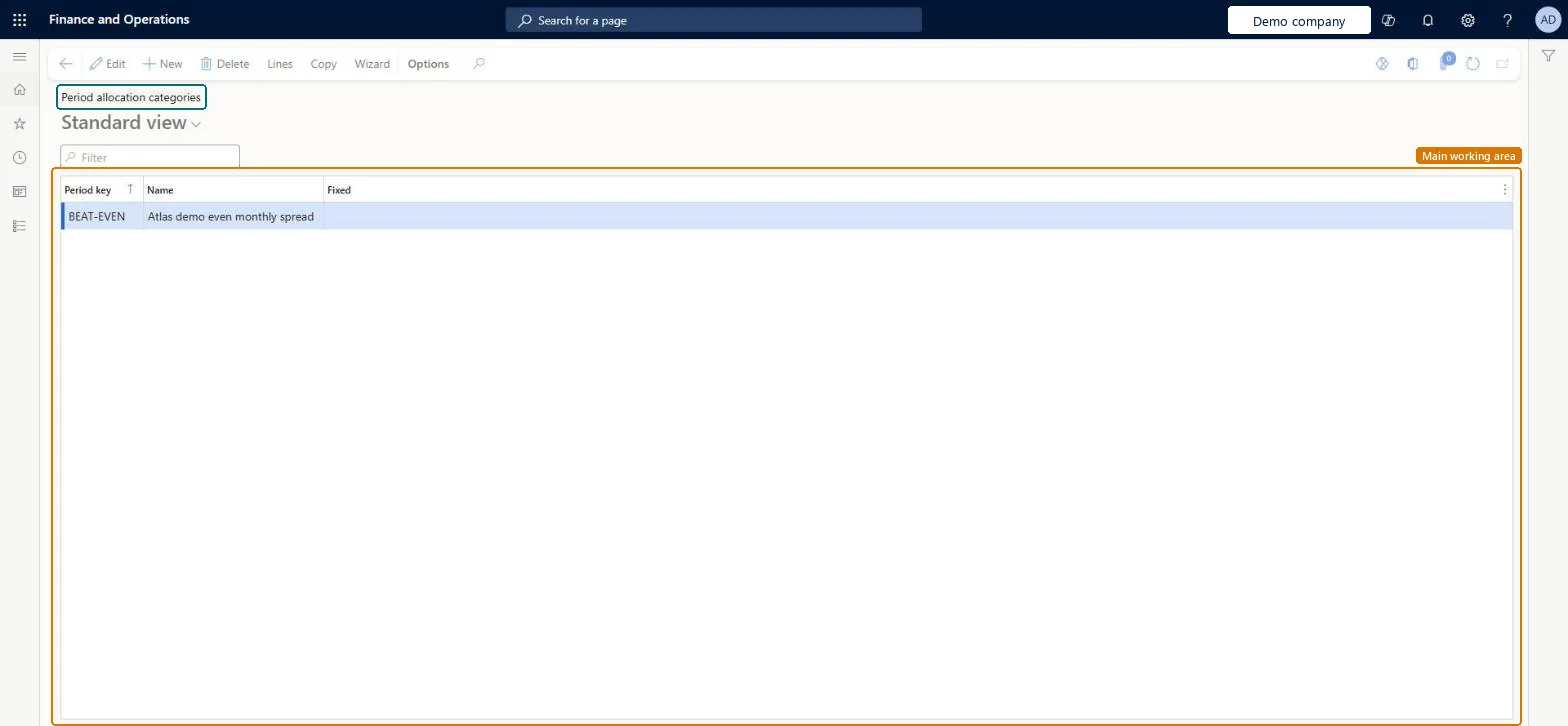
Set up Period allocation categories1 screen
Use this page to allocate forecasts and budget amounts across periods, for example to reflect seasonal variation.
Screen 1
Create a period allocation category
Go to Inventory management > Setup > Forecast > Period allocation categories
Select New
Enter the period key and name
Select Save
Select Lines to enter the dates and percentages that spread an amount across periods
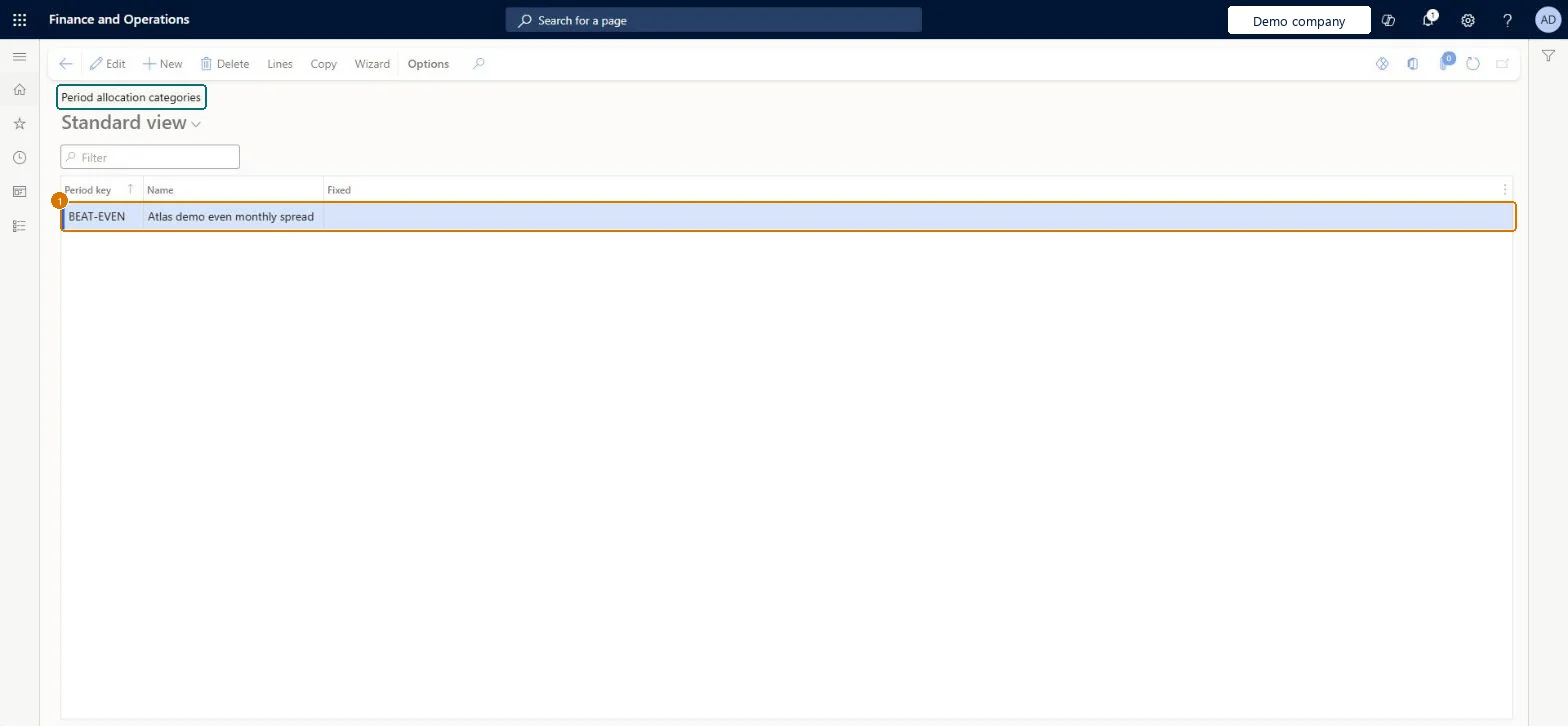
1Period key
BEAT-EVEN
Name
Even monthly spread
Show the full screen page title tab to open what to set or check
How to use it
Go to Inventory management > Setup > Forecast > Period allocation categories.
Select New to add a period allocation category.
Enter the Period key and the Name.
Select Lines on the Action Pane to open the lines for the selected period key.
Select Copy or Wizard on the Action Pane if you want to use those options.
Select Save.
Source: Checked in Dynamics 365
Fields on the page
Field
What it means
Example
Table column
Period key
EVEN
Key
Name
The name of the period allocation key.Checked in Dynamics 365
Even monthly spread
Txt
Test checklist
Create a period key with percentages across several periods.
Create a demand forecast line, set Method = Key and select the period key.
Select Allocate forecast and check the Allocation grid spreads the quantity by the key's percentages.
Period keys only for items with seasonal demand; use them with Method = Key when you allocate a forecastLearn says to use the Key method when seasonal variation should be considered; otherwise the Period method spreads the same quantity per period.
Selecting Method = Key without a period key, or with a key that doesn't cover the forecast horizon, so the forecast isn't spread as expected.
Reversible: Keys can be edited; they are applied when a forecast is allocated.
Technical architect
6Technical
Menu item
ForecastLedgerAllocateKeyChecked in Dynamics 365
Form
LedgerAllocateKeyChecked in Dynamics 365
Table
LedgerAllocateKeyShown as “Period allocation key” in Record infoKey field: KeyChecked in Dynamics 365
Data entities
LedgerPeriodAllocationCategoryEntityPeriod allocation categories Microsoft data model
Who can open it
PrivilegesMaintain ledger period allocation keys ForecastLedgerAllocateKeyMaintainView fiscal period allocation keys ForecastLedgerAllocateKeyViewDutiesEnable general ledger process LedgerGeneralLedgerProcessEnableInquire into general ledger reference data LedgerGeneralLedgerReferenceDataInquireEnable general ledger process RentalLedgerGeneralLedgerProcessEnable9 security rolesBudget manager BudgetBudgetManagerChief financial officer CompanyChiefFinancialOfficerAccountant LedgerAccountantAccounting manager LedgerAccountingManagerAccounting supervisor LedgerAccountingSupervisorFinancial controller LedgerFinancialControllerRental manager RentalManagerRental purchasing manager RentalPurchasingManagerRental sales manager RentalSalesManagerChecked in Dynamics 365
Roles to set it up and use it
To set it up or change itRental sales manager RentalSalesManagerRental manager RentalManagerAccounting manager LedgerAccountingManagerRental purchasing manager RentalPurchasingManagerAccounting supervisor LedgerAccountingSupervisorTo use itFinancial controller LedgerFinancialControllerChief financial officer CompanyChiefFinancialOfficerAccountant LedgerAccountantBudget manager BudgetBudgetManagerGive people one of these roles. On this system, 9 roles can open this page.Checked in Dynamics 365
Actions on the page
Options: Personalize, Page options, ShareChecked in Dynamics 365
LedgerPeriodAllocationCategoryEntity (Period allocation categories): loaded for each company, in Microsoft's default template 160 - Budgeting.Load order: Microsoft's default template 160 - Budgeting loads Period allocation categories at execution unit 1, level 30, sequence 10. Lower levels load first, and entities at the same level load in sequence order.Load first: the default templates at lower levels (System setup to General ledger)Microsoft Learn
Checked in a working Dynamics 365 system, version 10.0.49: the menu item, form, table and security, the page, the demo records and the values in the screenshots.
To cite this step: IM-SETUP-420, Set up Period allocation categories. Beyond ERP Atlas Hub, 2026-11-11. https://www.beyonderp.cloud/atlas/step/IM-SETUP-420