BeyondERP.Newsletter
Menu

Setup step on the Item allocation keys page · Inventory management

Set up Item allocation keys

Use this page to decide which items get a demand forecast, because the system forecasts an item only if it belongs to an item allocation key.

Used by
Production manager, Production planner
Business process
Maintain inventory levels
Menu item
ForecastItemAllocation
Main table
ForecastItemAllocation
Data entity
ProductAllocationKeyEntity
Setup steps
1 on this page
Show what matters for
SETUP GUIDEHow to set it up8 sections. Choose a role to highlight what matters to you.
Everyone

1What it is and why

What it isA setup page where you create item allocation keys, which establish groups of items for forecasting.
What you do hereUse this page to decide which items get a demand forecast, because the system forecasts an item only if it belongs to an item allocation key.
ExampleFor example, a production planner can create a baseline forecast for all products by copying historical demand with one item allocation key.
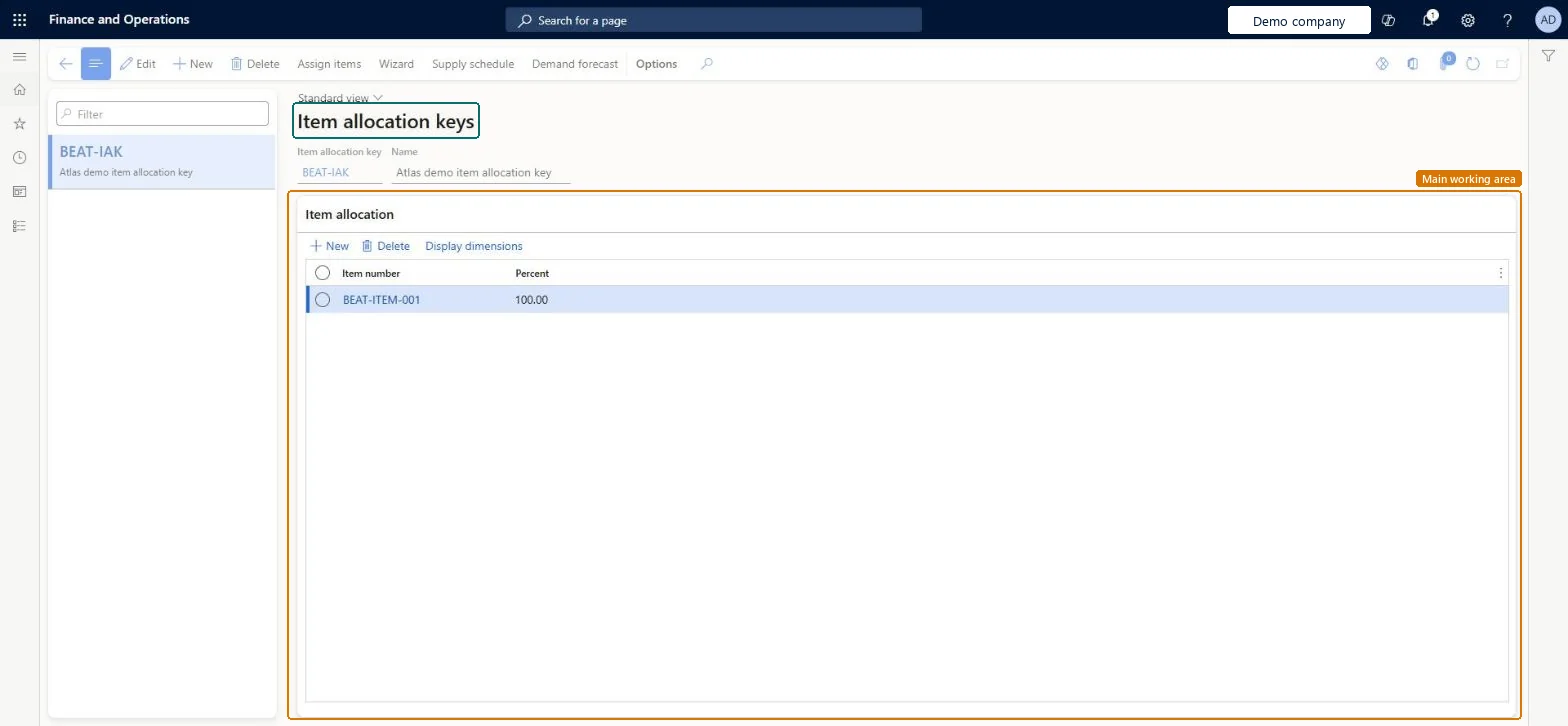
Item allocation keys page in Dynamics 365
The page in Dynamics 365. page title tab to open what to set or check
Functional consultant · Solution architect

2Where it fits

Business processMaintain inventory levels
Menu pathInventory management › Setup › Forecast › Item allocation keys
Used next bySet up Item groups
Related pagesForecast models Microsoft Learn Period allocation categories Microsoft Learn
In this process Set up Forecast models · Set up Period allocation categories
End user · Functional consultant

3How to do it

About the examples: Examples and screenshots in this guide use BEAT, a demo company in a Dynamics 365 test environment. Use your own company's codes and values instead of copying them.

Step by step, with screenshots

Set up Item allocation keys1 screen

Use this page to decide which items get a demand forecast, because the system forecasts an item only if it belongs to an item allocation key.

  1. Screen 1

    Create an item allocation key

    Go to Inventory management > Setup > Forecast > Item allocation keys

    1. Make sure the item exists (here demo item BEAT-ITEM-001)
    2. Select New
    3. Enter the item allocation key code and name
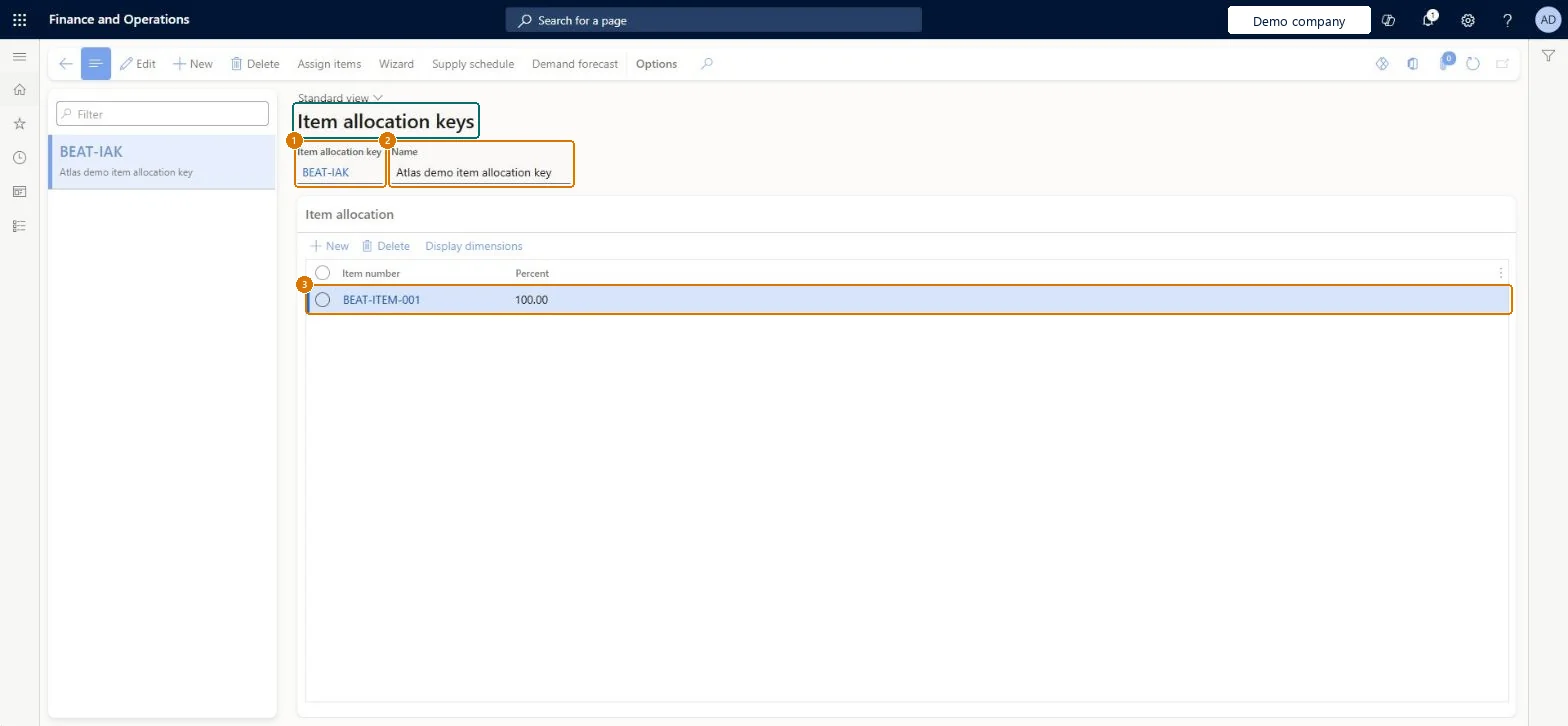
    4. Under Item allocation, select New, choose the item and enter its percentage (the lines add up to 100)
    5. Select Save
    1Item allocation keyBEAT-IAK
    2NameItem allocation key
    3Item numberBEAT-ITEM-001
    Percent100.00
    Create an item allocation key (zoomed on the outlined fields)
    Show the full screenCreate an item allocation key
    page title tab to open what to set or check

Steps from Microsoft

  1. Open the Item allocation keys page.
  2. Select New, or select an existing key.
  3. Enter a unique Item allocation key and a descriptive Name.
  4. On the Item allocation FastTab, add a row for each item and set any dimension values.
  5. To add many items at once, select Assign items on the Action Pane.

Source: Microsoft Learn

Fields on the page

FieldWhat it meansExampleTable column
Item allocation keyA unique name for the key.Microsoft Learn TOPSELLERSAllocateId
NameA descriptive name for the key.Microsoft Learn Item allocation keyName
PercentA percentage per item that isn't used when demand forecasts are generated.Microsoft Learn 100.00Percent
Item numberBEAT-ITEM-001ItemId

Test checklist

  1. Create a key and add items with Assign items.
  2. Check none of the items is in another key.
  3. Run Generate statistical baseline forecast for the key and check the items get forecast lines.
  4. Check an item outside every key gets no forecast.

Source: Microsoft Learn

Functional consultant

4Setup decisions

Setup stepRecommended value and whyDecision, common mistake and test
Set up Item allocation keysEach item and its dimensions in only one item allocation key, with only items that really need a forecastLearn says an item must belong to only one key when keys are used to create forecasts, and unnecessary items increase costs when you use Azure Machine Learning.Expecting the Percent column to weight the forecast: it is ignored when demand forecasts are generated.
Solution architect

5Design impact

Shared or per companyPer company: each legal entity has its own records. Microsoft data model
Can it be undoneReversible: Items can be added or removed; the change applies on the next forecast generation.
If you change it laterAn item and its dimensions should belong to only one item allocation key when keys are used to create forecasts. Microsoft Learn
Technical architect

6Technical

Menu itemForecastItemAllocation Checked in Dynamics 365
FormForecastItemAllocation Checked in Dynamics 365
TableForecastItemAllocationShown as “Item allocation keys” in Record infoKey field: AllocateIdChecked in Dynamics 365
Data entitiesProductAllocationKeyEntityItem allocation keys Microsoft data model
Who can open itPrivilegesMaintain item allocation keys ForecastItemAllocationMaintainView item allocation keys ForecastItemAllocationViewDutiesMaintain forecasts ForecastForecastMaintainEnable forecast process ForecastForecastProcessEnableReview forecast performance ForecastForecastProcessPerformanceRevieInquire into forecast reference data ForecastForecastReferenceDataInquire
2 security rolesProduction manager ProdProductionManagerProduction planner ReqProductionPlanner
Checked in Dynamics 365
Roles to set it up and use itTo set it up or change itProduction manager ProdProductionManagerProduction planner ReqProductionPlannerGive people one of these roles. On this system, 2 roles can open this page.Checked in Dynamics 365
Actions on the pageOptions: Personalize, Page options, ShareChecked in Dynamics 365
Developer

7Developer

Open it by URLhttps://<your-environment>/?mi=ForecastItemAllocation
Integrate withProductAllocationKeyEntity data entity Microsoft data model
Data migrationProductAllocationKeyEntity (Item allocation keys): loaded for each company.Microsoft Learn
Table definitionForecastItemAllocation columns and relations Microsoft data model
Everyone

8Sources

To cite this step: IM-SETUP-410, Set up Item allocation keys. Beyond ERP Atlas Hub, 2026-11-11. https://www.beyonderp.cloud/atlas/step/IM-SETUP-410