About the examples: Examples and screenshots in this guide use BEAT, a demo company in a Dynamics 365 test environment. Use your own company's codes and values instead of copying them.
Step by step, with screenshots
Set up Forecast models1 screen
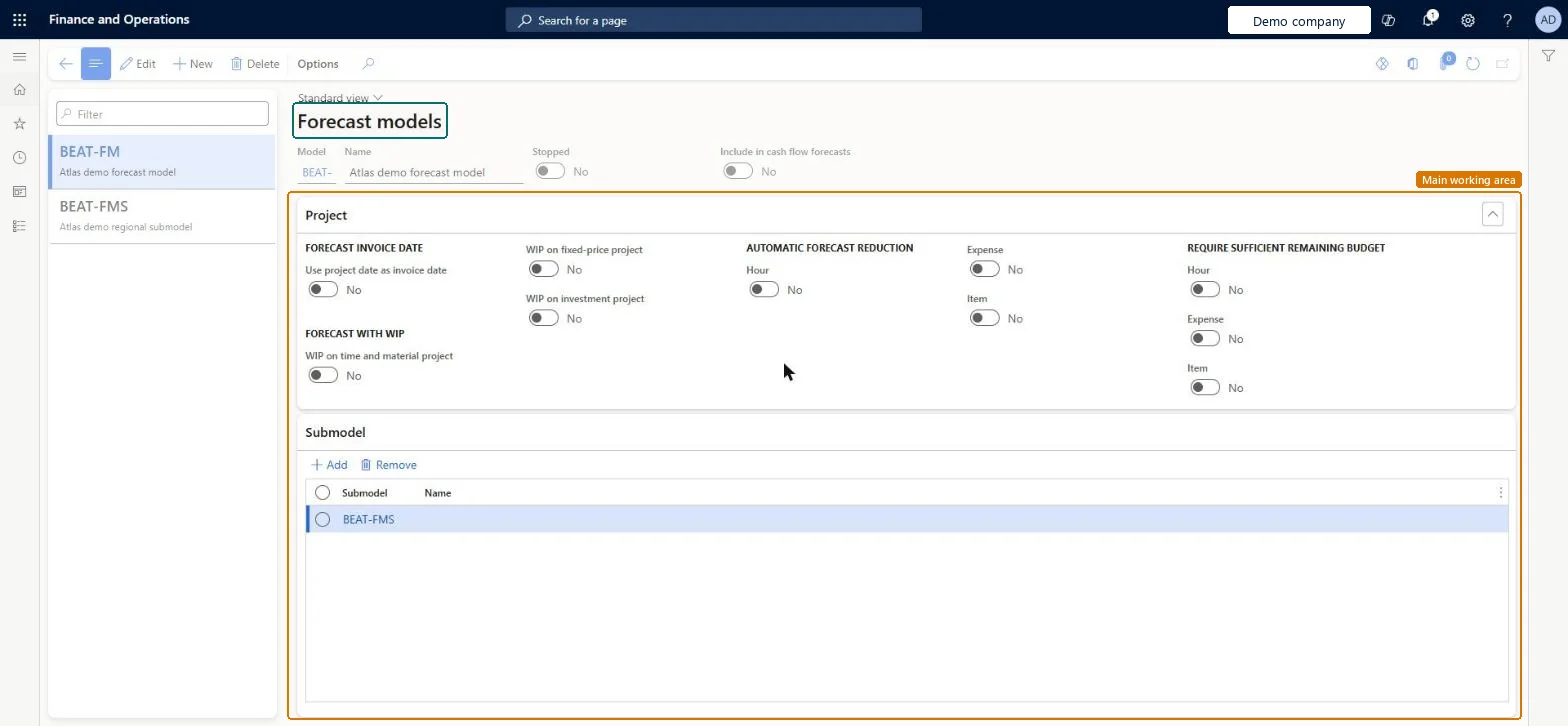
Use this page to hold forecast lines and to combine forecasts by adding other forecast models as submodels.
Screen 1
Create a forecast model
Go to Inventory management > Setup > Forecast > Forecast models
Select New
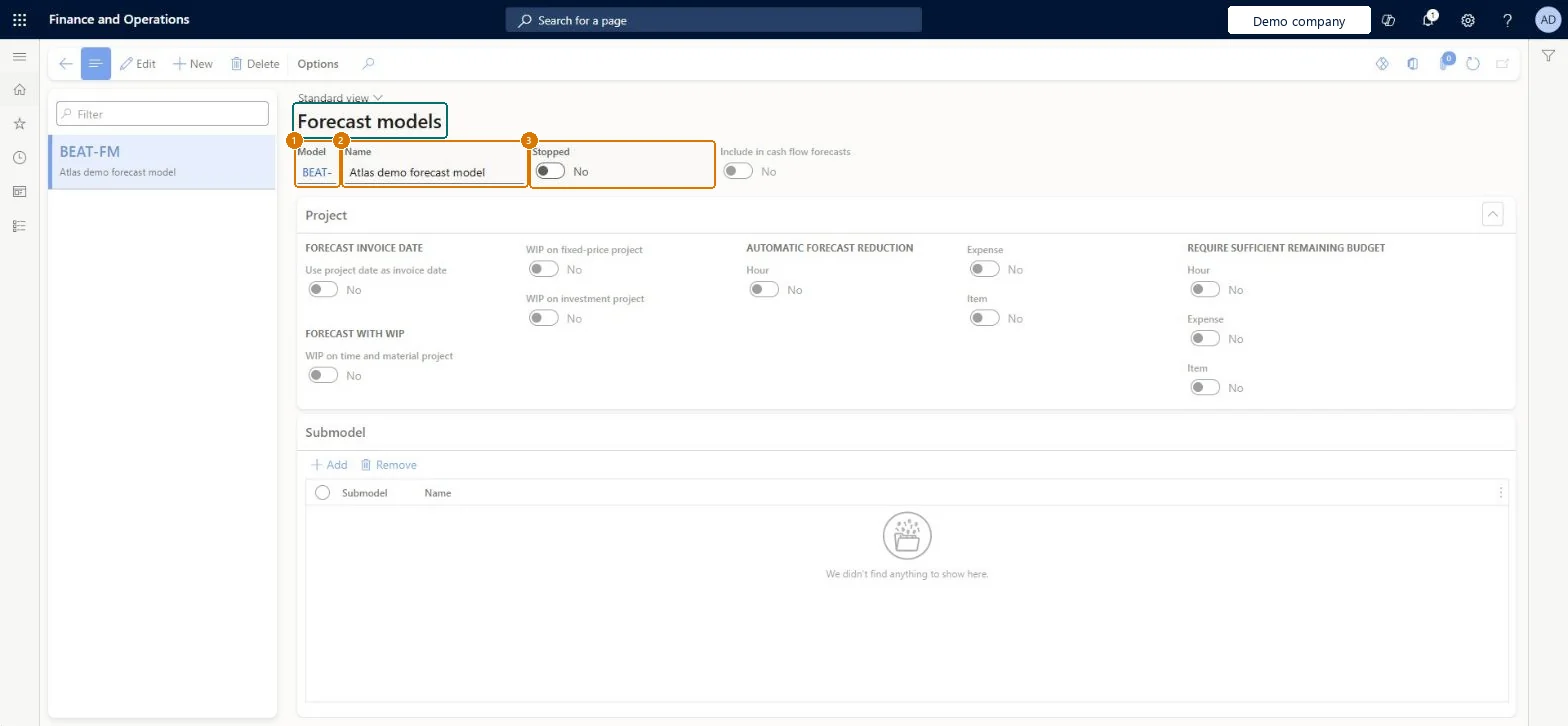
Enter the model code and name
Leave Stopped off so the model can be used
Select Save
Optionally add other models under Submodel to combine forecasts
1Model
BEAT-FM
2Name
Forecast model
3Stopped
No
Show the full screen page title tab to open what to set or check
Steps from Microsoft
Go to Inventory management > Setup > Forecast > Forecast models.
Select New.
Enter a unique Model and a descriptive Name.
Leave Stopped set to No unless the forecast lines should be locked.
To add submodels, select the parent model and, on the Submodel FastTab, select Add.
Prevents editing of all forecast lines assigned to the model.Microsoft Learn
No
Blocked
Submodel
Another forecast model whose forecasts are included in this model.Microsoft Learn
SubModelId
Common errors and fixes
Message
What to do
Forecast model B is a submodel for model A.
Don't add submodels to a model that is already a submodel; keep the structure one level deep and add all models directly under the parent. Microsoft Learn
Test checklist
Create models A, B and C and add B and C as submodels of A.
Enter demand forecast lines on the same day in A, B and C.
Run master planning with a plan that uses model A and Include demand forecast = Yes.
Check the forecast requirement is the sum of the three lines.
Try to add a submodel to B and check the error appears.
Stopped = No; one level of submodels at most, with each submodel created firstLearn says Stopped should usually be No (Yes prevents editing all its forecast lines), and submodels can be only one level deep.
Adding a submodel to a model that is already a submodel, which raises an error; master planning also errors on a submodel that has its own submodels.
Reversible: Models, submodels and the Stopped flag can be changed. Each submodel keeps its own parameters, and Stopped = Yes only locks editing of the model's forecast lines. Microsoft Learn
If you change it later
Submodels can be only one level deep, so a model that is already a submodel can't have its own submodels. Microsoft Learn
Technical architect
6Technical
Menu item
ForecastModelChecked in Dynamics 365
Form
ForecastModelChecked in Dynamics 365
Table
ForecastModelShown as “Forecast models” in Record infoKey field: Type, ModelId, SubModelIdChecked in Dynamics 365
PrivilegesMaintain inventory forecast models ForecastModelMaintainView inventory forecast models ForecastModelViewDutiesEnable forecast process ForecastForecastProcessEnableReview forecast performance ForecastForecastProcessPerformanceRevieInquire into forecast reference data ForecastForecastReferenceDataInquireEnable the demand forecasting process ReqDemPlanProcessEnableMaintain the master for demand forecasting parameters ReqDemPlanSetupMaintain2 security rolesProduction manager ProdProductionManagerProduction planner ReqProductionPlannerChecked in Dynamics 365
Roles to set it up and use it
To set it up or change itProduction manager ProdProductionManagerProduction planner ReqProductionPlannerGive people one of these roles. On this system, 2 roles can open this page.Checked in Dynamics 365
Actions on the page
Options: Personalize, Page options, ShareChecked in Dynamics 365
ForecastModelEntity (Forecast models): loaded for each company, in Microsoft's default template 430 - Master planning.ForecastSubModelEntity (Forecast sub models): loaded for each company, in Microsoft's default template 430 - Master planning.Load order: Microsoft's default template 430 - Master planning loads Forecast models at execution unit 1, level 30, sequence 10. Lower levels load first, and entities at the same level load in sequence order.Load first: the default templates at lower levels (System setup to General ledger)Microsoft Learn
Checked in a working Dynamics 365 system, version 10.0.49: the menu item, form, table and security, the page, the demo records and the values in the screenshots.