Auditor, Chief financial officer, Inventory accountant and 9 more roles
Business process
Maintain inventory levels
Menu item
InventPosting
Main table
InventPosting
Data entity
InventInventoryLedgerPostingDefinitionEntity
Setup steps
1 on this page
Show what matters for
SETUP GUIDEHow to set it up8 sections. Choose a role to highlight what matters to you.
Everyone
1What it is and why
What it is
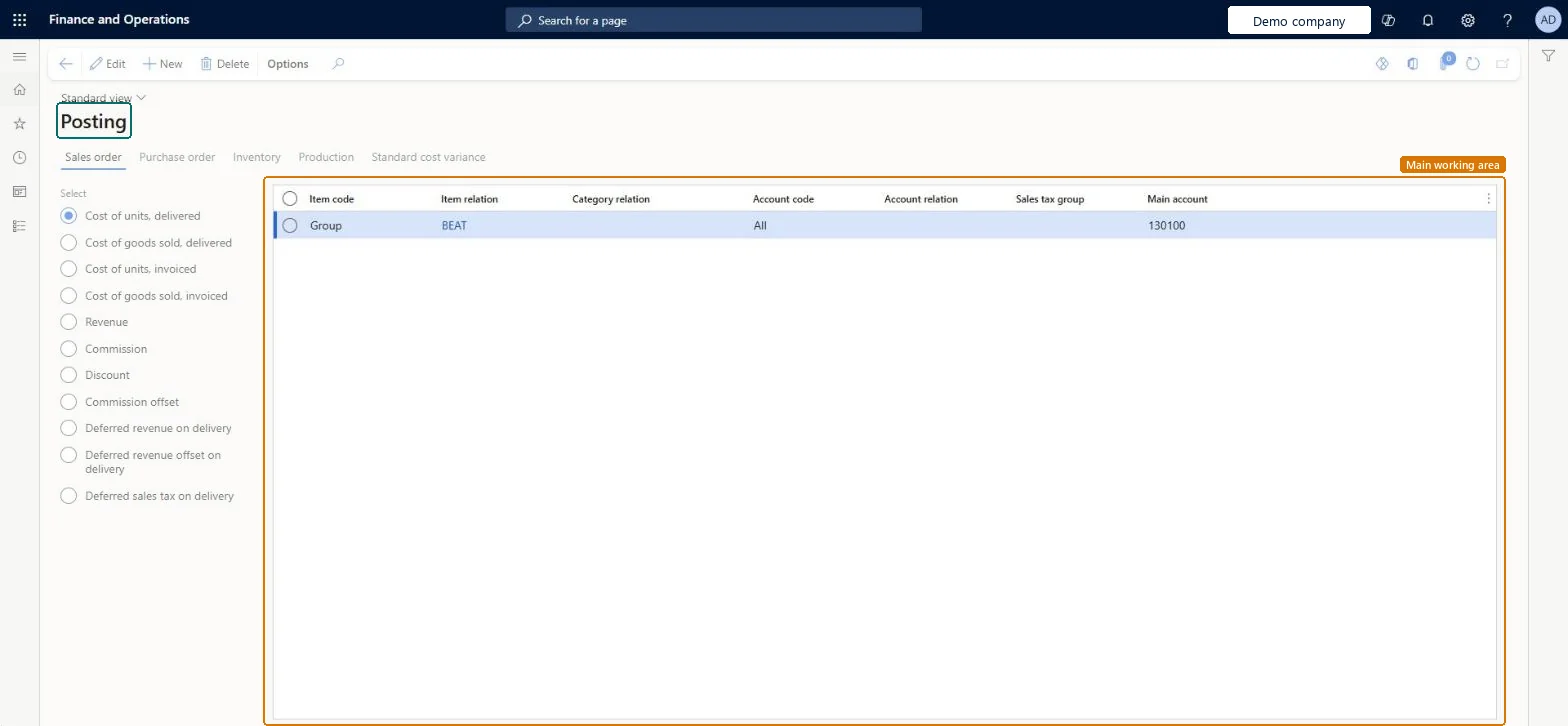
A setup page where you set up inventory posting profiles, which control how inventory subledger transactions post to the general ledger.
What you do here
Use this page to choose the main account for each posting type, with a tab for each subledger such as sales orders and purchase orders.
Example
For example, to set the account for purchase expenses for one item group, you open the Purchase order tab, select the Purchase expenditure for expense posting type and set the Item code to Group.
The page in Dynamics 365. page title tab to open what to set or check
About the examples: Examples and screenshots in this guide use BEAT, a demo company in a Dynamics 365 test environment. Use your own company's codes and values instead of copying them.
Step by step, with screenshots
Set up Posting1 screen
Use this page to choose the main account for each posting type, with a tab for each subledger such as sales orders and purchase orders.
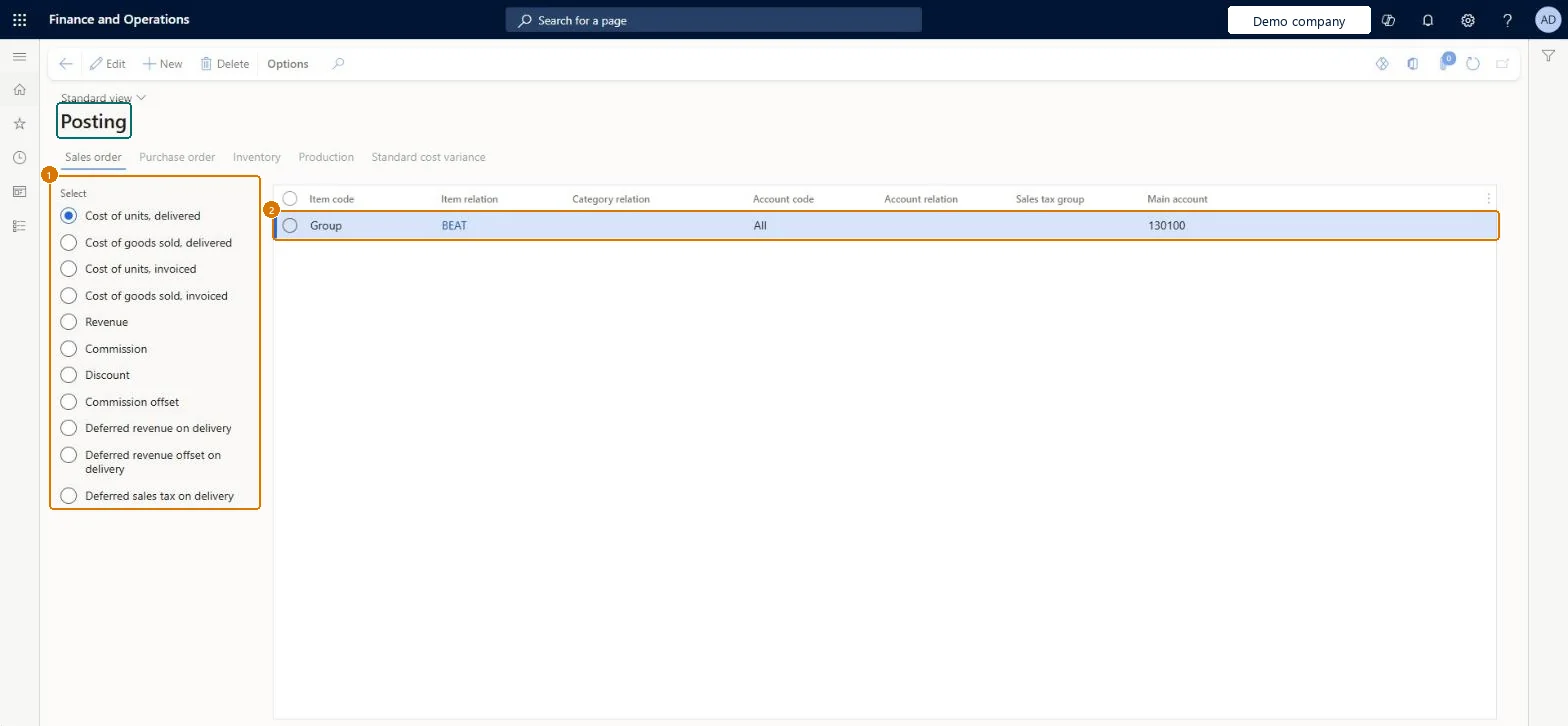
Screen 1
Set up inventory posting
Go to Inventory management > Setup > Posting > Posting
Select a tab for the subledger, for example Sales order
Under Select, choose the posting type, for example Cost of units, delivered
Select New
Set the item code (Table, Group or All) and the item relation, and the account code (Table, Group or All) and the account relation
Select the main account
Select Save
1Select
Cost of units, delivered
2Item relation
BEAT
Item code
Group
Account code
All
Main account
130100
Show the full screen page title tab to open what to set or check
Steps from Microsoft
Go to Inventory management > Setup > Posting > Posting.
Select the tab for the type of transaction, such as Purchase order.
Select the posting type.
Select New.
In the Item code field, select Table, Group, All or Category, and then set the Item relation or Category relation.
In the Account code field, select Table, Group or All, and then set the Account relation.
Optionally, select a Sales tax group.
In the Main account field, enter the account to post to.
For each posting type, rows with Item code = Group (one per item group) and Account code = All, with a main account on eachLearn's setup procedure uses Item code Group to post by item group and Account code All to apply the row to all vendors or customers; Table and Category rows are there for exceptions.
Reversible: Main accounts can be changed at any time. Postings made afterwards use the new account; vouchers already posted are not changed.
Technical architect
6Technical
Menu item
InventPostingChecked in Dynamics 365
Form
InventPostingChecked in Dynamics 365
Table
InventPostingShown as “Item, ledger posting” in Record infoKey field: InventAccountTypeChecked in Dynamics 365
Data entities
InventInventoryLedgerPostingDefinitionEntityLedger posting definition for inventory Microsoft data model InventProcurementLedgerPostingDefinitionEntityLedger posting definition for procurement Microsoft data model InventProductionLedgerPostingDefinitionEntityLedger posting definition for production Microsoft data model InventSalesLedgerPostingDefinitionEntityLedger posting definition for sales Microsoft data model InventStandardCostVarianceLedgerPostingDefinitionEntityLedger posting definition for standard cost variance Microsoft data model
Who can open it
PrivilegesMaintain item posting InventPostingMaintainView item posting InventPostingViewDutiesInquire into general ledger policies LedgerGeneralLedgerPoliciesInquireEnable general ledger process LedgerGeneralLedgerProcessEnableInquire into general ledger policies RentalLedgerGeneralLedgerPolicieInquireEnable general ledger process RentalLedgerGeneralLedgerProcessEnable12 security rolesAuditor AuditPolicyManagerChief financial officer CompanyChiefFinancialOfficerInventory accountant InventCostAccountantInventory accountant clerk InventCostCostClerkAccountant LedgerAccountantAccounting manager LedgerAccountingManagerAccounting supervisor LedgerAccountingSupervisorFinancial controller LedgerFinancialControllerRental coordinator agent RentalCoordinatorAgentRental manager RentalManagerRental purchasing manager RentalPurchasingManagerRental sales manager RentalSalesManagerChecked in Dynamics 365
Roles to set it up and use it
To set it up or change itRental sales manager RentalSalesManagerRental manager RentalManagerAccounting manager LedgerAccountingManagerRental purchasing manager RentalPurchasingManagerAccounting supervisor LedgerAccountingSupervisorTo use itInventory accountant clerk InventCostCostClerkInventory accountant InventCostAccountantRental coordinator agent RentalCoordinatorAgentAuditor AuditPolicyManagerFinancial controller LedgerFinancialControllerGive people one of these roles. On this system, 12 roles can open this page.Checked in Dynamics 365
Actions on the page
Options: Personalize, Page options, ShareChecked in Dynamics 365
InventInventoryLedgerPostingDefinitionEntity (Ledger posting definition for inventory): loaded for each company, in Microsoft's default template 300 - Inventory.InventProcurementLedgerPostingDefinitionEntity (Ledger posting definition for procurement): loaded for each company, in Microsoft's default template 300 - Inventory.InventProductionLedgerPostingDefinitionEntity (Ledger posting definition for production): loaded for each company, in Microsoft's default template 300 - Inventory.Load order: Microsoft's default template 300 - Inventory loads Ledger posting definition for inventory at execution unit 1, level 310, sequence 100. Lower levels load first, and entities at the same level load in sequence order.Load first: the default templates at lower levels (System setup to Inventory management)Microsoft Learn
Checked in a working Dynamics 365 system, version 10.0.49: the menu item, form, table and security, the page, the demo records and the values in the screenshots.
To cite this step: IM-SETUP-370, Set up Posting. Beyond ERP Atlas Hub, 2026-11-11. https://www.beyonderp.cloud/atlas/step/IM-SETUP-370