About the examples: Examples and screenshots in this guide use BEAT, a demo company in a Dynamics 365 test environment. Use your own company's codes and values instead of copying them.
Step by step, with screenshots
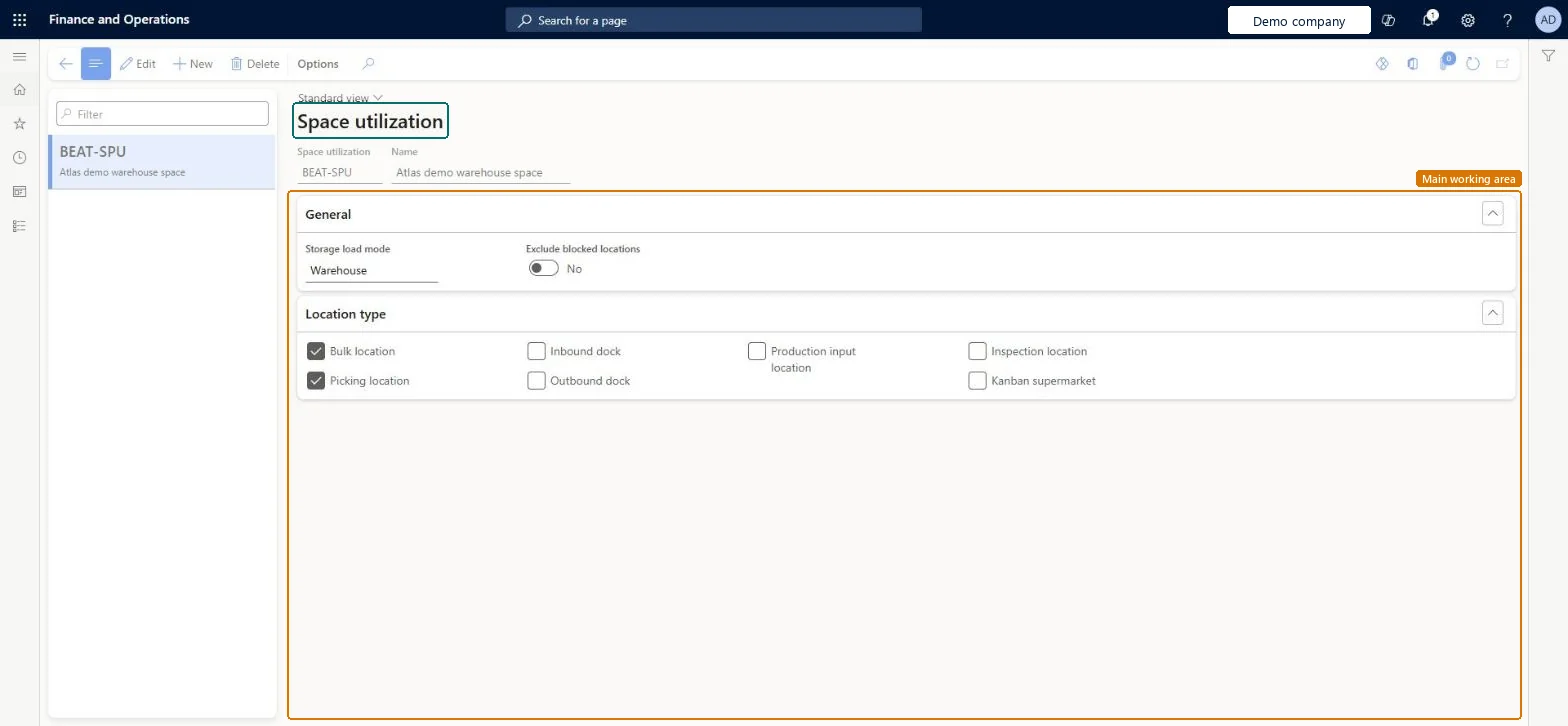
Set up Space utilization1 screen
It is used, together with a master plan, to project current and future load on sites, warehouses or zones.
Screen 1
Set up a space utilization projection
Go to Inventory management > Setup > Warehouse monitoring > Space utilization
Select New
Enter the space utilization code and a name
Choose the storage load mode: site, warehouse or zone
Choose whether blocked locations are excluded
Under Location type, select the kinds of location to include, for example bulk and picking locations
Select Save
Use the setup together with a master plan to project the load
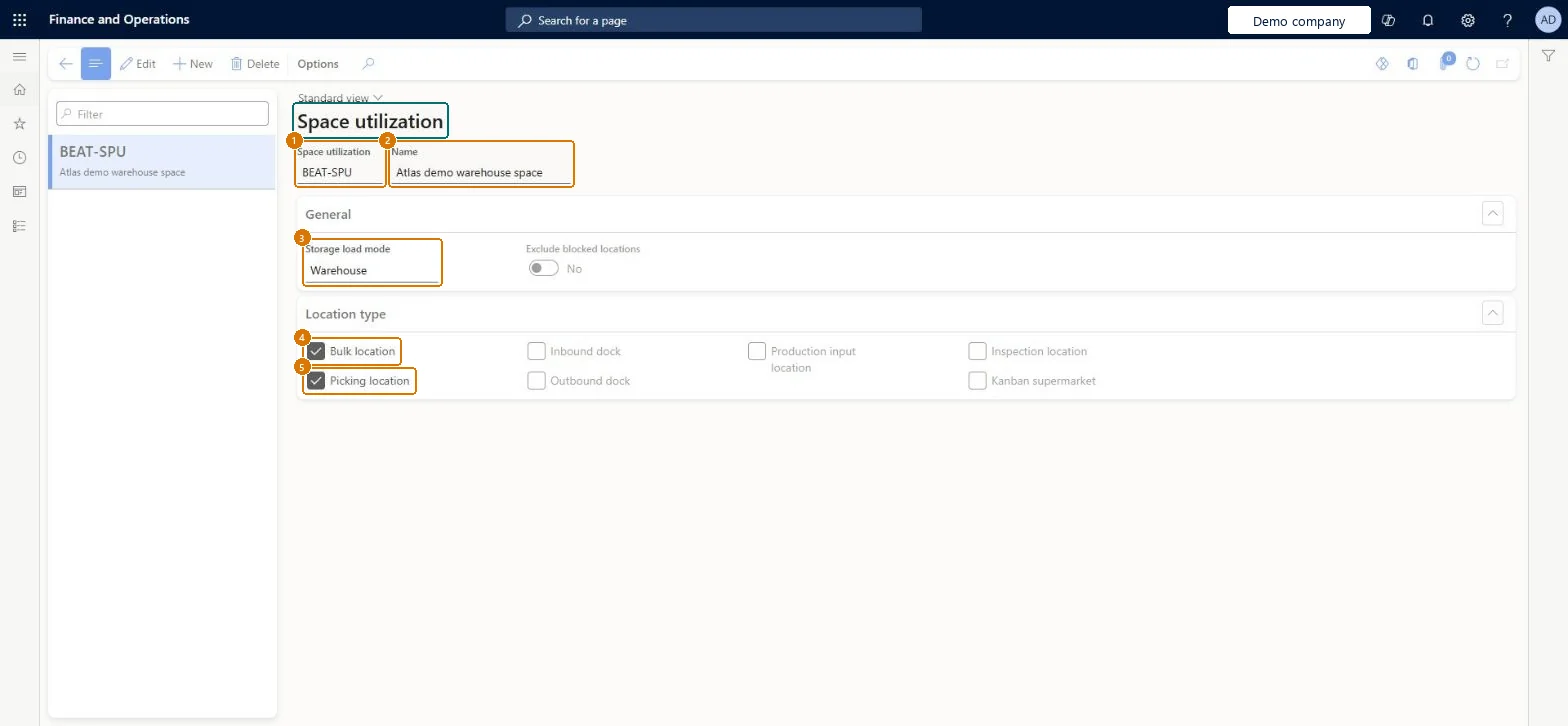
1Space utilization
BEAT-SPU
2Name
Warehouse space
3Storage load mode
Warehouse
4Bulk location
Yes
5Picking location
Yes
Show the full screen page title tab to open what to set or check
Steps from Microsoft
Go to Inventory management > Setup > Warehouse monitoring > Space utilization.
Select New, and enter an ID and a name.
In the Storage load mode field, select warehouse, zone, or warehouse and zone.
Set Exclude blocked locations to Yes to leave blocked locations out of the available space.
On the Location type FastTab, select at least one location type.
Choose the Storage load mode you plan in (warehouse, zone or both), select the location types that hold stock, and set Exclude blocked locations to YesAt least one location type is required, and excluding blocked locations keeps unusable space out of the available-space calculation.
Creating the setup but not linking it to a master plan in Schedule load utilization, so the Warehouse load utilization report has no projection.
Reversible: The setup is used each time load utilization is scheduled; changes apply to the next projection.
Technical architect
6Technical
Menu item
WMSSpaceUtilSetupChecked in Dynamics 365
Form
WMSSpaceUtilSetupChecked in Dynamics 365
Table
WMSReportSetupShown as “Report setup” in Record infoChecked in Dynamics 365
Roles to set it up and use it
To set it up or change itQuality control manager InventQualityControlManagerWarehouse manager WMSWarehouseManagerMaterials manager InventMaterialsManagerRetail service RetailServiceProduction manager ProdProductionManagerTo use itQuality control clerk InventQualityControlClerkShipping clerk InventShippingClerkPurchasing manager TradePurchasingManagerSales manager TradeSalesManagerWarehouse worker WMSWarehouseWorkerGive people one of these roles. On this system, 28 roles can open this page.Checked in Dynamics 365
Actions on the page
Options: Personalize, Page options, ShareChecked in Dynamics 365
Checked in a working Dynamics 365 system, version 10.0.49: the menu item, form, table and security, the page, the demo records and the values in the screenshots.
To cite this step: IM-SETUP-280, Set up Space utilization. Beyond ERP Atlas Hub, 2026-11-11. https://www.beyonderp.cloud/atlas/step/IM-SETUP-280