About the examples: Examples and screenshots in this guide use BEAT, a demo company in a Dynamics 365 test environment. Use your own company's codes and values instead of copying them.
Step by step, with screenshots
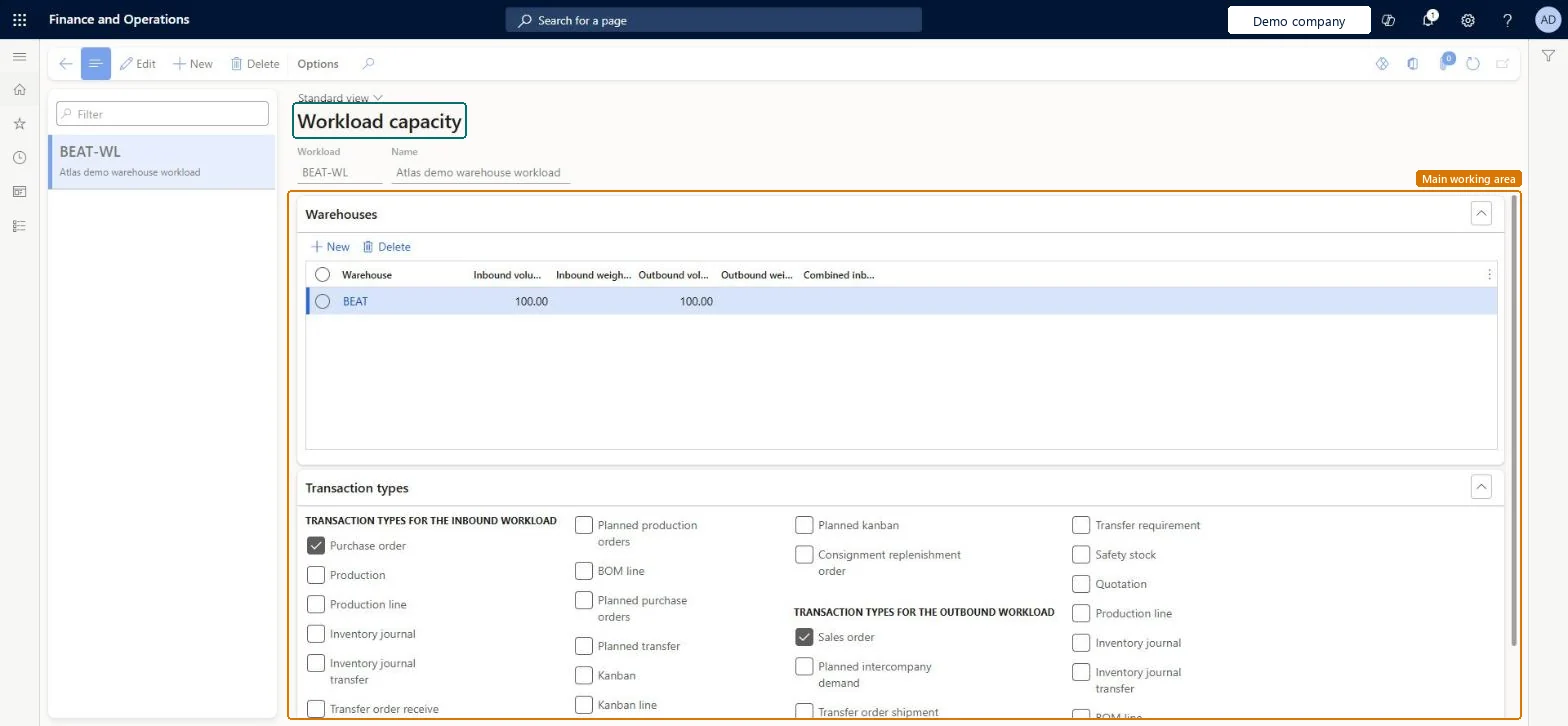
Set up Workload capacity1 screen
It is used, together with a master plan, to project the current and future workload for the workers in each warehouse.
Screen 1
Set up a workload capacity projection
Go to Inventory management > Setup > Warehouse monitoring > Workload capacity
Make sure the warehouse exists (here demo warehouse BEAT)
Select New
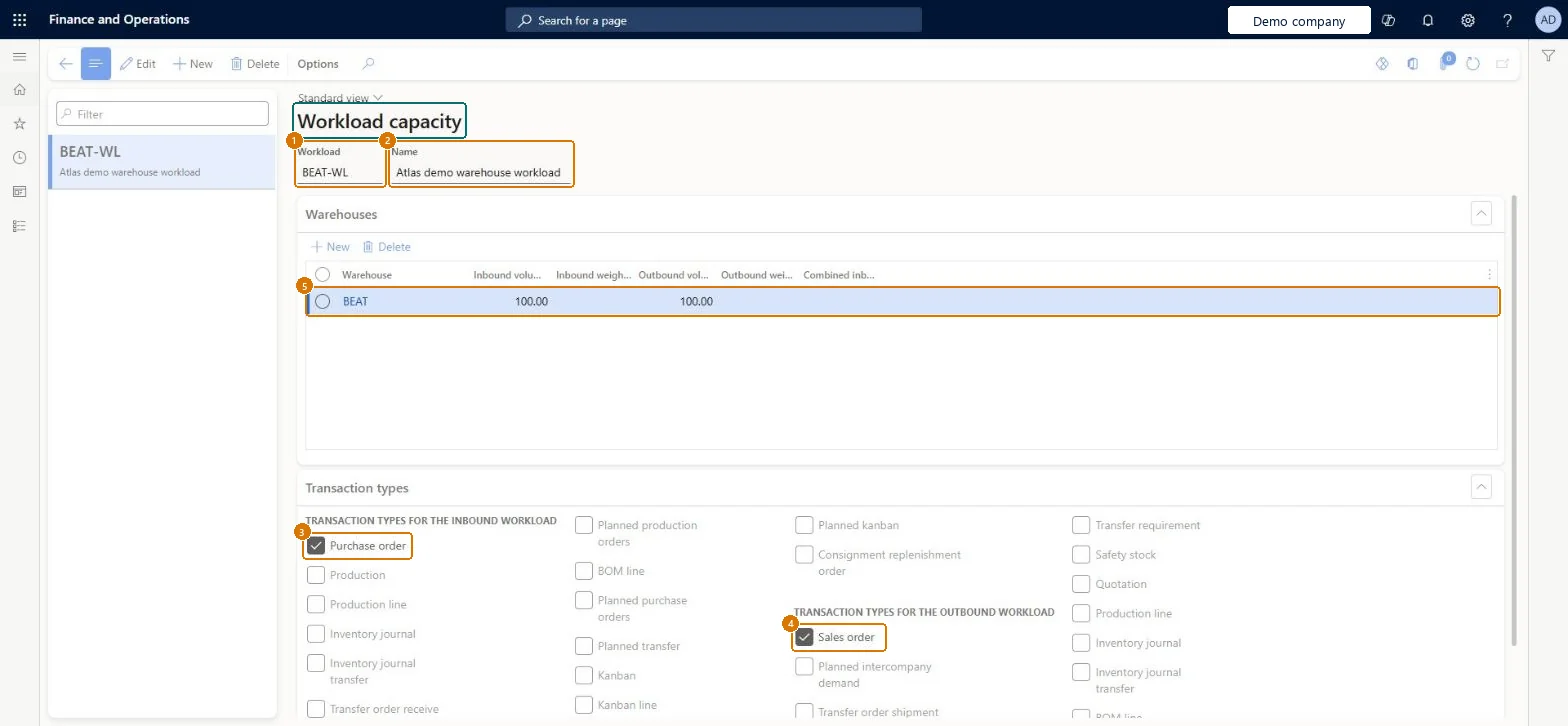
Enter the workload code and a name
Select Save
Under Warehouses, select New, choose the warehouse and enter its inbound and outbound volume or weight capacity
Under Transaction types, select the transactions that count toward the inbound and outbound workload, for example purchase orders and sales orders
Select Save
Use the setup together with a master plan to project the workload
1Workload
BEAT-WL
2Name
Warehouse workload
5Warehouse
BEAT
Inbound volume
100
Outbound volume
100
Purchase order (inbound)
Yes
Sales order (outbound)
Yes
Show the full screen page title tab to open what to set or check
Steps from Microsoft
Go to Inventory management > Setup > Warehouse monitoring > Workload capacity.
On the Action Pane, select New.
On the Warehouses FastTab, add a line for each warehouse.
Select Combined inbound and outbound workload to show the total workload in one view.
On the Transaction types FastTab, select at least one incoming and one outgoing transaction type.
One setup per warehouse workforce, with at least one inbound and one outbound transaction type, and Combined inbound and outbound workload selected when the same workers handle bothLearn requires at least one transaction type each way and offers the combined view for shared crews; separate setups per master plan can reflect seasonal staffing.
Missing standard volume or weight on released products: the Workload capacity report shows a message and the projection is incomplete.
Reversible: Projection setup only; edit it and rerun Schedule workload. Microsoft Learn
Technical architect
6Technical
Menu item
WMSWorkloadCapacityChecked in Dynamics 365
Form
WMSWorkloadCapacityChecked in Dynamics 365
Table
WMSReportSetupShown as “Report setup” in Record infoChecked in Dynamics 365
Roles to set it up and use it
To set it up or change itQuality control manager InventQualityControlManagerWarehouse manager WMSWarehouseManagerMaterials manager InventMaterialsManagerRetail service RetailServiceProduction manager ProdProductionManagerTo use itQuality control clerk InventQualityControlClerkShipping clerk InventShippingClerkPurchasing manager TradePurchasingManagerSales manager TradeSalesManagerWarehouse worker WMSWarehouseWorkerGive people one of these roles. On this system, 28 roles can open this page.Checked in Dynamics 365
Actions on the page
Options: Personalize, Page options, ShareChecked in Dynamics 365
Checked in a working Dynamics 365 system, version 10.0.49: the menu item, form, table and security, the page, the demo records and the values in the screenshots.