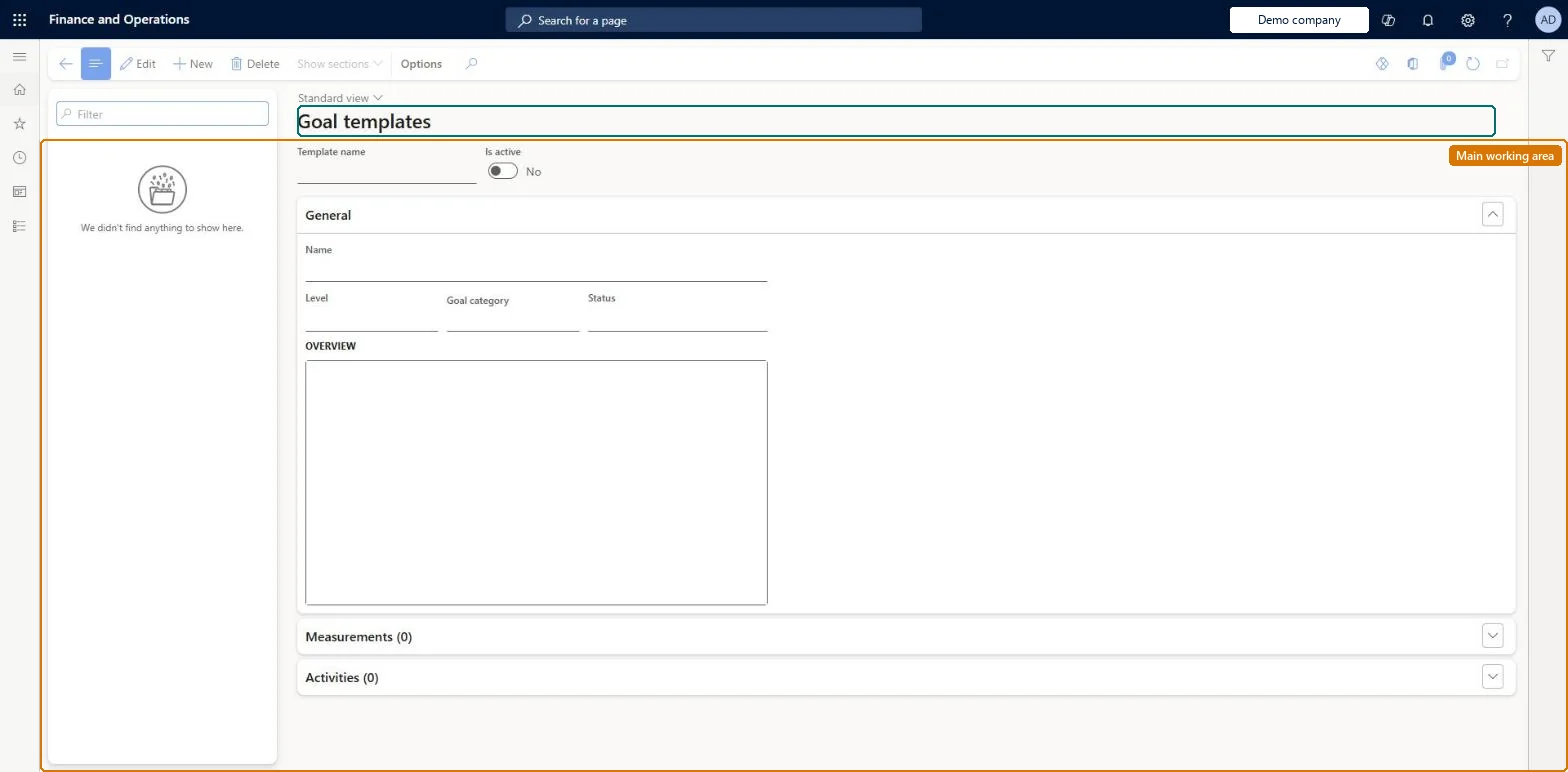
Setup step on the Goal templates page · Human resources
Set up Goal templates
Use this page to set up goals that are the same or similar for team members or all employees, so that employees and managers can add a goal from a template and adjust it to their own timelines.
Human resource assistant, Human resource manager, Manager and 1 more role
Business process
Develop people strategy
Menu item
HcmGoalTemplate
Main table
HcmGoalTemplate
Data entity
HcmGoalTemplateEntity
Setup steps
1 on this page
Show what matters for
SETUP GUIDEHow to set it up8 sections. Choose a role to highlight what matters to you.
Everyone
1What it is and why
What it is
A setup page where you create goal templates that hold a goal's description, topics and target measurements so that new goals can be created from them.
What you do here
Use this page to set up goals that are the same or similar for team members or all employees, so that employees and managers can add a goal from a template and adjust it to their own timelines.
Example
For example, BEAT's template Win new partners has a target measurement of 5 partners, Default goal weight 40%, minimum 30% and maximum 50%, and the jobs Sales representative and Sales manager; Add from template lists only the 12 workers in those jobs, and each new goal starts at 40%.
The page in Dynamics 365. page title tab to open what to set or check
About the examples: Examples and screenshots in this guide use BEAT, a demo company in a Dynamics 365 test environment. Use your own company's codes and values instead of copying them.
Setup steps on this page
Set up Goal templates
Use this page to set up goals that are the same or similar for team members or all employees, so that employees and managers can add a goal from a template and adjust it to their own timelines.
Steps from Microsoft
Go to Human resources > Performance > Setup > Goal templates.
Select New.
Enter a Template name.
In the General section, enter the Name, Overview and Goal category.
One template per goal that is the same or similar for a team or for all employees, with name, overview, goal category and target measurements; link it to jobs with the Job control where only some roles should get it.Employees and managers add a goal from a template and then adjust it to their own timelines. A template keeps the description, topics and target measurements but not actual measurements, completion dates or comments. With job criteria, Add from template lists only workers whose active job matches.
Job based filter (Multiselect) (Optional)Goal weights management (Optional)
Licence or add-in
Both features are available from Dynamics 365 Finance version 10.0.50 and are turned on in Feature management; they add no new security role, duty or privilege. HR administrators maintain templates and managers use them with Add from template.
Shared: Data management lists the Goal template entity as shared, so the records are not kept per legal entity and every company sees the same list. Checked in Dynamics 365
Can it be undone
Reversible: Templates and their job criteria can be changed at any time. Goals already created from a template are edited on their own and are not reassigned or deleted when job criteria or a worker's job change.
If you change it later
Values copied from a template are copied once, when the goal is created, so later changes to the template affect only goals created after the change. Microsoft Learn
Technical architect
6Technical
Menu item
HcmGoalTemplateChecked in Dynamics 365
Form
HcmGoalTemplateChecked in Dynamics 365
Table
HcmGoalTemplateShown as “GOAL TEMPLATE” in Record infoKey field: GoalTemplateTitleChecked in Dynamics 365
Data entities
HcmGoalTemplateEntityGoal template Checked in Dynamics 365HcmGoalTemplateMeasurementEntityGoal template measurements (The target measurements of a template.)
Who can open it
PrivilegesHcmGoalTemplateMaintainHcmGoalTemplateViewDutiesEnable performance process HcmPerformanceProcessEnableInquire into performance process HcmPerformanceProcessInquireInquire into manager's direct report information (Enterprise Portal) MssInquireMaintain manager access to direct report information (Enterprise Information) MssMaintain4 security rolesHuman resource assistant HcmHumanResourceAssistantHuman resource manager HcmHumanResourceManagerManager HcmManagerSelf-service manager HcmManagerSelfServiceChecked in Dynamics 365
Roles to set it up and use it
To set it up or change itHuman resource manager HcmHumanResourceManagerSelf-service manager HcmManagerSelfServiceManager HcmManagerTo use itHuman resource assistant HcmHumanResourceAssistantGive people one of these roles. On this system, 4 roles can open this page.Checked in Dynamics 365
Actions on the page
(Action Pane without tabs): Show sectionsChecked in Dynamics 365
Developer
7Developer
Open it by URL
https://<your-environment>/?mi=HcmGoalTemplate
Integrate with
HcmGoalTemplateEntity data entity Checked in Dynamics 365
Data migration
HcmGoalTemplateEntity Goal template. Shared by all companies.HcmGoalTemplateMeasurementEntity Goal template measurements.Load order: Goal template loads at the end of the Employee development template, after Goal headings and Measurements; jobs must exist for the job criteria.Load first: HcmGoalHeadingEntity, HcmMeasurementEntity, HcmJobEntityMicrosoft Learn