Compensation and benefits manager, Human resource manager, Payroll administrator and 1 more role
Business process
Develop people strategy
Menu item
HRMCompPerfAllocation
Main table
HRMCompPerfAllocation
Data entity
HcmCompensationPayPerformanceAllocationEntity
Setup steps
1 on this page
Show what matters for
SETUP GUIDEHow to set it up8 sections. Choose a role to highlight what matters to you.
Everyone
1What it is and why
What it is
A setup page that joins a performance plan with performance ratings in a matrix that sets a performance factor for each rating, for fixed pay or variable awards.
What you do here
Use this page to set graded merit increases or award factors by performance rating, through a fixed pay matrix or a variable award matrix.
Example
For example, BEAT creates ALLOC-2025 for performance plan PERF-2025 and the Sales department from 1 January 2026; its fixed pay matrix gives rating 5 a factor of 150%, 4 125%, 3 100%, 2 50% and 1 0%, and its variable award matrix gives rating 5 120% of the target bonus.
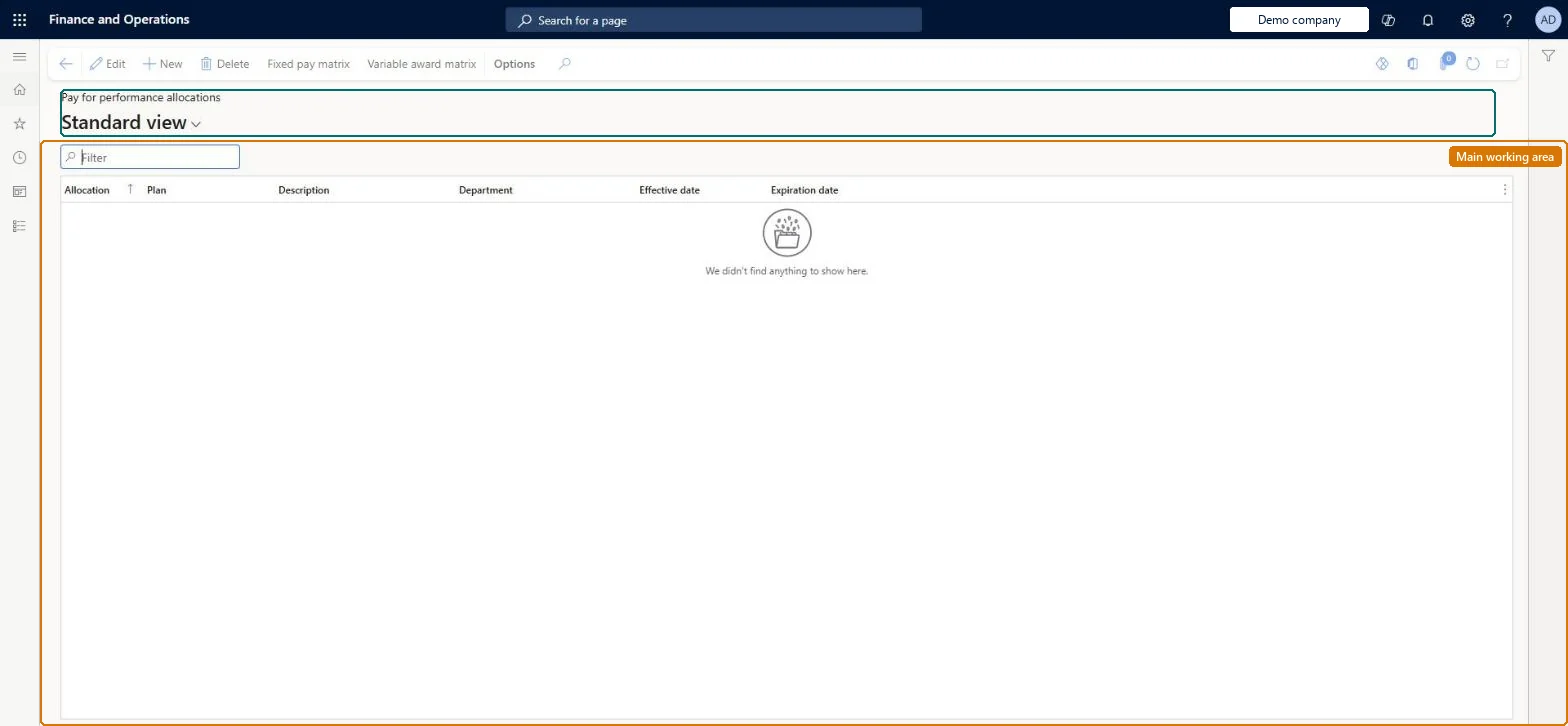
The page in Dynamics 365. page title tab to open what to set or check
About the examples: Examples and screenshots in this guide use BEAT, a demo company in a Dynamics 365 test environment. Use your own company's codes and values instead of copying them.
Setup steps on this page
Set up Pay for performance allocations
Use this page to set graded merit increases or award factors by performance rating, through a fixed pay matrix or a variable award matrix.
Steps from Microsoft
Go to Human resources > Compensation > Pay for performance > Pay for performance allocations.
Select New and enter a name and description.
Select the performance plan and enter the effective and expiration dates.
Select Fixed pay matrix or Variable award matrix.
In the Allocation matrix, select New, choose a Rating and enter the Performance factor %.
Buttons that open the matrix of ratings and factors for fixed or variable compensation.Microsoft Learn
Rating 5: 150% fixed, 120% variable
Common errors and fixes
Message
What to do
Ratings, allocations or leverage don't change the calculated amounts
Pay for performance is applied only for plans where Enable pay for performance is selected on the process setup. Select it for the plan and run the process again. Microsoft Learn
Variable awards ignore the allocation
The factors were entered in the fixed pay matrix only. Enter them in the Variable award matrix too. Microsoft Learn
Test checklist
Create an allocation for a performance plan with a fixed pay matrix that sets a factor per rating.
Run a compensation process for the plan with Enable pay for performance selected.
Check each employee's increase is factored by the rating's percentage.
One allocation per performance plan with a factor for every rating in each matrix that is used, and Enable pay for performance on the process.The allocation matrix holds the factor per rating, and Enable pay for performance decides whether fixed and variable amounts are adjusted by the rating.
Should allocations differ by department?Building the matrix but leaving Enable pay for performance off in the compensation process, so the performance factors aren't applied. Leverage on variable plans is also used only when Pay for performance is selected.Test: Factor applied by rating
Feature management and licence
Licence or add-in
Compensation and benefits managers set up and run compensation; Human resource managers and payroll roles can view it. No Feature management feature is needed for this page.
Per company: pay for performance allocations belong to the legal entity you are signed in to. Data management lists the HcmCompensationPayPerformanceAllocationEntity entity as not shared, so each company keeps its own. Checked in Dynamics 365
Can it be undone
Reversible: Allocations are used when a compensation process runs; runs can be repeated and only approved, loaded events change employee records.
If you change it later
The factors are used only for compensation plans where Enable pay for performance is selected on the process setup; they then adjust fixed and variable amounts by the employee's rating. Microsoft Learn
Technical architect
6Technical
Menu item
HRMCompPerfAllocationChecked in Dynamics 365
Form
HRMCompPerfAllocationChecked in Dynamics 365
Table
HRMCompPerfAllocationShown as “COMPENSATION PERFORMANCE ALLOCATION” in Record infoKey field: Department_Name, PerfPlanIdChecked in Dynamics 365
Data entities
HcmCompensationPayPerformanceAllocationEntityCompensation performance allocation Microsoft data model HcmCompensationPayPerformanceAllocationLineEntityCompensation performance allocation lines (The matrix lines: rating and performance factor %.) Microsoft data model
Who can open it
PrivilegesMaintain pay for performance allocations HRMCompPerfAllocationMaintainView pay for performance allocations HRMCompPerfAllocationViewDutiesInquire into compensation process HcmCompensationInquireEnable compensation process HcmCompensationProcessEnable4 security rolesCompensation and benefits manager HcmCompensationAndBenefitsManagerHuman resource manager HcmHumanResourceManagerPayroll administrator HcmPayrollAdministratorPayroll manager HcmPayrollManagerChecked in Dynamics 365
Roles to set it up and use it
To set it up or change itCompensation and benefits manager HcmCompensationAndBenefitsManagerTo use itHuman resource manager HcmHumanResourceManagerPayroll administrator HcmPayrollAdministratorPayroll manager HcmPayrollManagerGive people one of these roles. On this system, 4 roles can open this page.Checked in Dynamics 365
Actions on the page
(Action Pane without tabs): Fixed pay matrix, Variable award matrixChecked in Dynamics 365
HcmCompensationPayPerformanceAllocationEntity Compensation performance allocation. Loaded for each company.HcmCompensationPayPerformanceAllocationLineEntity Compensation performance allocation lines: one per rating.Load order: Load with the Compensation management template: after the performance plan; the allocation, then the ratings and the allocation lines.Load first: HcmCompensationPerformancePlansEntity, HcmCompensationPerformanceRatingEntityMicrosoft Learn
Checked in a working Dynamics 365 system, version 10.0.49: the menu item, form, table and security, the page.
To cite this step: HR-COMP-130, Set up Pay for performance allocations. Beyond ERP Atlas Hub, 2026-11-11. https://www.beyonderp.cloud/atlas/step/HR-COMP-130