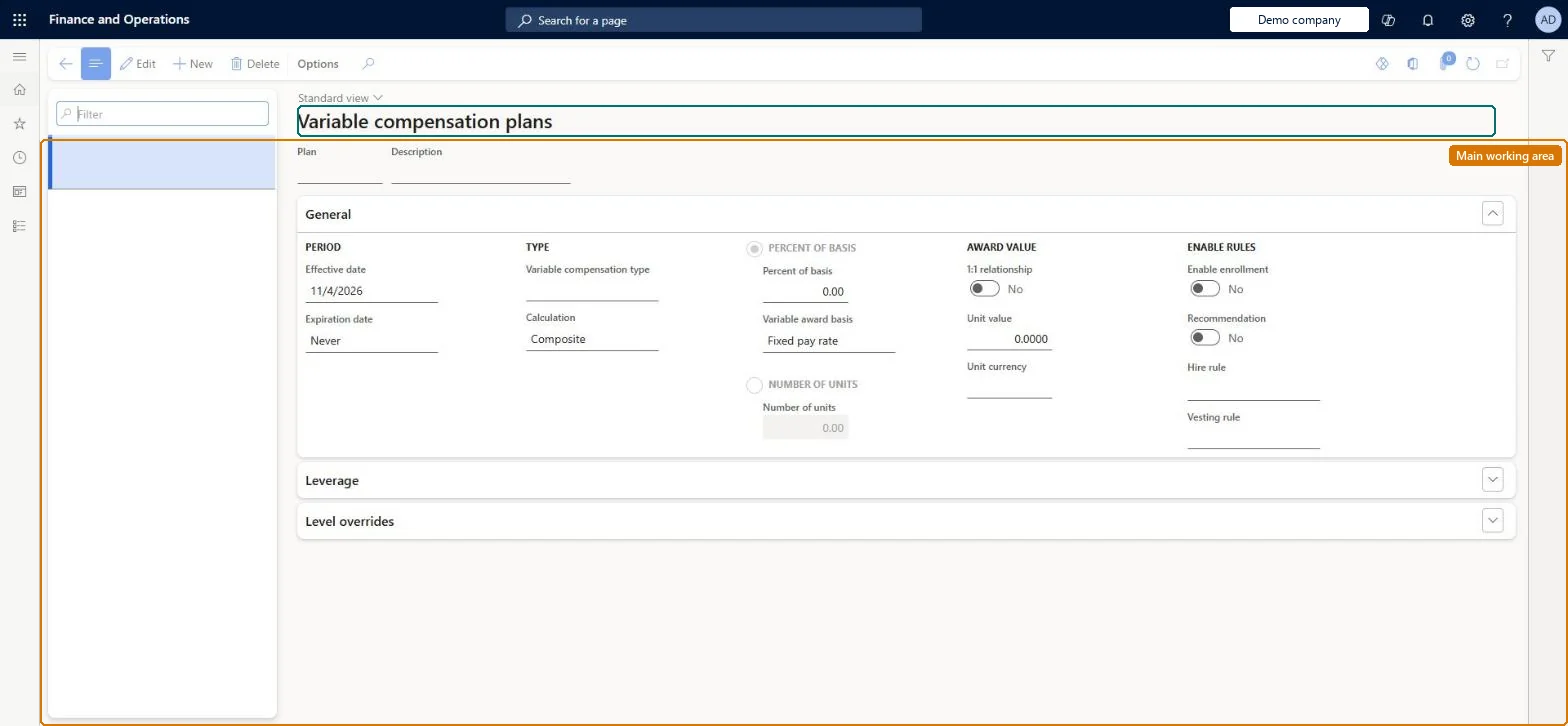
A setup page where you create variable compensation plans that hold the rules, calculation methods and default values for calculating awards such as bonuses and stock.
Chief executive officer, Compensation and benefits manager, Human resource manager and 2 more roles
Business process
Develop people strategy
Menu item
HRMCompVarPlanTable
Main table
HRMCompVarPlanTable
Data entity
HcmCompVarPlanTableV2Entity
Setup steps
1 on this page
Show what matters for
PAGE GUIDEWhat the page does and how to use it8 sections. Choose a role to highlight what matters to you.
Everyone
1What it is and why
What it is
A setup page where you create variable compensation plans that hold the rules, calculation methods and default values for calculating awards such as bonuses and stock.
What you do here
Use this page to set the plan's variable compensation type, calculation method, award basis, hire rule, leverage and level overrides, and to enable enrollment for eligible employees.
Example
For example, BEAT's plan BONUS-2026 uses CASHBONUS, Point in time, 10% Percent of basis, Hire rule Percent and leverage Payout at 100% = 100%, +2% per 1% over objective up to 150%; with Pay for performance on, a department at 110% of target pays 120% of each employee's target bonus.
The page in Dynamics 365. page title tab to open what to set or check
About the examples: Examples and screenshots in this guide use BEAT, a demo company in a Dynamics 365 test environment. Use your own company's codes and values instead of copying them.
Setup steps on this page
Set up Variable compensation plans
Use this page to set the plan's variable compensation type, calculation method, award basis, hire rule, leverage and level overrides, and to enable enrollment for eligible employees.
Steps from Microsoft
Go to Human resources > Compensation > Variable compensation > Variable compensation plans.
Use the Filter box to find a plan.
Select New and enter the Plan and Description.
Under General, set the Effective date and Expiration date, the Variable compensation type and Calculation, the percent of basis or number of units, the award value and the Enable enrollment, Recommendation, Hire rule and Vesting rule settings.
Expand Leverage and Level overrides for their settings, then select Save.
Limits access to the plan to the security roles you assign to it.Microsoft Learn
Yes for the executive bonus plan
Calculation method
Point in time uses fixed pay on one date; Composite calculates an award for each pay rate in the cycle and adds them.Microsoft Learn
Point in time
Percent of basis
Bases the award on a percentage of the fixed pay rate or of the control point for the employee's level.Microsoft Learn
10% of fixed pay rate
Number of units
Bases the award on a set number of units, with a unit value and currency for non-cash awards.Microsoft Learn
200 units at 40 USD
AwardUnitsReal
Hire rule
Whether all employees get the same award (None) or a share based on time employed in the cycle (Percent).Microsoft Learn
Percent
Leverage
Adjusts awards based on the performance of the employee's department.Microsoft Learn
Payout at 100%: 100%; per 1% over: 2%; highest: 150%
Enable overrides for levels
Uses the Levels overrides tab to set the award percentage or units by the employee's compensation level.Microsoft Learn
Yes (G5: 20%)
Enable enrollment
Allows eligible employees to be enrolled in the plan.Microsoft Learn
Yes
Common errors and fixes
Message
What to do
The plan doesn't appear in the Compensation plan field when an employee is enrolled
No eligibility rule exists for the plan, or the employee doesn't meet every criterion on it. Create the rule on Eligibility rules and check the job, position, department and labor union values of the employee. Microsoft Learn
Eligible employees can't be enrolled in the plan
Enable enrollment is off. Set Enable enrollment to Yes on the plan. Microsoft Learn
Ratings, allocations or leverage don't change the calculated amounts
Pay for performance is applied only for plans where Enable pay for performance is selected on the process setup. Select it for the plan and run the process again. Microsoft Learn
Test checklist
Create a variable compensation type and a plan with Percent of basis, and set Enable enrollment = Yes.
Create an eligibility rule and enroll an eligible employee through Compensation > Variable plan enrollment.
Check an employee who doesn't meet the rule can't select the plan.
Run a compensation process with Pay for performance and check the award uses the leverage percentage.
Set Enable enrollment = Yes and create an eligibility rule before enrolling; use Restrict access to selected roles for executive plansEmployees can be enrolled only when enrollment is enabled and they meet all criteria of the plan's eligibility rule. Restricting access keeps plans such as executive bonuses hidden from other HR roles.
Compensation and benefits managers set up and run compensation; Human resource managers and payroll roles can view it. No Feature management feature is needed for this page.
Per company: variable compensation plans belong to the legal entity you are signed in to. Data management lists the HcmCompVarPlanTableV2Entity entity as not shared, so each company keeps its own. Checked in Dynamics 365
Can it be undone
Hard to reverse: Plan settings can be edited, but some compensation pages don't allow records to be deleted after saving. Microsoft Learn
If you change it later
Leverage settings only take effect when Pay for performance is selected when the compensation process is run. Microsoft Learn
Technical architect
6Technical
Menu item
HRMCompVarPlanTableChecked in Dynamics 365
Form
HRMCompVarPlanTableChecked in Dynamics 365
Table
HRMCompVarPlanTableShown as “COMPENSATION VARIABLE PLAN” in Record infoKey field: PlanIdChecked in Dynamics 365
Data entities
HcmCompVarPlanTableV2EntityCompensation variable plan V2 Checked in Dynamics 365HcmCompVarPlanLevelV2EntityVariable compensation level V2 (The Levels overrides of a plan.)
Who can open it
PrivilegesMaintain variable compensation plans HRMCompVarPlanTableMaintainView variable compensation plans HRMCompVarPlanTableViewDutiesInquire into compensation process HcmCompensationInquireEnable compensation process HcmCompensationProcessEnableReview compensation information HcmCompensationReview5 security rolesChief executive officer CompanyChiefExecutiveOfficerCompensation and benefits manager HcmCompensationAndBenefitsManagerHuman resource manager HcmHumanResourceManagerPayroll administrator HcmPayrollAdministratorPayroll manager HcmPayrollManagerChecked in Dynamics 365
Roles to set it up and use it
To set it up or change itCompensation and benefits manager HcmCompensationAndBenefitsManagerTo use itHuman resource manager HcmHumanResourceManagerPayroll administrator HcmPayrollAdministratorPayroll manager HcmPayrollManagerChief executive officer CompanyChiefExecutiveOfficerGive people one of these roles. On this system, 5 roles can open this page.Checked in Dynamics 365
HcmCompVarPlanTableV2Entity data entity Checked in Dynamics 365
Data migration
HcmCompVarPlanTableV2Entity Compensation variable plan V2. Loaded for each company.HcmCompVarPlanLevelV2Entity Variable compensation level V2: the level overrides.Load order: Load with the Compensation management template: after variable compensation types, vesting rules and levels; then eligibility rules, Variable compensation level V2 and Employee variable compensation enrollment V2.Load first: HcmVariableCompensationTypeEntity, HcmVestingRuleEntity, HcmCompensationLevelEntityMicrosoft Learn