Business Performance Planning app role, Data management administrator, Data management migration user and 3 more roles
Business process
Develop people strategy
Menu item
TrvPBSCatCodes
Main table
TrvPBSCatCodes
Data entity
TrvCreditCardCodeEntity
Setup steps
1 on this page
Show what matters for
SETUP GUIDEHow to set it up8 sections. Choose a role to highlight what matters to you.
Everyone
1What it is and why
What it is
A setup page where, for each credit card type, you map the categories in the card provider's file to expense categories.
What you do here
Use this page so imported card transactions arrive with the right expense category: for each card type, map the provider's category codes to expense categories.
Example
For example, the provider sends category code 3501 for hotels and 4511 for airlines; mapping them to the Hotel and Airfare expense categories means employees find their card lines already categorized.
The page in Dynamics 365. page title tab to open what to set or check
About the examples: Examples and screenshots in this guide use BEAT, a demo company in a Dynamics 365 test environment. Use your own company's codes and values instead of copying them.
Step by step, with screenshots
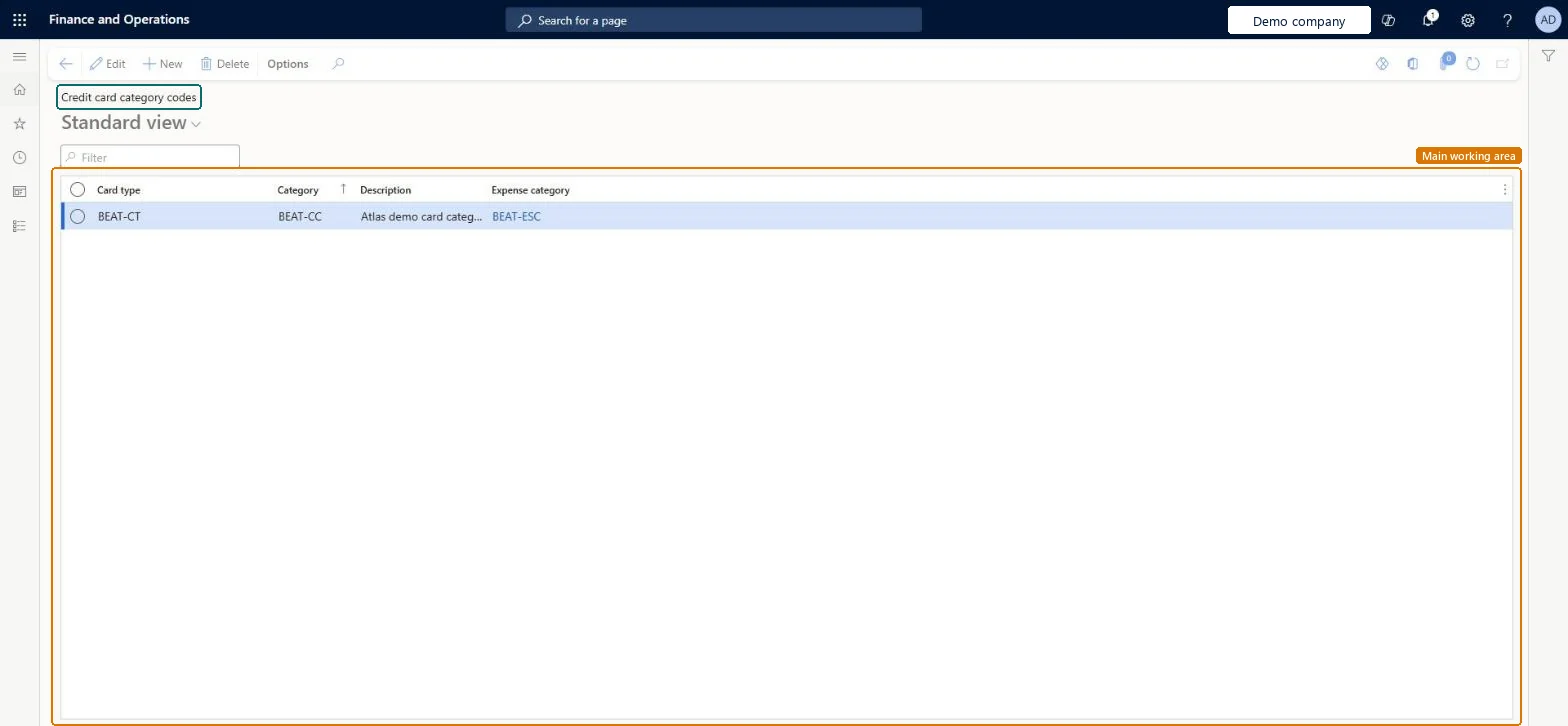
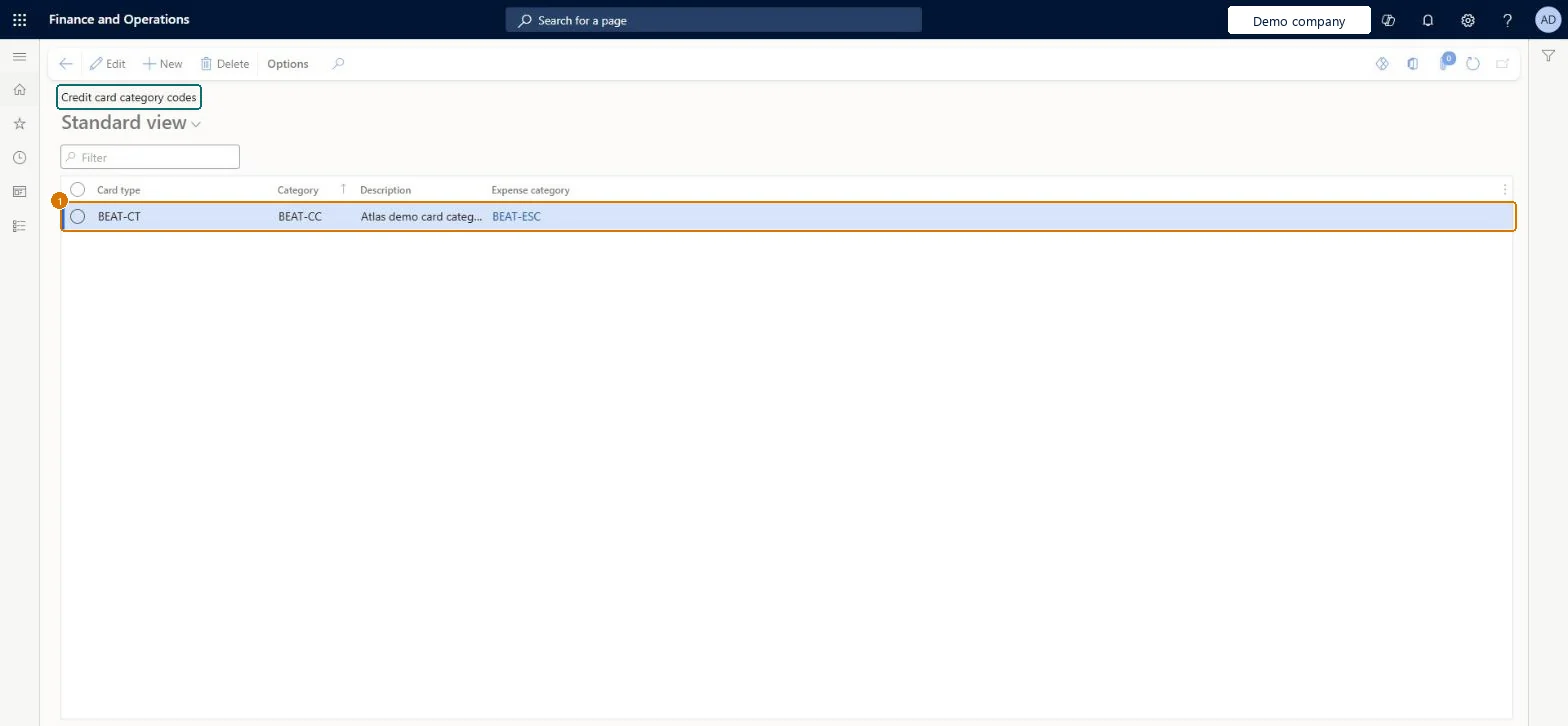
Set up Credit card category codes1 screen
It is used so that imported card transactions arrive with the right expense category.
Screen 1
Map a card category code to an expense category
Go to Expense management > Setup > Calculations and codes > Credit card category codes
Make sure the credit card type and the expense category exist
Select New
Select the card type
Enter the category code and a description
Select the expense category it maps to
Select Save
1Category
BEAT-CC
Card type
BEAT-CT
Description
Card category code
Expense category
BEAT-ESC
Show the full screen page title tab to open what to set or check
Steps from Microsoft
Go to Expense management > Setup > Calculations and codes > Credit card category codes.
Select New and choose the card type.
Enter the provider's category code and a description.
For each credit card type, map every category code that appears in that provider's file to an expense categoryLearn sets the mapping per credit card type so that imported card transactions arrive with the right expense category on the expense lines.
In this system Employee and Contractor enter their own expenses, and Expense administrator sets up the module and processes documents. The expense mobile app needs the Employee role, a company on the user account and a link to an employee with active employment. The expense administrator maintains the mapping. No Feature management feature is needed for this page.
PrivilegesMaintain credit card category codes TrvPBSCatCodesMaintainView credit card category codes TrvPBSCatCodesViewDutiesMaintain Master entity data for data management DataManagementApplicationMasterEntitiesMaintainView Master entity data for data management DataManagementApplicationMasterEntitiesViewMaintain Reference entity data for data management DataManagementApplicationReferenceEntitiesMaintainView Reference entity data for data management DataManagementApplicationReferenceEntitiesViewEnable expense management process TrvTravelAndExpenseProcessEnableInquire into expense management reference data TrvTravelAndExpenseReferenceDataInquire6 security rolesBusiness Performance Planning app role BPPBudgetPlanningAppRoleData management administrator DataManagementAdministratorData management migration user DataManagementMigrationUserExpense administrator ExpenseAdministratorDemand planning app role ScpDemandPlanningAppRoleInformation technology manager SysServerITManagerChecked in Dynamics 365
Roles to set it up and use it
To set it up or change itExpense administrator ExpenseAdministratorInformation technology manager SysServerITManagerBusiness Performance Planning app role BPPBudgetPlanningAppRoleData management migration user DataManagementMigrationUserDemand planning app role ScpDemandPlanningAppRoleGive people one of these roles. On this system, 6 roles can open this page.Checked in Dynamics 365
Actions on the page
Options: Personalize, Page options, ShareChecked in Dynamics 365
TrvCreditCardCodeEntity (Credit card category codes): loaded for each company, in Microsoft's default template 600 - Expense.Load order: Microsoft's default template 600 - Expense loads Credit card category codes at execution unit 1, level 600, sequence 40. Lower levels load first, and entities at the same level load in sequence order.Load first: the default templates at lower levels (System setup to Retail)Microsoft Learn
Checked in a working Dynamics 365 system, version 10.0.49: the menu item, form, table and security, the page, the demo records and the values in the screenshots.
To cite this step: EM-SETUP-130, Set up Credit card category codes. Beyond ERP Atlas Hub, 2026-11-11. https://www.beyonderp.cloud/atlas/step/EM-SETUP-130