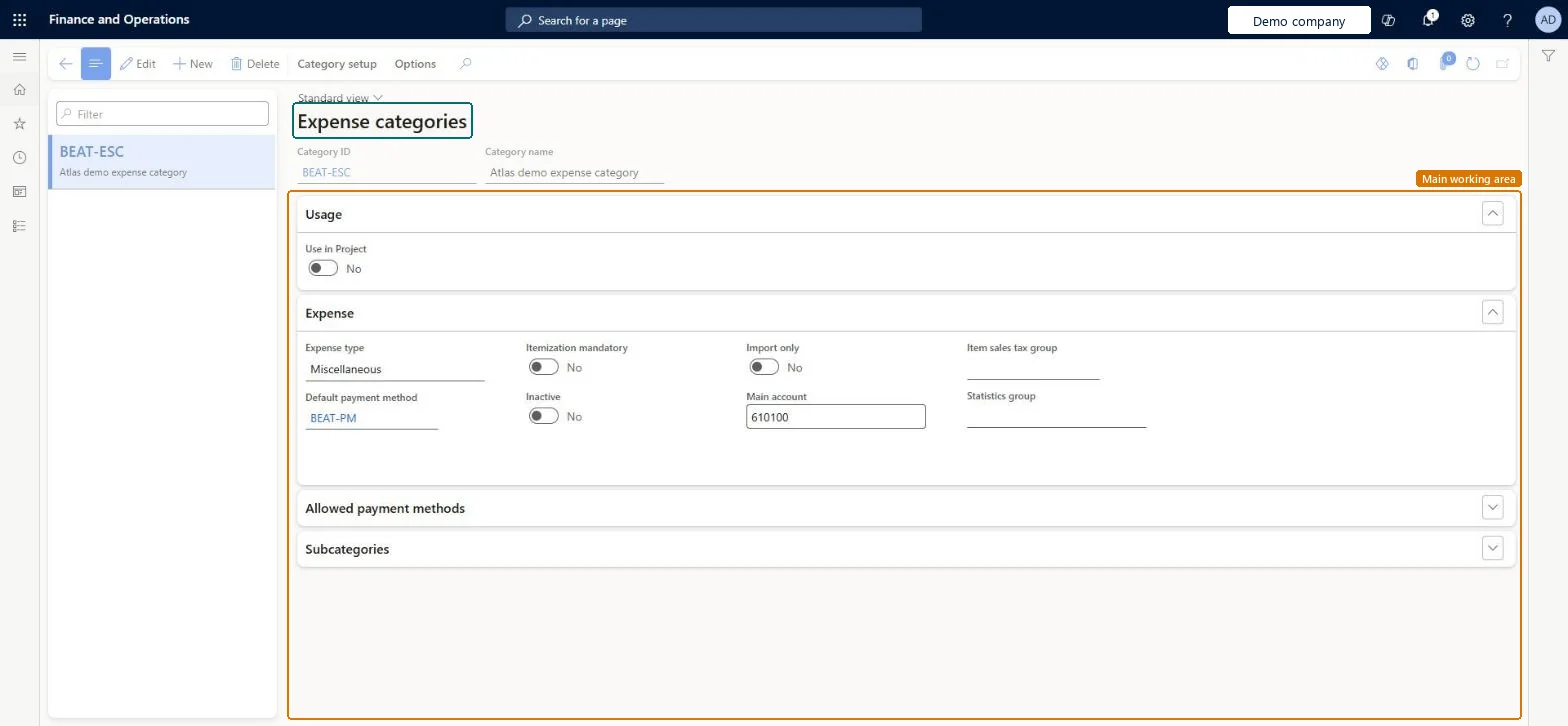
Setup step on the Expense categories page · Expense management
Set up Expense categories
Use this page to link each category to a shared category and to set its main account, default and allowed payment methods, and itemization and project settings.
SETUP GUIDEHow to set it up8 sections. Choose a role to highlight what matters to you.
Everyone
1What it is and why
What it is
A setup page where you create, for each legal entity, the expense categories that employees pick for every expense.
What you do here
Use this page to link each category to a shared category and to set its main account, default and allowed payment methods, and itemization and project settings.
Example
For example, consultants' airfare, meals, hotel and mileage each go to a category, and the category decides the ledger account the cost is booked to.
The page in Dynamics 365. page title tab to open what to set or check
About the examples: Examples and screenshots in this guide use BEAT, a demo company in a Dynamics 365 test environment. Use your own company's codes and values instead of copying them.
Step by step, with screenshots
Set up Expense categories1 screen
Use this page to link each category to a shared category and to set its main account, default and allowed payment methods, and itemization and project settings.
Screen 1
Create an expense category
Go to Expense management > Setup > General > Expense categories
Make sure the shared category exists with Can be used in Expense turned on
Select New
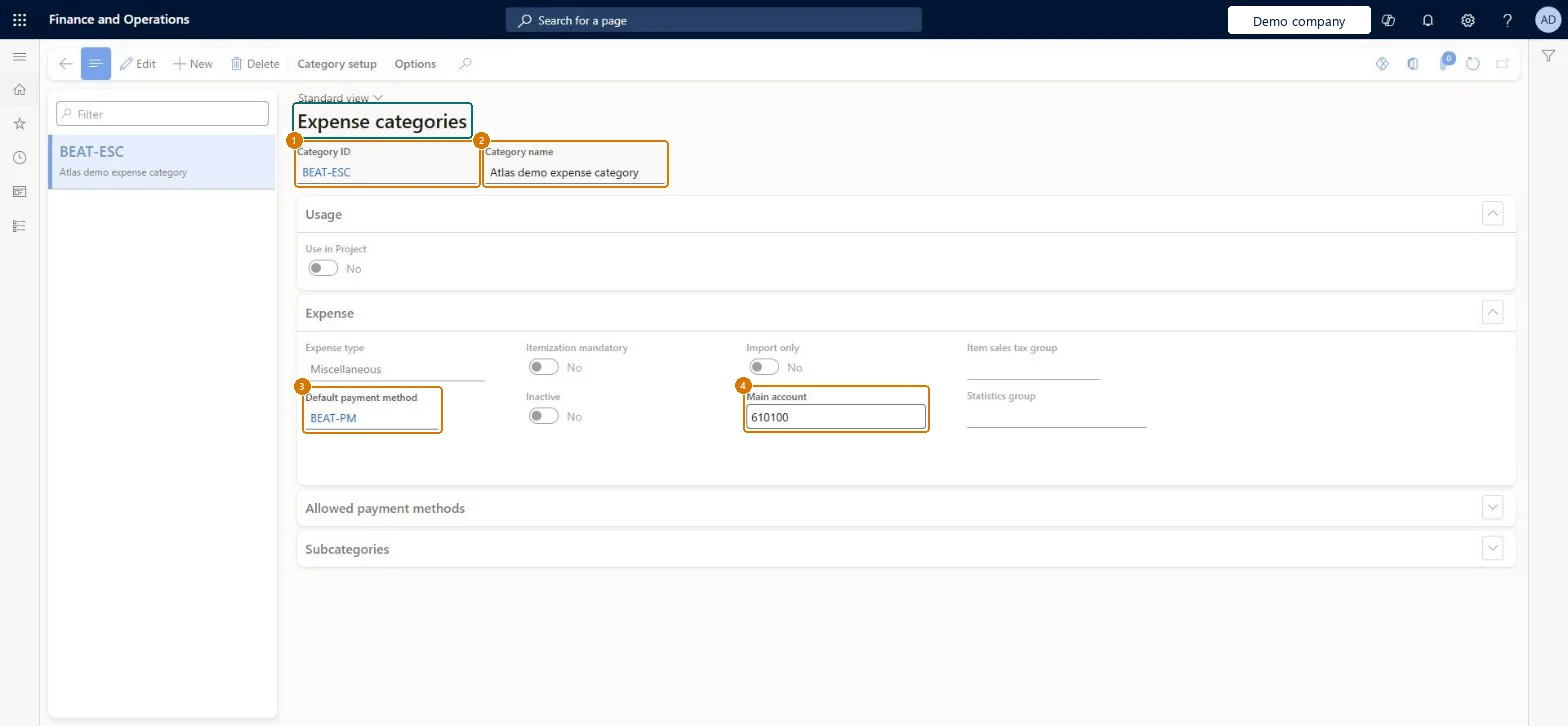
In Category ID, select the shared category
Under Expense, select the default payment method and the main account
Select Save
1Category ID
BEAT-ESC
2Category name
Expense category
3Default payment method
BEAT-PM
4Main account
610100
Show the full screen page title tab to open what to set or check
Steps from Microsoft
Go to Expense management > Setup > General > Expense categories.
Select New.
In the Category ID field, select the shared category to base it on.
On the Expense tab, select the main account to post to.
On the Allowed payment methods tab, list the allowed payment methods and select a default.
Optionally, add an Item sales tax group if the expense is taxable.
The name of the expense category that workers choose on expense lines.Microsoft Learn
Expense category
CategoryName
Common errors and fixes
Message
What to do
Itemize isn't offered on an expense
Itemization works only for categories with subcategories; with Itemization mandatory the expense must be itemized before submit. Microsoft Learn
Mileage amounts don't follow the tiers
From 10.0.18 a tier's quantity is the upper limit. Turn on Mileage calculation improvements when using mileage rate tiers and reset the tiers so each Quantity is the upper limit. Microsoft Learn
Test checklist
Create a Hotel expense category from its shared category with a Main account, Default payment method and Itemization mandatory = Yes.
Enter a hotel expense and check it must be itemized by subcategory before the report can be submitted.
Post the report and check the voucher debits the category's main account (or the subcategory account).
Set the category to Inactive and check it no longer appears on new expense lines.
For Mileage, set up rate tiers under Category setup and enter a mileage expense crossing the first tier; check the two rates are applied.
One expense category per shared category used in the legal entity, each with a Main account, a Default payment method and its Allowed payment methods; Use in Project = Yes only where the shared category allows Project, with cost and revenue accounts filled inLearn says the expense category defines the ledger account the expense is booked to, the Default payment method is mandatory, and Use in Project can only be turned on when the shared category has Can be used in Project set to Yes.
Hard to reverse: Use the Inactive check box to stop a category from being used in the legal entity; the main account and payment method settings drive how new expenses post.
If you change it later
After the Mileage calculation improvements when using mileage rate tiers feature is turned on, the mileage tiers on a category must be reset because the Quantity field now works as an upper limit. Microsoft Learn
Technical architect
6Technical
Menu item
TrvCostTypeChecked in Dynamics 365
Form
ProjCategoryChecked in Dynamics 365
Table
CategoryTableShown as “Category table” in Record infoKey field: CategoryIdChecked in Dynamics 365
To set it up or change itExpense administrator ExpenseAdministratorInformation technology manager SysServerITManagerBusiness Performance Planning app role BPPBudgetPlanningAppRoleData management migration user DataManagementMigrationUserDemand planning app role ScpDemandPlanningAppRoleTo use itContractor HcmContractorEmployee HCMEmployeeExpenseAgentRole ExpenseAgentV2Role Project accountant ProjProjectAccountantGive people one of these roles. On this system, 14 roles can open this page.Checked in Dynamics 365
CategoryEntity (Category table): loaded for each company, in Microsoft's default template 410 - Production control.Load order: Microsoft's default template 410 - Production control loads Category table at execution unit 1, level 30, sequence 10. Lower levels load first, and entities at the same level load in sequence order.Load first: Shared category, the default templates at lower levels (System setup to General ledger)Microsoft Learn
Checked in a working Dynamics 365 system, version 10.0.49: the menu item, form, table and security, the page, the demo records and the values in the screenshots.
To cite this step: EM-SETUP-030, Set up Expense categories. Beyond ERP Atlas Hub, 2026-11-11. https://www.beyonderp.cloud/atlas/step/EM-SETUP-030