PAGE GUIDEWhat the page does and how to use it8 sections. Choose a role to highlight what matters to you.
Everyone
1What it is and why
What it is
A setup page where you define the policies workers must follow when they enter and submit expense reports.
What you do here
Use this page to have expense reports checked automatically against company policy before an employee can submit them.
Example
For example, a policy can say that a hotel night in New York City can't cost more than USD 250, and the worker is told when a report goes over that amount.
The page in Dynamics 365. page title tab to open what to set or check
About the examples: Examples and screenshots in this guide use BEAT, a demo company in a Dynamics 365 test environment. Use your own company's codes and values instead of copying them.
Step by step, with screenshots
Set up Expense report1 screen
Use this page to have expense reports checked automatically against company policy before an employee can submit them.
Screen 1
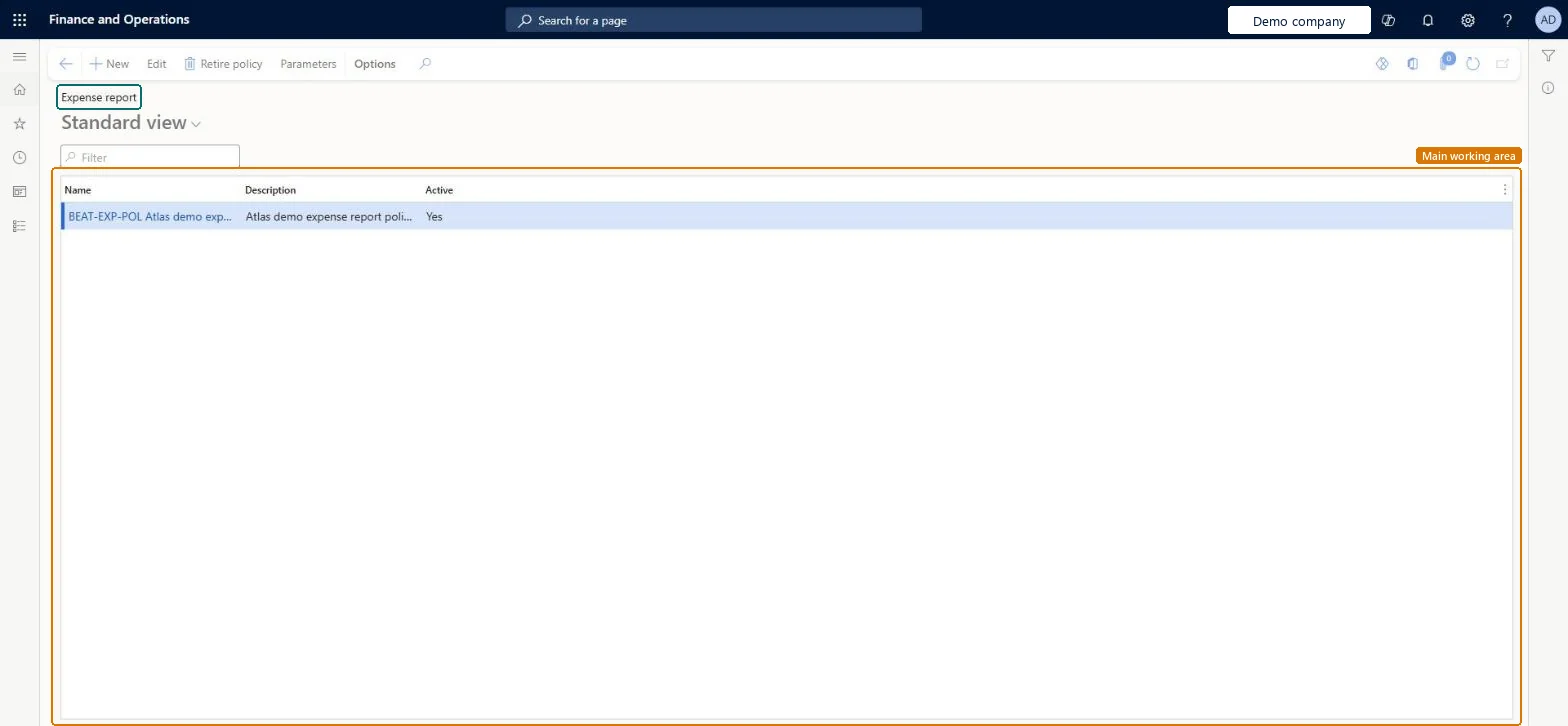
Review the expense report policies
Go to Expense management > Setup > Policies > Expense report
Open the page to see the policies that apply to expense reports
Select New to define a policy rule and the date it applies from
Select Parameters to set how policy checks behave
page title tab to open what to set or check
Steps from Microsoft
Go to Expense management > Setup > Policies > Expense report.
Select New, and enter a Name and Description for the policy.
On the Policy organizations FastTab, move the legal entities the policy applies to into Selected organizations.
On the Policy rules FastTab, select the policy rule type, and then select Create policy rule.
Enter the Effective date and, if needed, the Expiration date.
In the Where field, set the conditions, such as the expense category.
In the Do the following field, choose what happens, such as requiring a justification.
In the Text field, enter the message users see when they break the policy.
The employee can't submit: a policy rule of type Error is broken
The employee must change the line until it meets the rule. A Warning rule lets the report go on with a mark for the approver; a Justification rule asks for a reason first. Microsoft Learn
An old expense isn't checked against a new policy
Policies are date effective: a policy dated after the expense date doesn't check it. Microsoft Learn
Test checklist
Create an Error policy: Hotel expenses in New York over USD 250 per night, effective today.
Enter a hotel line dated today at USD 300 and check you can't submit until the amount is changed.
Change the policy to Justification and check you can submit after entering a justification.
Enter the same expense dated before the policy date and check it isn't checked.
For an itemized category, add an expense line type condition and check a receipt rule applies only to the header line.
Error for hard limits employees must not exceed, Justification where an exception is allowed with an explanation, Warning for limits that approvers should only seeLearn defines Error as blocking submission until the expense complies, Justification as requiring an explanation before submitting, and Warning as allowing submission while flagging the expense for all approvers and reporting.
Reversible: Policies are date effective and can be changed or expired at any time. They only check expenses dated on or after their effective date. Microsoft Learn
If you change it later
Policies are date effective: expense lines dated before a rule's effective date aren't checked against it. Microsoft Learn
Technical architect
6Technical
Menu item
TrvPolicyDetailsChecked in Dynamics 365
Form
SysPolicyListPageChecked in Dynamics 365
Table
SysPolicyShown as “Policy” in Record infoChecked in Dynamics 365
Data entities
SysPolicyEntityPolicies (the policy headers of every policy type, including expense report policies) Microsoft data model TrvPolicyRuleEntityExpense and travel policy rule (the rules of expense and travel requisition policies) Microsoft data model
Who can open it
PrivilegesMaintain expense management policies TrvPolicyDetailsMaintainView expense management policies TrvPolicyDetailsViewDutiesInquire into expense management policies TrvTravelAndExpensePoliciesInquireEnable expense management process TrvTravelAndExpenseProcessEnable2 security rolesAuditor AuditPolicyManagerExpense administrator ExpenseAdministratorChecked in Dynamics 365
Roles to set it up and use it
To set it up or change itExpense administrator ExpenseAdministratorTo use itAuditor AuditPolicyManagerGive people one of these roles. On this system, 2 roles can open this page.Checked in Dynamics 365
Actions on the page
Options: Personalize, Page options, ShareChecked in Dynamics 365
Developer
7Developer
Open it by URL
https://<your-environment>/?mi=TrvPolicyDetails
Data migration
SysPolicyEntity (Policies): the policy headers.TrvPolicyRuleEntity (Expense and travel policy rule): the rules.TrvPolicyLanguageTxtEntity (Expense policy translations): the messages in other languages.Load order: Load the policy headers, then the rules, then the translated messages; check the effective dates in the target.Load first: Expense categories, Organizations the policy applies toMicrosoft Learn
Checked in a working Dynamics 365 system, version 10.0.49: the menu item, form, table and security, the page, the demo records and the values in the screenshots.