SETUP GUIDEHow to set it up8 sections. Choose a role to highlight what matters to you.
Everyone
1What it is and why
What it is
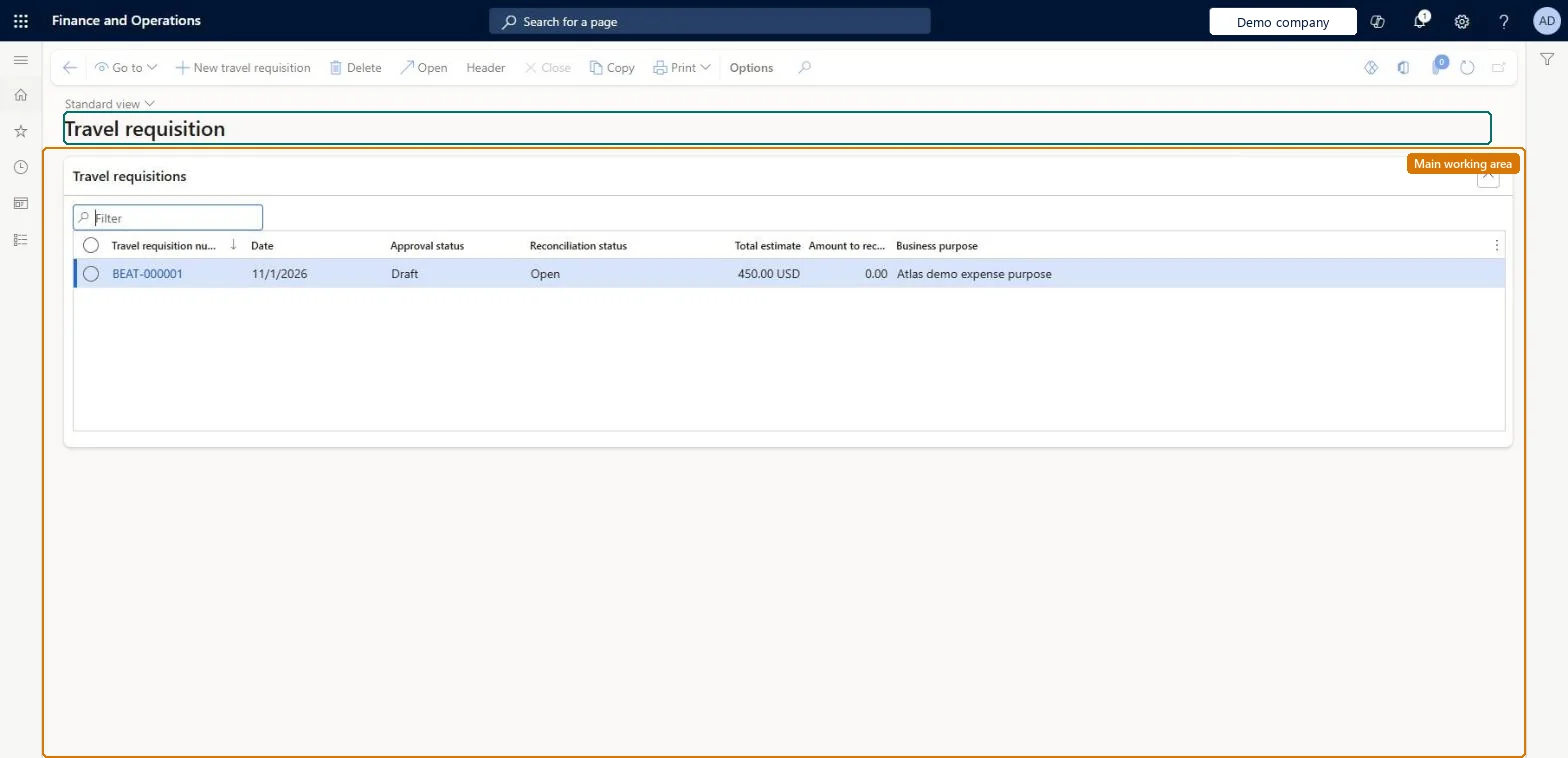
A list page where employees create and track travel requisitions, which list the expected costs of a business trip.
What you do here
Use this page to get expected travel costs approved before the trip, so the requisition can later authorize the related expenses.
Example
For example, a project manager on a fixed-price building project creates a travel requisition before visiting the customer's headquarters, because company policy requires one for budgeting.
The page in Dynamics 365. page title tab to open what to set or check
About the examples: Examples and screenshots in this guide use BEAT, a demo company in a Dynamics 365 test environment. Use your own company's codes and values instead of copying them.
Setup steps on this page
Get travel approved with a travel requisition
Have the expected cost of a trip approved before it is spent.
Steps from Microsoft
Go to Expense management > My expenses > Travel requisition.
Select New travel requisition.
In the Business purpose field, enter a clear business purpose.
In the Destination field, enter where you plan to travel.
In the Travel description field, add details about the trip, and select a Project if the trip relates to one.
Select OK.
On the Travel requisition expense lines FastTab, select New requisition expense.
Select the Expense category, and enter the Estimated date and Estimated amount.
Keep adding lines until the request is complete.
Select Workflow > Submit, add a comment if needed, and then select Submit.
You do not have access to enter travel requisitions because you are not mapped to an employee record. Contact your manager or support team for assistance.
Link the user to an employee with active employment and set a company on the user account. In the live system the pages under My expenses, Process expense reports and Process cash advances showed this message for a user with no employee record. Checked in Dynamics 365
Submit is not available on the document
No active workflow exists for this document type. Create and activate the matching workflow on Expense management > Setup > General > Expense management workflows. Microsoft Learn
The expense report can't be submitted without a travel requisition
Preauthorization of travel is mandatory is on in the parameters. Submit and get a travel requisition approved first, then map the report to it. Microsoft Learn
A mapped expense line is refused
Once a report is mapped to a travel requisition, a line can't be more than the authorized amount. Change the amount or get the requisition updated. Microsoft Learn
Test checklist
Turn on Preauthorization of travel is mandatory in Expense management parameters.
Create a travel requisition with a flight line of 600.00 and a hotel line of 450.00, and submit it.
Approve it, then create an expense report and map it to the requisition.
Enter a hotel expense of 500.00 and check it is refused because it is more than the authorized amount.
One line per expected cost (flight, hotel, meals, car), each with an estimated date and amount, and a clear business purpose; submit before booking.The approved lines become the authorized amounts per category when the expense report is mapped to the requisition, and a line can't go over them.
In this system Employee and Contractor enter their own expenses, and Expense administrator sets up the module and processes documents. The expense mobile app needs the Employee role, a company on the user account and a link to an employee with active employment. Employees request travel here; the enhancements feature lets them map expenses to an approved requisition in the reimagined experience.
Per company: a travel requisition belongs to the employee's legal entity. Microsoft Learn
Can it be undone
Hard to reverse: After submit the requisition follows its approval workflow.
If you change it later
Once an expense report is mapped to an approved travel requisition, an expense amount can't be more than the authorized amount. Microsoft Learn
Technical architect
6Technical
Menu item
TrvRequisitionListPage_MyListPageChecked in Dynamics 365
Data entities
TrvRequisitionTableEntityTravel requisitions Checked in Dynamics 365
Roles to set it up and use it
To set it up or change itExpense administrator ExpenseAdministratorContractor HcmContractorEmployee HCMEmployeeGive people one of these roles. On this system, 3 roles can open this page.Checked in Dynamics 365
TrvRequisitionTableEntity data entity Checked in Dynamics 365
Data migration
TrvRequisitionTableEntity (Travel requisitions): requisition headers for each company.Load order: Close or complete open travel requisitions before cutover; load only approved requisitions for trips still to come, after employees and expense categories.Load first: Employees, Expense categoriesMicrosoft Learn
Checked in a working Dynamics 365 system, version 10.0.49: the menu item, form, table and security, the page.
To cite this step: EM-MY-060, Get travel approved with a travel requisition. Beyond ERP Atlas Hub, 2026-11-11. https://www.beyonderp.cloud/atlas/step/EM-MY-060