SETUP GUIDEHow to set it up8 sections. Choose a role to highlight what matters to you.
Everyone
1What it is and why
What it is
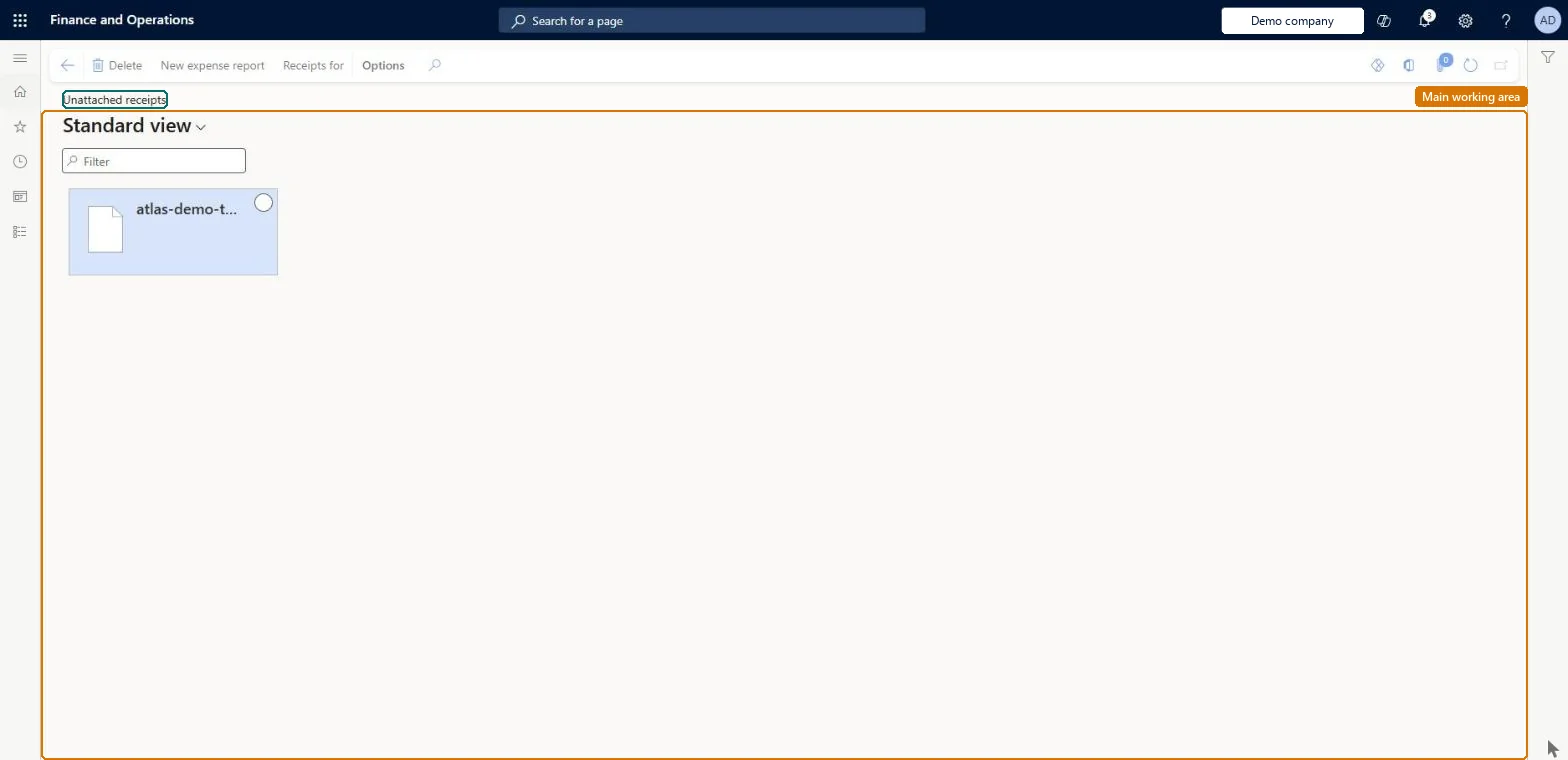
A list of the receipts you have uploaded that are not yet attached to an expense or an expense report.
What you do here
Use this page to check receipts that are still waiting and to attach them to expenses, or to create an expense from a receipt when OCR receipt capture is installed.
Example
For example, an employee photographs a 32.50 EUR parking receipt in the mobile app; it waits here until the employee matches it to the imported card line or creates an expense from it.
The page in Dynamics 365. page title tab to open what to set or check
About the examples: Examples and screenshots in this guide use BEAT, a demo company in a Dynamics 365 test environment. Use your own company's codes and values instead of copying them.
Setup steps on this page
Clear unattached receipts
Make sure every uploaded receipt ends up on an expense.
Steps from Microsoft
Go to Expense management > My expenses > Unattached receipts.
Check the receipts that aren't attached to an expense yet.
Upload any receipt that is missing.
Create an expense from a receipt, or match it to an existing expense, then add the expense to an expense report.
You do not have access to enter expenses because you are not mapped to an employee record. Contact your manager or support team for assistance.
Link the user to an employee with active employment and set a company on the user account. In the live system the pages under My expenses, Process expense reports and Process cash advances showed this message for a user with no employee record. Checked in Dynamics 365
Merchant, date and amount aren't read from the receipt
OCR needs the Expense Management Service add-in and the Automatch and create expense from receipt feature, and works only for supported regions. Enter the details by hand otherwise. Microsoft Learn
Test checklist
Upload a receipt from the workspace Receipts tab.
Open Unattached receipts and check it is listed.
Match it to an unattached expense.
Check the receipt is gone from the list and shows on the expense.
Check the list before each report and match or create an expense for every receipt; delete receipts that were uploaded twice.A receipt that stays here is not on any expense, so a policy that requires a receipt will flag the expense it belongs to.
Expense reports reimagined (Must be on)Automatch and create expense from receipt (Optional)
Licence or add-in
In this system Employee and Contractor enter their own expenses, and Expense administrator sets up the module and processes documents. The expense mobile app needs the Employee role, a company on the user account and a link to an employee with active employment. Employees and delegates use this page; OCR needs the Expense Management Service add-in.
Per user: the list shows the receipts the signed-in employee uploaded. Receipts stay stored in Finance. Microsoft Learn
Can it be undone
Reversible: Receipts can be attached or deleted later.
If you change it later
With Expense reports reimagined and Automatch and create expense from receipt on, uploaded receipts are matched to unattached expenses automatically; OCR reads English receipts only in part of the EU and isn't available in Asia, Japan or Africa. Microsoft Learn
Technical architect
6Technical
Menu item
TrvUnattachedReceiptsListChecked in Dynamics 365
Data entities
TrvReceiptEntityReceipts (receipt attachments, stored as document references) Microsoft data model
Roles to set it up and use it
To set it up or change itExpense administrator ExpenseAdministratorContractor HcmContractorEmployee HCMEmployeeGive people one of these roles. On this system, 3 roles can open this page.Checked in Dynamics 365
Load order: The unattached receipt list has no data entity in Data management, so it can't be loaded from a file or a configuration template. Receipts are attachments uploaded by employees; attach or discard them before cutover.Microsoft Learn