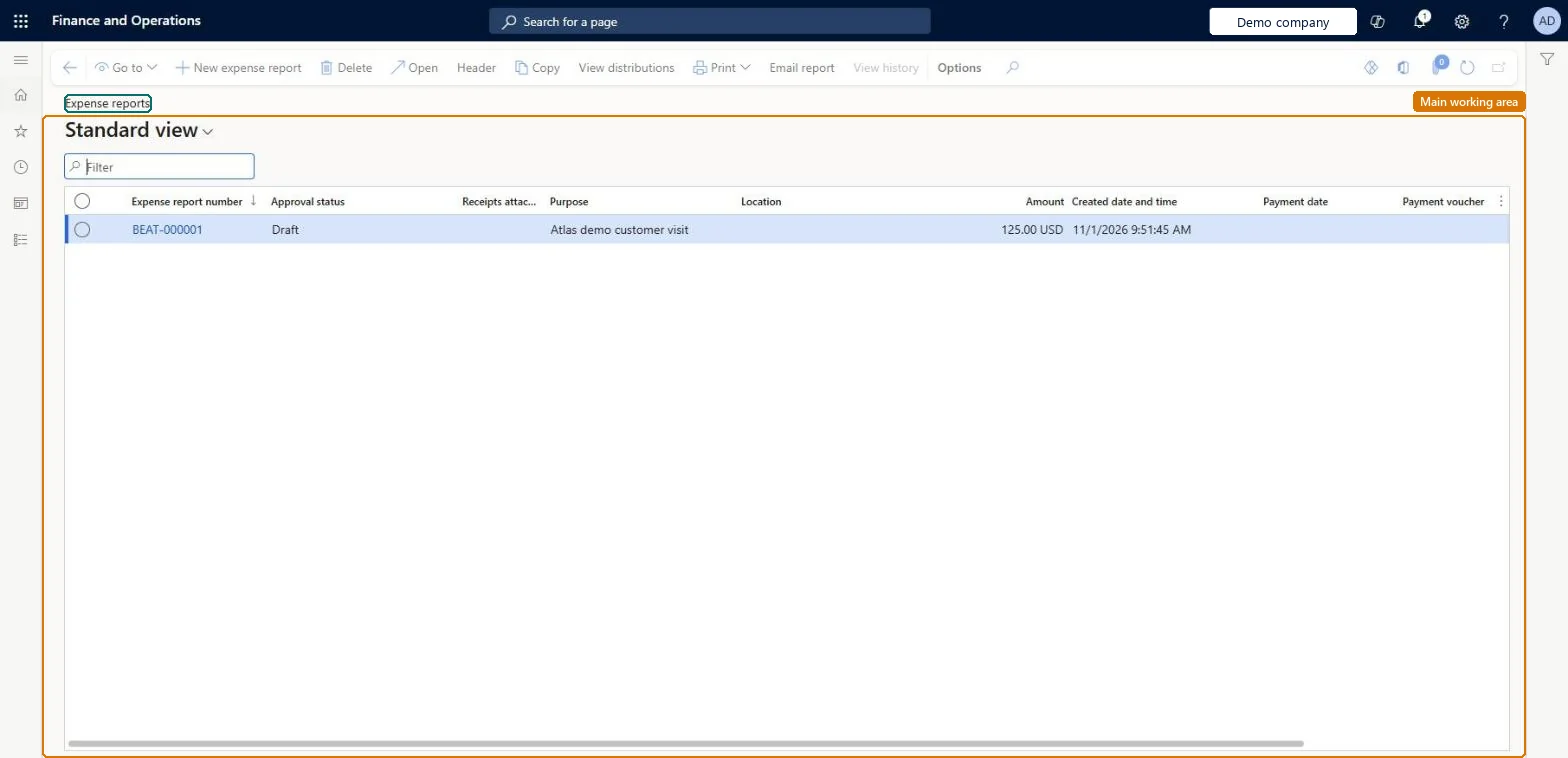
About the examples: Examples and screenshots in this guide use BEAT, a demo company in a Dynamics 365 test environment. Use your own company's codes and values instead of copying them.
Setup steps on this page
Enter and submit an expense report on the classic page
Create the expense report, add every expense with its receipt, and submit it for approval.
Steps from Microsoft
Go to Expense management > My expenses > Expense reports.
Select an expense report that isn't processed yet, or create a new one.
Open the expense report to see its expense lines.
Select Add unattached expenses to see imported credit card transactions not yet linked to a line.
Select the transactions to include, and then select OK.
Opens the imported card transactions and other expenses that aren't on a report yet, so you can add them to this report.Microsoft Learn
Two hotel nights imported from the corporate card
Open other user's expenses (button)
Lets a delegate open and create expense reports for an employee who named them on the Delegates page.Microsoft Learn
Map to travel requisition
Links the report to an approved travel requisition; the travel requisition amount fills in, and a line can't be more than the authorized amount.Microsoft Learn
Workflow > Submit
Sends the report into the expense report approval workflow; after that the employee can no longer change it unless it is returned.Microsoft Learn
Common errors and fixes
Message
What to do
You do not have access to enter expense reports because you are not mapped to an employee record. Contact your manager or support team for assistance.
Link the user to an employee with active employment and set a company on the user account. In the live system the pages under My expenses, Process expense reports and Process cash advances showed this message for a user with no employee record. Checked in Dynamics 365
The employee can't submit: a policy rule of type Error is broken
The employee must change the line until it meets the rule. A Warning rule lets the report go on with a mark for the approver; a Justification rule asks for a reason first. Microsoft Learn
Submit is not available on the document
No active workflow exists for this document type. Create and activate the matching workflow on Expense management > Setup > General > Expense management workflows. Microsoft Learn
Submit or approval is blocked because the expense goes over the budget
Check the budget. The parameters Allow expense report submit on budget overrun and Allow expense report approval on budget overrun decide whether employees and approvers may continue. Microsoft Learn
Test checklist
Create an expense report with a purpose and two lines, one entered by hand and one added with Add unattached expenses.
Check each line has an expense category and a payment method, and attach a receipt.
Select Workflow > Submit and check the report shows as In review and can't be edited.
As the approver, open the report from the work item and approve it.
One report per trip or purpose. Add imported card transactions with Add unattached expenses instead of typing them again, attach a receipt to every line, and map the report to the travel requisition when one exists.Card transactions arrive as unattached expenses, so typing them again creates duplicates. Mapping to an approved travel requisition fills the authorized amounts and stops a line from going over them.
New expense reports take their number from the TrvExpNumber reference; BEAT uses number sequence Trav_22. Checked in Dynamics 365
Feature management and licence
Feature to turn on
Expense reports reimagined (Optional)Enable expense delegates list page (Optional)
Licence or add-in
In this system Employee and Contractor enter their own expenses, and Expense administrator sets up the module and processes documents. The expense mobile app needs the Employee role, a company on the user account and a link to an employee with active employment. Employees use this page in the classic experience; approvers open reports on this page in both experiences.
Per company: an expense report belongs to the employee's legal entity. With Allow intercompany expense lines on, a line can charge another legal entity, which is then posted to that entity. Microsoft Learn
Can it be undone
Hard to reverse: A draft report can be changed or deleted. Once submitted it follows the workflow; a rejected or returned report comes back to draft, and a posted report can't be unposted. Microsoft Learn
If you change it later
Even after the reimagined experience is turned on, workflow approvals still open this original expense report page. Microsoft Learn
Technical architect
6Technical
Menu item
TrvExpRptListPage_MyListPageChecked in Dynamics 365
Data entities
TrvExpTableMobileEntityExpense reports (the expense report header used by the mobile app) Checked in Dynamics 365TrvExpTransEntityExpenses (the expense lines of the reports) Microsoft data model
Roles to set it up and use it
To set it up or change itExpense administrator ExpenseAdministratorContractor HcmContractorEmployee HCMEmployeeGive people one of these roles. On this system, 3 roles can open this page.Checked in Dynamics 365
TrvExpTransEntity (Expenses): the expense lines; the report header is created with them.Load order: Open expense reports are transactions. Settle, post or reject them in the old system before cutover rather than migrating them; load only reference data (categories, payment methods) up front.Load first: Expense categories, Payment methods, EmployeesMicrosoft Learn