About the examples: Examples and screenshots in this guide use BEAT, a demo company in a Dynamics 365 test environment. Use your own company's codes and values instead of copying them.
When to run it
When to run it
When the card provider delivers a new transactions file, so employees can add the card transactions to their expense reports.
How often
Each time a card file arrives, or on a recurring schedule that matches the provider's delivery.
Batch settings
Use Create recurring data job to import the provider's files automatically at the recurrence you set.
What the output shows
Imported credit card transactions that show up as unattached expenses for each employee. Missing transactions usually mean a mapping or card type error; look at the execution log or staging data.
Bring the card provider's file in so employees can report the charges.
Steps from Microsoft
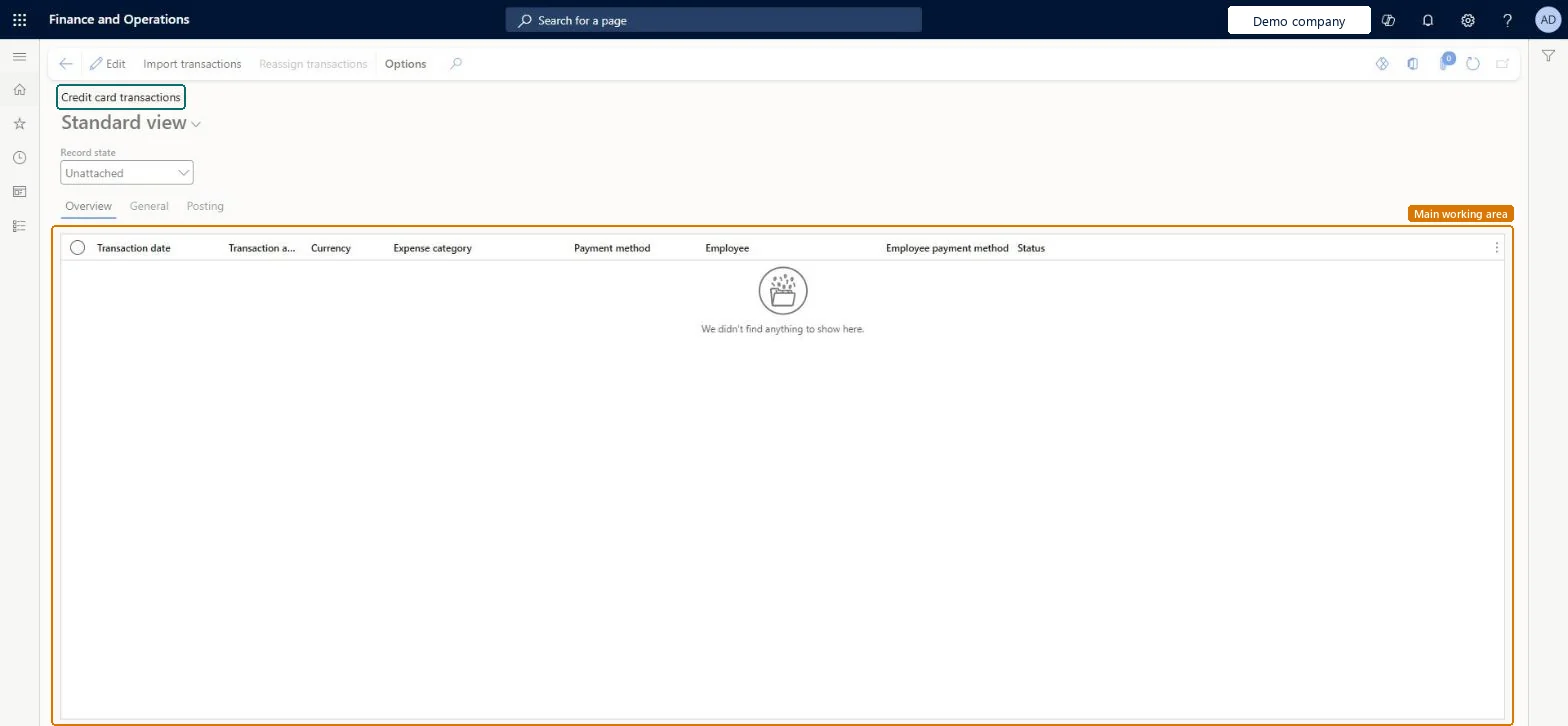
Go to Expense management > Periodic tasks > Credit card transactions.
Select Import transactions, and in Name enter a unique description for the import job.
In Source data format, select the format of the card provider's file, then select Upload and choose the file; each file format needs its own import job.
Select View map to check how the file columns map to the credit card transactions entity, and fix the mapping on Mapping visualization or Mapping details if needed.
Select Import to load the file now, or Create recurring data job to import on a schedule; then look at the execution log or staging data for errors.
The format of the file that holds the card transactions.Microsoft Learn
Card type
The card type of each transaction; it must match a card type in setup.Microsoft Learn
CardType
Card number
The card the transaction was made with; it must match a card on the employee's worker record.Microsoft Learn
Transaction amount
The amount charged; required in the file together with card number, card type and currency.Microsoft Learn
Common errors and fixes
Message
What to do
An employee doesn't see an imported card transaction
The card number in the file must match a card on the employee's worker record (Expense > Credit cards), and the card type must match a credit card type in setup. Correct the setup and import again, or reassign the transaction. Microsoft Learn
The import job stops with mapping errors
Each file format needs its own import job. Open View map and fix the columns on Mapping visualization or Mapping details, then import again; the execution log and staging data show the failing rows. Microsoft Learn
Card numbers are stored in full
Choose Prevent card number entry or Hash card numbers (store last four digits) in the parameters; Store card numbers isn't PCI DSS compliant. Microsoft Learn
Test checklist
The execution log shows no errors.
Employees see the new card transactions as unattached expenses.
The card type of each transaction matches the setup.
One import job per file format, set up as a recurring data job that matches the provider's delivery, with card numbers hashed (last four digits).Each file format needs its own job; a recurring job brings the file in without manual work, and hashing keeps card data PCI DSS compliant.
In this system Employee and Contractor enter their own expenses, and Expense administrator sets up the module and processes documents. The expense mobile app needs the Employee role, a company on the user account and a link to an employee with active employment. The expense administrator imports card files; employees then see the transactions as unattached expenses. No Feature management feature is needed.
PrivilegesMaintain credit card transactions TrvPBSMaindataLinesMaintainView credit card transactions TrvPBSMaindataLinesViewDutiesMaintain Master entity data for data management DataManagementApplicationMasterEntitiesMaintainView Master entity data for data management DataManagementApplicationMasterEntitiesViewMaintain Reference entity data for data management DataManagementApplicationReferenceEntitiesMaintainView Reference entity data for data management DataManagementApplicationReferenceEntitiesViewMaintain expense management process TrvTravelAndExpenseProcessMaintain6 security rolesBusiness Performance Planning app role BPPBudgetPlanningAppRoleData management administrator DataManagementAdministratorData management migration user DataManagementMigrationUserExpense administrator ExpenseAdministratorDemand planning app role ScpDemandPlanningAppRoleInformation technology manager SysServerITManagerChecked in Dynamics 365
Roles to set it up and use it
To set it up or change itExpense administrator ExpenseAdministratorInformation technology manager SysServerITManagerBusiness Performance Planning app role BPPBudgetPlanningAppRoleData management migration user DataManagementMigrationUserDemand planning app role ScpDemandPlanningAppRoleGive people one of these roles. On this system, 6 roles can open this page.Checked in Dynamics 365
Actions on the page
Options: Personalize, Page options, ShareChecked in Dynamics 365