About the examples: Examples and screenshots in this guide use BEAT, a demo company in a Dynamics 365 test environment. Use your own company's codes and values instead of copying them.
When to run it
When to run it
After an import brought in duplicate or inaccurate card transactions.
How often
On demand, after a faulty import.
What the output shows
The filtered card transactions that weren't attached to an expense report are deleted. A transaction that remains is usually attached to an expense report.
Clean up a faulty import before employees report it.
Steps from Microsoft
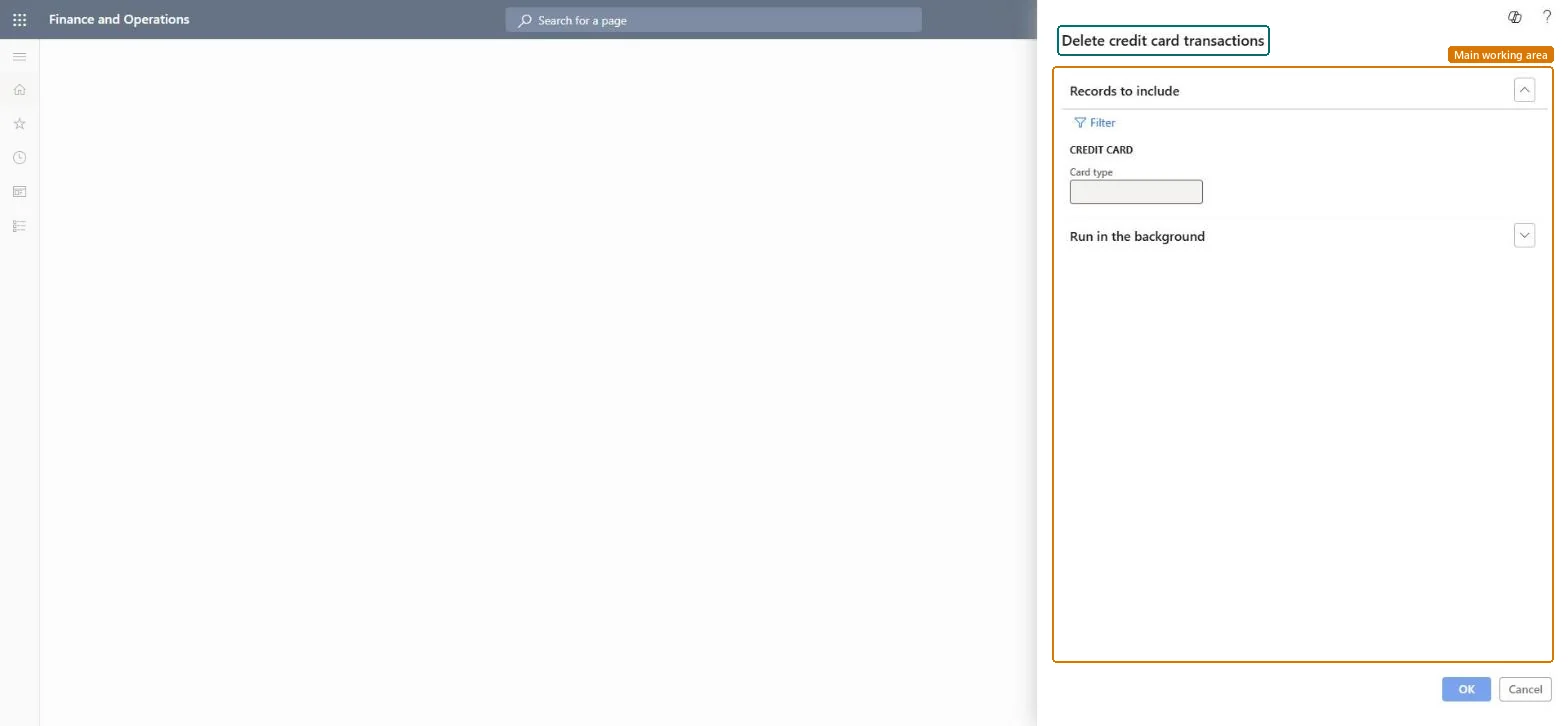
Go to Expense management > Periodic tasks > Delete credit card transactions.
Select Filter and enter the details that identify the transactions to remove, for example the import date, card number or employee of a duplicate file.
Only transactions that aren't attached to an expense report are deleted; detach or finish reports first if needed.
Run it, then open Credit card transactions and make sure the duplicates are gone and the valid transactions remain.
Filter narrowly on the import date and card numbers of the faulty file, and run it before employees start reporting.Only transactions not attached to an expense report are deleted, and deleted transactions come back only by importing again.
In this system Employee and Contractor enter their own expenses, and Expense administrator sets up the module and processes documents. The expense mobile app needs the Employee role, a company on the user account and a link to an employee with active employment. Only the expense administrator should run this job. No Feature management feature is needed.
Load order: The delete job has no data entity in Data management, so it can't be loaded from a file or a configuration template. It only removes imported transactions; nothing to migrate.Microsoft Learn