About the examples: Examples and screenshots in this guide use BEAT, a demo company in a Dynamics 365 test environment. Use your own company's codes and values instead of copying them.
Step by step, with screenshots
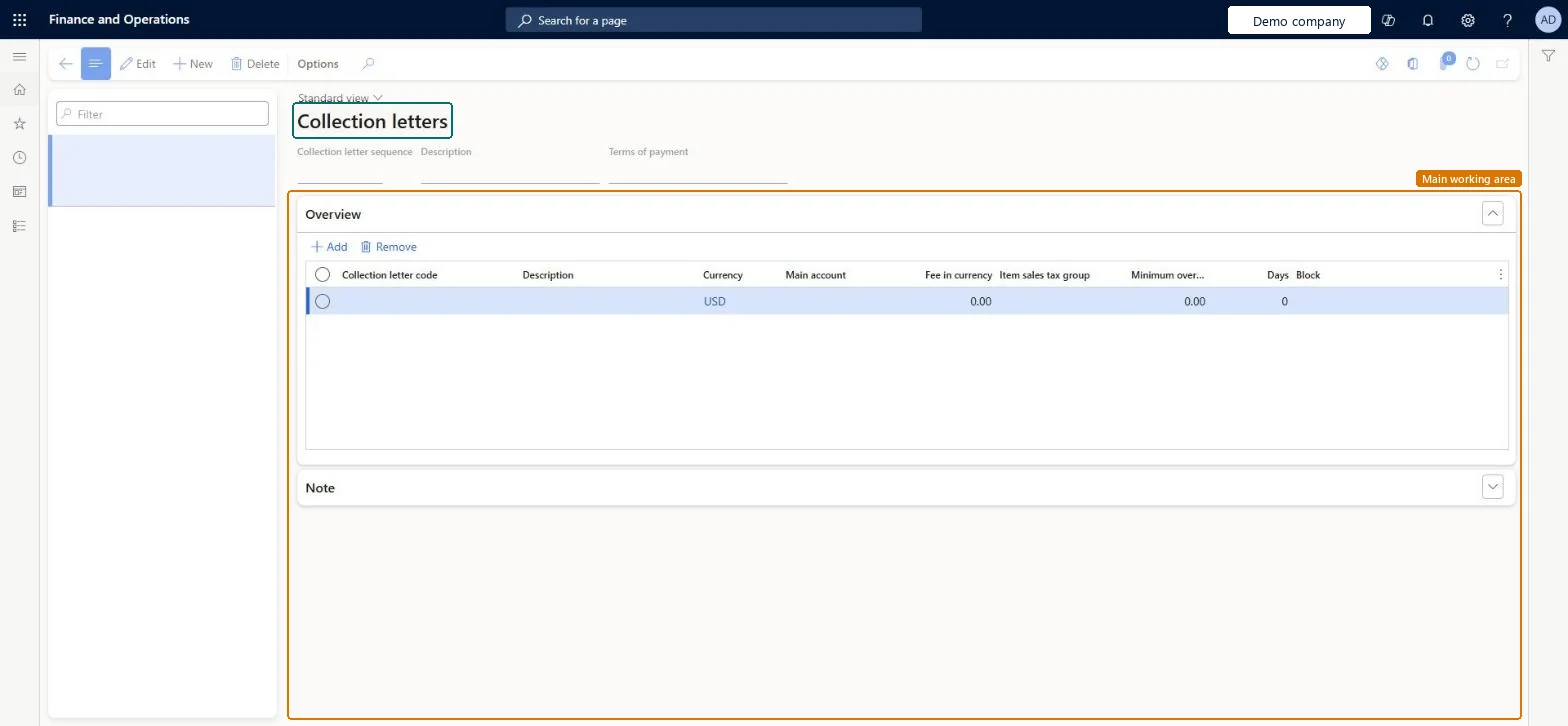
Set up collection letter sequence1 screen
Use this page to decide, for each letter in the sequence, whether a fee is charged, how many grace days are allowed and the minimum amount due.
Screen 1
Create a collection letter sequence
Go to Credit and collections > Collection letter > Set up collection letter sequence
Select New
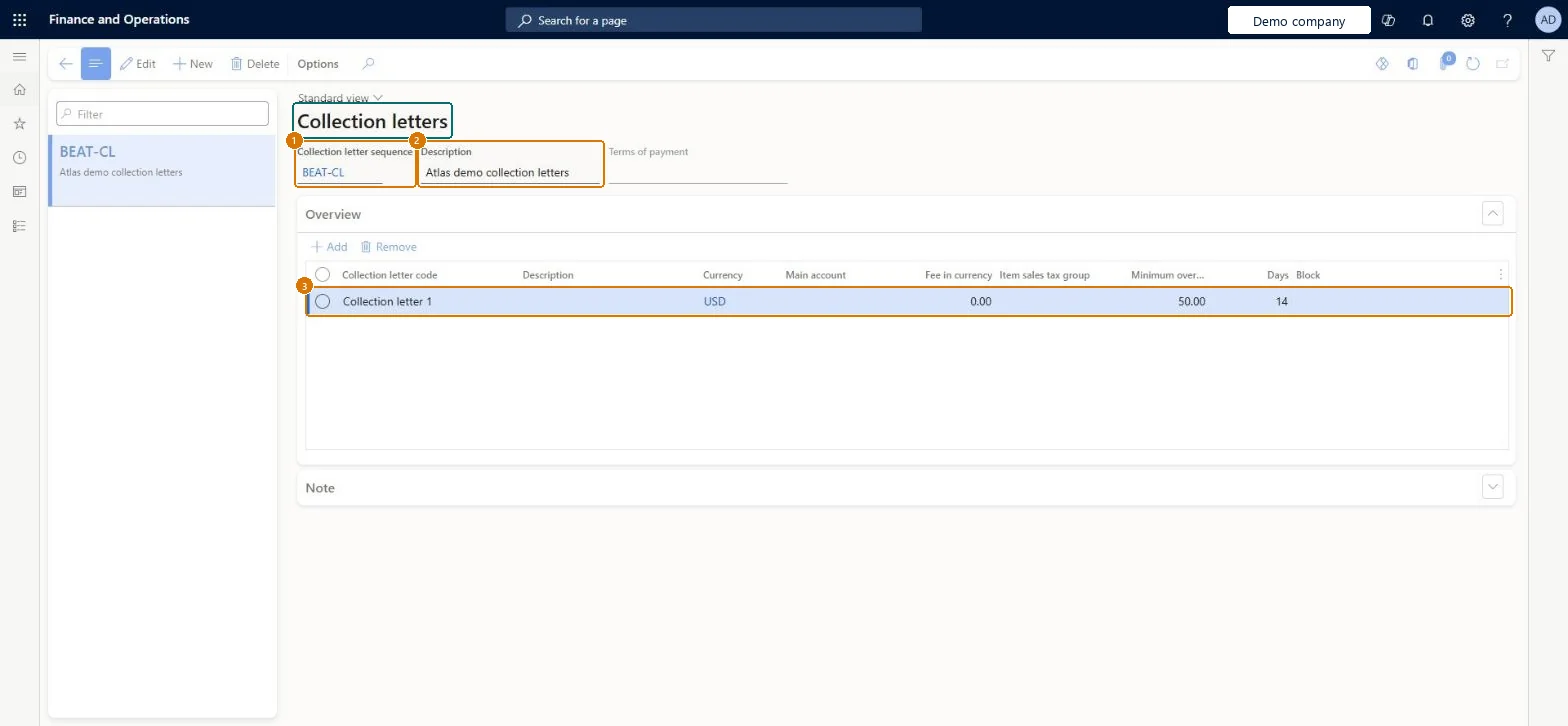
Enter the sequence code and description
In the Overview grid, select the collection letter code
Enter the minimum overdue amount and the grace days
Select Save
1Collection letter sequence
BEAT-CL
2Description
Collection letters
3Collection letter code
Collection letter 1
Minimum overdue
50.00
Days
14
Show the full screen page title tab to open what to set or check
Steps from Microsoft
Go to Credit and collections > Collection letter > Set up collection letter sequence.
Select New, and enter the Collection letter sequence ID and a Description.
In the Collection letter code field, select the first collection letter to send.
Select Add for each next letter in the sequence (up to five).
For letters with a fee, select the Main account, enter the fee and, if needed, the Item sales tax group.
Enter the Minimum overdue balance and the grace Days for each letter.
On the last letter, select Block to stop further deliveries and invoicing.
On the Note FastTab, enter the text for each collection letter code.
One sequence per policy with a line for every currency you invoice in, letter 1 as a warning without fee, and the sequence attached to the customer posting profile.Letters are created only for currencies set up in a sequence, and a sequence works only once it is attached to a customer posting profile. Learn notes the first letter is often just a warning, with fees added on later letters.
Hard to reverse: Sequence lines can be changed, but transactions keep the collection letter code already reached, and posted letters can't be changed. Microsoft Learn
If you change it later
Letters are sent in order: the second letter can only be printed for a customer after the first one has been printed. Microsoft Learn
Technical architect
6Technical
Menu item
CollectionLetterCourseChecked in Dynamics 365
Form
CollectionLetterCourseChecked in Dynamics 365
Table
CustCollectionLetterTableShown as “Collection letter setup” in Record infoKey field: CollectionLetterCourse, NameChecked in Dynamics 365
Data entities
CollectionLetterCourseEntityCollection letter setup Microsoft data model CustCollectionLetterCourseCdsEntityCustomer collection letter setup for CDS integration. Microsoft data model
Who can open it
PrivilegesMaintain collection letters setup CollectionLetterCourseMaintainView collection letters setup CollectionLetterCourseViewDutiesReview collections process performance CollectionLetterCollectionProcPerfRevieEnable collections process CollectionLetterCollectionsProcessEnableInquire into customer invoice status CustInvoiceCustomerInvoiceStatusInquireMaintain customer invoice transactions CustInvoiceCustomerInvoiceTransMaintainInquire into customer payments status PaymCustomerPaymentsStatusInquire12 security rolesAuditor AuditPolicyManagerCollections agent CollectionLetterCollectionsAgentCollections manager CollectionLetterCollectionsManagerChief financial officer CompanyChiefFinancialOfficerAccounts receivable clerk CustInvoiceAccountsReceivableClerkAccounts receivable manager CustInvoiceAccountsReceivableManagerAccountant LedgerAccountantAccounting manager LedgerAccountingManagerAccounting supervisor LedgerAccountingSupervisorFinancial controller LedgerFinancialControllerAccounts receivable centralized payments clerk PaymAccountsReceivableCentralPaymClerkAccounts receivable payments clerk PaymAccountsReceivablePaymentsClerkChecked in Dynamics 365
Roles to set it up and use it
To set it up or change itCollections manager CollectionLetterCollectionsManagerAccounts receivable manager CustInvoiceAccountsReceivableManagerAccounting supervisor LedgerAccountingSupervisorTo use itCollections agent CollectionLetterCollectionsAgentAccounting manager LedgerAccountingManagerAccounts receivable payments clerk PaymAccountsReceivablePaymentsClerkAccounts receivable clerk CustInvoiceAccountsReceivableClerkAccounts receivable centralized payments clerk PaymAccountsReceivableCentralPaymClerkGive people one of these roles. On this system, 12 roles can open this page.Checked in Dynamics 365
CollectionLetterCourseEntity (Collection letter setup): loaded for each company, in Microsoft's default template 140 - Accounts receivable.Load order: Microsoft's default template 140 - Accounts receivable loads Collection letter setup at execution unit 1, level 30, sequence 10. Lower levels load first, and entities at the same level load in sequence order.Load first: the default templates at lower levels (System setup to General ledger)Microsoft Learn
Checked in a working Dynamics 365 system, version 10.0.49: the menu item, form, table and security, the page, the demo records and the values in the screenshots.