Accounts payable manager, Chief executive officer, Chief financial officer and 7 more roles
Business process
Cancel supplier payments with Dynamics 365 Finance
Menu item
BankChequeTable
Main table
BankChequeTable
Setup steps
1 on this page
Show what matters for
SETUP GUIDEHow to set it up8 sections. Choose a role to highlight what matters to you.
Everyone
1What it is and why
What it is
The list of checks for the company's bank accounts with their status, where posted checks are reversed and unused checks are deleted or voided.
What you do here
Use this page to reverse a posted check that was paid in error or lost, to delete checks that were created but never used, and to void unposted checks that can't be used, for example after a misprint.
Example
For example, check 1045 for 2,300.00 to a vendor is lost in the mail. Its status is Paid, so you select Payment reversal with reason LOST; the vendor invoice is open again and a new check can be issued.
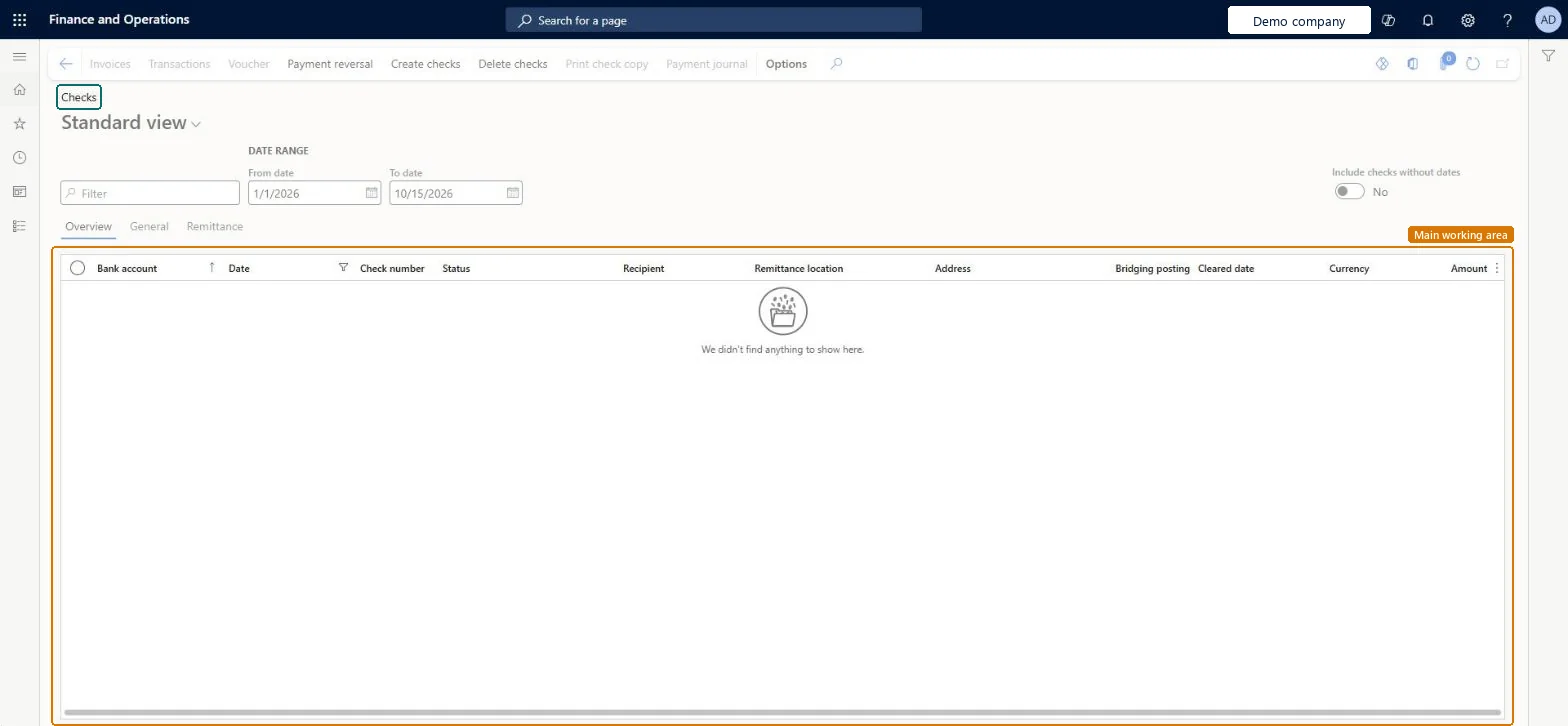
The page in Dynamics 365. page title tab to open what to set or check
About the examples: Examples and screenshots in this guide use BEAT, a demo company in a Dynamics 365 test environment. Use your own company's codes and values instead of copying them.
Setup steps on this page
Reverse, delete or void checks
Reverse posted checks, delete unused checks and void unposted checks on the bank account's check list.
Steps from Microsoft
On Cash and bank management parameters, check whether Use review process for payment reversals is Yes or No.
Go to Cash and bank management > Payment reversals > Checks and select the check. Only a check with status Paid can be reversed.
Select Payment reversal, then enter the date and a reason. The financial reason must be set up for both the Bank and Vendor types.
If reversals are reviewed, select a journal name so the reversal goes to Check reversals; otherwise it posts at once.
After posting, check that the status is Cancellation and the vendor payment is unsettled from the invoice.
Shows where the check is in its life: for example, Created for checks not yet used, or Paid for posted checks that can be reversed.Microsoft Learn
Paid
ChequeStatus
Include checks without dates
Shows checks that have no date yet, such as checks with status Created. Turn it on when you count the checks still available for a bank account.Microsoft Learn
Reconcile (on Payment reversal)
If selected during the reversal, the reversed check is marked as reconciled and doesn't appear on Account reconciliation.Microsoft Learn
Common errors and fixes
Message
What to do
No more checks for account
The bank account uses the Fixed check number method and has fewer checks with status Created than the payment journal needs. On Bank accounts, select Set up > Check numbers and create more checks, then generate the payments again. Microsoft Learn
The check can't be reversed because it is cleared
From 10.0.39, check reversal isn't allowed if the original check is marked as cleared. Undo the reconciliation first or record the correction another way. Microsoft Learn
Payment reversal asks for a reason that isn't in the list
The financial reason must be set up for both the Bank and Vendor types. Microsoft Learn
Test checklist
Pay a vendor invoice by check from a test bank account and post the payment journal.
On this page, select the check (status Paid) and select Payment reversal with a date and reason.
With review off, check that the status is Cancellation and the bank balance rises by the check amount.
Open the vendor transactions and check that the invoice is open again.
Use review process for payment reversals = Yes, with a Bank check reversal journal name, and financial reasons set up for both Bank and Vendor.Learn names the two methods: immediate reversal or review in the check reversal journal. With review, a second person approves the reversal before the vendor invoice reopens.
Hard to reverse: A posted reversal can't be undone; issue a new payment if needed.
If you change it later
Only posted checks with status Paid can be reversed; checks can be deleted only while Created, and only unposted checks can be voided. A posted reversal increases the bank balance, unsettles the vendor payment and posts to the ledger. From 10.0.39 a check that is marked as cleared can't be reversed. Microsoft Learn
Technical architect
6Technical
Menu item
BankChequeTableChecked in Dynamics 365
Form
BankChequeTableChecked in Dynamics 365
Table
BankChequeTableShown as “Check table” in Record infoKey field: AccountID, ChequeNumChecked in Dynamics 365
Who can open it
PrivilegesMaintain bank account checks BankChequeTableMaintainView bank account checks BankChequeTableViewDutiesEnable bank management process BankBankManagementProcessEnableInquire into bank management reference data BankBankMgmtReferenceDataInquireInquire into customer positive payments PaymCustPositivePayInquireInquire into vendor positive payments PaymVendPositivePayInquire10 security rolesChief executive officer CompanyChiefExecutiveOfficerChief financial officer CompanyChiefFinancialOfficerAccounts receivable manager CustInvoiceAccountsReceivableManagerAccountant LedgerAccountantAccounting manager LedgerAccountingManagerAccounting supervisor LedgerAccountingSupervisorFinancial controller LedgerFinancialControllerAccounts payable positive payment clerk PaymPositivePaymentClerkTreasurer PaymTreasurerAccounts payable manager VendInvoiceAccountsPayableManagerChecked in Dynamics 365
Roles to set it up and use it
To set it up or change itTreasurer PaymTreasurerAccountant LedgerAccountantTo use itChief financial officer CompanyChiefFinancialOfficerAccounting manager LedgerAccountingManagerFinancial controller LedgerFinancialControllerAccounting supervisor LedgerAccountingSupervisorAccounts receivable manager CustInvoiceAccountsReceivableManagerGive people one of these roles. On this system, 10 roles can open this page.Checked in Dynamics 365
Actions on the page
Options: Personalize, Page options, ShareChecked in Dynamics 365
Developer
7Developer
Open it by URL
https://<your-environment>/?mi=BankChequeTable
Data migration
Load order: The checks list has no data entity in Data management, so it can't be loaded from a file or a configuration template. Checks are created from the bank account (Set up > Check numbers) and by payment journals. At go-live, create the check numbers for each bank account and bring outstanding checks in with the opening bank balance.Checked in Dynamics 365