SETUP GUIDEHow to set it up8 sections. Choose a role to highlight what matters to you.
Everyone
1What it is and why
What it is
A journal list page for transfers between the company's own bank accounts, where you create transfer journals and review the ones already posted.
What you do here
Use this journal to record bank transfers through the general journal and review the transfer journals that are already posted.
Example
For example, BEAT moves 200,000.00 from its operating account to its payroll account each month: the transfer journal is posted from this page and then shows under Posted, where its lines show both bank accounts.
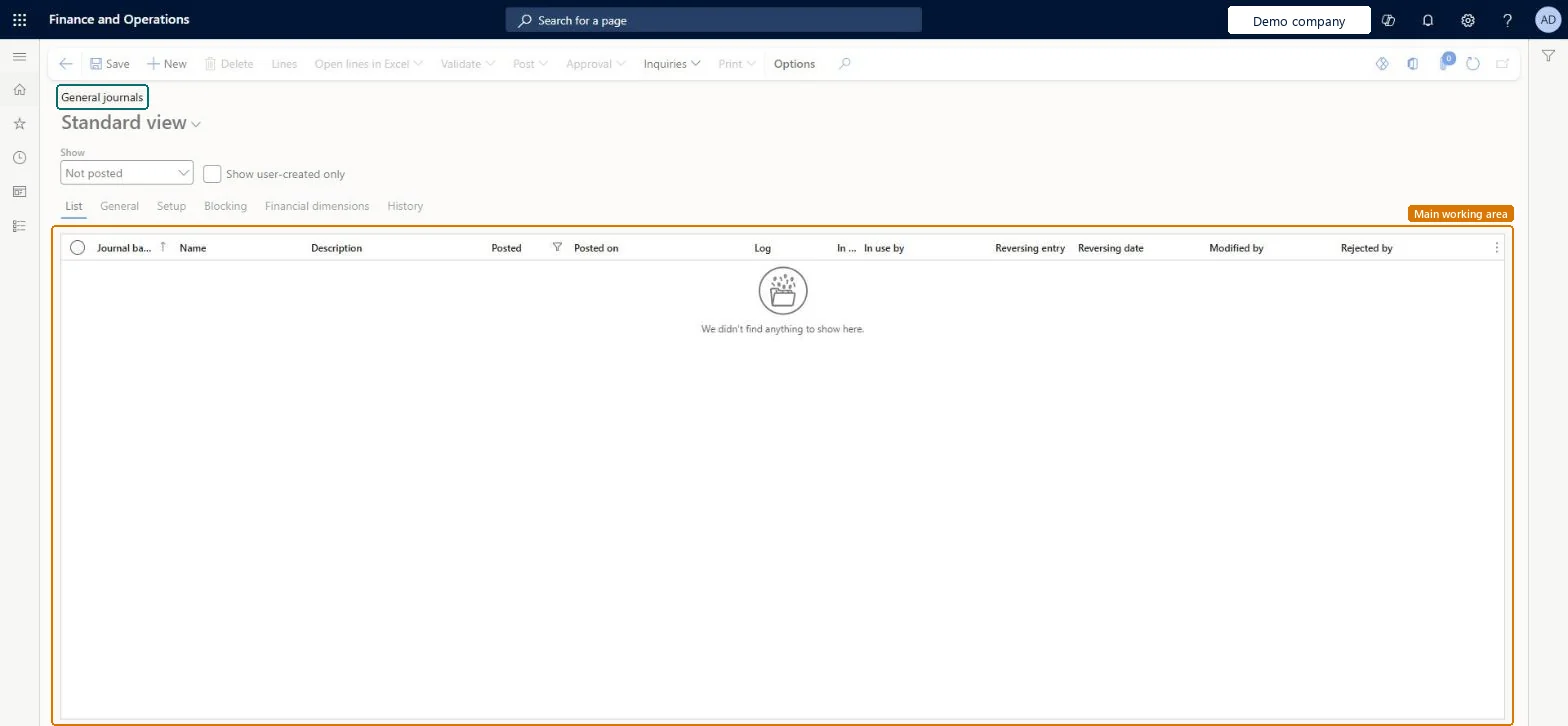
The page in Dynamics 365. page title tab to open what to set or check
About the examples: Examples and screenshots in this guide use BEAT, a demo company in a Dynamics 365 test environment. Use your own company's codes and values instead of copying them.
Setup steps on this page
Transfer funds between own bank accounts
Record and post transfers between the company's own bank accounts.
Steps from Microsoft
Go to Cash and bank management > Bank accounts > Bank account transfers.
In the Show field, select Posted to see posted transfer journals, or Not posted to see the open ones.
Select New to create a transfer journal with a journal name, then select Lines.
Enter the transfer on the journal lines between the two bank accounts, with the date and the amount.
Validate and post the journal, then select the posted journal and Lines to review it.
Filters the list, for example to show only posted transfer journals.Microsoft Learn
Posted
Journal batch number
The number of the transfer journal.Checked in Dynamics 365
Name
The journal name that sets the journal's voucher series and defaults.Microsoft Learn
Lines
Opens the lines of the selected journal: the bank accounts, date and amount of each transfer.Microsoft Learn
Common errors and fixes
Message
What to do
The journal can't be posted to one of the bank accounts
A bank account with status Inactive for new transactions or Inactive for all transactions, or past its Active to date, can't take new transactions. Use an active account. Microsoft Learn
Test checklist
Create a transfer journal for 1,000.00 from one bank account to another and post it.
Set Show to Posted and open Lines of the journal.
On Bank transactions, check one transaction of -1,000.00 on the first account and +1,000.00 on the second.
Reconcile both transactions with the next bank statements.
Use a dedicated journal name for bank transfers, and one line per transfer with the from and to bank accounts, so each side creates its own bank transaction.Each side of the transfer must later match a line on its own bank statement; a dedicated journal name keeps transfers easy to find with Show = Posted.
One-way: A posted journal is corrected with a new journal.
If you change it later
Posting creates bank transactions on both accounts and the ledger entries on their main accounts; each transaction must later be matched to the bank statements of both accounts. Microsoft Learn
Technical architect
6Technical
Menu item
BankAccountTransferChecked in Dynamics 365
Form
LedgerJournalTableChecked in Dynamics 365
Table
LedgerJournalTableShown as “Ledger journal table” in Record infoKey field: JournalNumChecked in Dynamics 365
Data entities
BankJournalHeaderEntityBank journal header (Journal headers (LedgerJournalTable) of the bank journals.) Microsoft data model BankJournalLineEntityBank journal line (Journal lines (LedgerJournalTrans) of the bank journals.) Microsoft data model
Who can open it
PrivilegesMaintain bank account transfers BankAccountTransferProcessDutiesMaintain bank transactions BankBankTransactionsMaintain1 security roleTreasurer PaymTreasurerChecked in Dynamics 365
Roles to set it up and use it
To set it up or change itTreasurer PaymTreasurerGive people one of these roles. On this system, 1 role can open this page.Checked in Dynamics 365
Actions on the page
Options: Personalize, Page options, Edit, ShareChecked in Dynamics 365
BankJournalHeaderEntity (Bank journal header): the journal header, loaded first.BankJournalLineEntity (Bank journal line): the lines, after the header.Load order: Open transfers at go-live are usually entered and posted as new journals. When journals are loaded, load the header before the lines.Load first: Bank accounts, Journal namesChecked in Dynamics 365
Checked in a working Dynamics 365 system, version 10.0.49: the menu item, form, table and security, the page.
To cite this step: CB-BA-020, Transfer funds between own bank accounts. Beyond ERP Atlas Hub, 2026-11-11. https://www.beyonderp.cloud/atlas/step/CB-BA-020