SETUP GUIDEHow to set it up8 sections. Choose a role to highlight what matters to you.
Everyone
1What it is and why
What it is
An inquiry page that shows all posted transactions for the selected bank accounts.
What you do here
Use this page to review bank account transactions, including summarized payments, and open their vouchers.
Example
For example, BEAT pays three vendors 100.00 EUR each by electronic payment with a journal name that summarizes amounts in the bank account: the inquiry shows one bank transaction of 300.00 with an asterisk in Voucher number and a Bank transaction summarization ID that matches the bank's single debit.
The page in Dynamics 365. page title tab to open what to set or check
About the examples: Examples and screenshots in this guide use BEAT, a demo company in a Dynamics 365 test environment. Use your own company's codes and values instead of copying them.
Setup steps on this page
Review bank transactions
Find posted bank transactions, their vouchers and summarized payments.
Steps from Microsoft
Go to Cash and bank management > Inquiries and reports > Bank transactions.
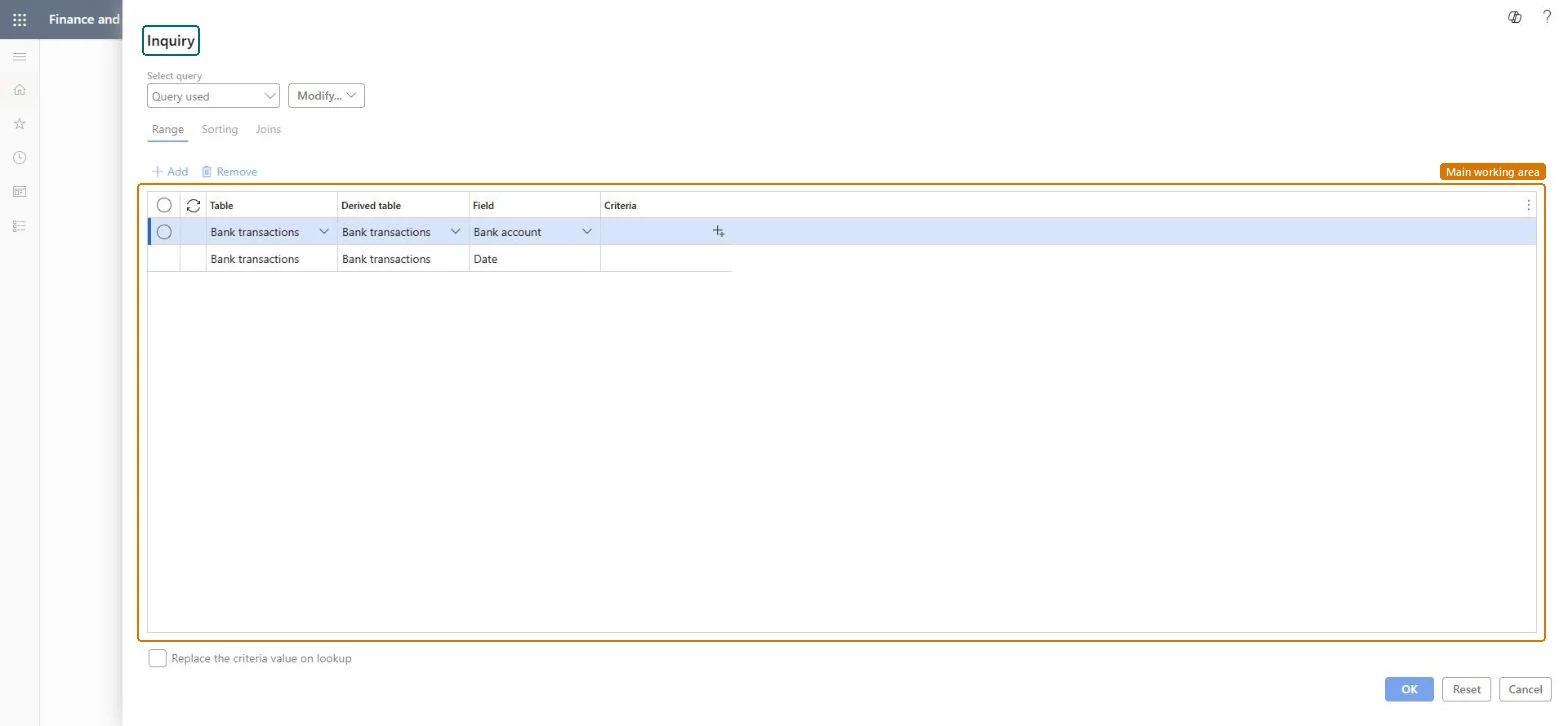
In the query, enter the bank accounts and the date range, then select OK.
Select a transaction and Voucher to see its ledger vouchers, Transaction origin to see where it came from, or Accounting source explorer for the detail.
For a summarized payment (Voucher number shows an asterisk), select View summarized bank transactions to see the payments it includes.
The voucher of the bank transaction; an asterisk marks a summarized payment that covers several vouchers.Microsoft Learn
*
Bank transaction summarization ID
The number that links a summarized bank transaction to the detail payments it includes; from the Bank transaction summarization ID number sequence.Microsoft Learn
Payments aren't summarized into one bank transaction
Check the journal name: Summarize amounts in bank account = Yes and New voucher not Manual or One voucher number only; checks and deposit slip payments are never summarized; a number sequence for Bank transaction summarization ID is needed. Microsoft Learn
Test checklist
Post a vendor payment journal with three payments through a journal name with Summarize amounts in bank account = Yes and Default criteria.
Run the inquiry for that bank account and date.
Check one transaction shows an asterisk in Voucher number and a summarization ID.
Select View summarized bank transactions and check the three payments.
Filter on the bank account and the statement period first, then open Voucher or View summarized bank transactions.Without a bank account and date filter the inquiry lists every bank transaction of the company; summarized payments only make sense against the bank's single line.
Per company: the inquiry shows the bank transactions of the current legal entity. Microsoft Learn
Can it be undone
Reversible: The inquiry changes no data.
If you change it later
The inquiry reads posted bank transactions. How payments show here depends on the journal name's summarization setting, which also decides whether advanced bank reconciliation can match one bank line to one transaction. Microsoft Learn
Technical architect
6Technical
Menu item
BankTransChecked in Dynamics 365
Form
SysQueryFormChecked in Dynamics 365
Roles to set it up and use it
To use itTreasurer PaymTreasurerChief financial officer CompanyChiefFinancialOfficerAccounting manager LedgerAccountingManagerFinancial controller LedgerFinancialControllerAccountant LedgerAccountantGive people one of these roles. On this system, 10 roles can open this page.Checked in Dynamics 365
Developer
7Developer
Open it by URL
https://<your-environment>/?mi=BankTrans
Data migration
Load order: The Bank transactions inquiry has no data entity in Data management, so it can't be loaded from a file or a configuration template. Bank transactions are created by posting journals; at go-live, post the opening bank balance through a journal to the bank account.Checked in Dynamics 365