Accounts receivable clerk, Accounts receivable manager, Auditor and 10 more roles
Business process
Define customer payment processes in Dynamics 365 Finance
Menu item
CustPaymFee
Main table
CustPaymFee
Data entity
CustomerPaymentFeeEntity
Setup steps
1 on this page
Show what matters for
SETUP GUIDEHow to set it up8 sections. Choose a role to highlight what matters to you.
Everyone
1What it is and why
What it is
A setup page for payment fees on customer payments, each with a fee ID, name, description, charge type (customer or ledger) and journal type.
What you do here
Use it to create payment fees and, through Payment fee setup, define when they are assessed (bank account or group, method of payment, currency) and whether they are a percent, amount or interval.
Example
A company charges customers a fee when they pay by check instead of by electronic payment.
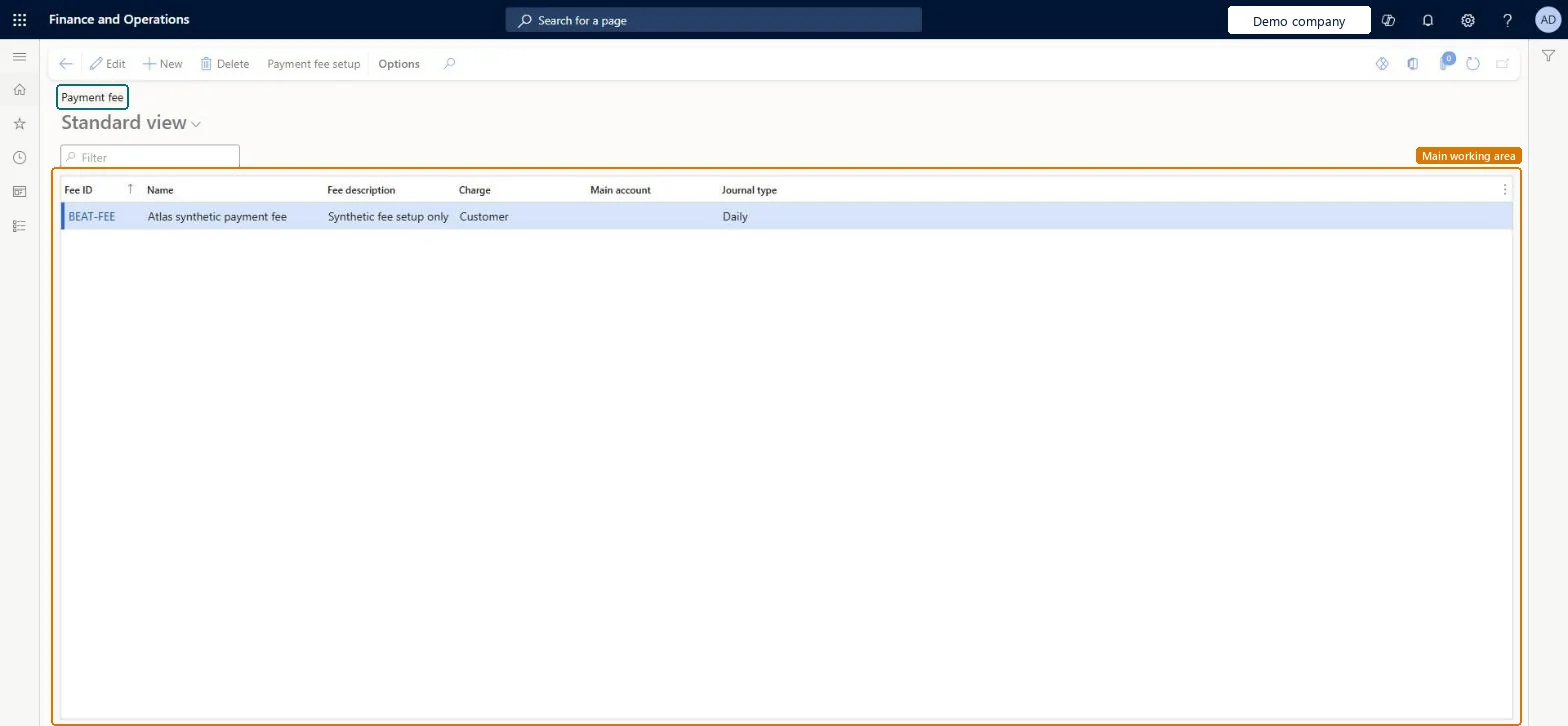
The page in Dynamics 365. page title tab to open what to set or check
About the examples: Examples and screenshots in this guide use BEAT, a demo company in a Dynamics 365 test environment. Use your own company's codes and values instead of copying them.
Step by step, with screenshots
Set up Payment fee1 screen
Create and maintain the payment fees that relate to customers, such as fees for bills of exchange.
Screen 1
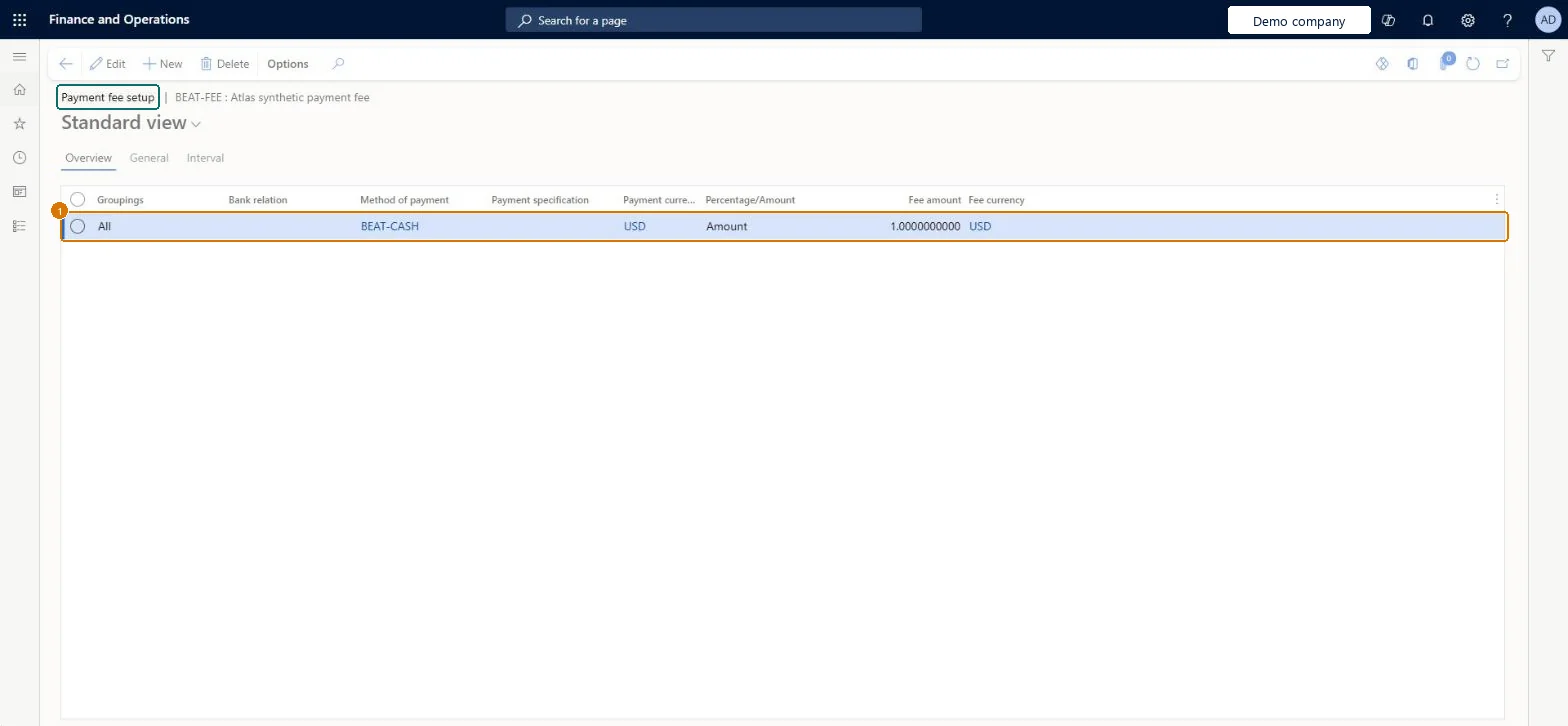
Set up the payment fee rule
Go to Accounts receivable > Payments setup > Payment fee, Payment fee setup
On Payment fee, select the fee BEAT-FEE and open its Payment fee setup
On the Overview tab, select New
Choose the method of payment and currency, then enter the fee as an amount
1Method of payment
BEAT-CASH
Payment currency
USD
Percentage/Amount
Amount
Fee amount
1.00
Fee currency
USD
Show the full screen page title tab to open what to set or check
Steps from Microsoft
Go to Accounts receivable > Payments setup > Payment fee.
Select New.
Enter a Fee ID, a Name and a Fee description.
In the Charge field, select Customer if the customer pays the fee, or Ledger if your organization pays it.
In the Journal type field, select the journal type that can use the fee, such as Customer payment.
Select Save, then select Payment fee setup.
In the Groupings field, select Table, Group or All, and in the Bank relation field, select the bank account or bank group.
Select the Method of payment and, if needed, the Payment currency that trigger the fee.
Choose whether the fee is a percent, an amount or an interval, and enter the value.
Charge = Customer and Journal type = Customer payment for fees you pass on; Charge = Ledger for bank fees you absorb; criteria defined in Payment fee setupLearn describes Customer for fees assessed to the customer and Ledger for fees expensed by your organization; Payment fee setup defines when the fee applies (bank, method of payment, currency).
Creating the fee without Payment fee setup lines: there are then no criteria, so the fee is not assessed on payments.
PrivilegesMaintain customer payment fees CustPaymFeeMaintainView customer payment fees CustPaymFeeViewDutiesInquire into collections status CollectionLetterCollectionsStatusInquirInquire into collections policies CollectionLetterCollectPoliciesInquireInquire into invoice and cash policies CustInvoiceInvoiceAndCashPoliciesInquirEnable invoice and cash process CustInvoiceInvoiceAndCashProcessEnableInquire into invoice and cash policies RentalCustInvInvoiceAndCashPolInquirEnable invoice and cash process RentalCustInvoiceInvAndCashProcEnable13 security rolesAuditor AuditPolicyManagerCollections agent CollectionLetterCollectionsAgentCollections manager CollectionLetterCollectionsManagerAccounts receivable clerk CustInvoiceAccountsReceivableClerkAccounts receivable manager CustInvoiceAccountsReceivableManagerAccountant LedgerAccountantAccounting manager LedgerAccountingManagerAccounting supervisor LedgerAccountingSupervisorFinancial controller LedgerFinancialControllerAccounts receivable centralized payments clerk PaymAccountsReceivableCentralPaymClerkAccounts receivable payments clerk PaymAccountsReceivablePaymentsClerkRental coordinator agent RentalCoordinatorAgentRental manager RentalManagerChecked in Dynamics 365
Roles to set it up and use it
To set it up or change itRental manager RentalManagerAccounts receivable manager CustInvoiceAccountsReceivableManagerRental coordinator agent RentalCoordinatorAgentCollections manager CollectionLetterCollectionsManagerAccounting supervisor LedgerAccountingSupervisorTo use itAccounts receivable clerk CustInvoiceAccountsReceivableClerkAccounts receivable payments clerk PaymAccountsReceivablePaymentsClerkAccounts receivable centralized payments clerk PaymAccountsReceivableCentralPaymClerkFinancial controller LedgerFinancialControllerAccountant LedgerAccountantGive people one of these roles. On this system, 13 roles can open this page.Checked in Dynamics 365
CustomerPaymentFeeEntity (Customer payment fee): loaded for each company, in Microsoft's default template 140 - Accounts receivable.Load order: Microsoft's default template 140 - Accounts receivable loads Customer payment fee at execution unit 1, level 30, sequence 10. Lower levels load first, and entities at the same level load in sequence order.Load first: the default templates at lower levels (System setup to General ledger)Microsoft Learn
Checked in a working Dynamics 365 system, version 10.0.49: the menu item, form, table and security, the page, the demo records and the values in the screenshots.
To cite this step: AR-PAYSETUP-060, Set up Payment fee. Beyond ERP Atlas Hub, 2026-11-11. https://www.beyonderp.cloud/atlas/step/AR-PAYSETUP-060