Setup page · Accounts receivable
Payment fee
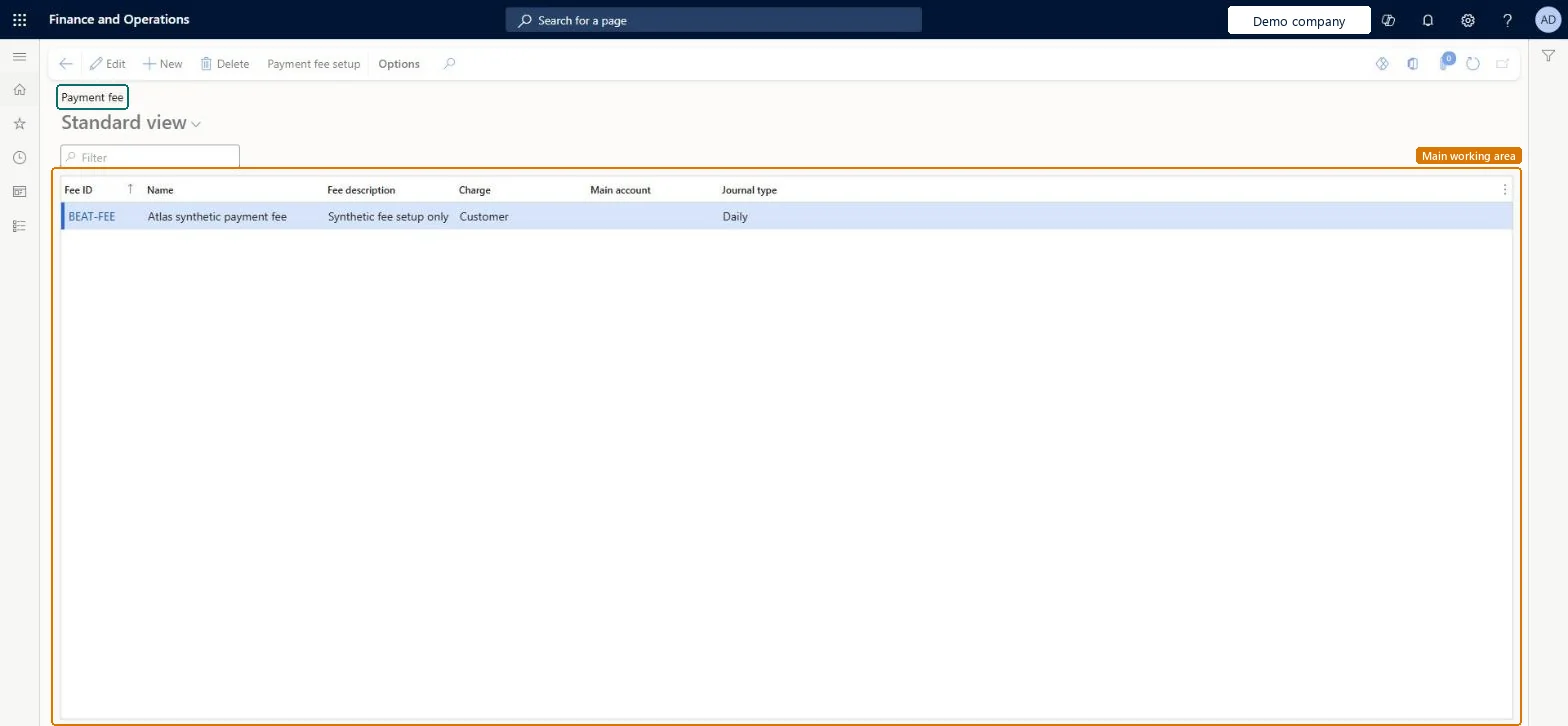
A setup page for payment fees on customer payments, each with a fee ID, name, description, charge type (customer or ledger) and journal type.
- Used by
- Accounts receivable clerk, Accounts receivable manager, Auditor and 10 more roles
- Business process
- Define customer payment processes in Dynamics 365 Finance
- Menu item
CustPaymFee- Main table
CustPaymFee- Data entity
CustomerPaymentFeeEntity- Setup steps
- 1 on this page
Show what matters for
Everyone
1What it is and why
| What it is | A setup page for payment fees on customer payments, each with a fee ID, name, description, charge type (customer or ledger) and journal type. |
|---|---|
| What you do here | Use it to create payment fees and, through Payment fee setup, define when they are assessed (bank account or group, method of payment, currency) and whether they are a percent, amount or interval. |
| Example | A company charges customers a fee when they pay by check instead of by electronic payment. |
Functional consultant · Solution architect
2Where it fits
| Business process | Develop sales policies › Define accounts receivable strategy › Define customer payment processes in Dynamics 365 Finance |
|---|---|
| Menu path | Accounts receivable › Payments setup › Payment fee |
| Set up first | Methods of payment Microsoft Learn ↗ |
| Used next by | Customer payment journal Microsoft Learn ↗ |
| Related pages | — |
End user · Functional consultant
3How to do it
Step by step, with screenshots
Set up Payment fee1 screen
Create and maintain the payment fees that relate to customers, such as fees for bills of exchange.
Screen 1
Set up the payment fee rule
Go to Accounts receivable > Payments setup > Payment fee, Payment fee setup
- On Payment fee, select the fee BEAT-FEE and open its Payment fee setup
- On the Overview tab, select New
- Choose the method of payment and currency, then enter the fee as an amount
1Method of payment BEAT-CASH Payment currency USD Percentage/Amount Amount Fee amount 1.00 Fee currency USD 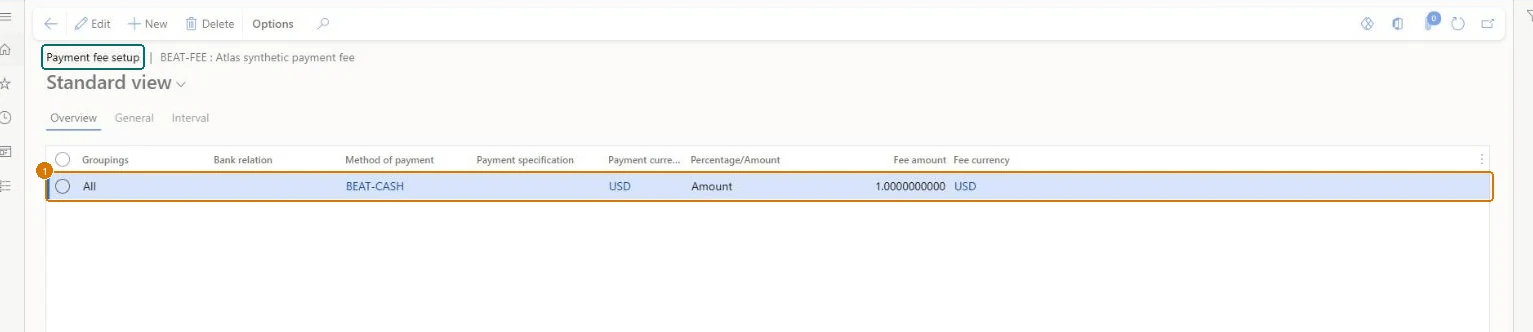
Show the full screen
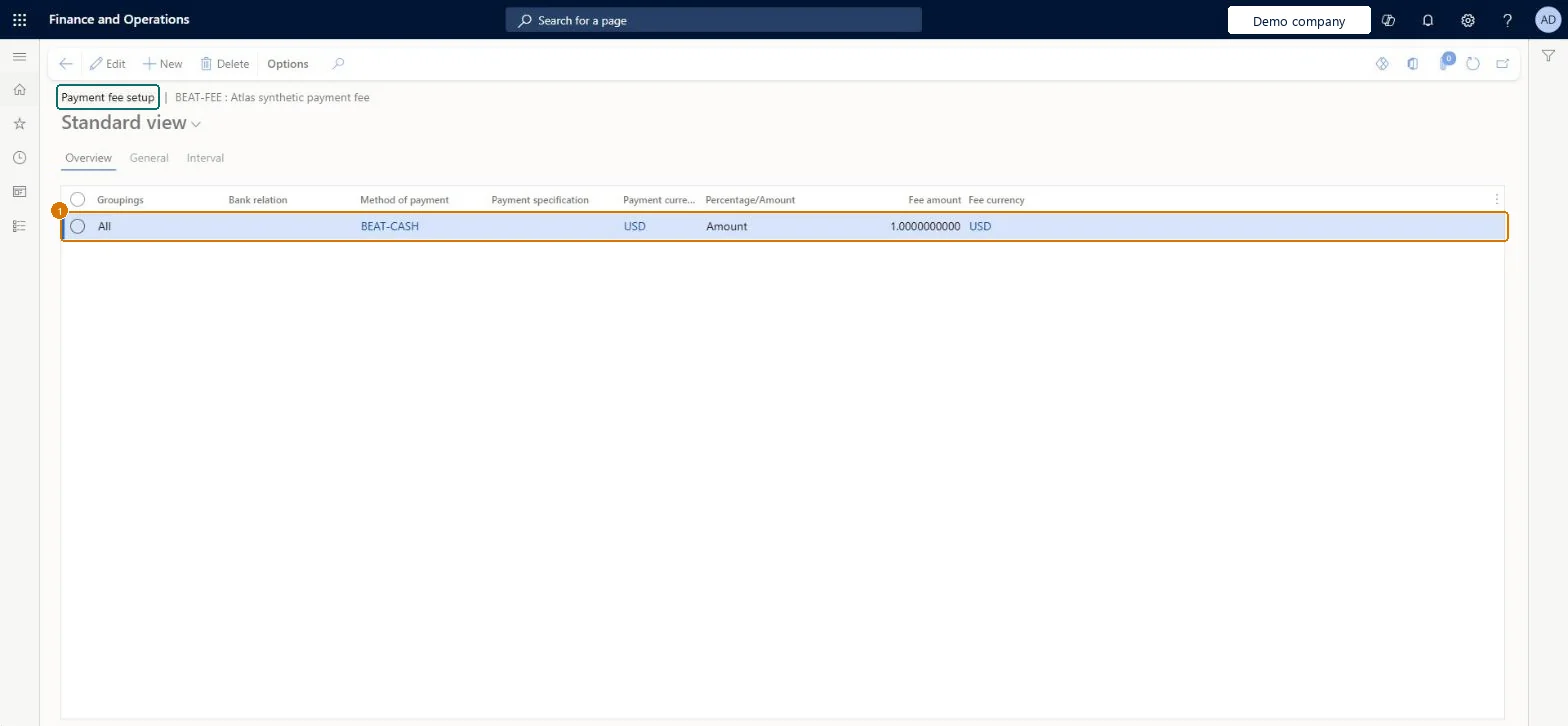
page title tab to open what to set or check
Microsoft's steps
- Go to Accounts receivable > Payments setup > Payment fee.
- Select New.
- Enter a Fee ID, a Name and a Fee description.
- In the Charge field, select Customer if the customer pays the fee, or Ledger if your organization pays it.
- In the Journal type field, select the journal type that can use the fee, such as Customer payment.
- Select Save, then select Payment fee setup.
- In the Groupings field, select Table, Group or All, and in the Bank relation field, select the bank account or bank group.
- Select the Method of payment and, if needed, the Payment currency that trigger the fee.
- Choose whether the fee is a percent, an amount or an interval, and enter the value.
- Select the Fee currency and then select Save.
Source: Microsoft Learn ↗
Field guide
| Field | What it means | Worked example | Table column |
|---|---|---|---|
| Fee ID | The fee ID shown on payment journals, so it should describe the fee.Microsoft Learn ↗ | — | FeeId |
| Charge | Who carries the fee: the customer, or a ledger account when your organization pays it as an expense.Microsoft Learn ↗ | — | — |
| Journal type | The type of journal that can use the fee, usually Customer payment.Microsoft Learn ↗ | — | — |
| Groupings | Whether the fee applies to one bank account, a bank group or all bank accounts.Microsoft Learn ↗ | — | — |
| Bank relation | The bank account or bank group the fee applies to.Microsoft Learn ↗ | — | — |
| Method of payment | The method of payment that triggers the fee, for example check.Microsoft Learn ↗ | BEAT-CASH | — |
| Payment currency | An extra condition: the fee applies only to payments in this currency.Microsoft Learn ↗ | USD | — |
| Percentage/Amount | Whether the value is a percent, an amount, or tiers set on the Interval tab.Microsoft Learn ↗ | Amount | — |
| Fee currency | The currency in which the fee is created.Microsoft Learn ↗ | USD | — |
| Fee amount | — | 1.00 | — |
Functional consultant
4Setup decisions
| Setup step | Recommended value and why | Decision · common mistake · test |
|---|---|---|
| Set up Payment fee | — | — |
Solution architect
5Design impact
| Shared or per company | Per company: each legal entity has its own records. Microsoft data model ↗ |
|---|---|
| Can it be undone | — |
| Feature or country | — |
| If you change it later | — |
Technical architect
6Technical
| Menu item | CustPaymFee Checked in Dynamics 365 |
|---|---|
| Form | CustPaymFee Checked in Dynamics 365 |
| Table | CustPaymFeeShown as “Customer payment fee” in Record infoChecked in Dynamics 365 |
| Data entities | CustomerPaymentFeeEntityCustomer payment fee Microsoft data model ↗ |
| Who can open it | PrivilegesMaintain customer payment fees CustPaymFeeMaintainView customer payment fees CustPaymFeeViewDutiesInquire into collections status CollectionLetterCollectionsStatusInquirInquire into collections policies CollectionLetterCollectPoliciesInquireInquire into invoice and cash policies CustInvoiceInvoiceAndCashPoliciesInquirEnable invoice and cash process CustInvoiceInvoiceAndCashProcessEnableInquire into invoice and cash policies RentalCustInvInvoiceAndCashPolInquirEnable invoice and cash process RentalCustInvoiceInvAndCashProcEnable13 security rolesAuditorAuditPolicyManagerCollections agent CollectionLetterCollectionsAgentCollections manager CollectionLetterCollectionsManagerAccounts receivable clerk CustInvoiceAccountsReceivableClerkAccounts receivable manager CustInvoiceAccountsReceivableManagerAccountant LedgerAccountantAccounting manager LedgerAccountingManagerAccounting supervisor LedgerAccountingSupervisorFinancial controller LedgerFinancialControllerAccounts receivable centralized payments clerk PaymAccountsReceivableCentralPaymClerkAccounts receivable payments clerk PaymAccountsReceivablePaymentsClerkRental coordinator agent RentalCoordinatorAgentRental manager RentalManager |
| Actions on the page | Buttons: Payment fee setupChecked in Dynamics 365 |
Developer
7Developer
| Open it directly | https://<your-environment>/?mi=CustPaymFee |
|---|---|
| Integrate with | CustomerPaymentFeeEntity data entity Microsoft data model ↗ |
| Table definition | CustPaymFee columns and relations Microsoft data model ↗ |
Everyone
8Sources and checks
- learn.microsoft.com/dynamics365/finance/accounts-receivable/tasks/establish-customer-payment-fees
- learn.microsoft.com/dynamics365/finance/accounts-receivable/accounts-receivables-set-up-overview
- learn.microsoft.com/dynamics365/finance/accounts-receivable/tasks/establish-customer-payment-fees
- learn.microsoft.com/common-data-model/schema/core/operationscommon/tables/finance/bank/group/custpaymfee
- Checked in a working Dynamics 365 system, version 10.0.49: the menu item, form, table and security, the page, the demo records and the values in the screenshots.