About the examples: Examples and screenshots in this guide use BEAT, a demo company in a Dynamics 365 test environment. Use your own company's codes and values instead of copying them.
Step by step, with screenshots
Set up Methods of payment5 screens
Create and maintain the methods by which customers pay the organization.
Screen 1
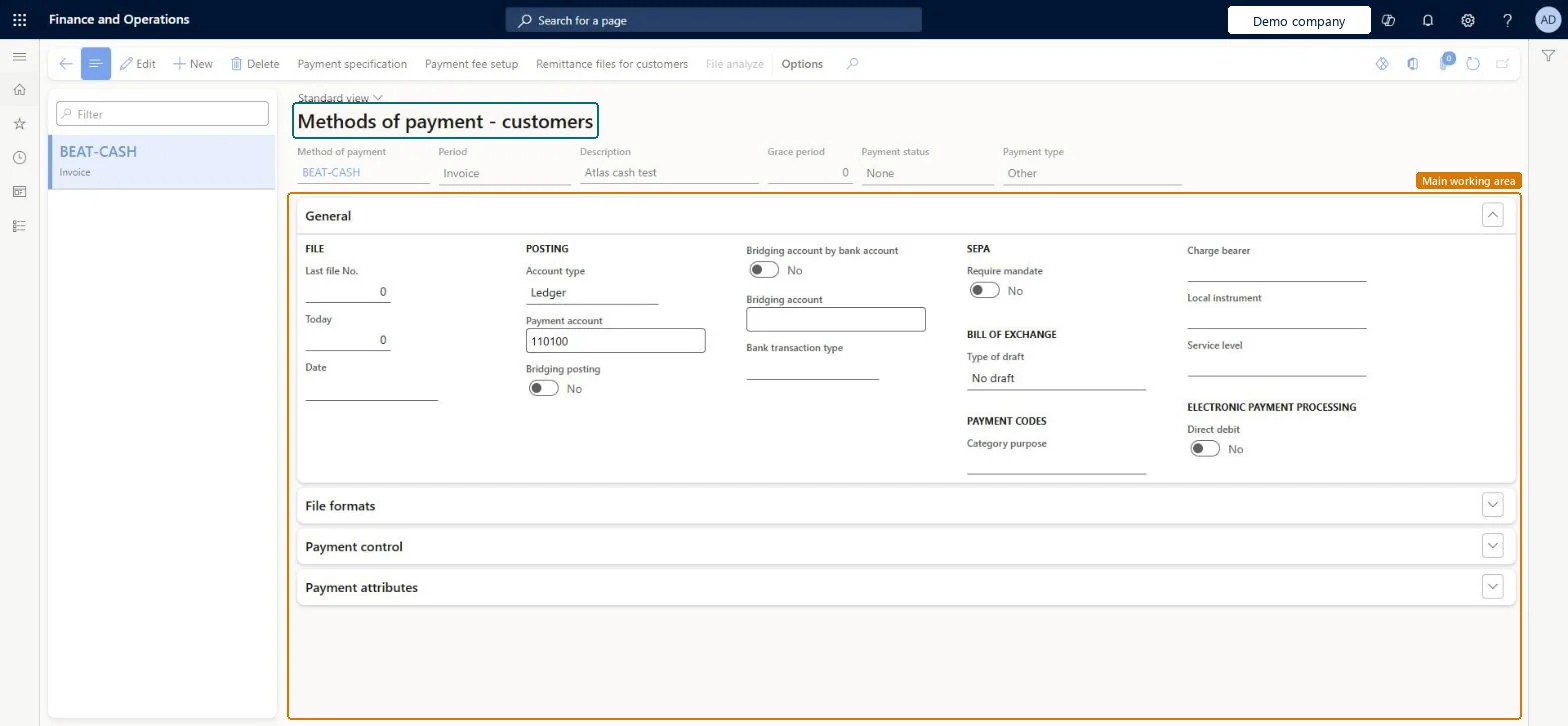
Create the customer method of payment
Go to Accounts receivable > Payments setup > Methods of payment
Select New and fill in the header fields
On the General FastTab, set Account type and Payment account
Leave Bridging posting set to No
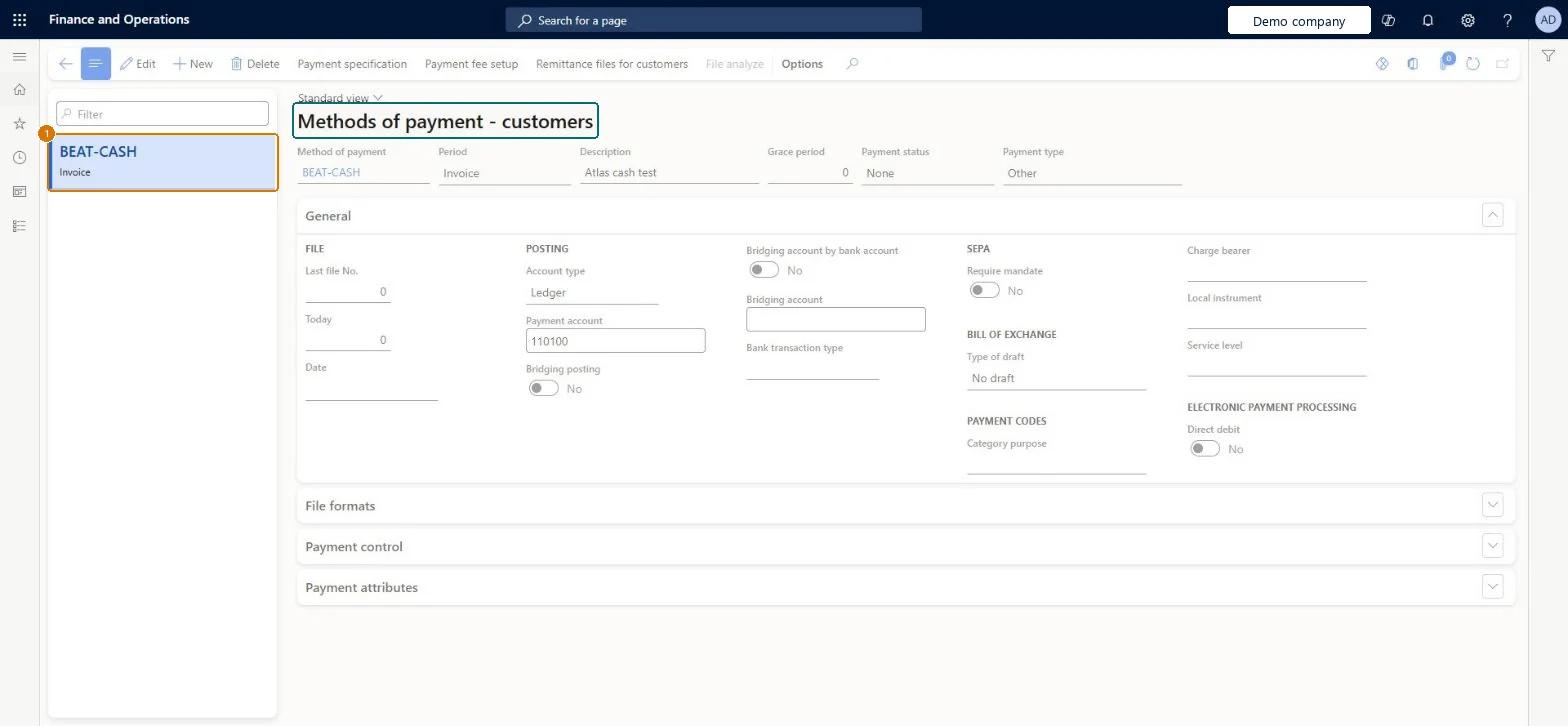
1Method of payment
BEAT-CASH
Period
Invoice
Description
Cash
Payment status
None
Payment type
Other
Account type
Ledger
Payment account
110100
Bridging posting
No
Show the full screen page title tab to open what to set or check
Screen 2
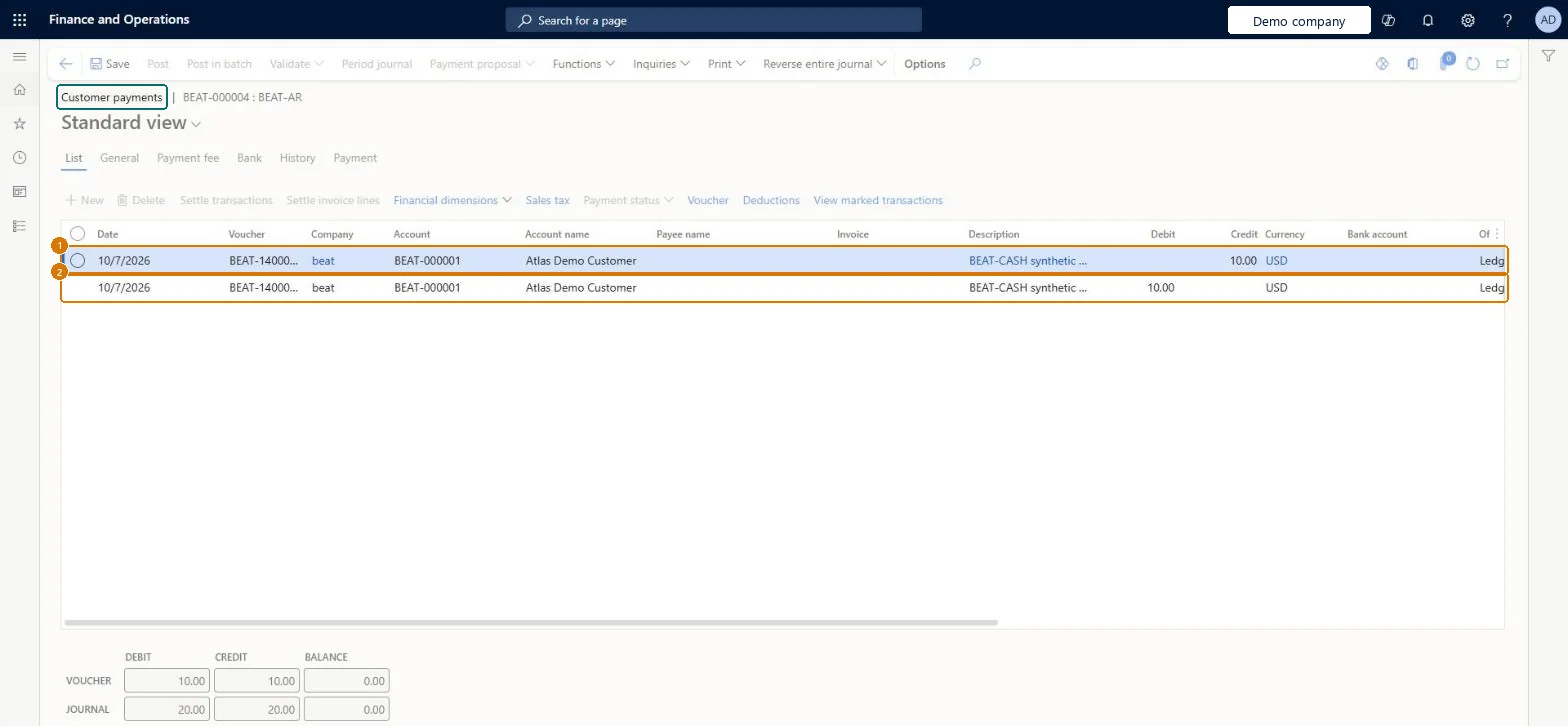
Post a customer payment journal
Go to Customer payments journal BEAT-000004, List tab
Open the customer payment journal
Review the lines on the List tab and the totals below
Check Lines BEAT-140000004 (credit 10.00) and BEAT-140000005 (debit 10.00 USD) for customer BEAT-000001 use offset type Ledger, and the voucher (10.00 = 10.00) and journal (20.00 = 20.00) both balance to 0.00.
Show the full screen page title tab to open what to set or check
Screen 3
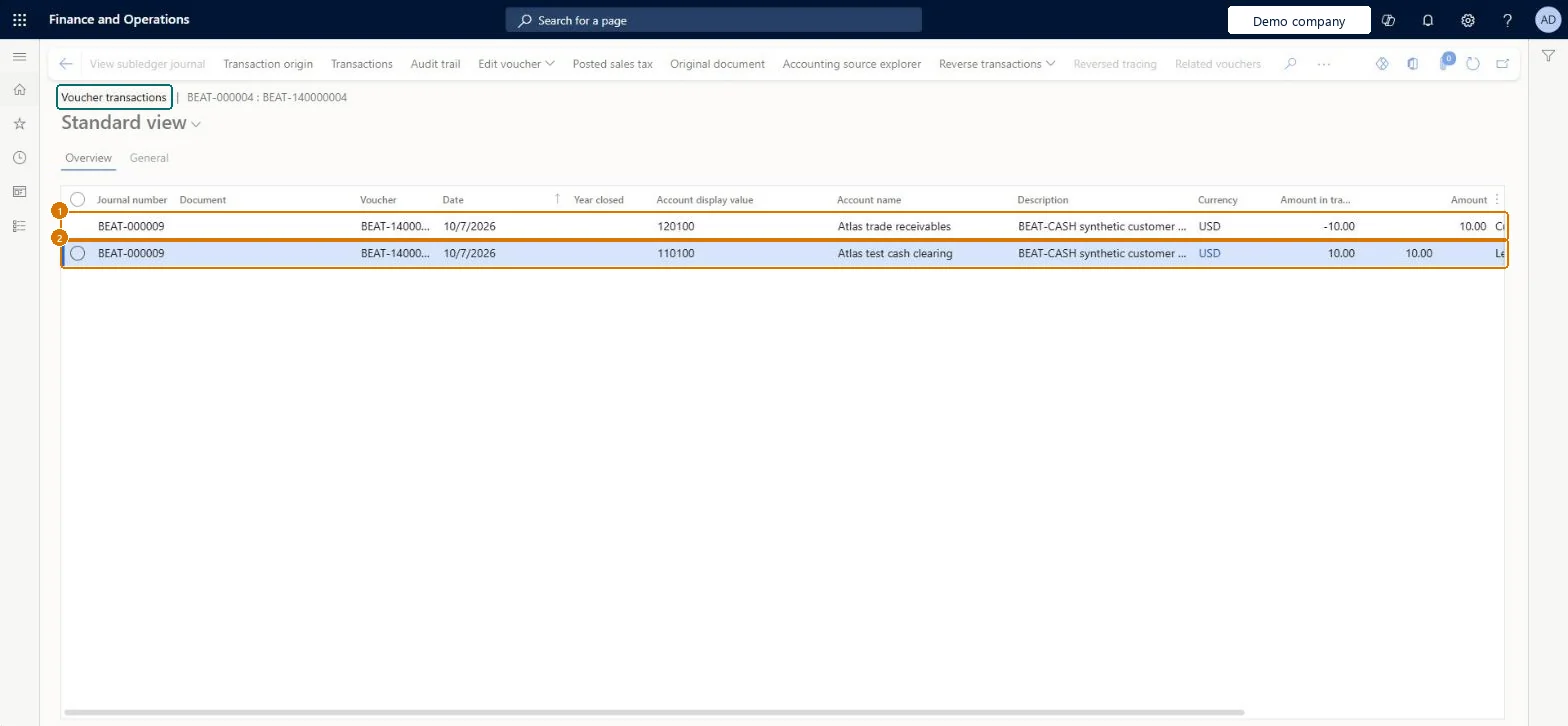
Check the payment voucher
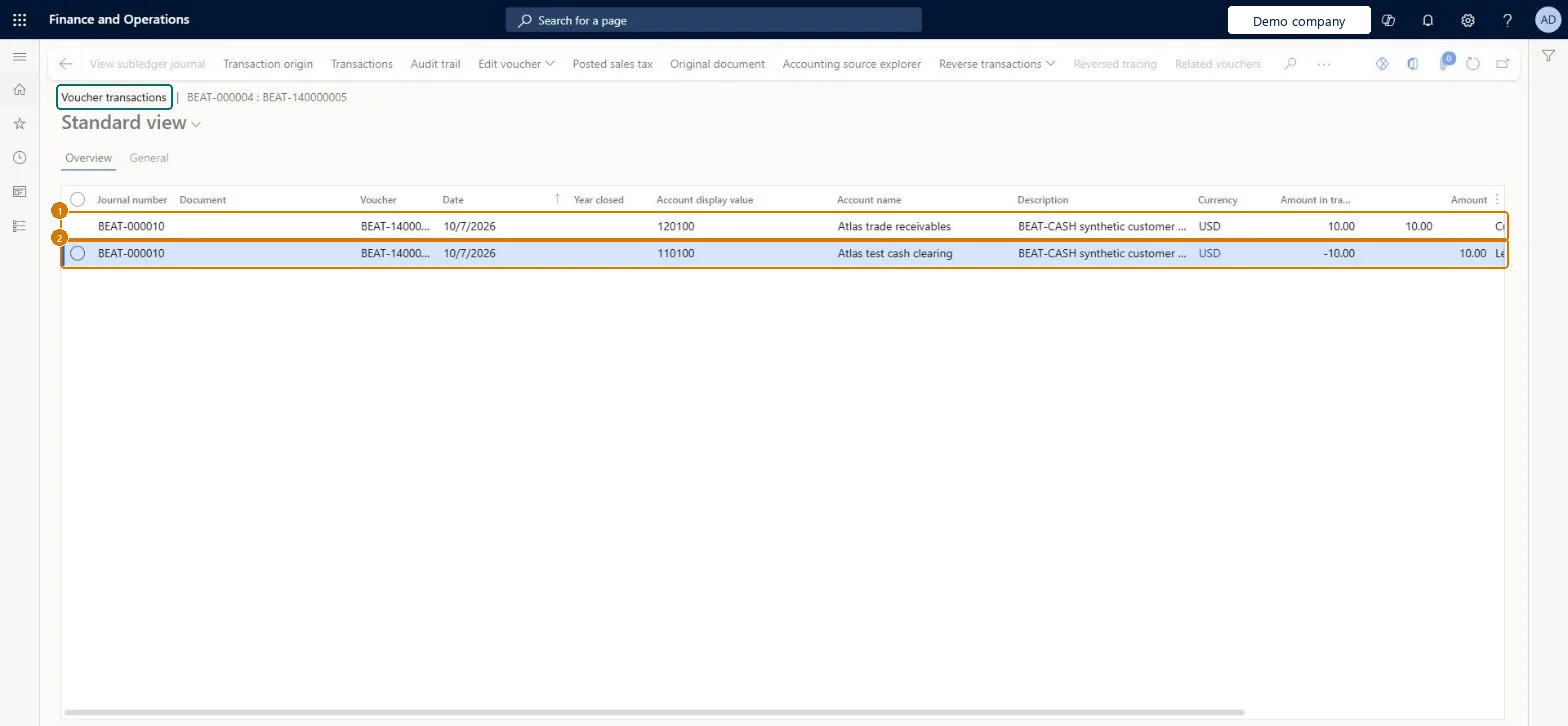
Go to Voucher transactions BEAT-140000004, Overview tab
Show the full screen page title tab to open what to set or check
Screen 4
Check the reversing voucher
Go to Voucher transactions BEAT-140000005, Overview tab
Open the voucher transactions for BEAT-140000005
Review the Overview tab
Check Voucher BEAT-140000005, dated 10/7/2026, posts 120100 +10.00 USD and 110100 -10.00 USD, the exact opposite of BEAT-140000004.
Show the full screen page title tab to open what to set or check
Screen 5
Check the payment settlement
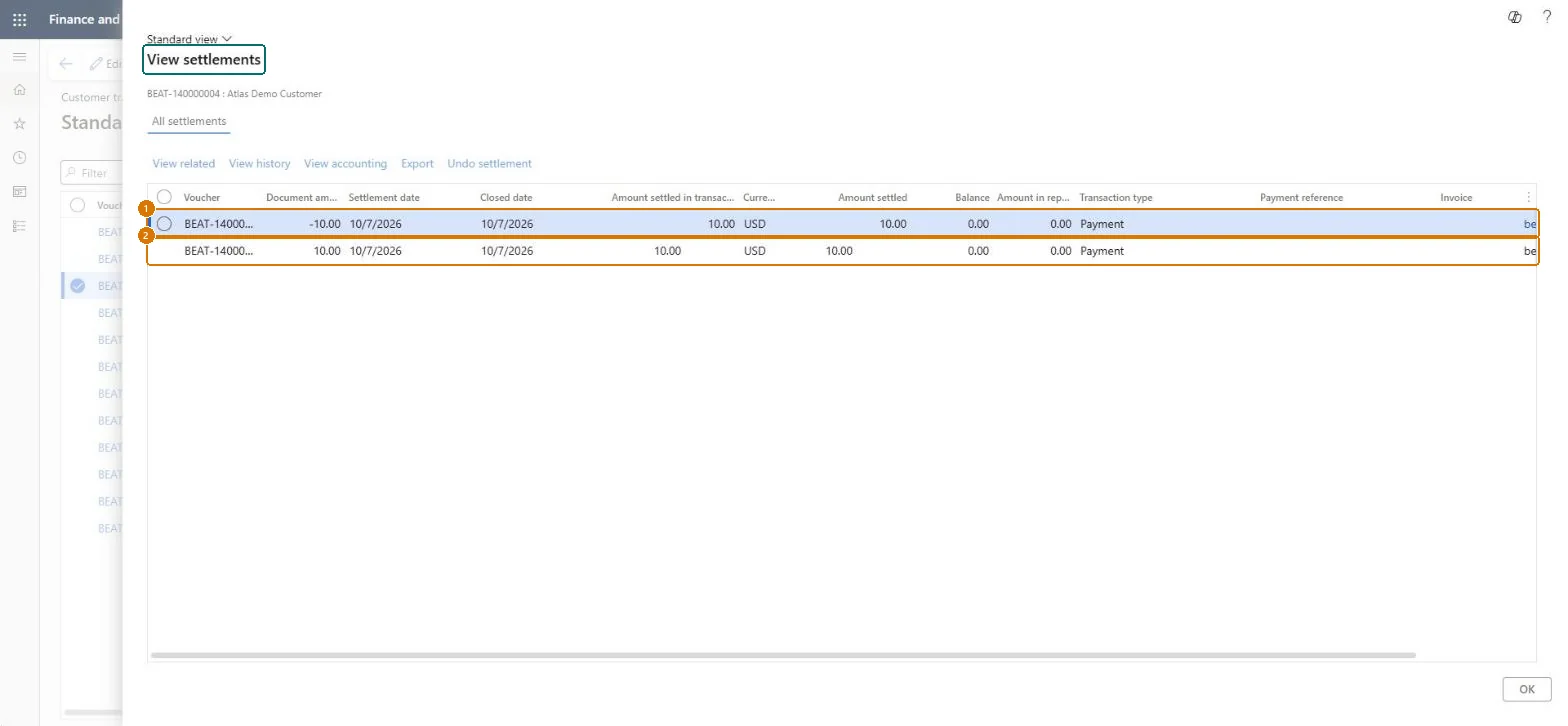
Go to Customer transactions > View settlements
Open the customer's transactions
Select voucher BEAT-140000004 and open View settlements
Check BEAT-140000004 (-10.00) and BEAT-140000005 (10.00 USD) are each settled 10.00, with settlement and closed dates of 10/7/2026 and a balance of 0.00.
Show the full screen page title tab to open what to set or check
Steps from Microsoft
Go to Accounts receivable > Payments setup > Methods of payment.
Select New.
In the Method of payment field, enter a clear ID, and enter a Description.
Select the payment status a payment must have before it can be posted.
Select how payments are created for invoices when you run a payment proposal, and select the payment type.
Select the account type, usually Bank, and the bank account that receives the payment.
Enter the Bank transaction type to help bank reconciliation.
If payments should post to a bridging account until they clear the bank, turn on bridging and enter the bridging main account.
Use the File format, Payment control and Payment attributes tabs for electronic formats, mandatory fields and attributes.
One method of payment per way customers pay and per receiving bank account, with Account type = Bank and a Bank transaction typeLearn says the method ID shows on invoices and payments and should say what payment and which bank it is; Bank is the usual account type, and the bank transaction type makes bank reconciliation easier.
Setting a required Payment status that the team never sets: a customer payment can only be posted when its payment status matches the one on the method.
PrivilegesMaintain customer methods of payment CustPaymModeMaintainView customer methods of payment CustPaymModeViewDutiesInquire into collections status CollectionLetterCollectionsStatusInquirInquire into collections policies CollectionLetterCollectPoliciesInquireInquire into invoice and cash policies CustInvoiceInvoiceAndCashPoliciesInquirEnable invoice and cash process CustInvoiceInvoiceAndCashProcessEnableMaintain customer payments PaymCustomerPaymentsMaintainInquire into invoice and cash policies RentalCustInvInvoiceAndCashPolInquirEnable invoice and cash process RentalCustInvoiceInvAndCashProcEnableMaintain customer invoices for payment RentalCustomerPaymentMaintain13 security rolesAuditor AuditPolicyManagerCollections agent CollectionLetterCollectionsAgentCollections manager CollectionLetterCollectionsManagerAccounts receivable clerk CustInvoiceAccountsReceivableClerkAccounts receivable manager CustInvoiceAccountsReceivableManagerAccountant LedgerAccountantAccounting manager LedgerAccountingManagerAccounting supervisor LedgerAccountingSupervisorFinancial controller LedgerFinancialControllerAccounts receivable centralized payments clerk PaymAccountsReceivableCentralPaymClerkAccounts receivable payments clerk PaymAccountsReceivablePaymentsClerkRental coordinator agent RentalCoordinatorAgentRental manager RentalManagerChecked in Dynamics 365
Roles to set it up and use it
To set it up or change itRental manager RentalManagerAccounts receivable manager CustInvoiceAccountsReceivableManagerRental coordinator agent RentalCoordinatorAgentCollections manager CollectionLetterCollectionsManagerAccounting supervisor LedgerAccountingSupervisorTo use itAccounts receivable clerk CustInvoiceAccountsReceivableClerkAccounts receivable payments clerk PaymAccountsReceivablePaymentsClerkAccounts receivable centralized payments clerk PaymAccountsReceivableCentralPaymClerkFinancial controller LedgerFinancialControllerAccountant LedgerAccountantGive people one of these roles. On this system, 13 roles can open this page.Checked in Dynamics 365
Actions on the page
Options: Personalize, Page options, ShareChecked in Dynamics 365
CustomerPaymentMethodEntity (Customer payment method): loaded for each company, in Microsoft's default template 140 - Accounts receivable.Load order: Microsoft's default template 140 - Accounts receivable loads Customer payment method at execution unit 1, level 140, sequence 10. Lower levels load first, and entities at the same level load in sequence order.Load first: Journal names, the default templates at lower levels (System setup to Tax)Microsoft Learn
Checked in a working Dynamics 365 system, version 10.0.49: the menu item, form, table and security, the page, the demo records and the values in the screenshots.
To cite this step: AR-PAYSETUP-030, Set up Methods of payment. Beyond ERP Atlas Hub, 2026-11-11. https://www.beyonderp.cloud/atlas/step/AR-PAYSETUP-030