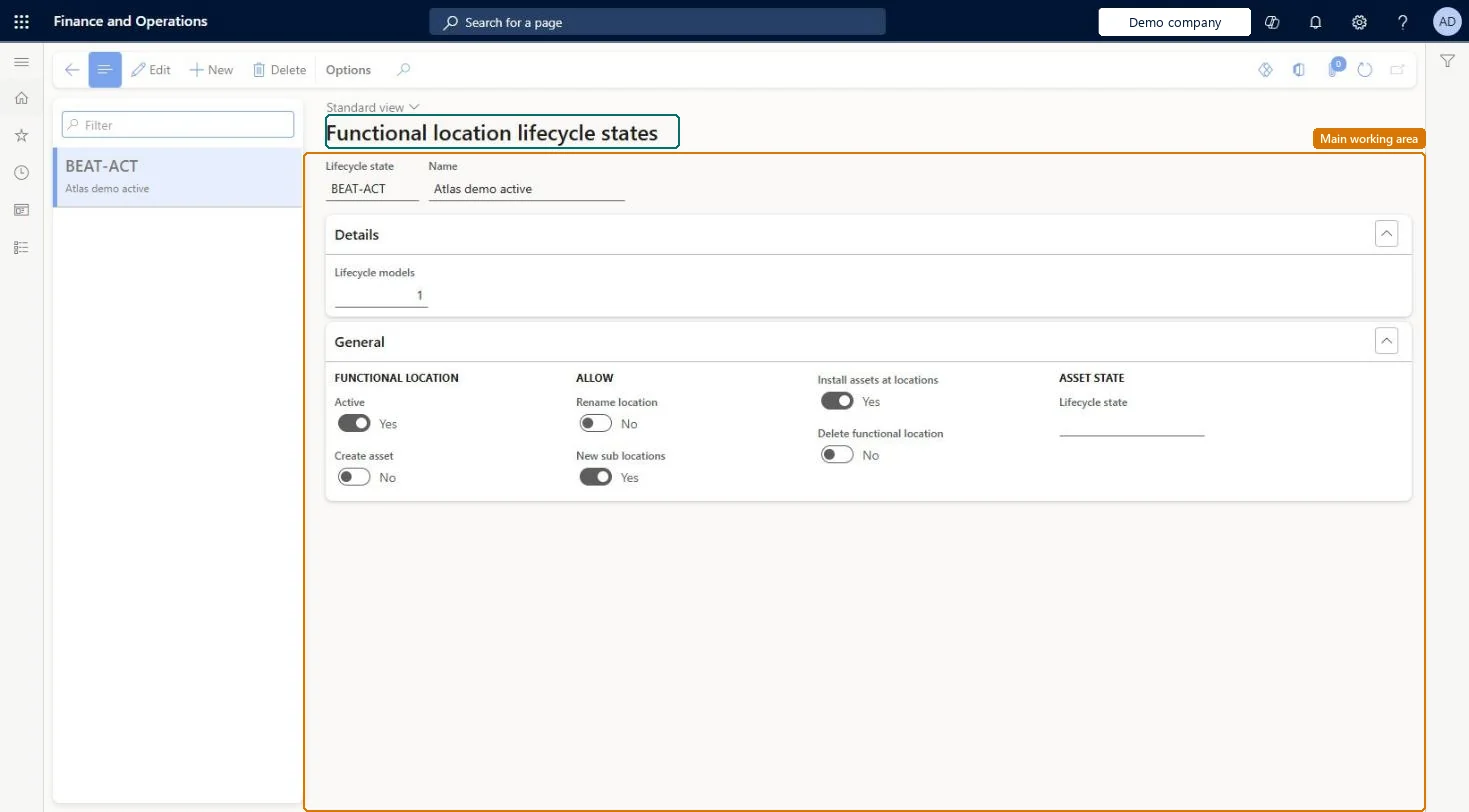
Setup step on the Lifecycle states page · Asset management
Set up Functional location lifecycle states
Use this page to create the states for functional locations and decide, for each state, whether the location is active and what is allowed, such as installing assets or adding sub locations.
SETUP GUIDEHow to set it up8 sections. Choose a role to highlight what matters to you.
Everyone
1What it is and why
What it is
A setup page for functional location lifecycle states, which define the states a functional location can go through, such as created, active, and ended.
What you do here
Use this page to create the states for functional locations and decide, for each state, whether the location is active and what is allowed, such as installing assets or adding sub locations.
Example
For example, an Ended state can change the lifecycle state of all assets installed on the functional location to Not in use when the location is closed down.
The page in Dynamics 365. page title tab to open what to set or check
About the examples: Examples and screenshots in this guide use BEAT, a demo company in a Dynamics 365 test environment. Use your own company's codes and values instead of copying them.
Setup steps on this page
Set up Functional location lifecycle states
Use this page to create the states for functional locations and decide, for each state, whether the location is active and what is allowed, such as installing assets or adding sub locations.
Steps from Microsoft
Go to Asset management > Setup > Functional locations > Lifecycle states.
Select New.
Enter the state ID in the Lifecycle state field and a name in the Name field.
On the General FastTab, set the Active option.
Set the Create assets, Rename location, New sub locations, and Install assets options as needed.
In the Lifecycle state field, select an asset state if installed assets should be updated automatically.
A first state that allows New sub locations and Rename location; an Active state that allows Install assets; and a non-active Scrapped or Deleted state for locations you can't deleteLearn says you may need to create all sub locations and then change the state before installing assets, and suggests a non-active Scrapped or Deleted state when a location can't be deleted.
Selecting an asset Lifecycle state on an ending state without realising it changes the lifecycle state of every asset installed on the location when the location reaches that state.
Solution architect
5Design impact
Can it be undone
Hard to reverse: Moving a location to a state with an asset lifecycle state selected updates all installed assets at once; they must be set back one by one or in bulk.
If you change it later
A state with an asset lifecycle state selected updates the lifecycle state of every asset installed on the functional location when the location reaches that state. Microsoft Learn
Technical architect
6Technical
Menu item
EntAssetFunctionalLocationLifecycleStateChecked in Dynamics 365
Form
EntAssetFunctionalLocationLifecycleStateChecked in Dynamics 365
Table
EntAssetFunctionalLocationLifecycleStateShown as “FUNCTIONAL LOCATION LIFECYCLE STATES” in Record infoKey field: FunctionalLocationLifecycleStateIdChecked in Dynamics 365
Data entities
EntAssetMaintenanceFunctionalLocationLifecycleStateEntityAsset management functional location lifecycle states Checked in Dynamics 365
To set it up or change itMaintenance manager EntAssetMaintenanceManagerTo use itMaintenance clerk EntAssetMaintenanceClerkGive people one of these roles. On this system, 2 roles can open this page.Checked in Dynamics 365
Checked in a working Dynamics 365 system, version 10.0.49: the menu item, form, table and security, the page.
To cite this step: AM-FL-030, Set up Functional location lifecycle states. Beyond ERP Atlas Hub, 2026-11-11. https://www.beyonderp.cloud/atlas/step/AM-FL-030