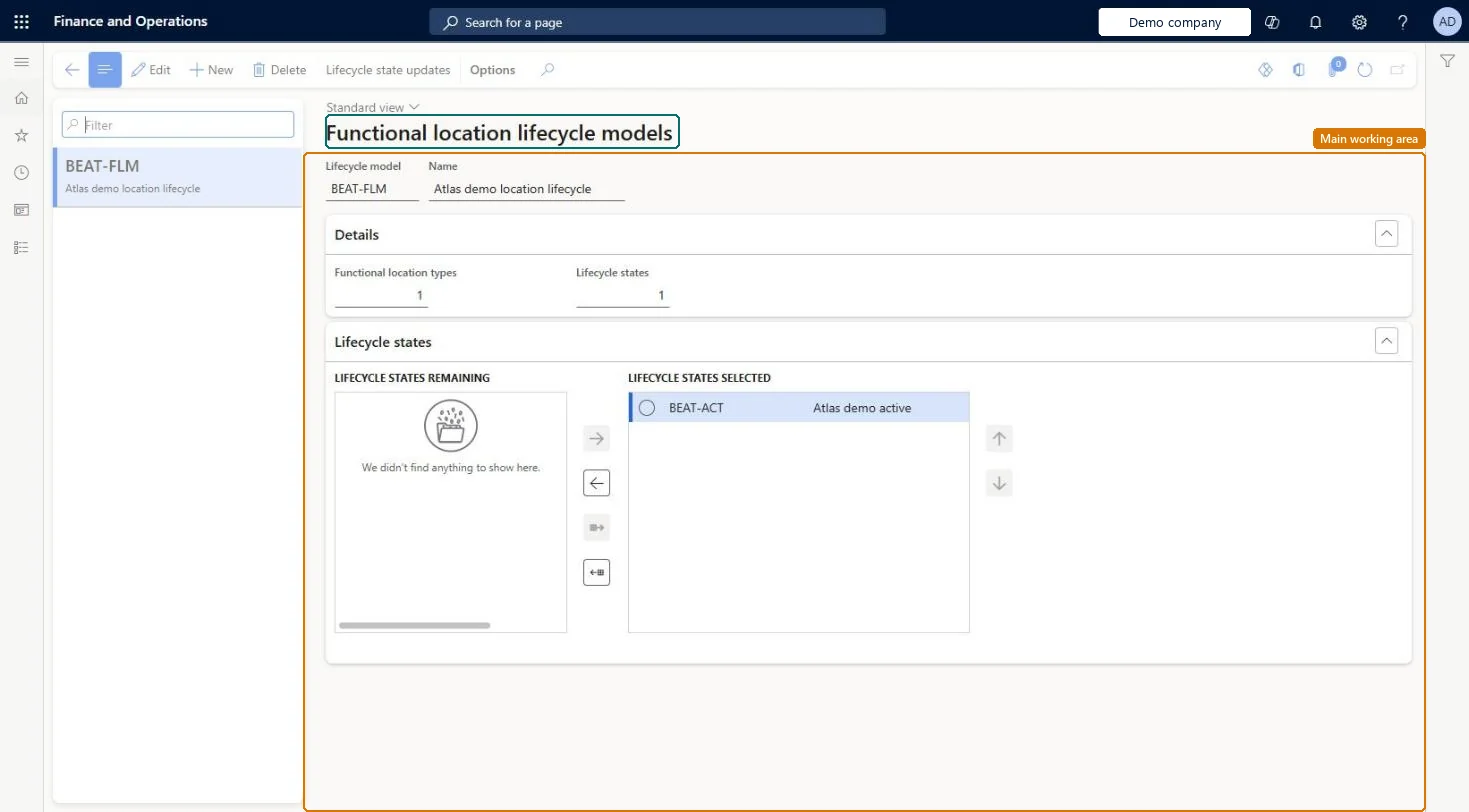
About the examples: Examples and screenshots in this guide use BEAT, a demo company in a Dynamics 365 test environment. Use your own company's codes and values instead of copying them.
Setup steps on this page
Set up Functional location lifecycle models
Use this page to define the flow of lifecycle states that different types of functional locations follow.
Steps from Microsoft
Go to Asset management > Setup > Functional locations > Lifecycle models.
Select New.
Enter an ID in the Lifecycle model field and a name in the Name field.
On the Lifecycle states FastTab, move the states to include from Lifecycle states remaining to Lifecycle states selected.
Select Lifecycle state updates to define which states can follow each state.
At least one standard functional location lifecycle model, with Lifecycle state updates defined for each stateLearn says a minimum of one standard model should be created, and Lifecycle state updates define which states can follow a selected state.
Leaving Lifecycle state updates undefined, so the model doesn't control which state can follow which and locations can be moved to the wrong state.
Solution architect
5Design impact
Can it be undone
Reversible: The model can be edited; the change applies to every functional location type that uses it, so check the Functional location types count first. Microsoft Learn
Technical architect
6Technical
Menu item
EntAssetFunctionalLocationLifecycleModelChecked in Dynamics 365
Form
EntAssetFunctionalLocationLifecycleModelChecked in Dynamics 365
Table
EntAssetFunctionalLocationLifecycleModelShown as “FUNCTIONAL LOCATION LIFECYCLE MODELS” in Record infoKey field: FunctionalLocationLifecycleModelIdChecked in Dynamics 365
Data entities
EntAssetMaintenanceFunctionalLocationLifecycleModelEntityAsset management functional location lifecycle models Checked in Dynamics 365
To set it up or change itMaintenance manager EntAssetMaintenanceManagerTo use itMaintenance clerk EntAssetMaintenanceClerkGive people one of these roles. On this system, 2 roles can open this page.Checked in Dynamics 365
Actions on the page
(Action Pane without tabs): Lifecycle state updatesChecked in Dynamics 365