BeyondERP.Newsletter
Menu

Setup page · Asset management

Functional location types

A setup page where you define types of functional locations and the rules for them, such as which asset types can be installed and which maintenance plans apply.

Used by
Maintenance clerk, Maintenance manager
Business process
Classify assets
Menu item
EntAssetFunctionalLocationType
Main table
EntAssetFunctionalLocationType
Data entity
EntAssetMaintenanceFunctionalLocationTypeEntity
Setup steps
1 on this page
Show what matters for
PAGE GUIDEWhat the page does and how to use it8 sections. Choose a role to highlight what matters to you.
Everyone

1What it is and why

What it isA setup page where you define types of functional locations and the rules for them, such as which asset types can be installed and which maintenance plans apply.
What you do hereUse this page to set the lifecycle model, installation rules, maintenance plans, and attributes that apply to every functional location of a type.
ExampleFor example, you create a simple Default type that allows multiple assets, for the default functional location used only when you create new assets.
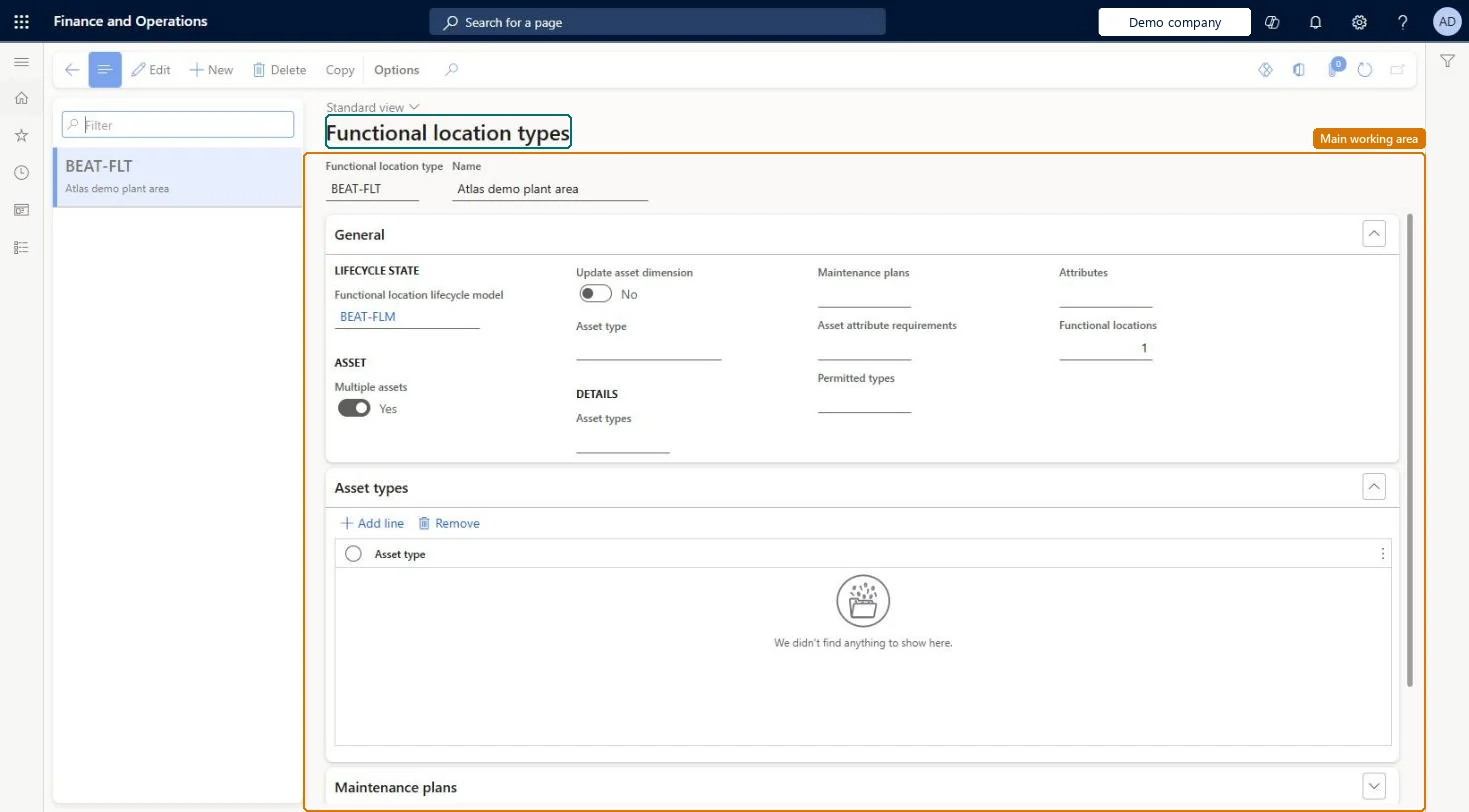
Functional location types page in Dynamics 365
The page in Dynamics 365. page title tab to open what to set or check
Functional consultant · Solution architect

2Where it fits

Business processDefine asset strategy › Classify assets
Menu pathAsset management › Setup › Functional locations › Functional location types
Set up firstLifecycle models (functional locations) Microsoft Learn
Used next byAll functional locations Microsoft Learn
End user · Functional consultant

3How to do it

About the examples: Examples and screenshots in this guide use BEAT, a demo company in a Dynamics 365 test environment. Use your own company's codes and values instead of copying them.

Setup steps on this page

Set up Functional location types

Use this page to set the lifecycle model, installation rules, maintenance plans, and attributes that apply to every functional location of a type.

Steps from Microsoft

  1. Go to Asset management > Setup > Functional locations > Functional location types.
  2. Select New.
  3. Enter an ID in the Functional location type field and a name in the Name field.
  4. In the Functional location lifecycle model field, select a lifecycle model.
  5. Set Multiple assets and Update asset dimension as needed.
  6. On the Asset types and Maintenance plans FastTabs, add the asset types and maintenance plans that apply.

Source: Microsoft Learn

Fields on the page

FieldWhat it meansTable column
Functional location lifecycle modelThe lifecycle model used by functional locations of this type.Microsoft Learn FunctionalLocationLifecycleModel
Multiple assetsAllows several assets to be installed on a functional location of this type; No allows only one.Microsoft Learn AllowMultipleInstalledObjects
Update asset dimensionMakes installed assets use the financial dimensions of the functional location.Microsoft Learn UpdateObjectDimension
Asset typeCreates one asset with the same ID and name as the functional location, for example for a building or pipeline.Microsoft Learn ObjectType
Asset types (FastTab)Limits which asset types can be installed; when empty, all asset types can be installed.Microsoft Learn
Maintenance plans (FastTab)Maintenance plans set up automatically on new functional locations of this type.Microsoft Learn
Permitted types (FastTab)The functional location types allowed for sub locations under a location of this type.Microsoft Learn

Test checklist

  1. Create a type with Multiple assets = No and one asset type on the Asset types FastTab.
  2. Create a functional location of that type, install one asset of the allowed type, then try a second asset and check it is refused.
  3. Try to install an asset of another asset type and check it is refused.
  4. On a type with Update asset dimension = Yes, change a financial dimension on the location and check the installed asset is updated.

Source: Microsoft Learn

Functional consultant

4Setup decisions

Setup stepRecommended value and whyDecision, common mistake and test
Set up Functional location typesA simple Default type with Multiple assets = Yes and no other rules, used only for the default functional location; separate types with asset type, plan and permitted-type rules for real locationsLearn says the default type should be simple, allow multiple assets, and have no more requirements, because the default location only holds new assets until they are installed.Should assets installed on locations of this type take the location's financial dimensions (Update asset dimension)?Filling the Asset type field (auto-create one asset) while Multiple assets is Yes. Learn says Multiple assets must be No when Asset type is used.
Solution architect

5Design impact

Can it be undoneHard to reverse: Rules on the type are copied onto new functional locations when they are created, so changes don't reach existing locations. With Update asset dimension = Yes, each dimension change on a location overwrites the dimensions of every asset installed there. Microsoft Learn
If you change it laterWith Update asset dimension set to Yes, a change to a functional location's financial dimensions is copied to all assets installed on it. Microsoft Learn
Technical architect

6Technical

Menu itemEntAssetFunctionalLocationType Checked in Dynamics 365
FormEntAssetFunctionalLocationType Checked in Dynamics 365
TableEntAssetFunctionalLocationTypeShown as “FUNCTIONAL LOCATION TYPES” in Record infoKey field: FunctionalLocationTypeIdChecked in Dynamics 365
Data entitiesEntAssetMaintenanceFunctionalLocationTypeEntityAsset management functional location types Checked in Dynamics 365
Who can open itPrivilegesMaintain maintenance management setup EntAssetSetupMaintainView maintenance management setup EntAssetSetupViewDutiesMaintain Asset Management setup EntAssetSetupMaintainView Enterprise Asset Management setup EntAssetSetupView
2 security rolesMaintenance clerk EntAssetMaintenanceClerkMaintenance manager EntAssetMaintenanceManager
Checked in Dynamics 365
Roles to set it up and use itTo set it up or change itMaintenance manager EntAssetMaintenanceManagerTo use itMaintenance clerk EntAssetMaintenanceClerkGive people one of these roles. On this system, 2 roles can open this page.Checked in Dynamics 365
Actions on the page(Action Pane without tabs): CopyChecked in Dynamics 365
Developer

7Developer

Open it by URLhttps://<your-environment>/?mi=EntAssetFunctionalLocationType
Integrate withEntAssetMaintenanceFunctionalLocationTypeEntity data entity Checked in Dynamics 365
Everyone

8Sources